Roughly a year after version 1.0 was made generally available, we’re thrilled to launch the next major release of Scrite – version 2.
We’ve completely reimagined Scrite from the ground up. Significant parts of the codebase have been rewritten or refactored, not only to supercharge performance and optimize memory, but also to prepare for future product updates – as we enter the next stage of Scrite’s development.
We’ve listened closely to our community this year through subscription patterns, email feedback, and Discord conversations. Given how the code was structured up until version 1.2.3, building many of your hotly requested features would have been extremely challenging.
For version 2, our mission was clear: build a rock-solid foundation for years to come while delivering some of your most-wanted features. We’re excited to say we’ve achieved exactly that. This page outlines everything you can expect in version 2.
Table Of Contents
New Features
International Language Support
We’ve rebuilt the language support module, making Scrite truly multilingual. By default, Scrite comes bundled with support for 11 Indian languages plus your OS default language (typically English). But here’s the exciting part: you can now open the language menu, click on “More languages…” and configure any local or international language you need.
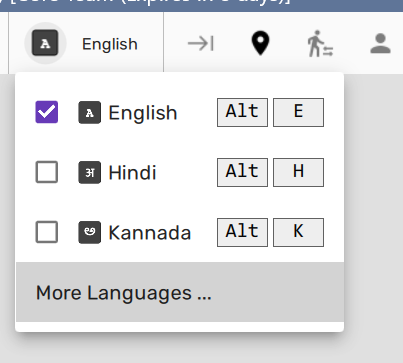
The language options dialog lists English and 11 Indian languages by default, but you have complete control – remove languages you don’t need and add the ones you do, making using Scrite a more personalized experience.
Adding a new language is effortless: just click the ‘Add Language’ button and type the language name.

Note: Only LTR languages can be added at this point. In a future update, we intend to support RTL languages too.
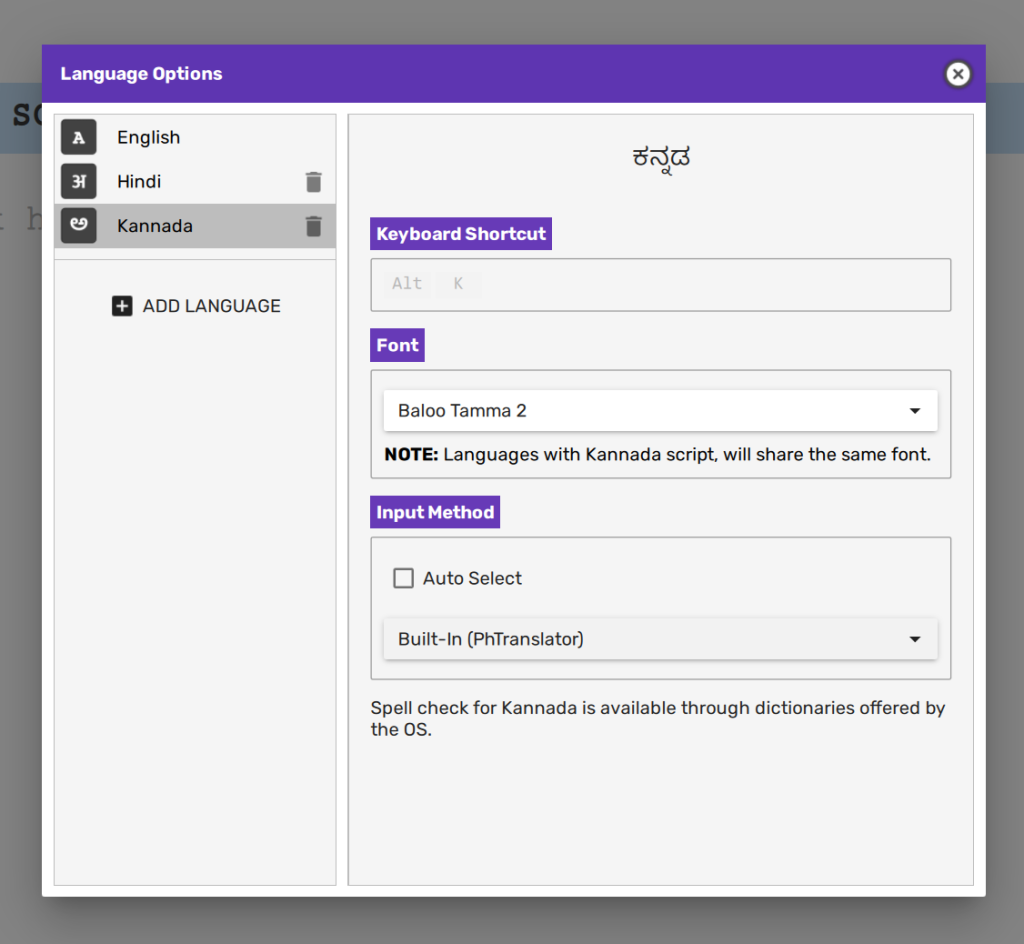
Once a language is added, you can assign a keyboard shortcut to switch to that language while typing. You can even assign a new font, or change the input method mapping Scrite must use for that language. By default, Scrite uses whatever input method is already configured in your OS for a given language, before attempting to look for ones bundled into the app.
On Linux desktops, Scrite makes use of IBus to query support for input methods. Please install and configure IBUS support by looking up instructions for the same on the Internet.
If dictionaries for the language are installed as part of a language pack in your OS, Scrite automatically leverages them to provide intelligent spelling suggestions.

Note: Scrite intelligently detects keyboards configured in your OS and automatically adds those languages to the Language menu upon restarting. In most cases, you won’t need to manually configure anything – Scrite seamlessly syncs with the language support already configured in your OS.
Tagging Keywords to Scenes
Many users wanted the ability to tag custom keywords to scenes, in addition to formal structure beats. The enhanced screenplay editor now features a dedicated row for keywords in every scene.
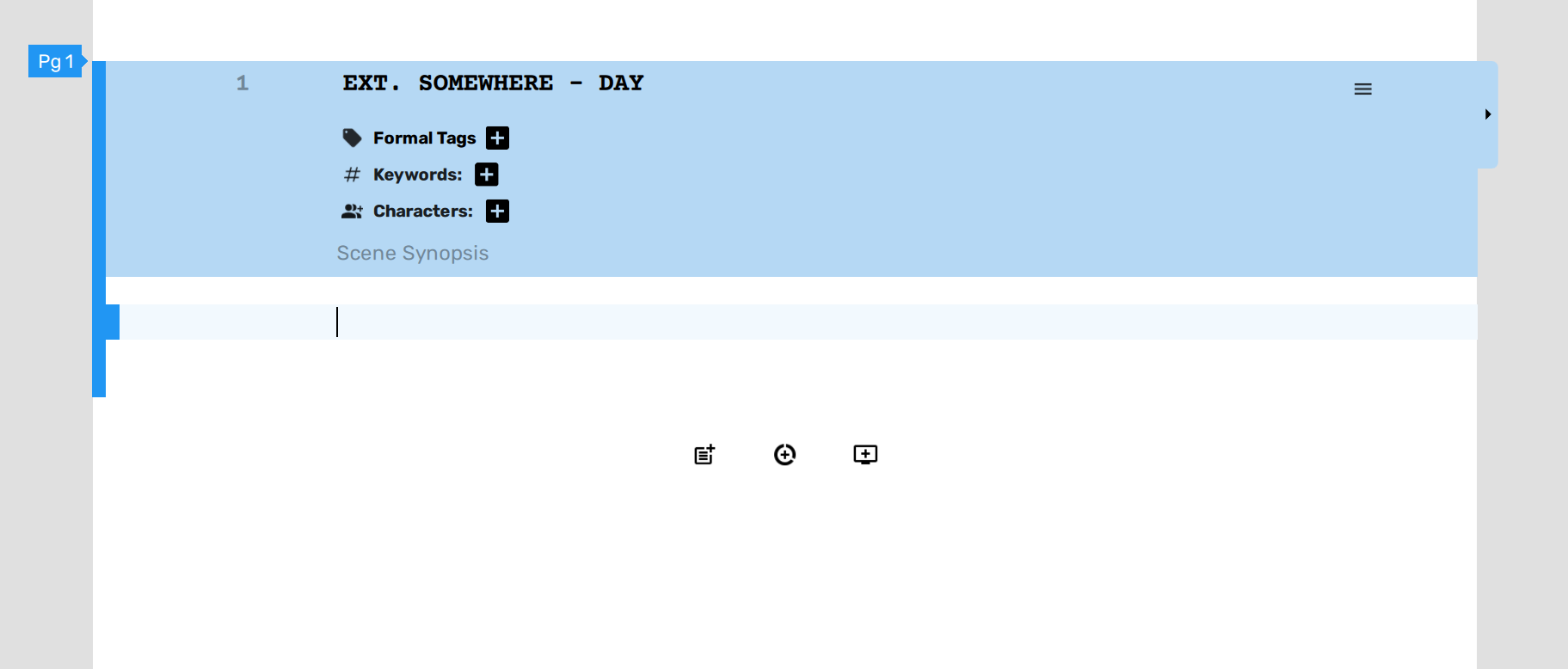
Simply click on the plus icon next to the “Keywords” field and add keywords of your choice. Alternatively, you can use the keyboard shortcut Ctrl+Shift+7 to add a custom keyword to the current scene.
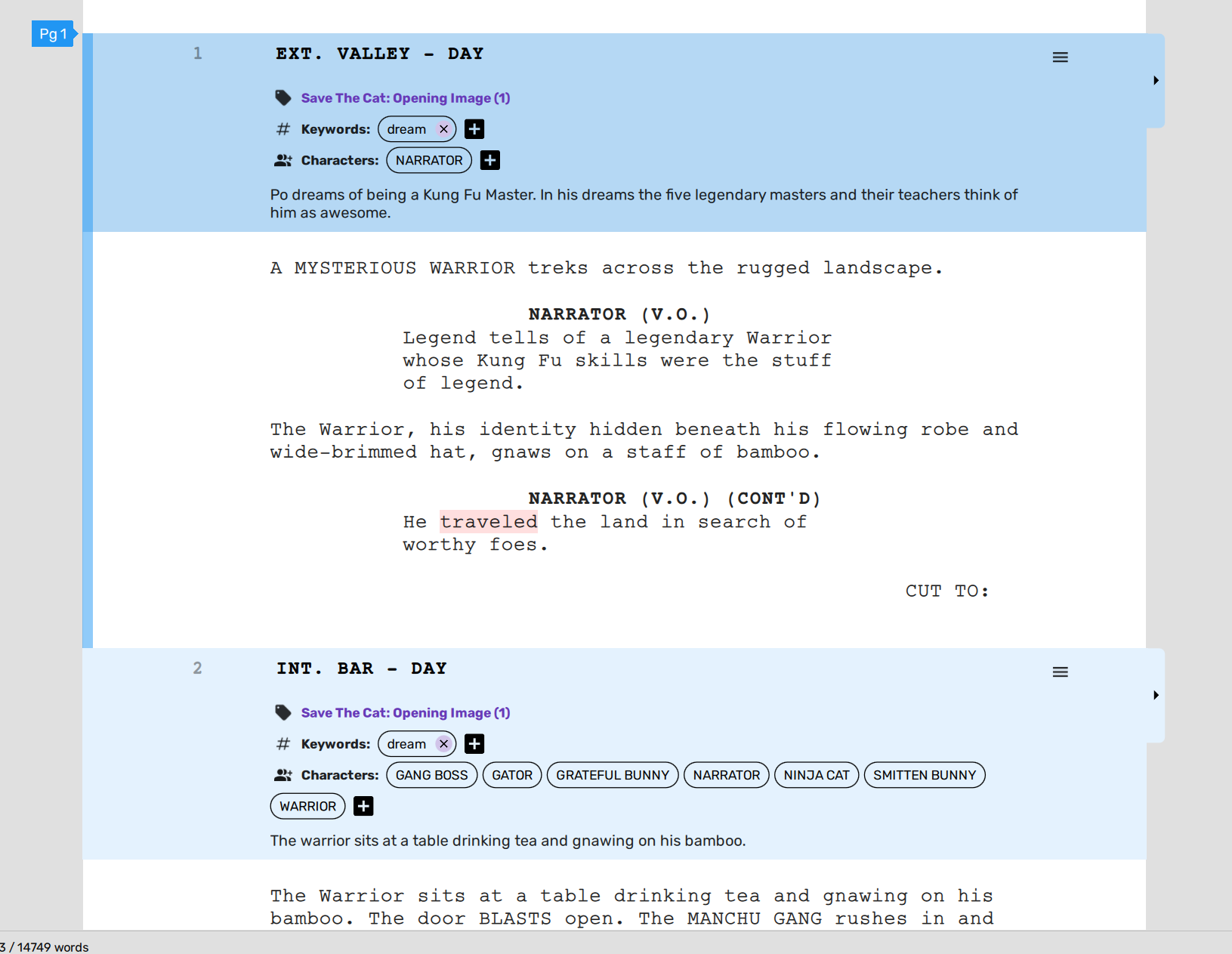
You can customise the fields to show in the screenplay editor by clicking on the screenplay editor options dialog box.
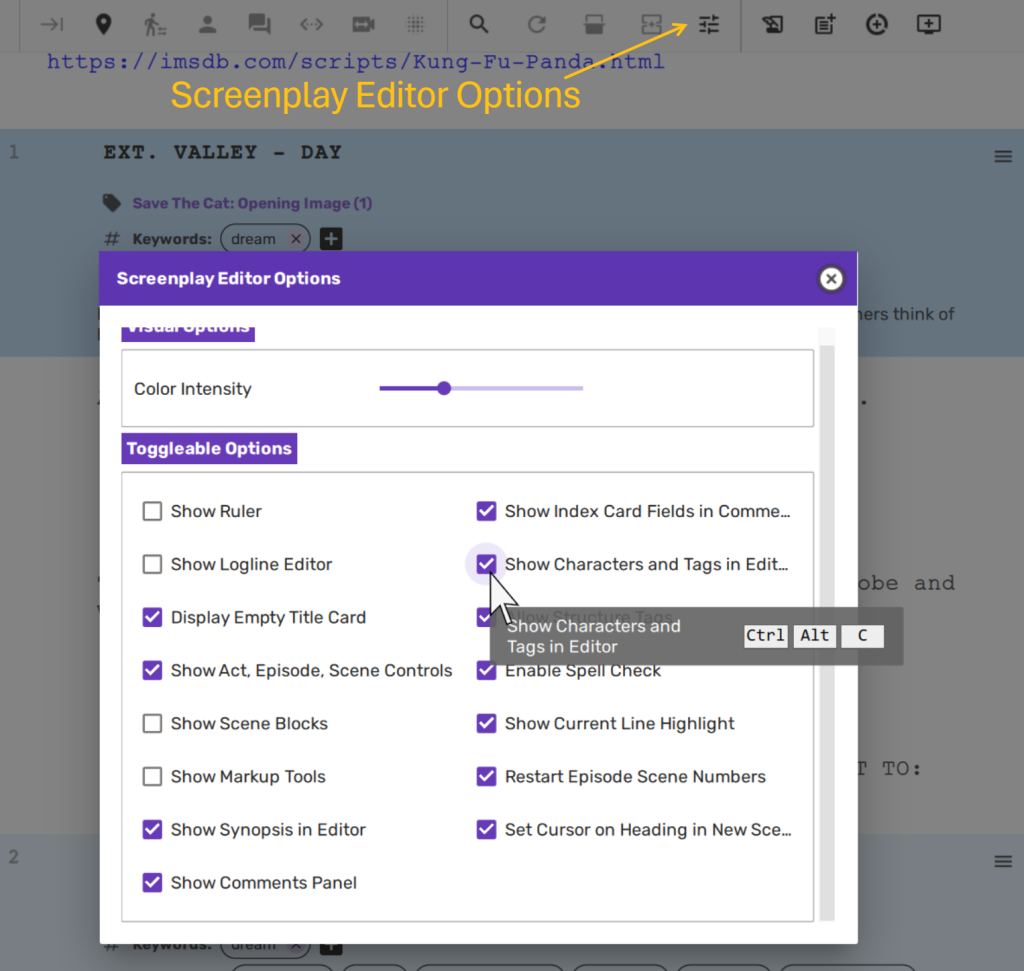
If you toggle “Show Characters & Tags Editor” OFF, and toggle “Show Comments Panel” ON, then Scrite shows a comments panel box to the right of each scene in the screenplay editor – provided there is space to show it.
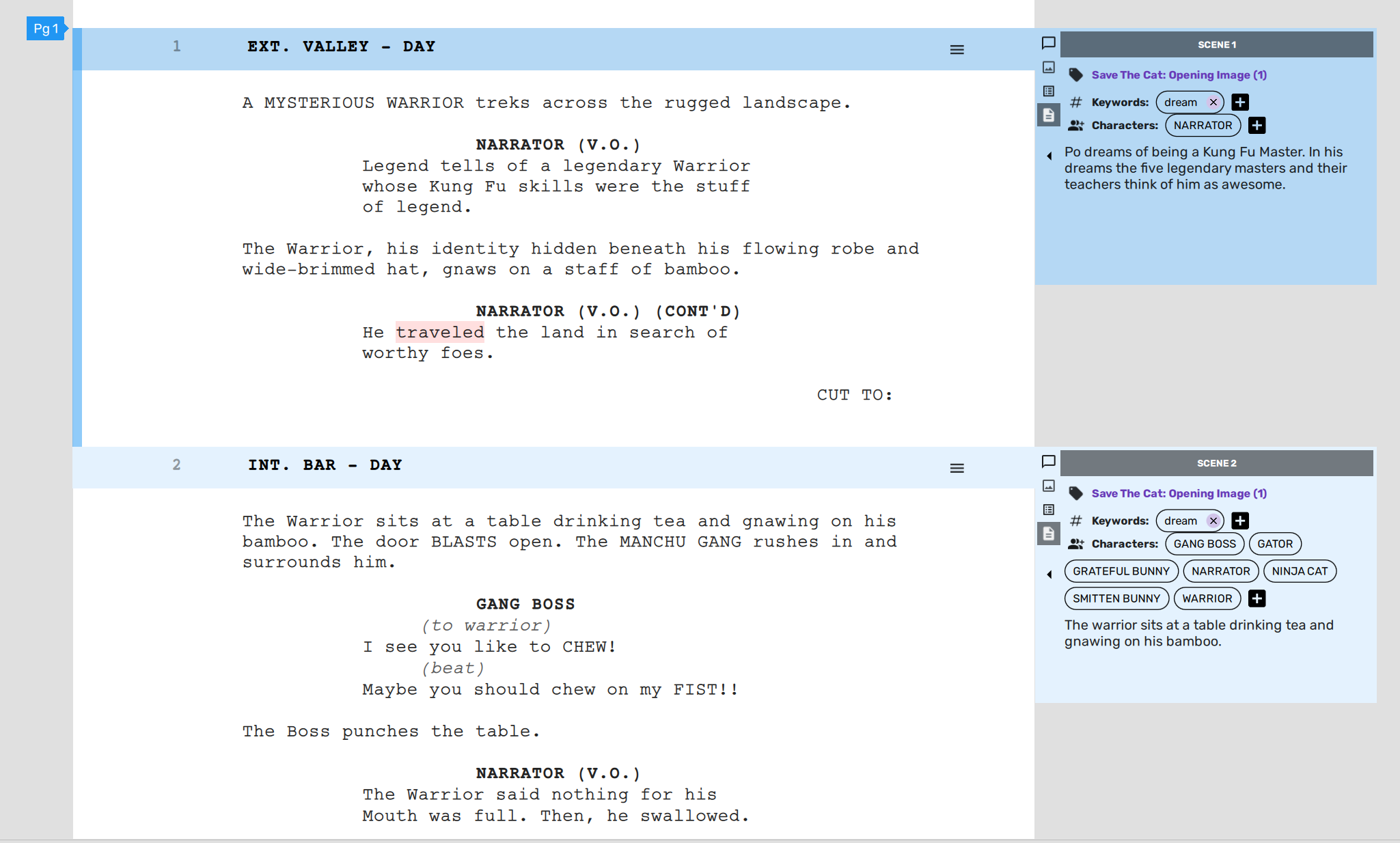
The comment panels scroll along with the scene, so you will always be able to refer to the scene synopsis and tags as you type.
The report generators now let you filter scenes by keywords and generate reports for a subset of scenes that match the keyword.
Improved Scene List Panel
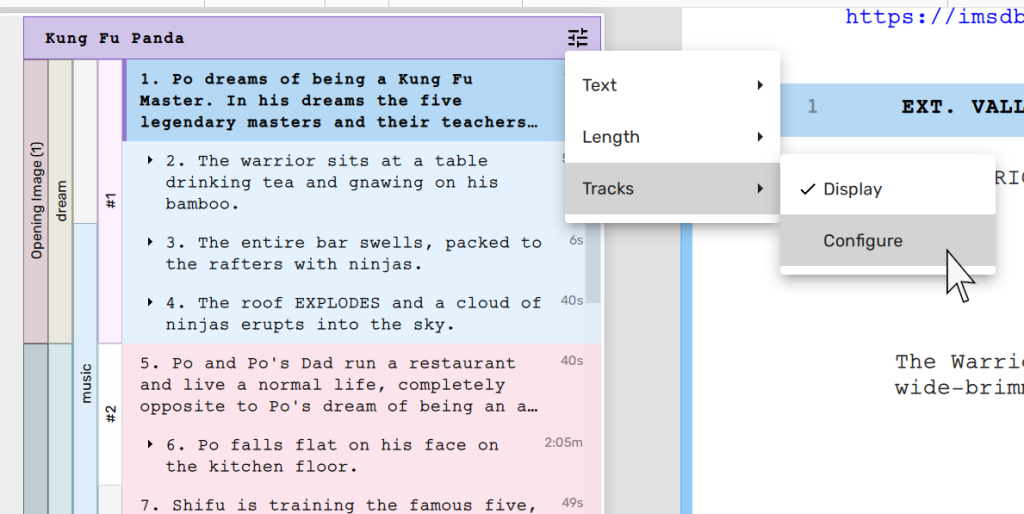
In addition to displaying scene headings or scene summaries (as configured), the scene list panel now also shows structure, keywords and sequence tracks.
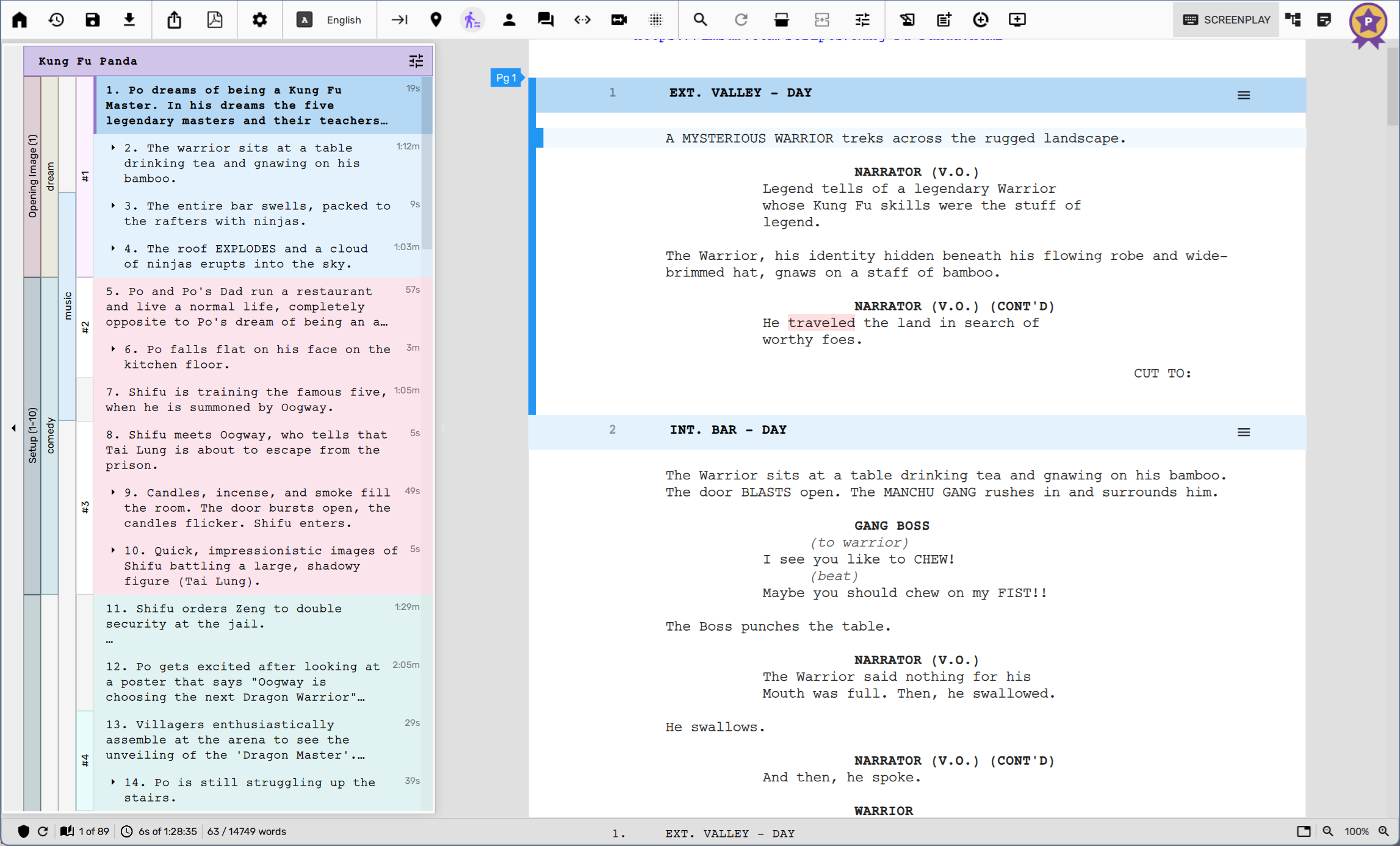
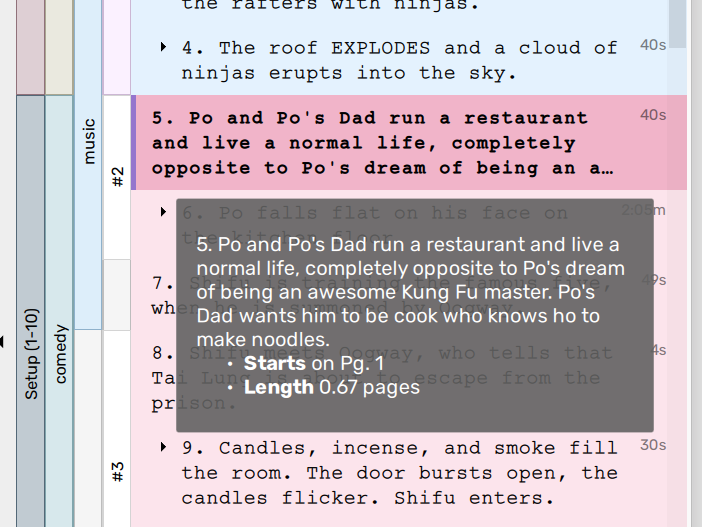
You can hover over any track to get additional information in the tooltip.
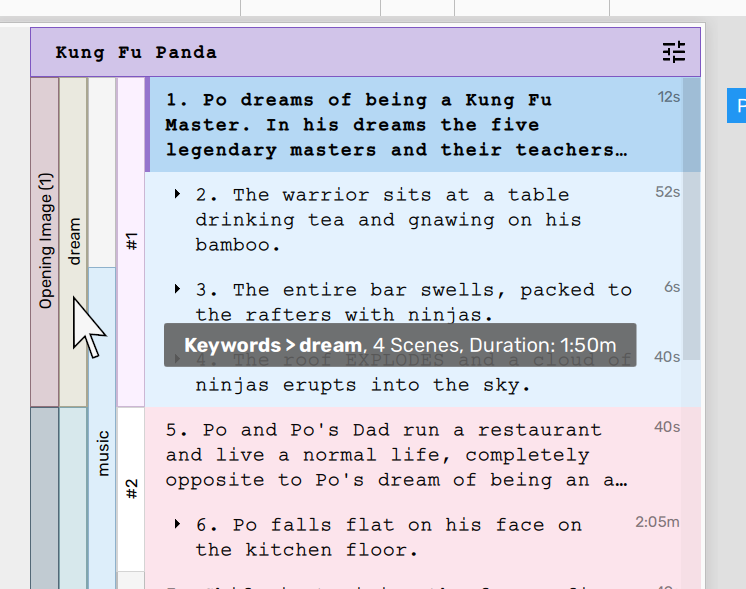
Sequences are a group of scenes stacked together to capture a single beat. Currently, we show sequences by number in a separate track. In a future update, we will allow naming of sequences as well. Until then, you can use a separate keyword for scenes that make up a sequence.
You can configure the display of tracks by using the option as shown below.
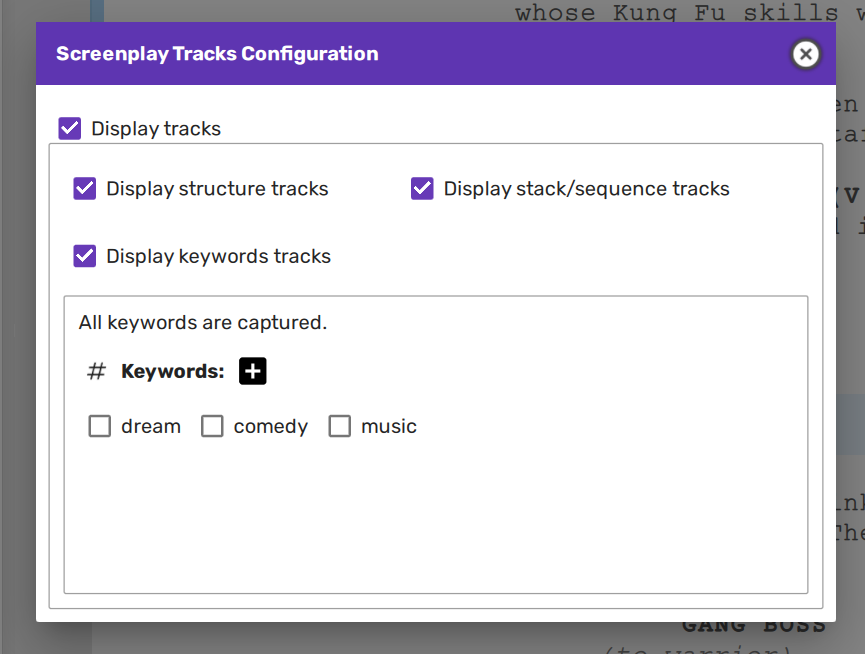
The Screenplay Tracks Configuration dialog box lets you customise what tracks to show, and even turn them off all together if you don’t prefer to see them.
When you hover over items in the scene list panel, you will now notice additional information against each scene.
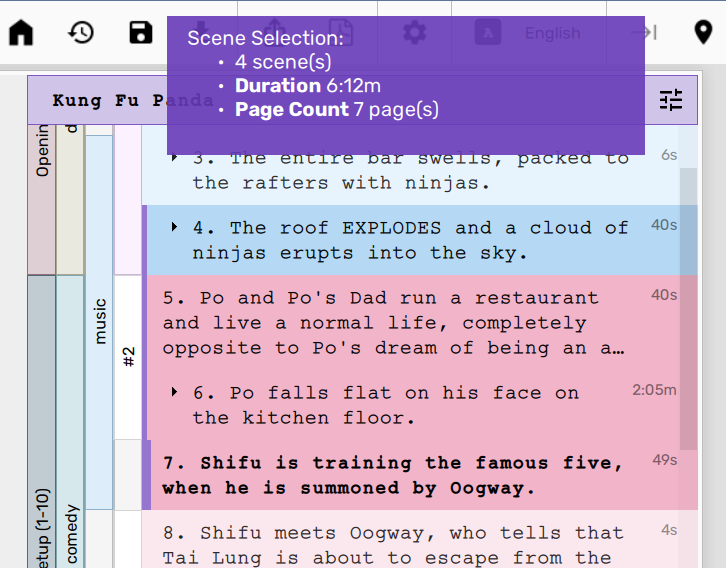
If you select a group of scenes, then aggregate information about the selected scenes are shown in a separate tooltip on the top.
Additionally, you can toggle the display of the scene list panel with the keyboard shortcut Alt+0.
Want more space? You can now resize the panel width to your preference! Simply hover near the right edge, click and drag – perfectly customizable to fit your workflow.
Rapid Scene Navigation
Need to jump to a specific scene, act, or story beat instantly? Hit Ctrl+G to launch the powerful Quick Jump dialog.
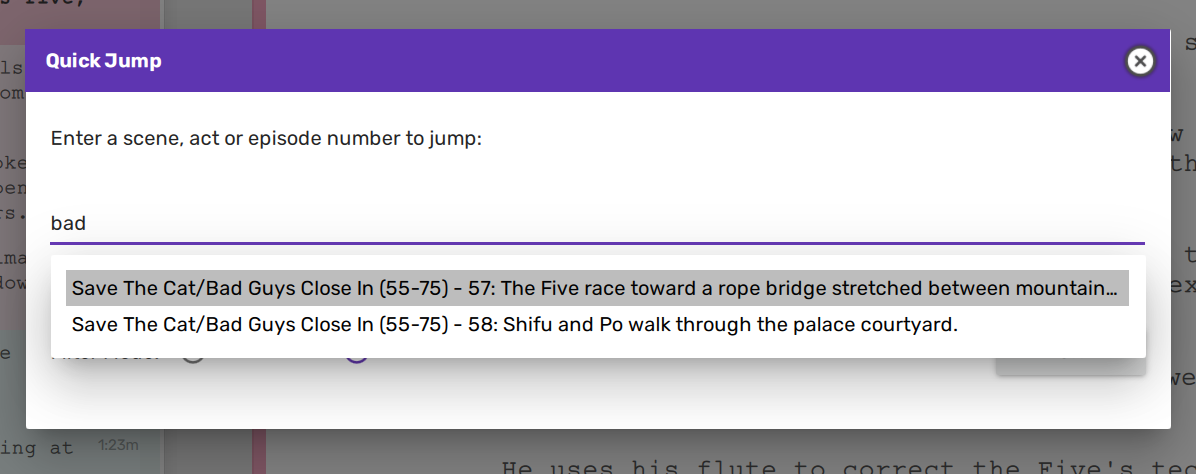
Depending on how the lookup filter is configured, you should be able to type a few letters pertaining to the scene you want, and quickly jump to that scene.
Improved Structure Tab
The completely reengineered Structure tab is packed with new features, many of which are elegantly subtle. Let’s highlight one of our favorites.
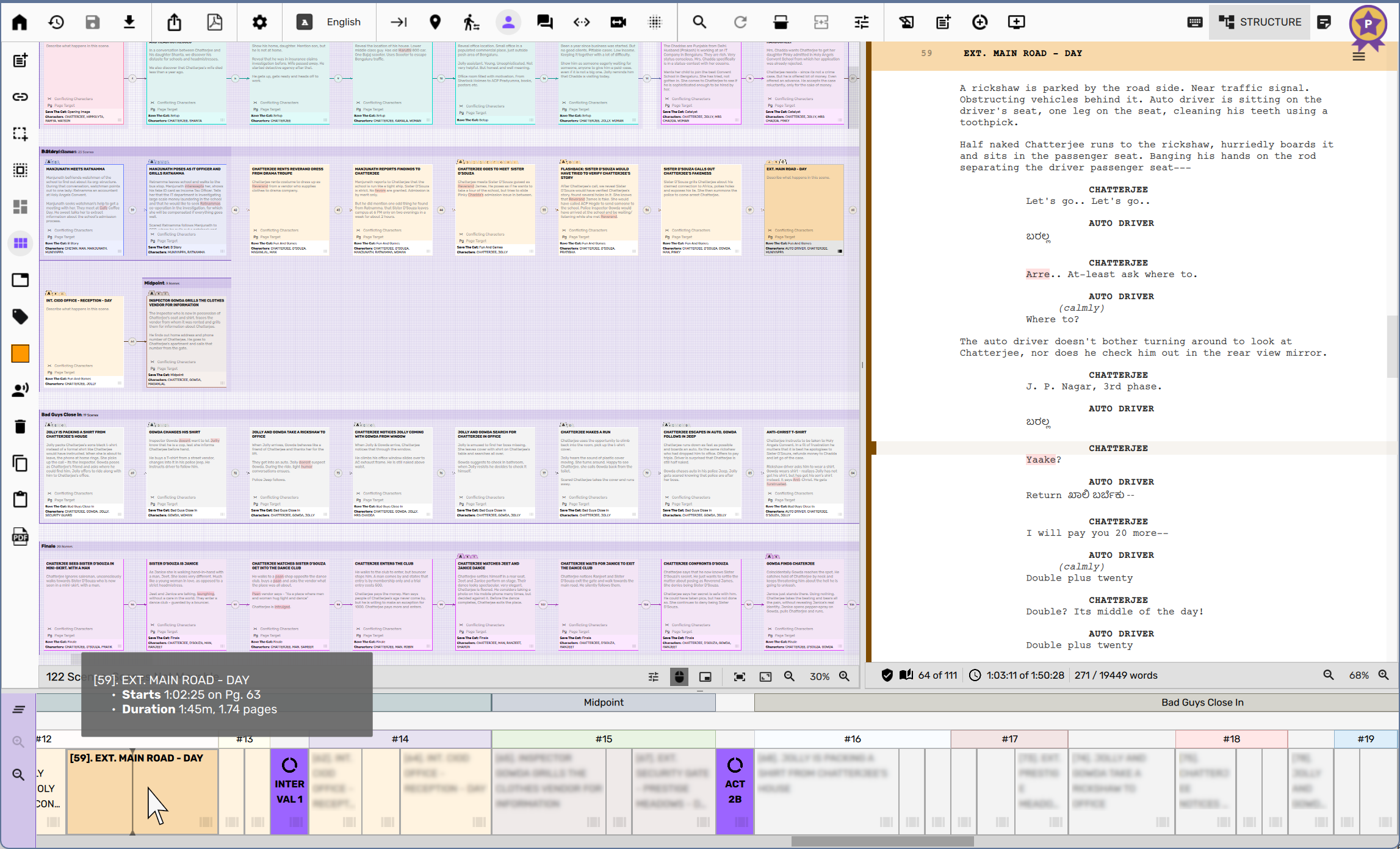
See that cursor line on the timeline? That’s real-time synchronization between modules in action!
As your text cursor moves up and down in the screenplay editor, a cursor line dynamically tracks left and right on the timeline panel. Now you can instantly see exactly where you are within any scene – giving you spatial awareness at a glance.
Customizable Keyboard Shortcuts
Take complete control of your workflow. Access keyboard shortcuts information through the “Shortcuts” menu item in the Settings icon, or simply hit Ctrl+E.

We’ve replaced the shortcuts dock with a powerful shortcuts dialog that not only displays all shortcuts but lets you customize them to match your workflow.

Simply click any shortcut to open the editor and make it your own.
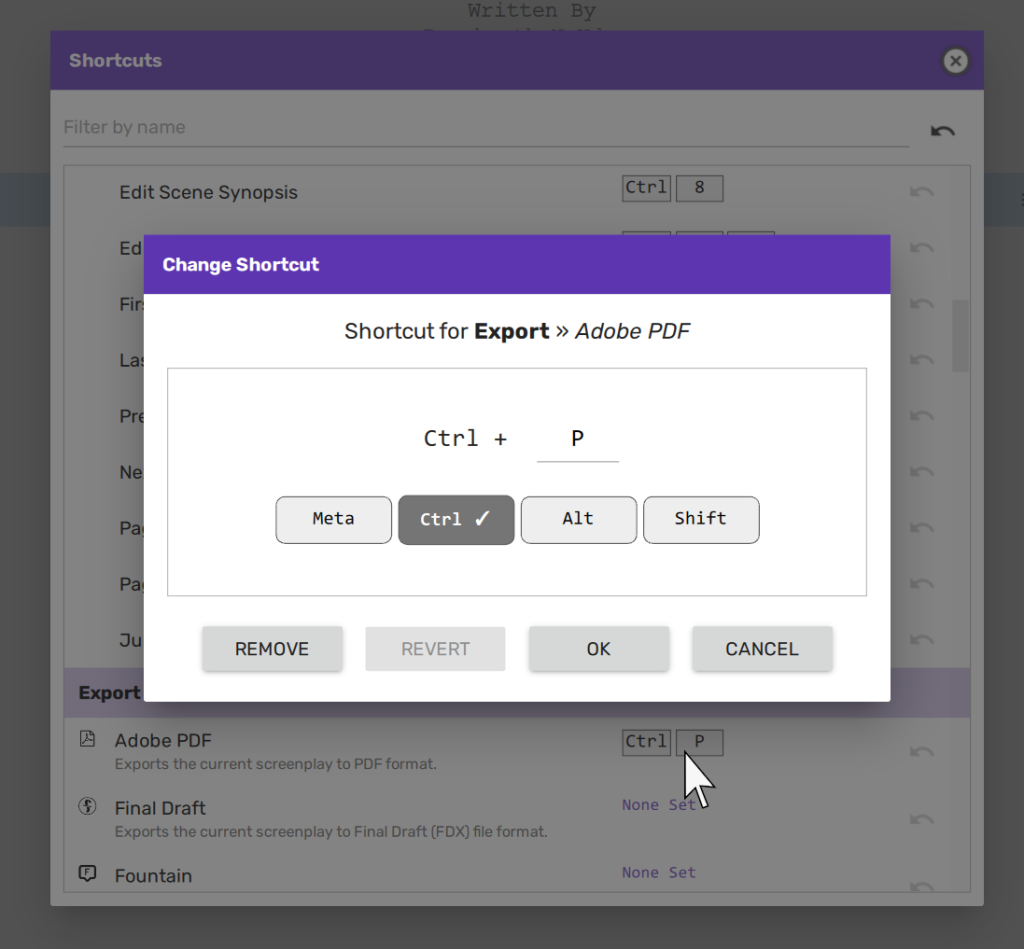
Even better: many commands don’t have default shortcuts, but you can assign custom ones to create your perfect setup.
Command Center
No need to memorize hundreds of shortcuts! Meet the Command Center – your instant gateway to every Scrite feature.
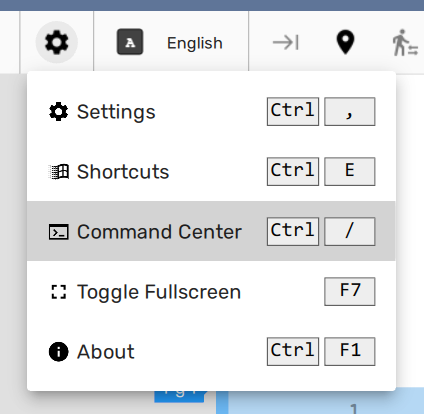
You can either launch the command center by clicking on it in the Settings menu, or use the keyboard shortcut Ctrl+/.

The command center lets you quickly look for actions and trigger them right away.
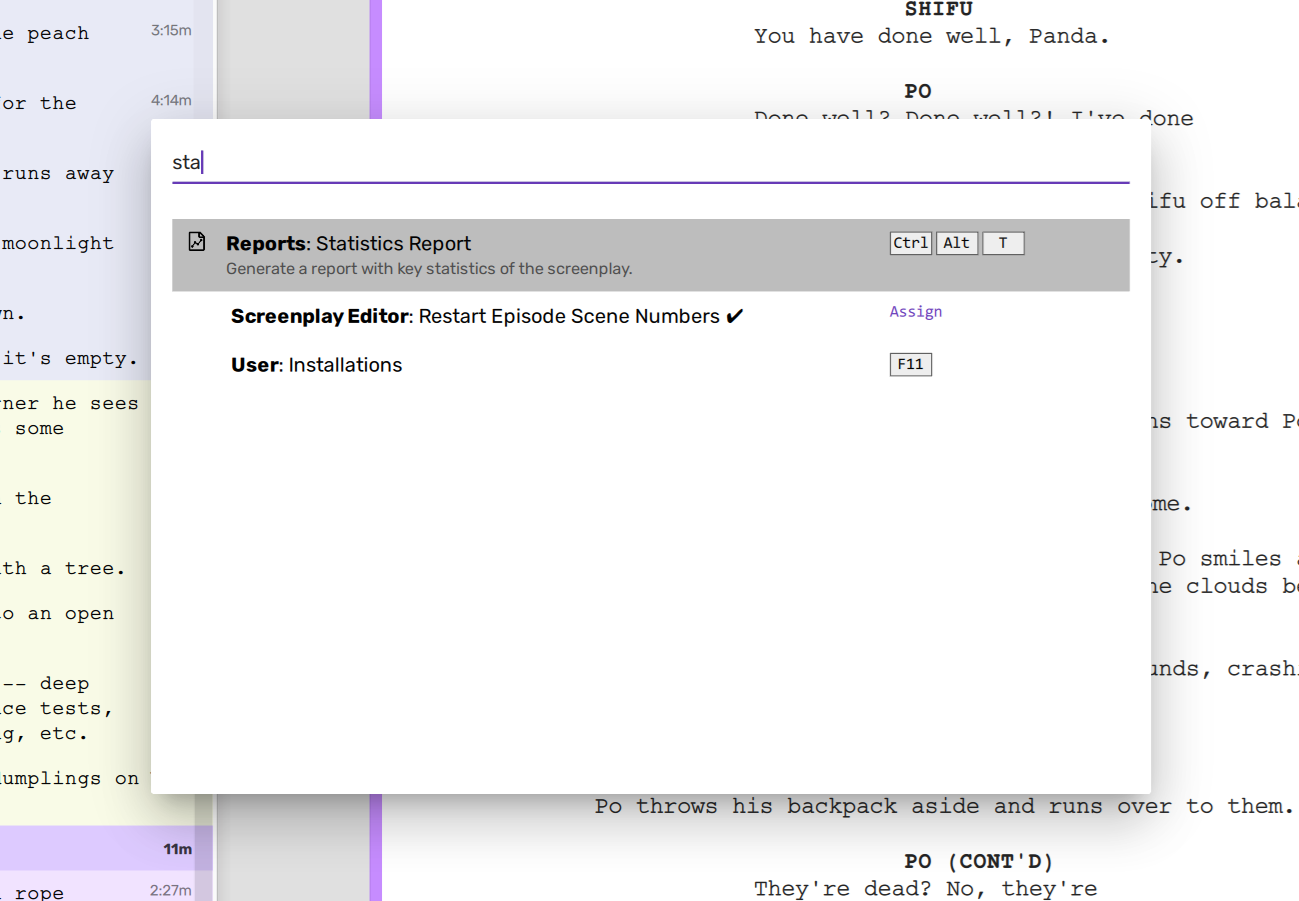
You can open recent files, start a new document, generate a report, configure languages, and access many more features offered by Scrite from this one panel without lifting your hand from the keyboard. It’s really snappy.
Try it out: Look for “Rename Location” in command center. See what happens 😎
In a future update, you will also be able to ask questions about the product and get answers instantly from the same panel.
Performance Improvements
Complete Refactoring of UI
We’ve rebuilt almost the entire UI from the ground up, delivering breakthrough performance gains you’ll feel immediately. The new interface is meticulously optimized for memory efficiency and battery life. Tab switching? Lightning-fast. Scrolling? Buttery smooth. Everything is dramatically faster.
Rock-Solid Stability
Some users have complained about the app crashing abruptly at times. We’ve addressed that issue in this new update. Our complete codebase overhaul has eliminated the stability issues that affected earlier versions. Version 2.0 is the most stable, reliable release we’ve ever shipped. You can now work on your screenplay uninterrupted.
Fast & Consistent Paginator
The page and time calculation engine has been completely rebuilt for maximum speed and reliability. Calculations now run on a separate background thread, so your UI stays responsive no matter what. Even better: every module now uses the same paginator, ensuring perfectly consistent page and time counts throughout the entire app!
Note: Page count of generated PDFs can vary depending on DPI settings, and other individual settings in the PDF or report generator.
Changes in Version 2.0.9
Version 2 released about a fortnight ago has been installed by more than a thousand users already. It brought several new features to the table, and its not surprising that we received initial feedback to fine tune a few things.
You can head to the downloads section to grab your copy right away.
Cycle Language Shortcut
There is now a shortcut to cycle through active languages, and its F6 by default.
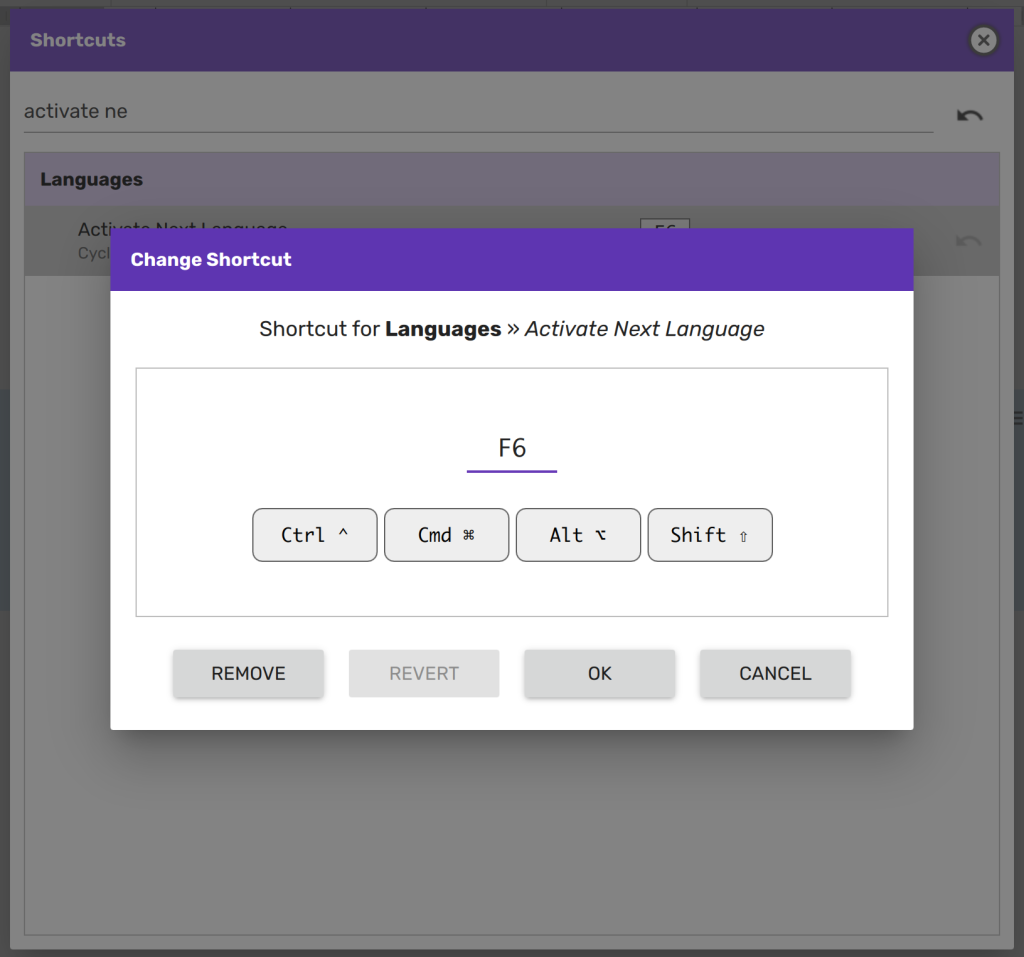
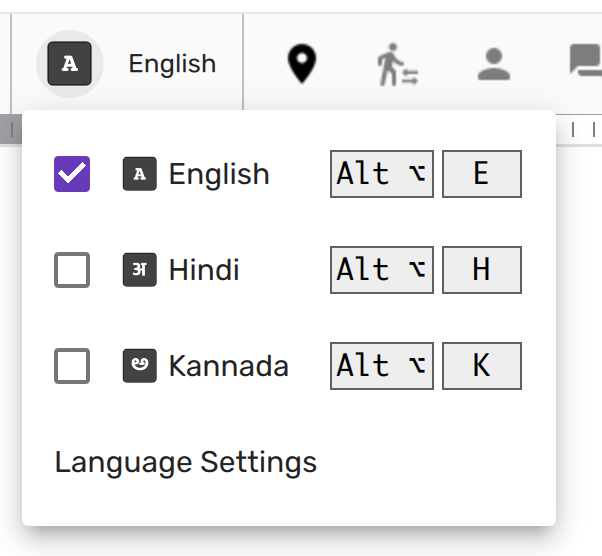
By using this shortcut, Scrite changes active language from one to next and cycles back.
For instance, if you have configured English, Hindi and Kannada languages in your installation, then F6 cycles through them one after the other. When English is active, hitting F6 switches the active language to Hindi. Hitting F6 again switches to Kannada. And then next time, it switches to English.
It offers an easy way to switch/toggle between a small list of languages without having to remember shortcuts for each of those languages.
Delegate Language Input to OS
With version 2.0.6, Scrite lets you toggle a switch to let you work with only input methods in your OS or from third party apps.
In Language Settings, you can now uncheck the “Handle language input method switch” checkbox to have Scrite relinquish its own ability to switch between input methods for various languages.
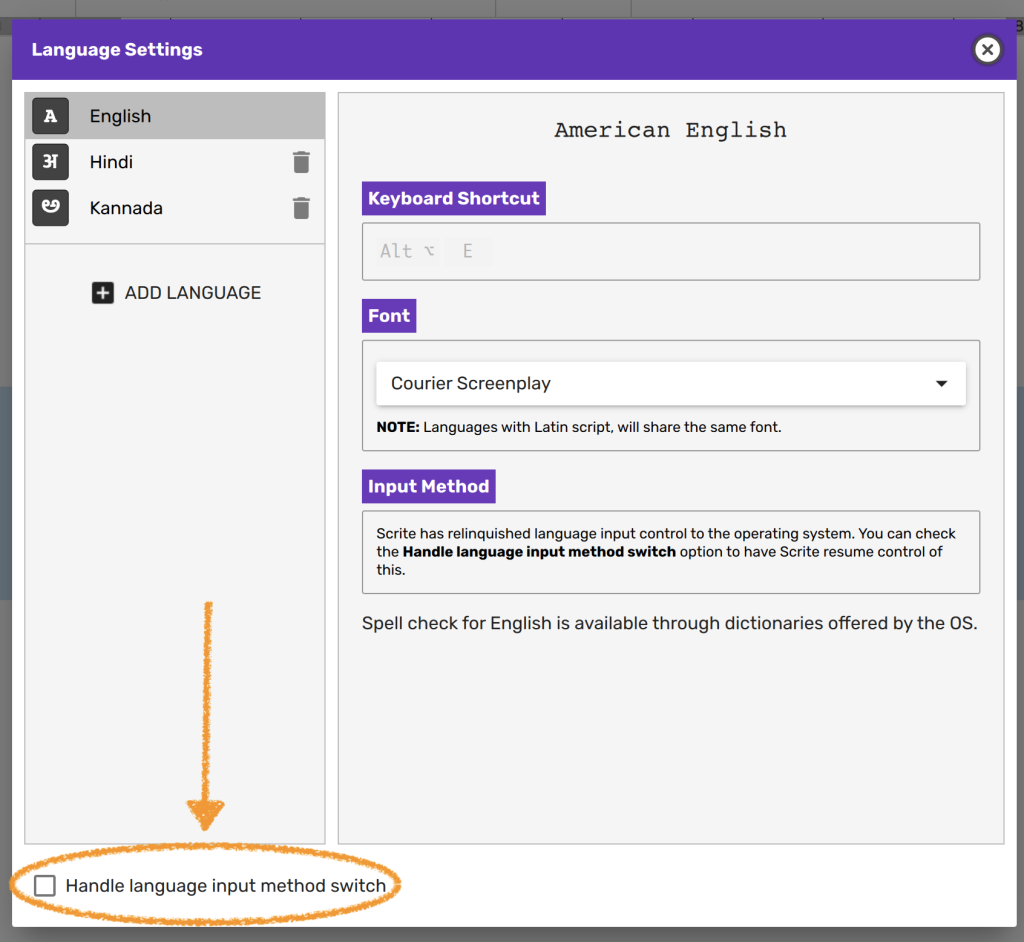
When unchecked, you can switch between languages using OS input methods and shortcuts configured in your OS settings.
Languages listed in Scrite’s Language Settings dialog box can continue to have font-associations, which will be used for rendering texts written in that language’s script. While you can assign shortcuts, they will not work – because OS shortcuts and menus to switch active language takes precedence.
This mode is useful if you are already using OS input methods or third party tools to input in various languages.
NOTE: Scrite will continue to show a language button in the toolbar, except that it does not function as a means to switch active language – but only as a status icon that displays the active language input configured in the OS.
Hyperlinks
You can now select a text snippet in the screenplay editor, and click on the link button in markup tools …
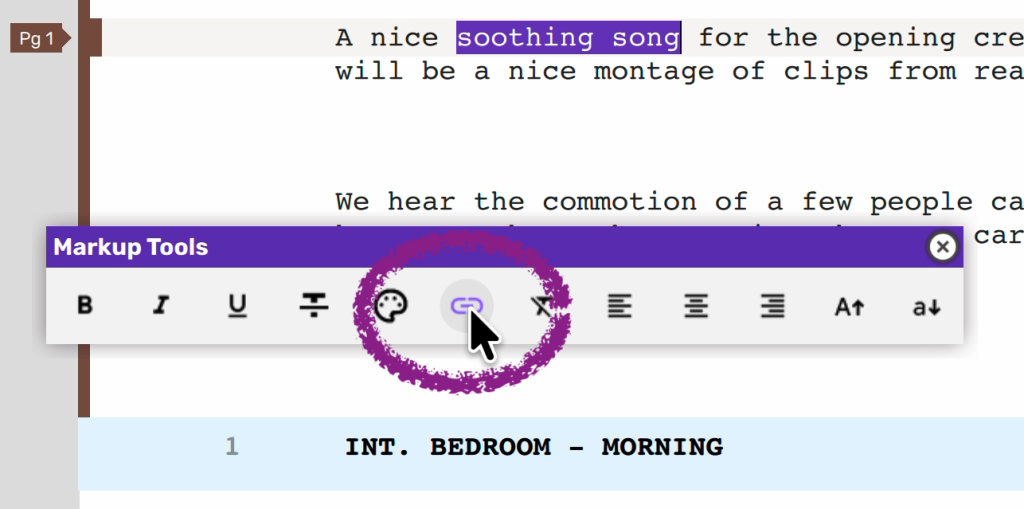
… to insert a hyperlink to any URL.
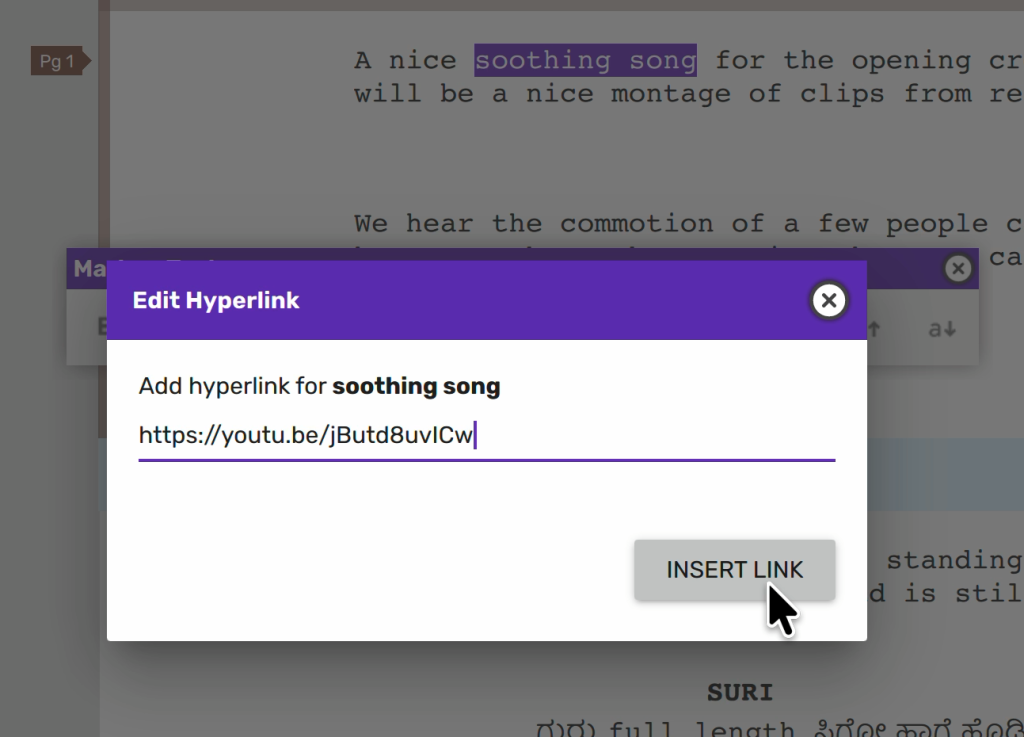
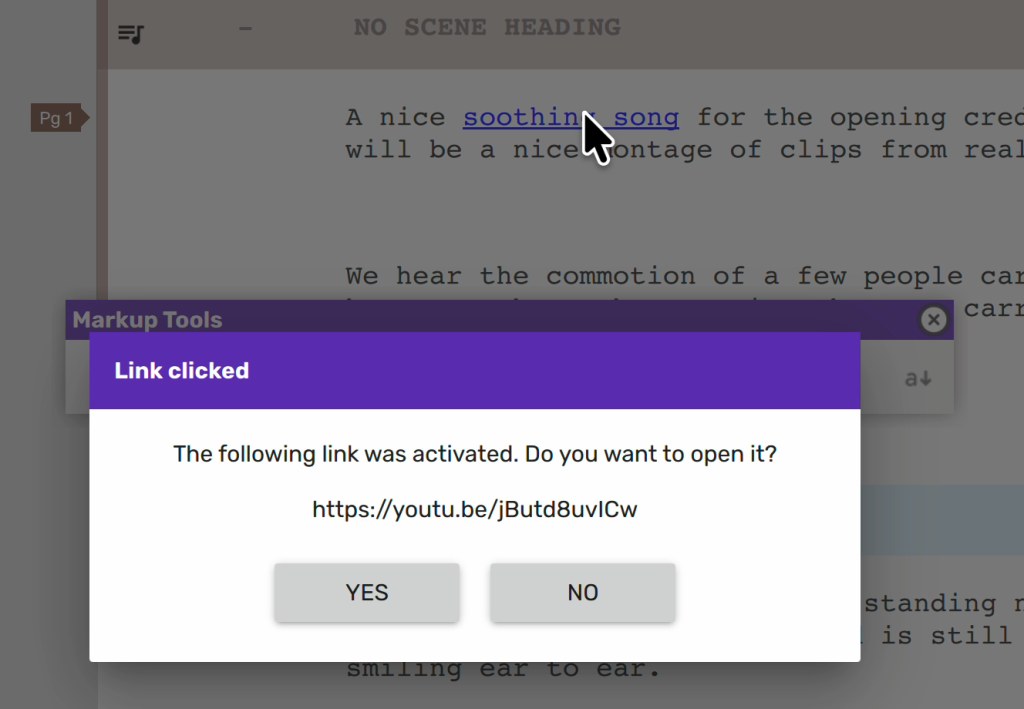
Scrite will then render the text as a link from them on. You can Ctrl click the link to open the hyperlink.
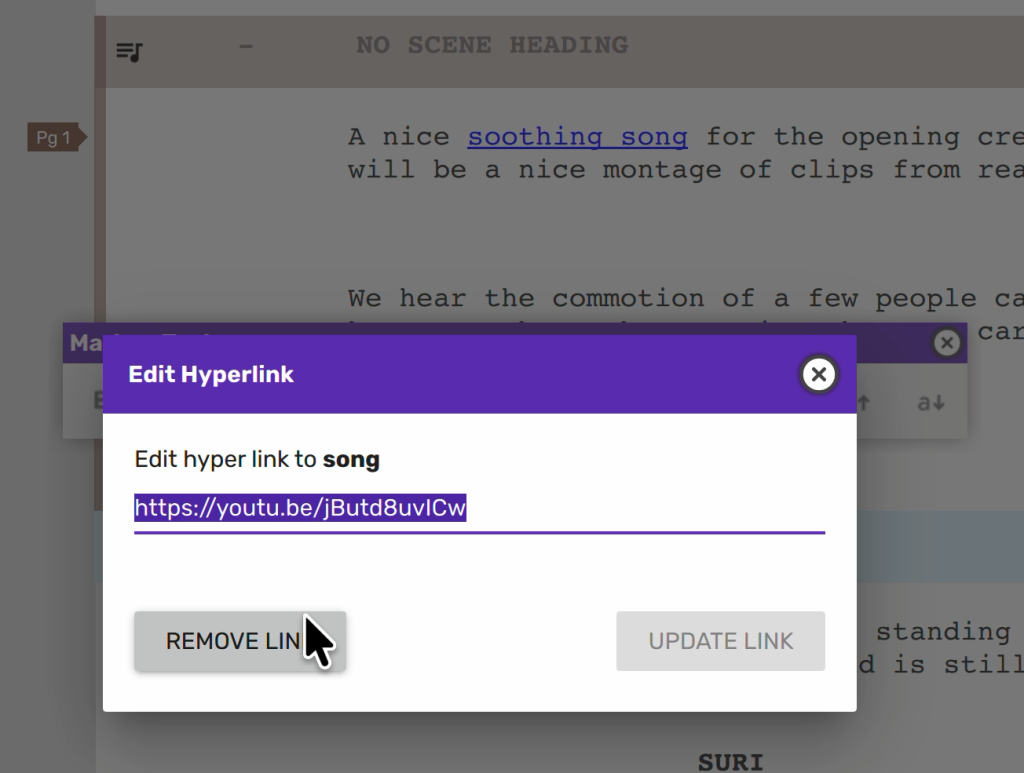
To edit/remove the link, click on the Link button in Markup Tools again.
Hyperlinks are included in PDF exports, but not yet in Fountain, PlainText and ODT exports at the moment. We also don’t import links from HTML, FDX or Fountain files for now.
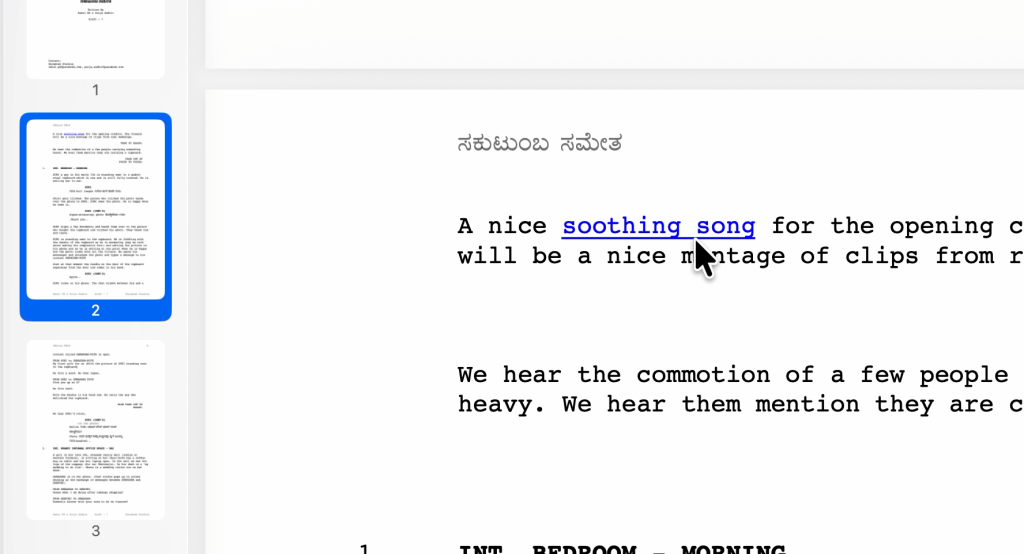
Known Issue: Like most browsers or word-processor, Scrite does not display a pointing hand cursor when you hover over a hyperlink. It will be addressed in a future update.
Universal binaries for macOS
With version 2.0.6, we now offer universal binaries for macOS. While the DMG file is now much bigger than previous versions, includes native binaries for both Intel and Apple Silicon Macs. This means that Scrite will now run at Native speeds on both platforms.
Bug Fixes
The following issues were fixed.
- First letter of English text to appear in a different font, if it follows a Indic script.
- Line height setting in paragraph formatting wasn’t used for paragraph spacing
- Diacritic editing doesn’t work on macOS
- Cannot change multiple paragraphs to Dialogue format at once.
- Expand/collapse button in Notebook tree is always hidden
- Active tab in notebook page not preserved across main-window tab switch
- Screenplay editor always shows title-page and not current scene upon switching main-window tabs
- Deleting a blank line at the start of the scene causes cursor to jump the last line of the scene
- Current page is reported as 1 when cursor is at end end of the last scene
- Undo removes several sentences at once.
- Upon splitting a scene, the newly split scene has scene number as 2 and its impossible to change that.
- Unable to reset/resequence scene numbers even with the command center option
Note: While this version surely offers a better undo/redo experience, we have heard feedback and also noticed that undo/redo can be erratic sometimes, and we are actively working on further improving it.
Download Version 2.0 Today!
Head to the downloads section to get started with this latest version. All trial and paid subscribers have immediate access to this new release.
Don’t want to download manually? No problem, in just a few days, version 2.0 will automatically roll out via software update to all users.
As always, if you run into any issue – don’t hesitate to reach out to us on Discord.
New user guides and video tutorials are in the works, and they should be available by February 2026.
The Road Ahead
With version 2.0’s foundation in place, Scrite is now ready to roll out more features in 2026.
We’ve taken your feedback and are actively working on what’s next, including Dark Mode, Cloud Storage sync, Production planning tools, Dual Dialogue formatting and more.
We’ll be publishing a separate blog post outlining our Product Roadmap over the next couple of weeks, so keep an eye out for that.