Language Support
Many screenplays today are written in multiple languages. For instance, in India, dialogues are written in Kannada, Hindi, Marathi, Tamil, Telugu, and other languages, while other parts of the screenplay are written in English. Writers from the Malayalam film industry write predominantly in their native language. Writers in France, Vietnam, Korea, and other countries also prefer to write in their own languages. Therefore, it is important for a screenwriting app to support writing in multiple languages, even if the UI language (menu items, dialog boxes, etc.) is English only.
When we started the Scrite project, it was aimed at being a screenwriting app primarily for the Indian writer. Initially, the app only supported writing in English and 11 Indian languages. With version 2, Scrite has evolved to cater to international writers as well. You can now write in any LTR language. In this chapter, we walk you through the language support available in Scrite and point out several nuances.
Language Menu
On the toolbar of the Scrite main-window an icon associated with the active language is shown, alongside the language name itself. Clicking on the icon reveals a language menu in which all languages configured for use in Scrite are displayed.
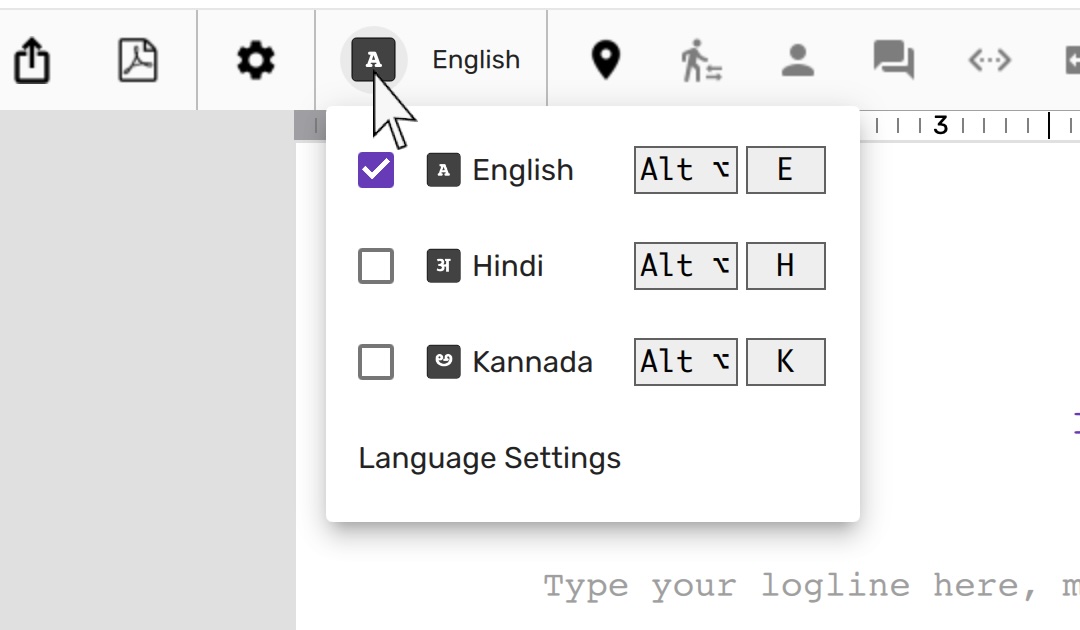
Depending on how your computer is configured before Scrite is installed, this menu shows a different set of languages.
- Users in India may see English and 11 Indian languages listed in this menu.
- If users have already configured one or more language input methods in their OS, this menu will only list English and the languages configured.
- International users will see English, and their OS language and any other input methods they may have configured.
Language Settings Dialog
You can click on Language Settings option in the language menu to add, remove
or configure languages of your choice.
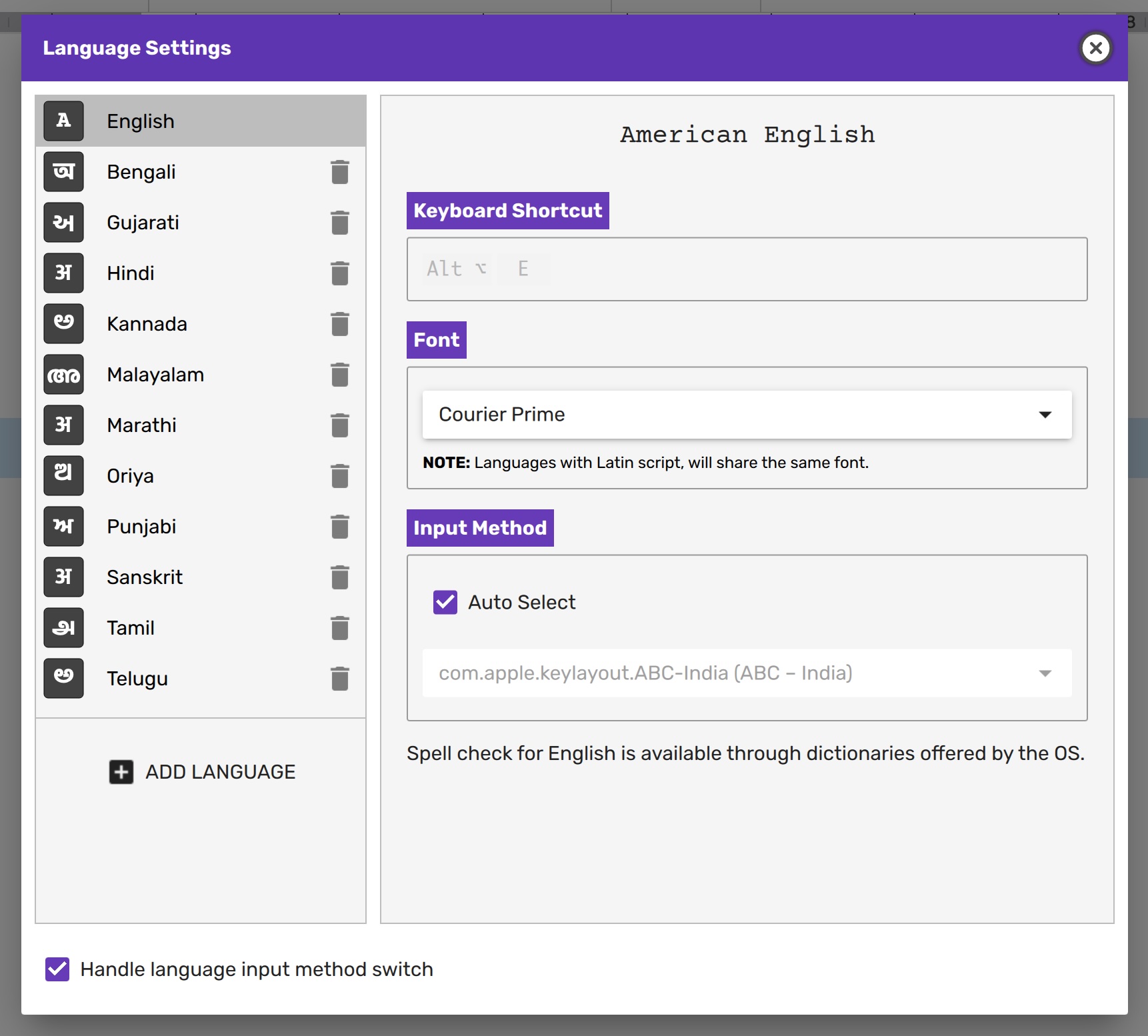
The currently configured languages are listed on the left. You can click on any of the languages in that list to configure some options for them on the panel to the right.
Removing Languages
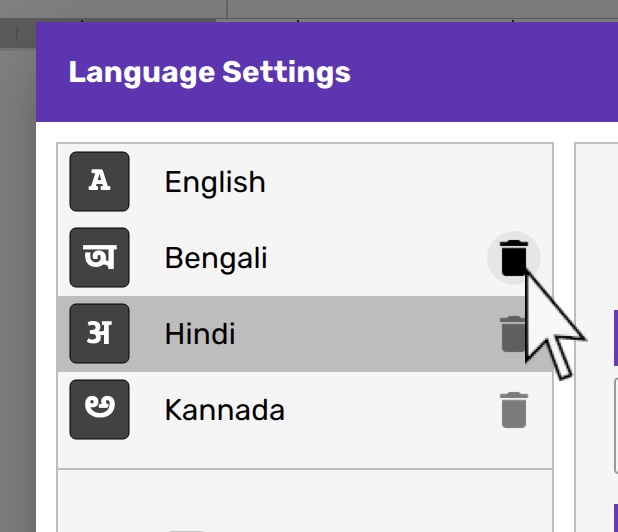
Click on the delete icon next to any language to remove it from Scrite. It's that simple!
NOTE: You cannot remove English language from the list because its the default UI language.
Adding Languages
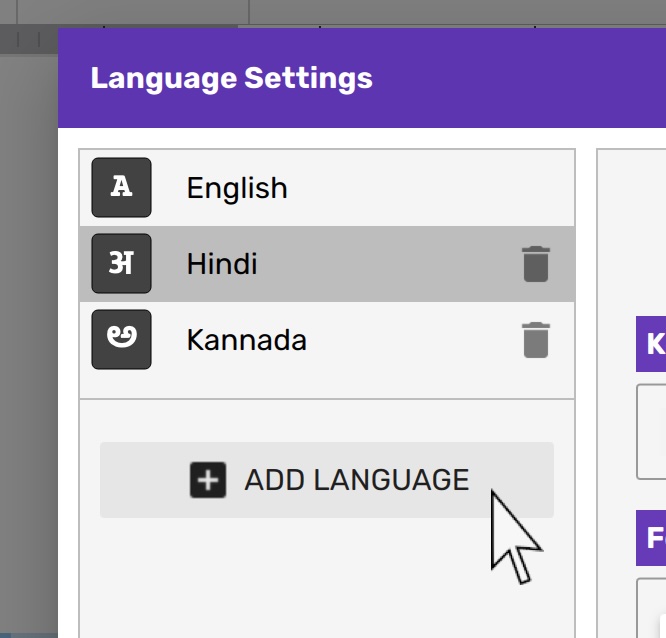
To add support for a new language, simply click on the Add Language button at
the end of the list.
Scrite presents a dialog box for you where you can type name of the language you want to add.
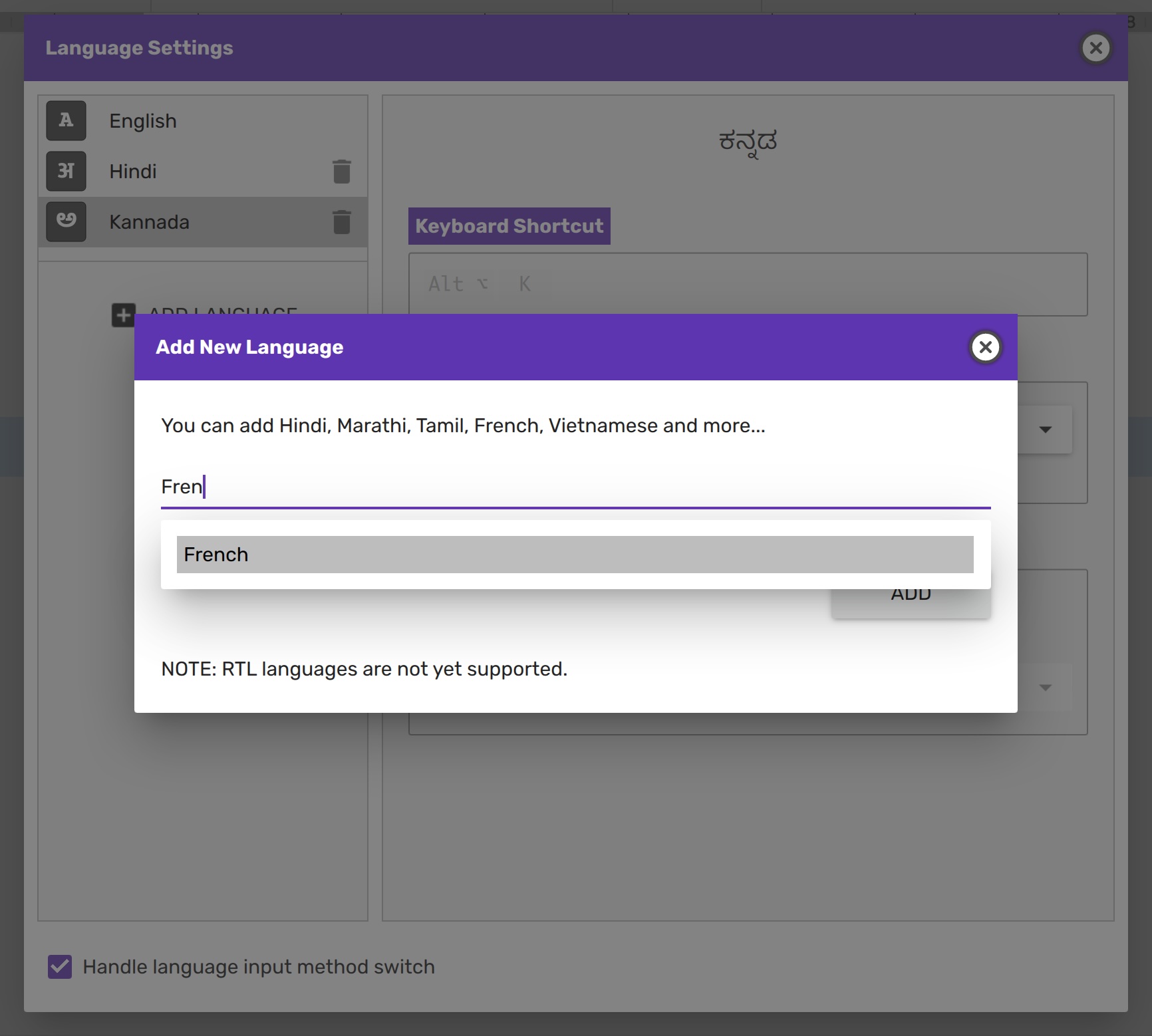
NOTE: RTL languages are currently not supported in Scrite. We will be building support for them in a future version.
Spell Check
Version 1.x only offered spell-checking in English. With version 2, we've expanded this capability to support more languages. Please note that Scrite does not bundle dictionaries into the application. Instead, it uses dictionaries provided by your operating system to check spellings. The Language Settings dialog box indicates whether a dictionary is available for a given language.
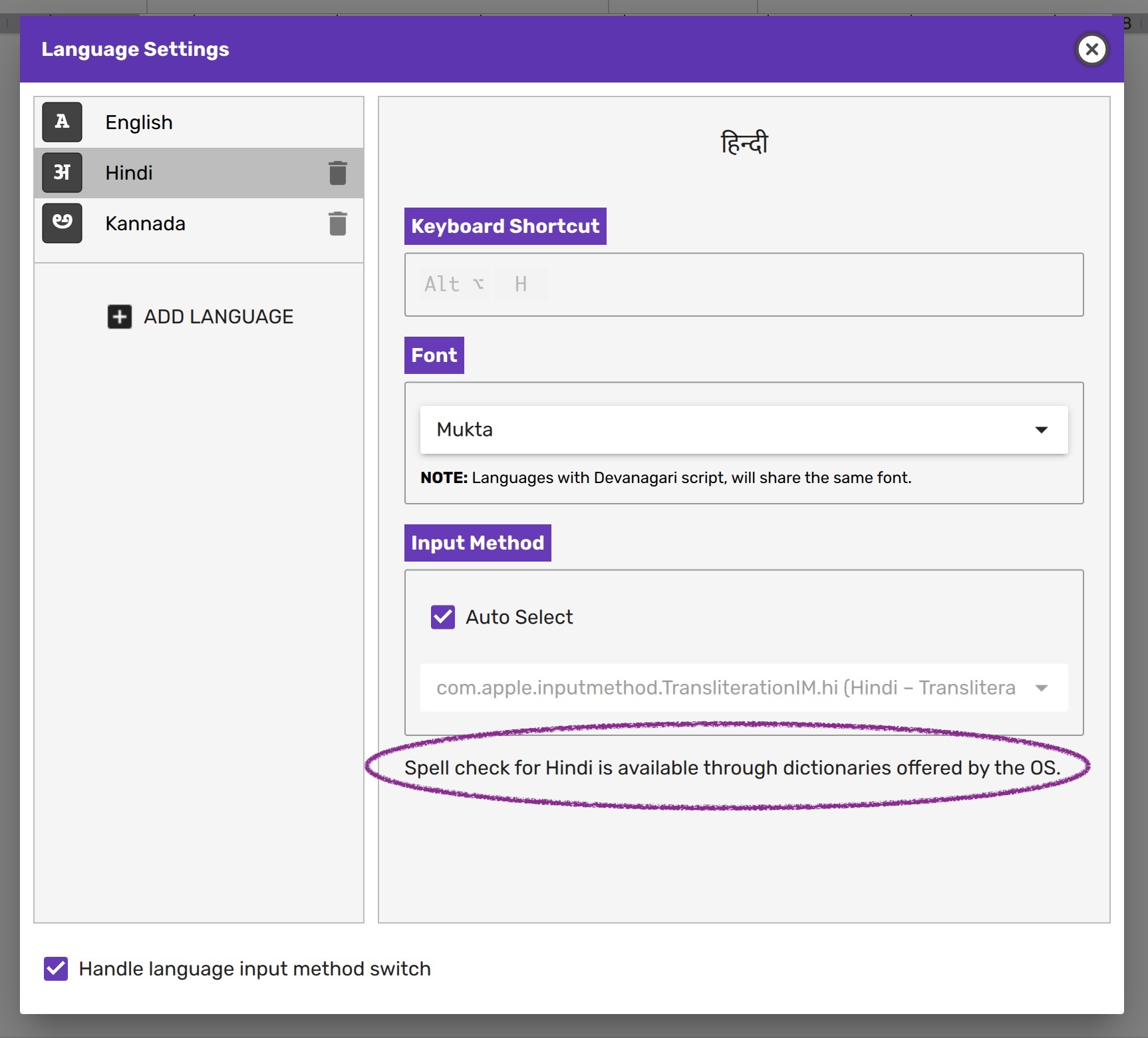
When a dictionary is available, Scrite automatically uses it to offer spelling suggestions.
NOTE: In a future update, we plan to offer our own spell-check dictionaries through services such as Alar, Olam, and others for select languages.
Keyboard Shortcuts
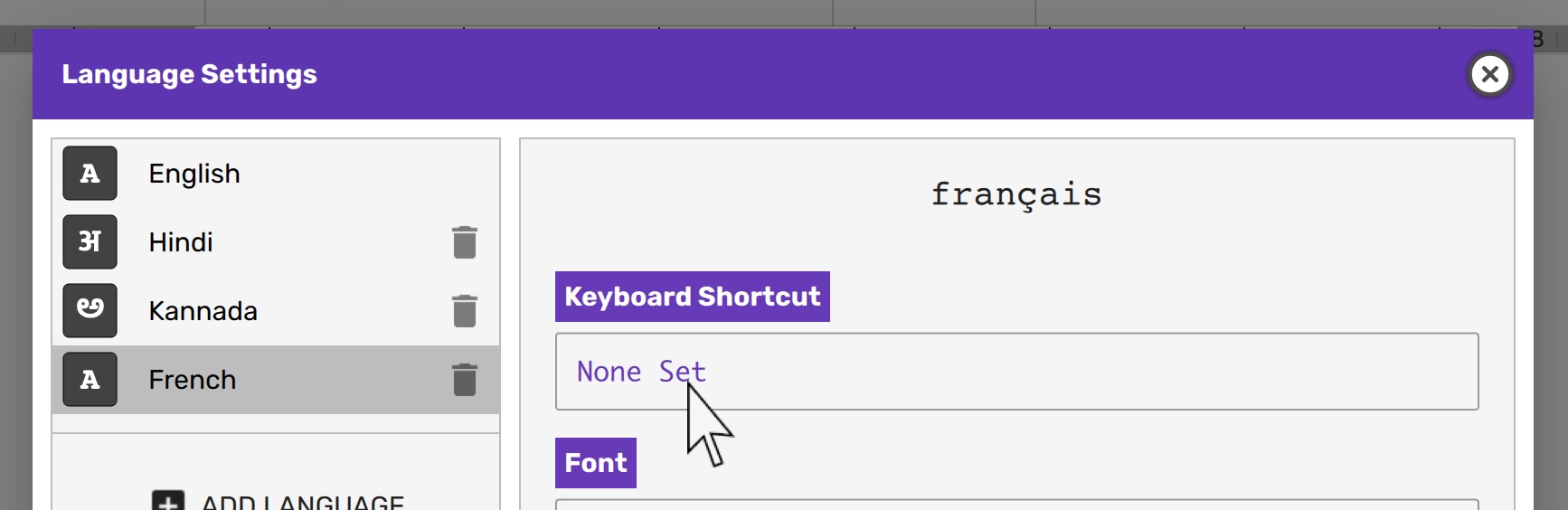
You can assign or change keyboard shortcut for any language by clicking on the
shortcut link in the Keyboard Shortcut groupbox. If there was no shortcut
assigned, then the shortcut link will report None Set.
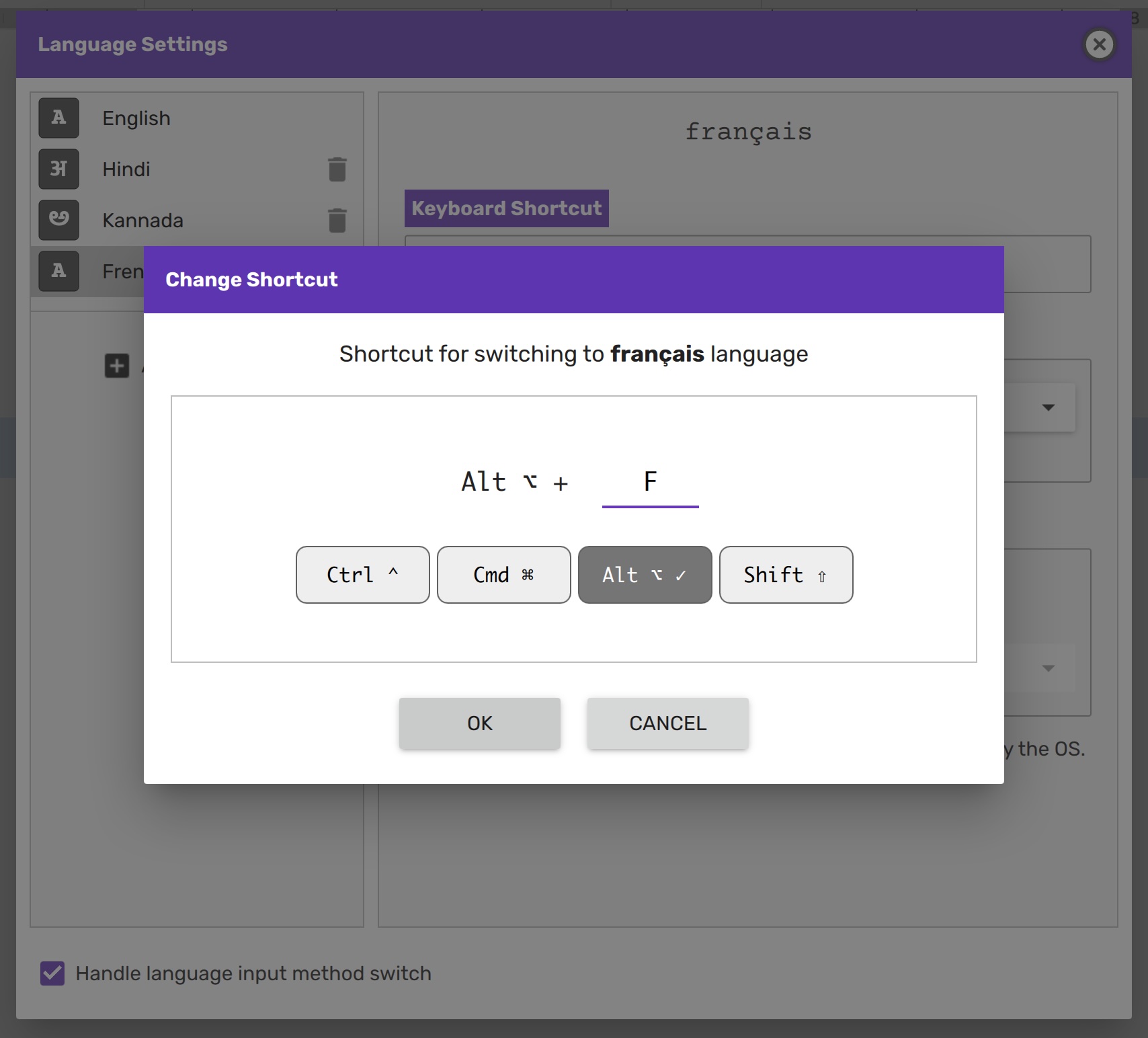
In the Change Shortcut dialog you can assign a keyboard shortcut of your
choice.
Once a shortcut has been assigned, it will also be displayed in the language menu.
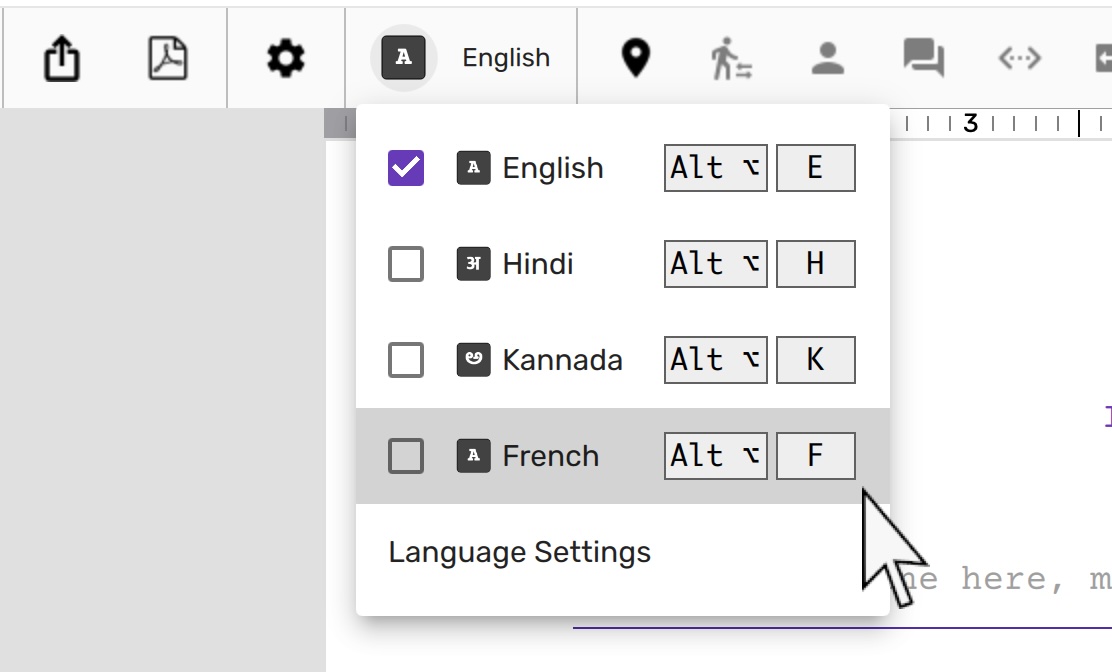
NOTE: English and 11 Indian languages have hard coded keyboard shortcuts. These are shortcuts that have historically been associated with those languages, and Scrite doesn't allow altering them. You can however change keyboard shortcuts for any other language.
Font Association
Every language has a script associated with it.
- For instance: English & French languages share the Latin script.
- Hindi, Marathi and Sanskrit share Devanagiri script.
- Kannada, Tamil, Telugu and Malayalam have their own unique scripts.
You can associate any font to a language and have that font be used by other languages that use the same script.
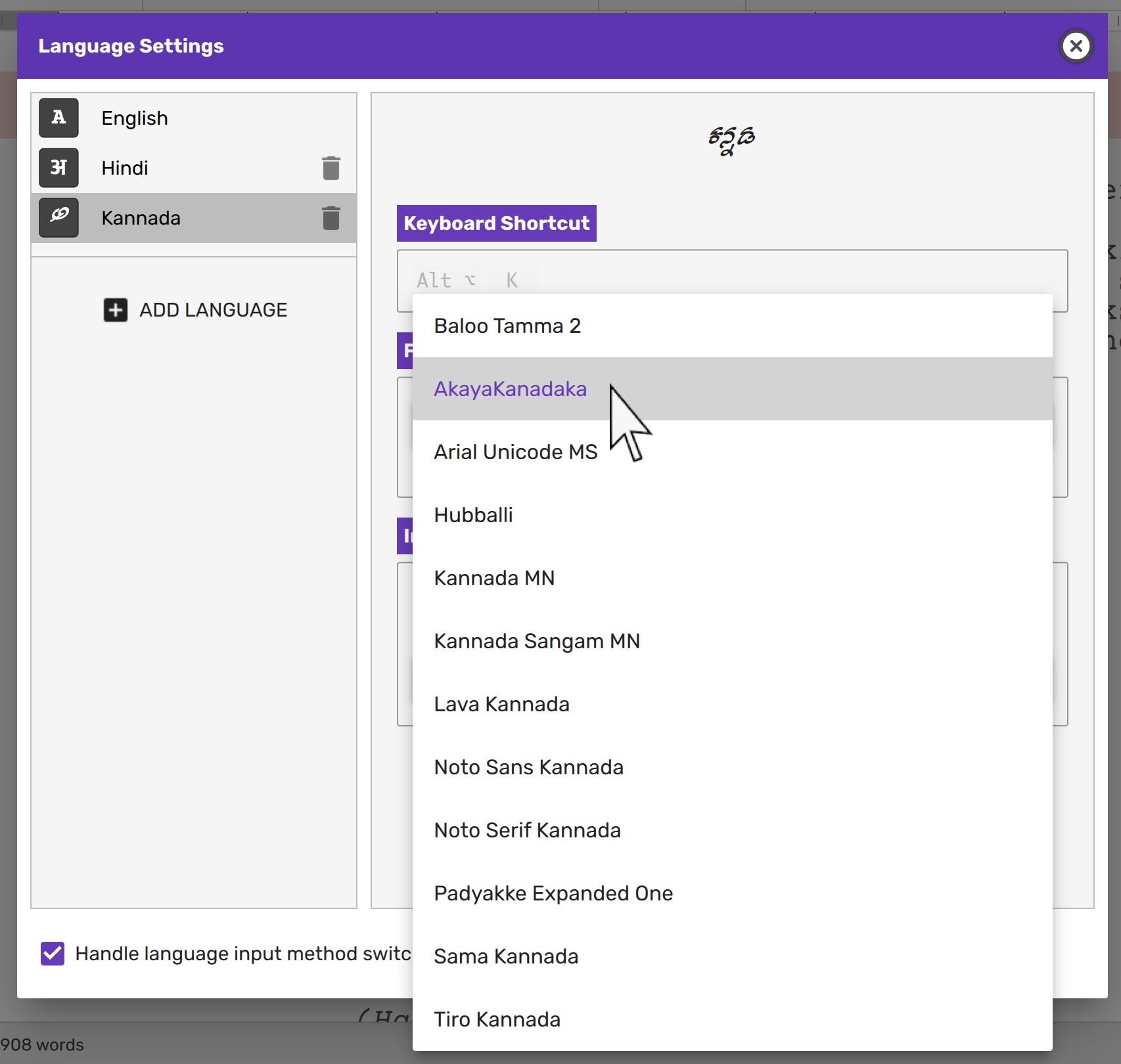
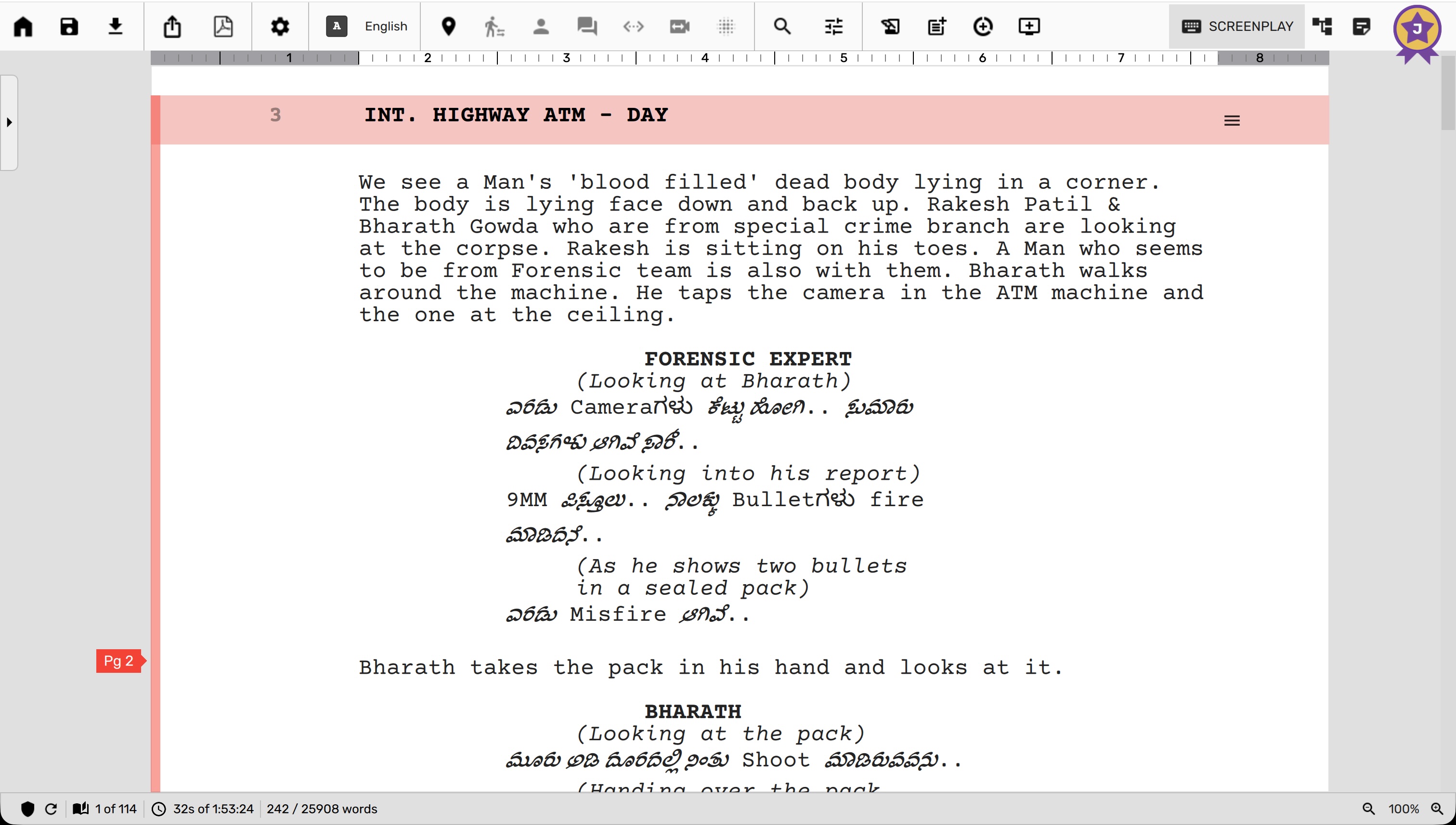
Once assigned all fonts in of a given script type will be rendered as configured. This takes away the burden of having to select specific text snippets and assign fonts separately.
Input Method Mapping
While Scrite bundles a static phonetic translation input method for the 11 Indian languages it supports, it falls back to the default OS input method for all other languages.
Windows and macOS offer standard mechanisms for registering input methods for various languages. On Linux, however, you will have to install and configure ibus.
Once you have configured input methods on your OS you can return or restart Scrite to have it automatically register and map input methods for those languages.
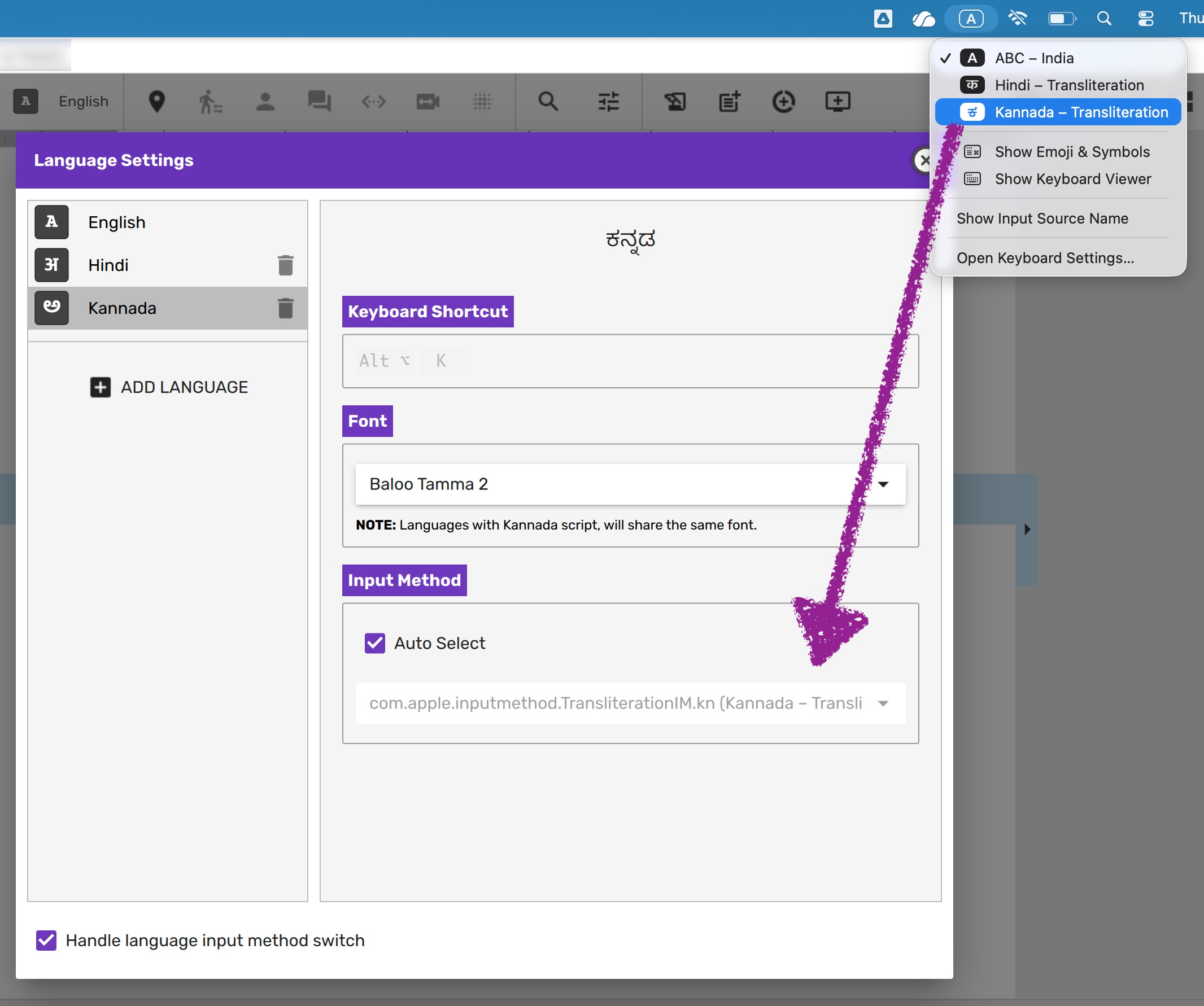
Whenever you switch languages either using either the language menu within Scrite, or by using the keyboard shortcuts assigned to them, Scrite toggles the corresponding OS input method for you.
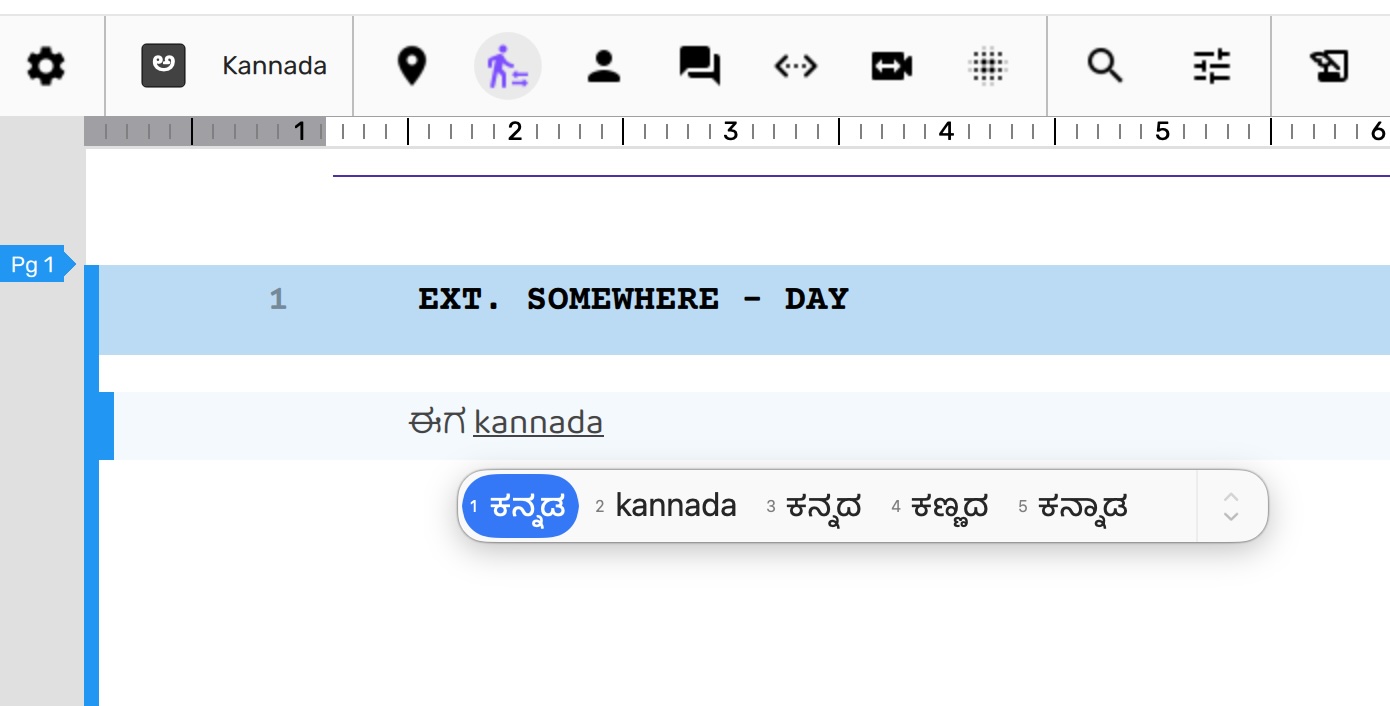
If you prefer using a different input method for a specific language, then you
can configure that in the Language Settings dialog box by unchecking Auto
Select and picking a specific input method.
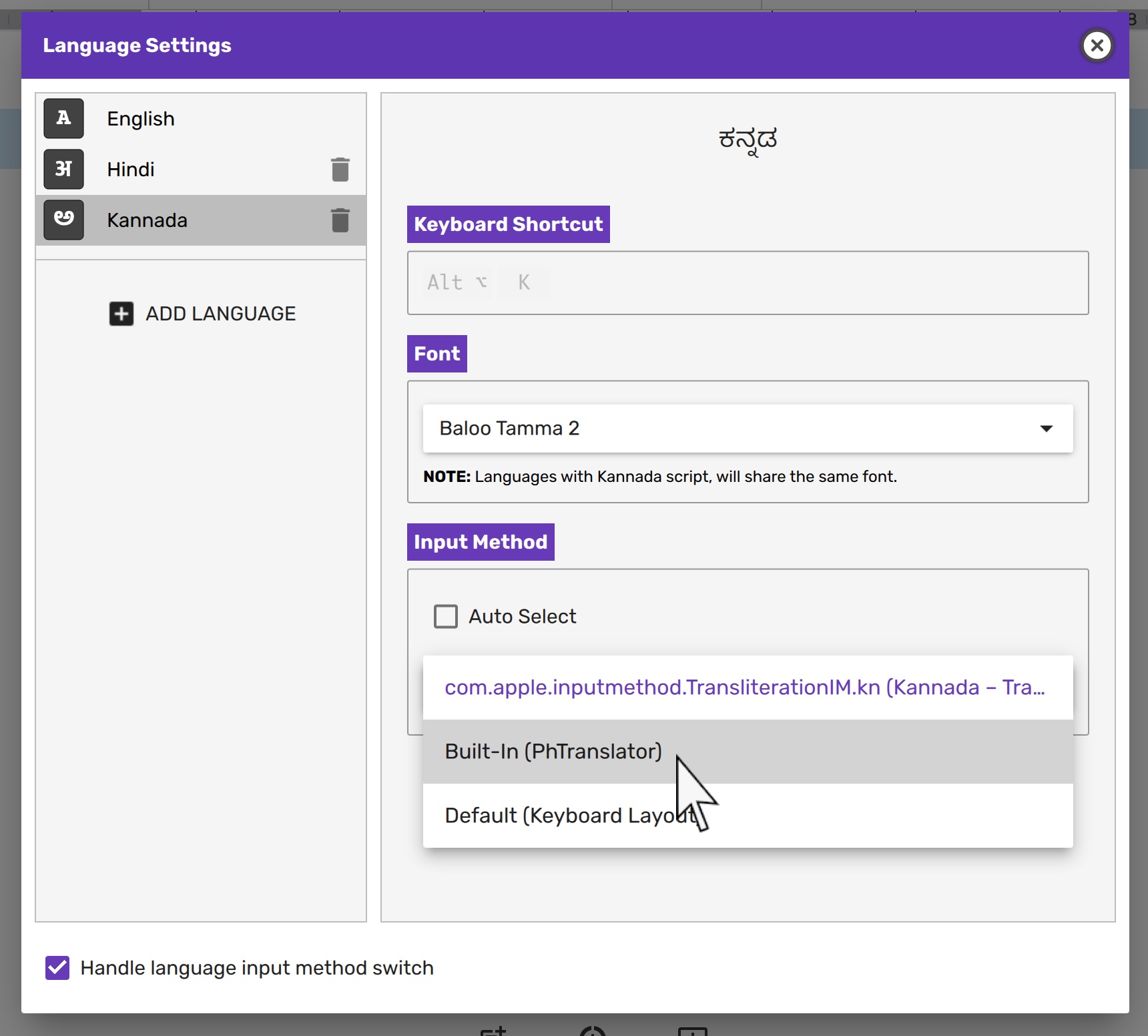
From then on, Scrite will use the assigned input method while typing in that language.
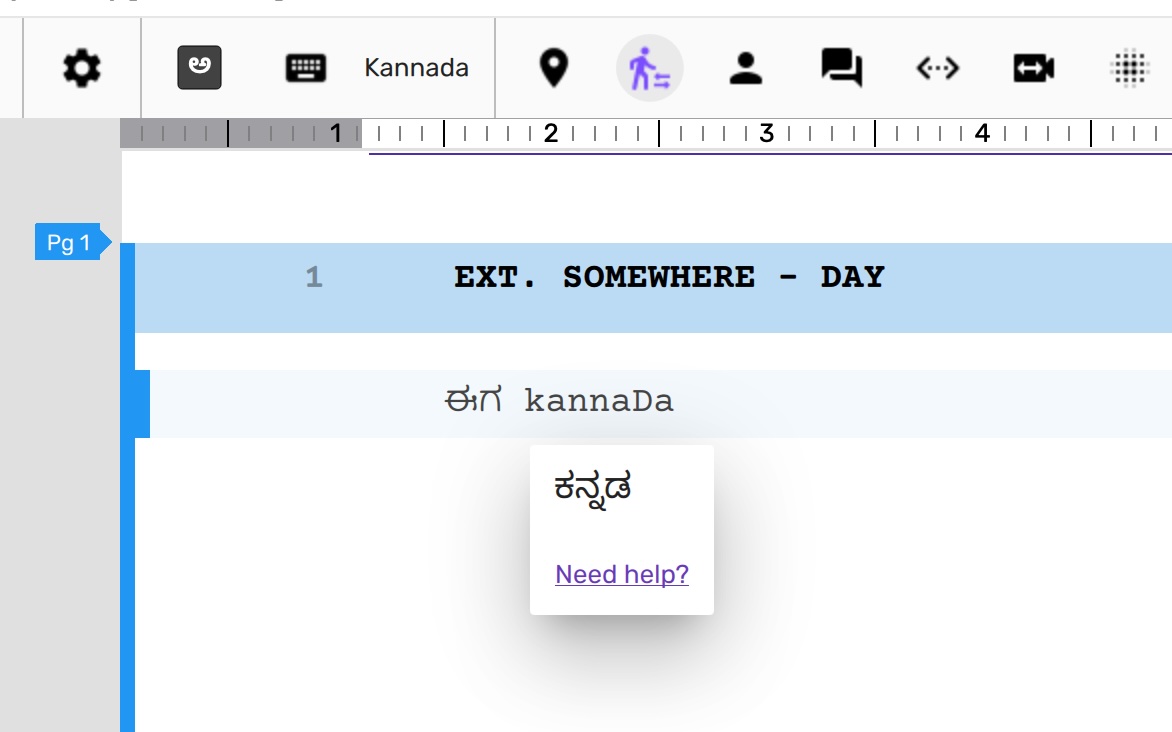
Whenever the active transliteration option provides an alphabet mapping table, Scrite displays an icon on the toolbar for reviewing it.
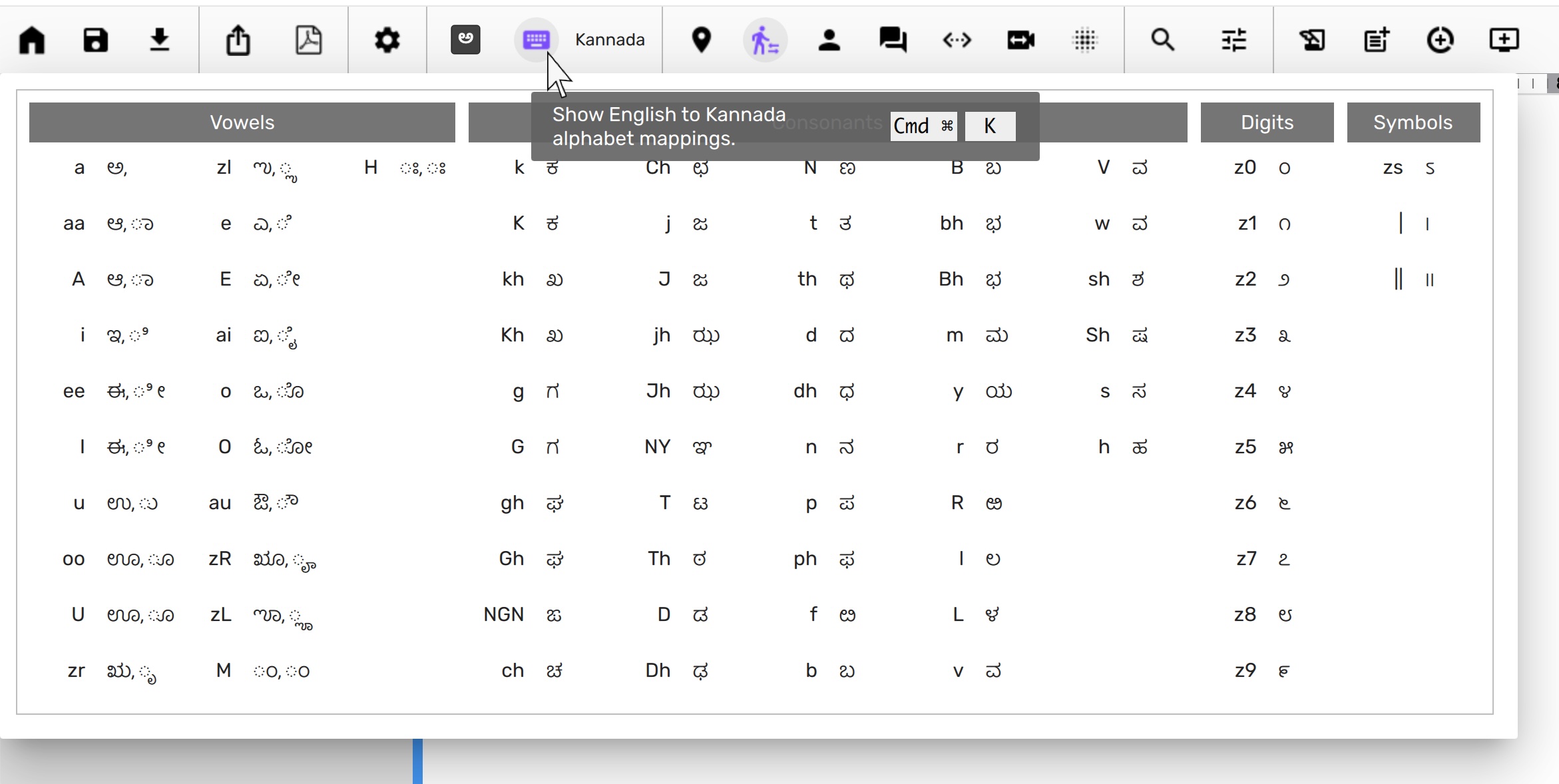
This alphabet mapping table shows the accurate combination of English alphabets to use.
NOTE: By default Scrite insists on handling language input switch all by itself, unless you configure the app to delegate it entirely to the OS.
Built In Transliteration Engines
For the 11 Indian languages Scrite supports natively, you have a choice of two
built-in phonetic transliteration engines: PhTranslator and Sanscript. Both
accept English keystrokes and convert them to the target Indian script as you
type, entirely within the app and without any network access. You can select
either one in the Language Settings dialog by unchecking Auto Select and
picking from the input method list.
PhTranslator
PhTranslator is a static transliteration library originally developed as an open-source project on SourceForge. It covers all 11 Indian languages: Bengali, Gujarati, Hindi, Kannada, Malayalam, Marathi, Oriya, Punjabi, Sanskrit, Tamil, and Telugu. The engine applies a fixed, deterministic mapping from English letter sequences to the corresponding native script characters. There are no fuzzy matches, no suggestions to scroll through, and no external dependencies. Every keystroke is converted instantly.
In the input method list it appears as Built-In (PhTranslator).
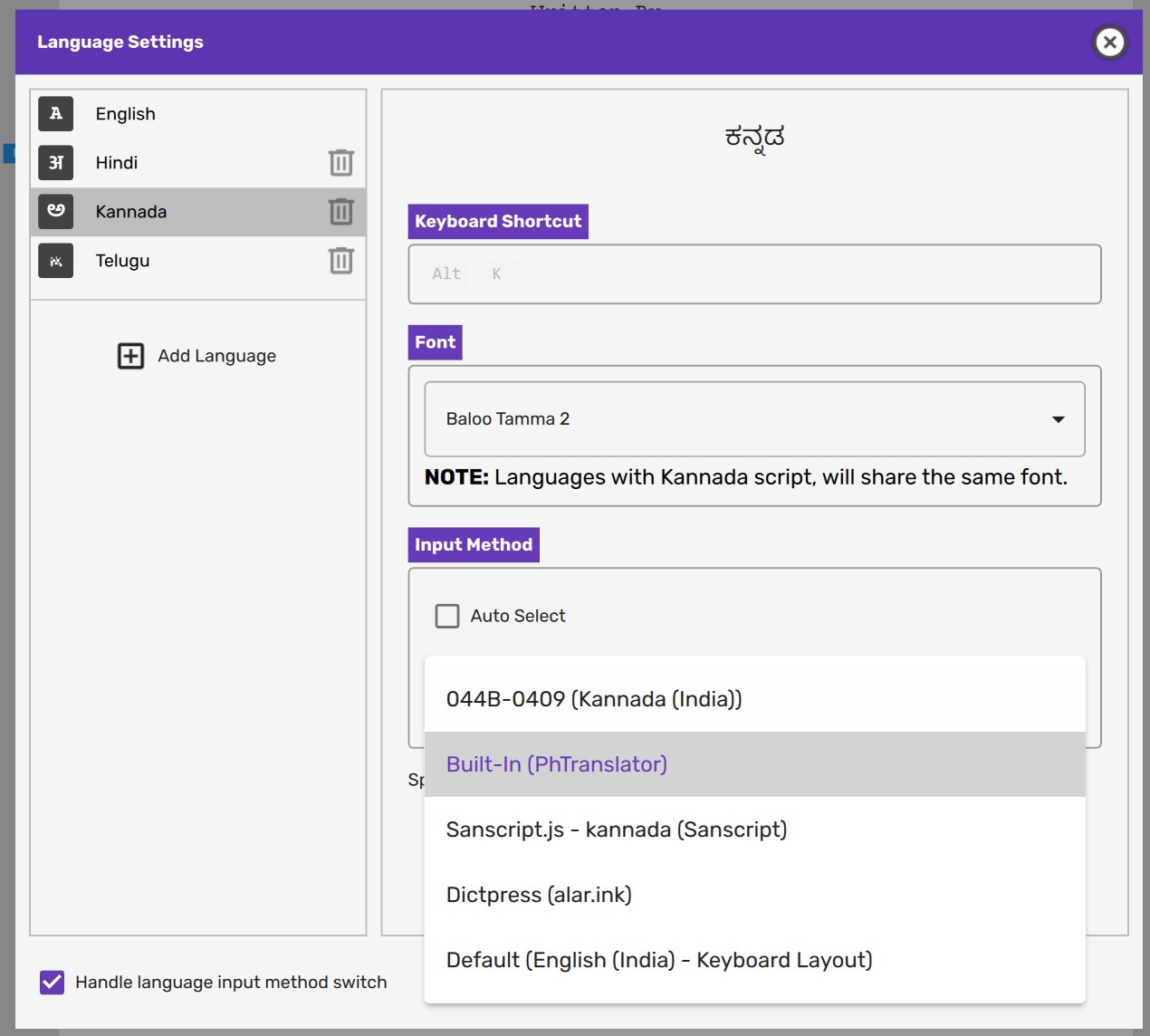
When PhTranslator is the active transliteration option, Scrite shows the alphabet mapping icon on the toolbar. Clicking it opens a reference table that lists the exact English key combinations for every vowel, consonant, digit, and symbol in the current language -- the same table shown above in the Input Method Mapping section.
What PhTranslator can and cannot transliterate is determined entirely by the library itself. Scrite simply passes your keystrokes through it and displays whatever it produces.
Sanscript
NOTE: Sanscript is available from Scrite version 3 onwards.
Sanscript (sanscript.js)
is an open-source transliteration library for Indian languages authored by Arun
Prasad and the Sanskrit Coders community, released under the MIT licence. Scrite
bundles a pre-built copy of the library inside the application and evaluates it
at runtime, so no network access or external installation is required.
Sanscript covers the same 11 Indian languages as PhTranslator. It uses the
ITRANS romanization scheme to map English
phonetics to the target script. In the input method list it appears as
Sanscript.js - <script-name> (Sanscript), for example
Sanscript.js - devanagari (Sanscript) for Hindi, Marathi, and Sanskrit,
Sanscript.js - kannada (Sanscript) for Kannada, and so on.
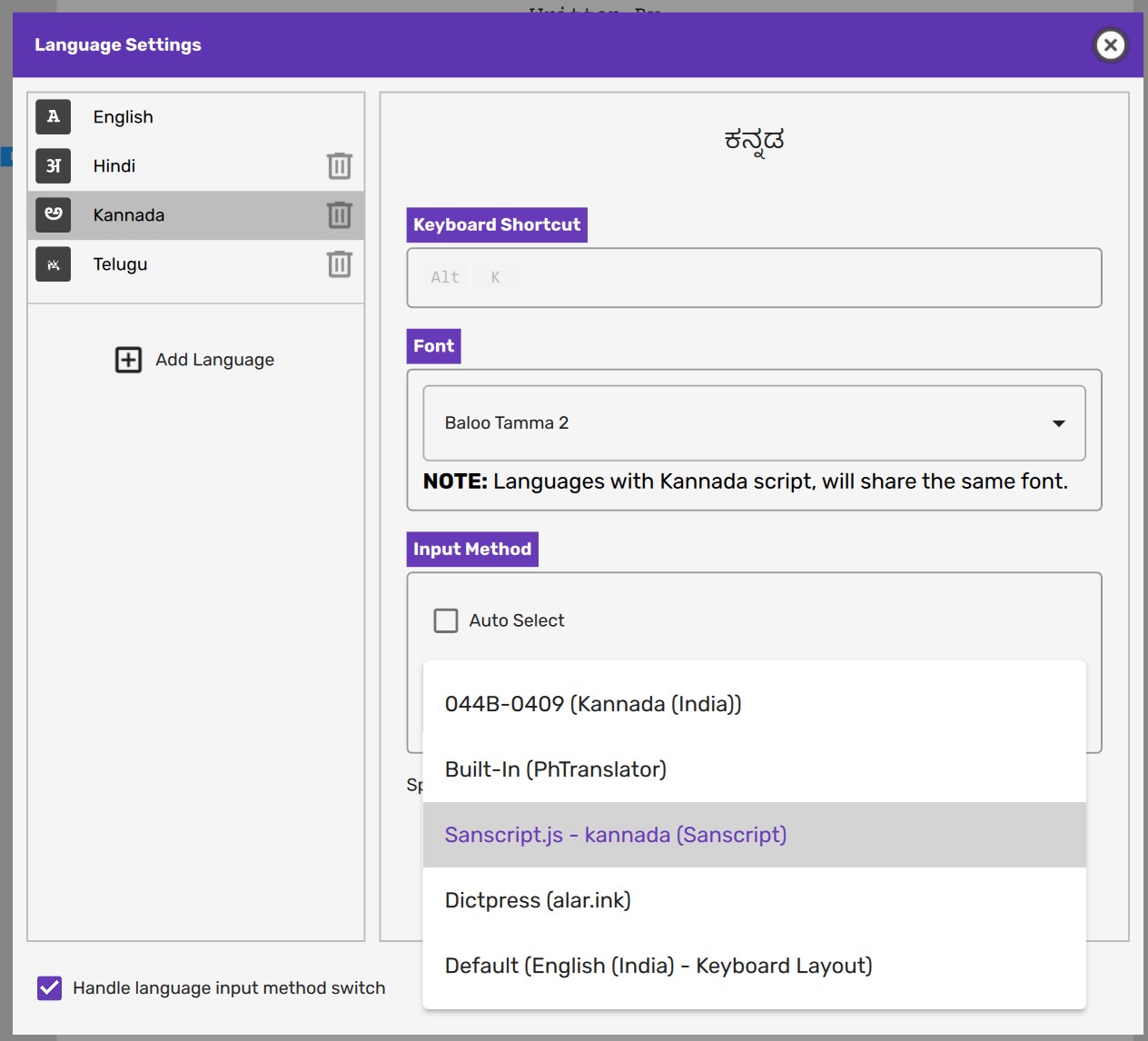
Sanscript does not currently provide an alphabet mapping table, so the toolbar icon will not appear when it is the active engine. Users who need a keystroke reference while using Sanscript can consult the ITRANS specification directly.
What Sanscript can and cannot transliterate is determined entirely by the library itself. Scrite simply passes your keystrokes through it and displays whatever it produces.
Choosing between PhTranslator and Sanscript
The two engines differ only in the keystroke conventions they follow, not in the correctness or completeness of the output. Both produce standard Unicode text that is identical for most common words.
If you are already familiar with ITRANS conventions -- for example, typing aa
for the long-A vowel, sh for the sibilant श, or N^ for the anusvara ं --
Sanscript will feel natural from the start.
If you prefer a more relaxed, phonetic-English style of input, or if you are switching from an older version of Scrite where PhTranslator was the only option, stay with PhTranslator. The alphabet mapping table on the toolbar is available to help you learn its key combinations.
Cross-Transliteration
NOTE: Cross-transliteration is available from Scrite version 3 onwards.
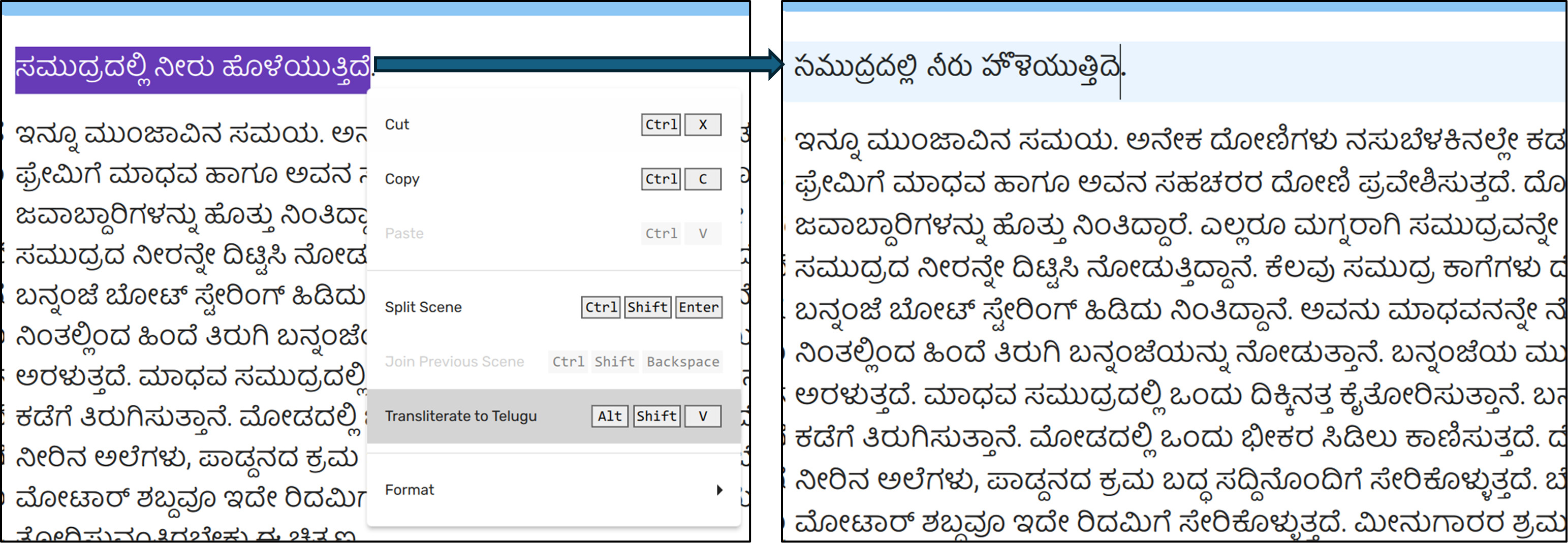
Cross-transliteration lets you convert a selected passage of text from its current script to the active language's script, all within the screenplay editor. For example, you can write a line of dialogue in English phonetics and convert it to Kannada in one step. Or, if you already have a passage in Kannada and want the same sounds rendered in Telugu, you can do that too.
At the moment this feature works only for the 11 Indian languages supported by Scrite. Converting from English phonetics to an Indian language works with both PhTranslator and Sanscript as the target language's input method. Converting from an Indian language back to English, or from one Indian language to another, requires the target language's input method to be set to Sanscript.
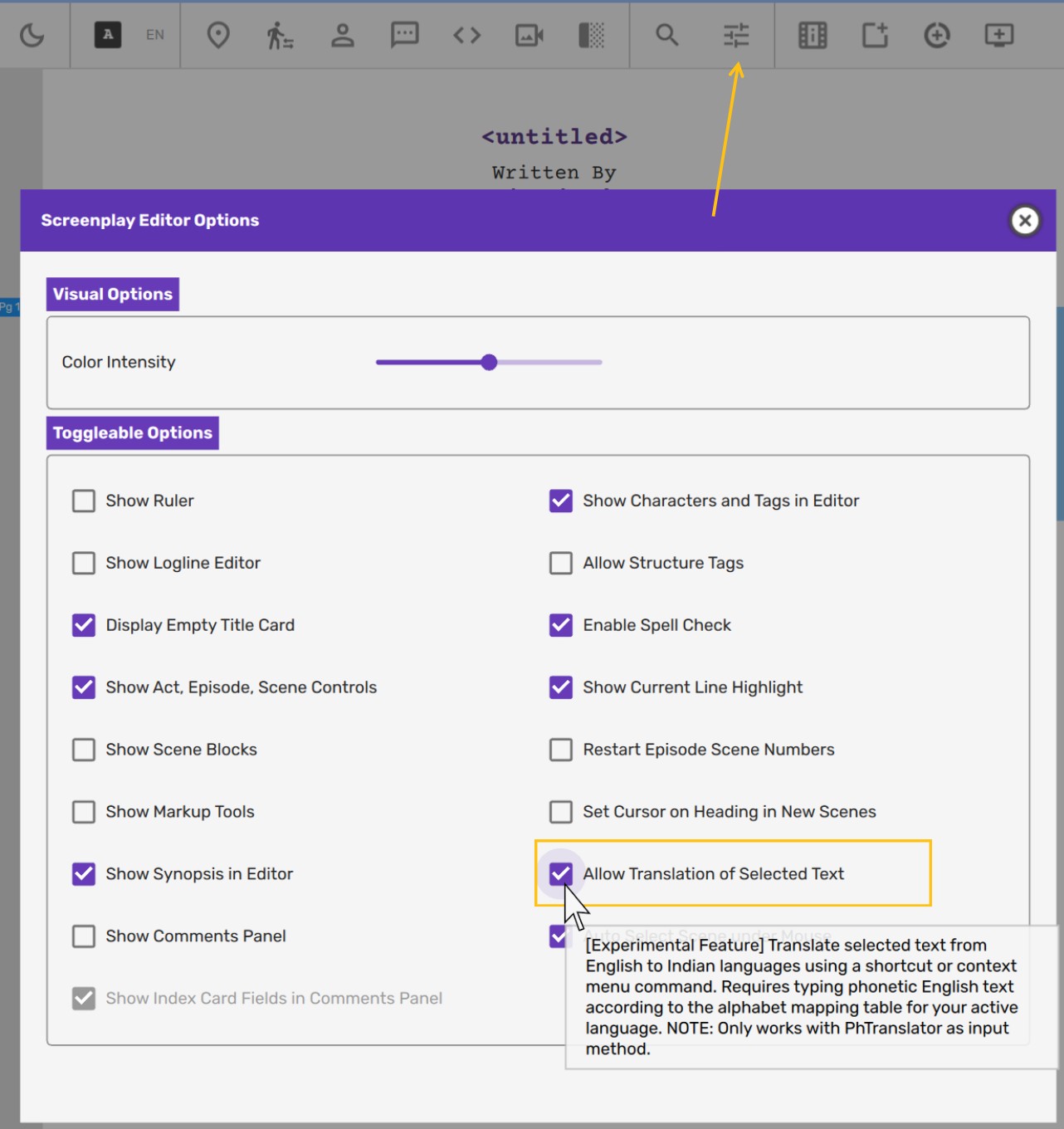
This is an experimental feature and is turned off by default. To enable it,
click the Screenplay Editor Options button on the toolbar and check Allow
Translation of Selected Text.
Using it
- Set your target language using the language menu on the toolbar.
- Ensure that language's input method is set to Sanscript, or to PhTranslator if you are converting from English phonetics to an Indian language.
- Select the text you want to convert.
- Right-click and choose
Transliterate to [Language], or pressShift+Alt+V.
Scrite replaces the selected text with the transliterated result in a single undoable step. For example, selecting a passage in Kannada and running the command with English as the active language converts it to its ITRANS phonetic equivalent.
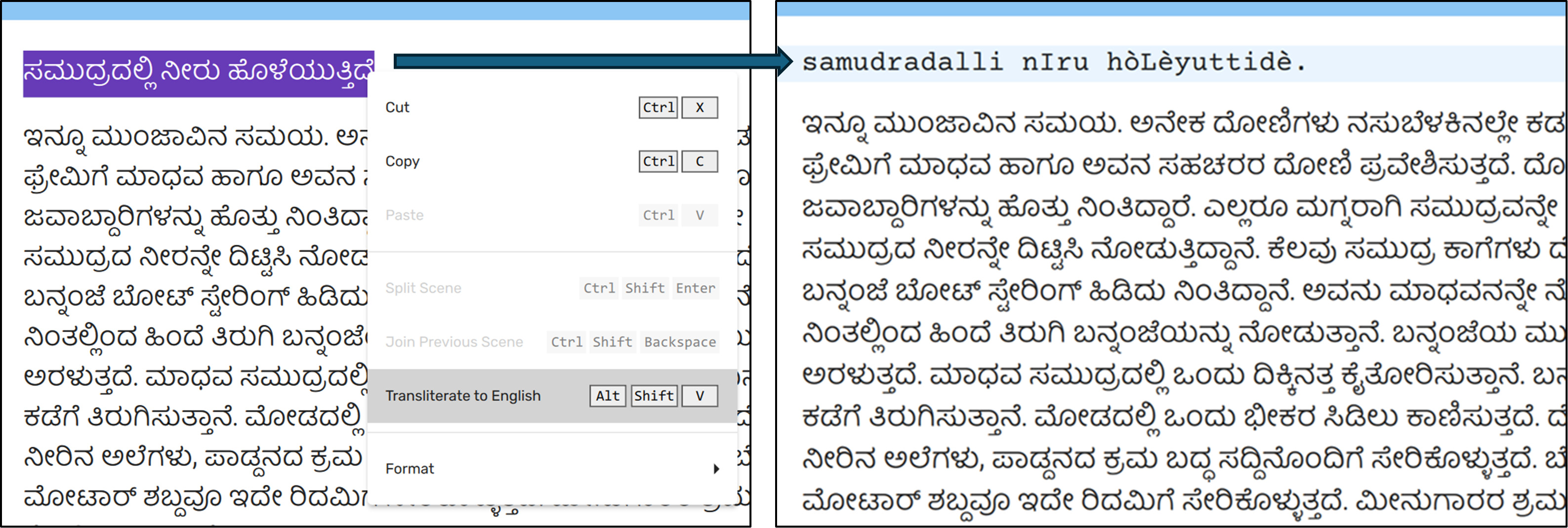
Sanscript routes everything through the ITRANS romanization scheme internally, which allows it to detect the script of the selected text and convert it to any other supported Indian script. This makes it possible to transliterate a passage from Kannada (ಸಮುದ್ರದಲ್ಲಿ ನೀರು ಹೊಳೆಯುತ್ತಿದೆ) to Telugu (సముద్రదల్లి నీరు హొళెయుత్తిదె) simply by switching the active language to Telugu with Sanscript as its input method, selecting the Kannada text, and running the command.
NOTE: What Sanscript can and cannot cross-transliterate is determined entirely by the library itself. Scrite passes the selected text through it and replaces it with whatever the library produces. The result is a phonetic equivalent in the target script -- it does not account for grammar, inflection, or vocabulary differences between languages, and is not a translation.
Dictpress: Alar and Olam
dictpress is a free and open source, single binary webserver application for building and publishing fast, searchable dictionaries for any language. The project has published two dictionaries Alar (for Kannada) and Olam (for Malayalam).
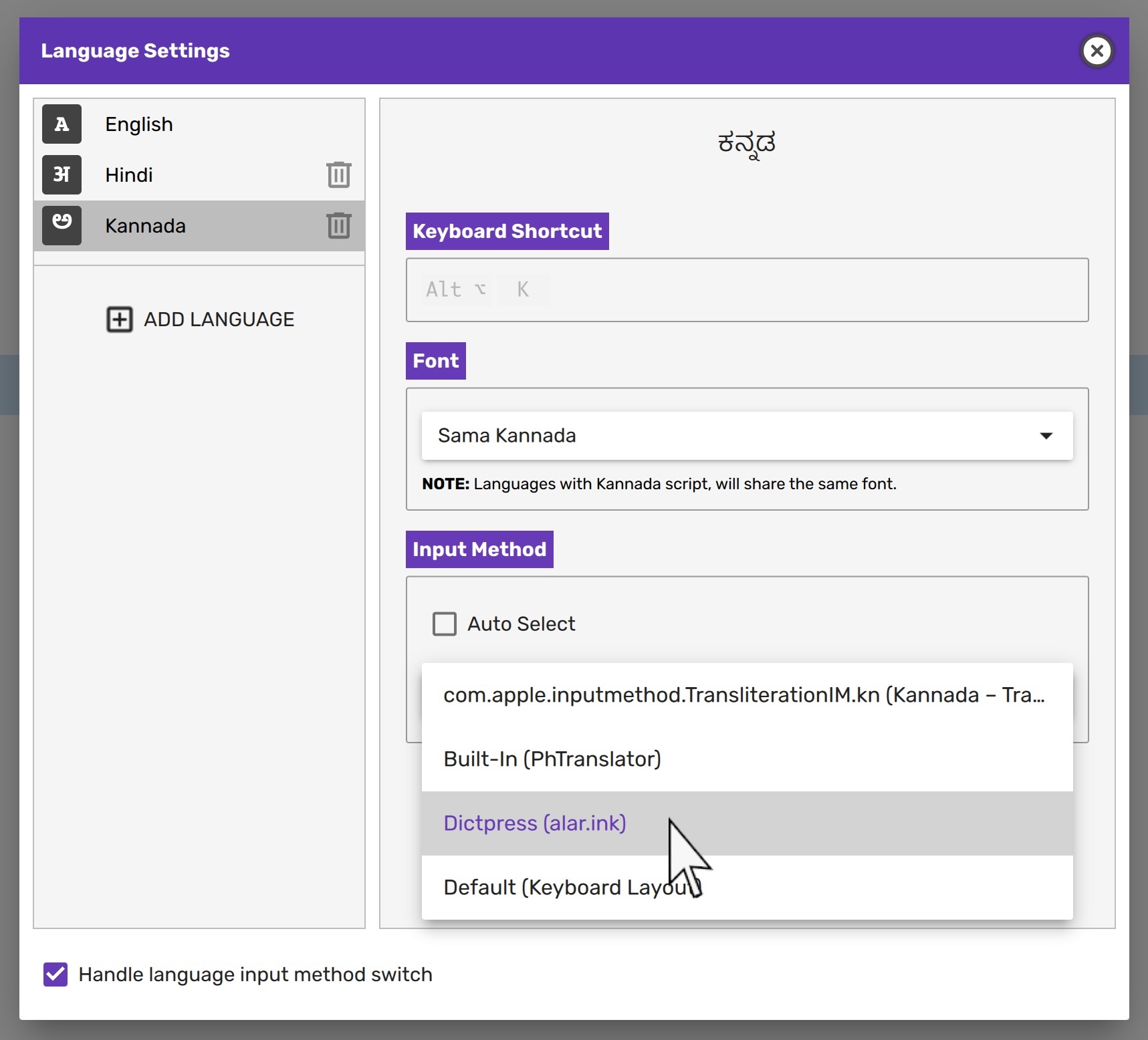
From version 2.0.21, Scrite lets you use these dictionaries to offer transliteration suggestions as you type, in addition to the static transliteration offered by PhTranslator.
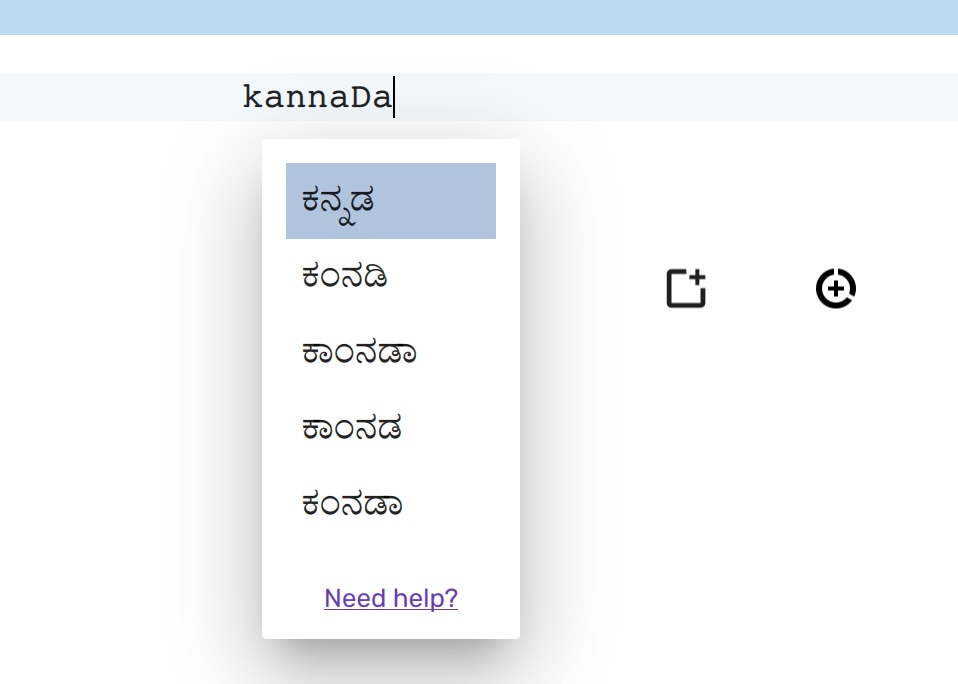
Please note that Alar and Olam dictionaries are a work in progress and you may not always find the transliterated text you are looking for. However they are increasingly getting better and better with each update.
Third Party Input Methods
Native support for Nudi, Baraha, ISMv6, and custom keyboard layout files is currently not available. We may build support for them in a future update.
If you prefer using third party language input methods (like Nudi, or Baraha) then read the next section to learn how to delegate input method switching to the OS.
Letting OS Manage Input Method Switching
Some users prefer to let their OS handle all input method switching because they
are used to that with other apps. We understand that habits formed over a long
time are difficult to change. In such cases, simply uncheck the Handle language
input method switch option in Language Settings.
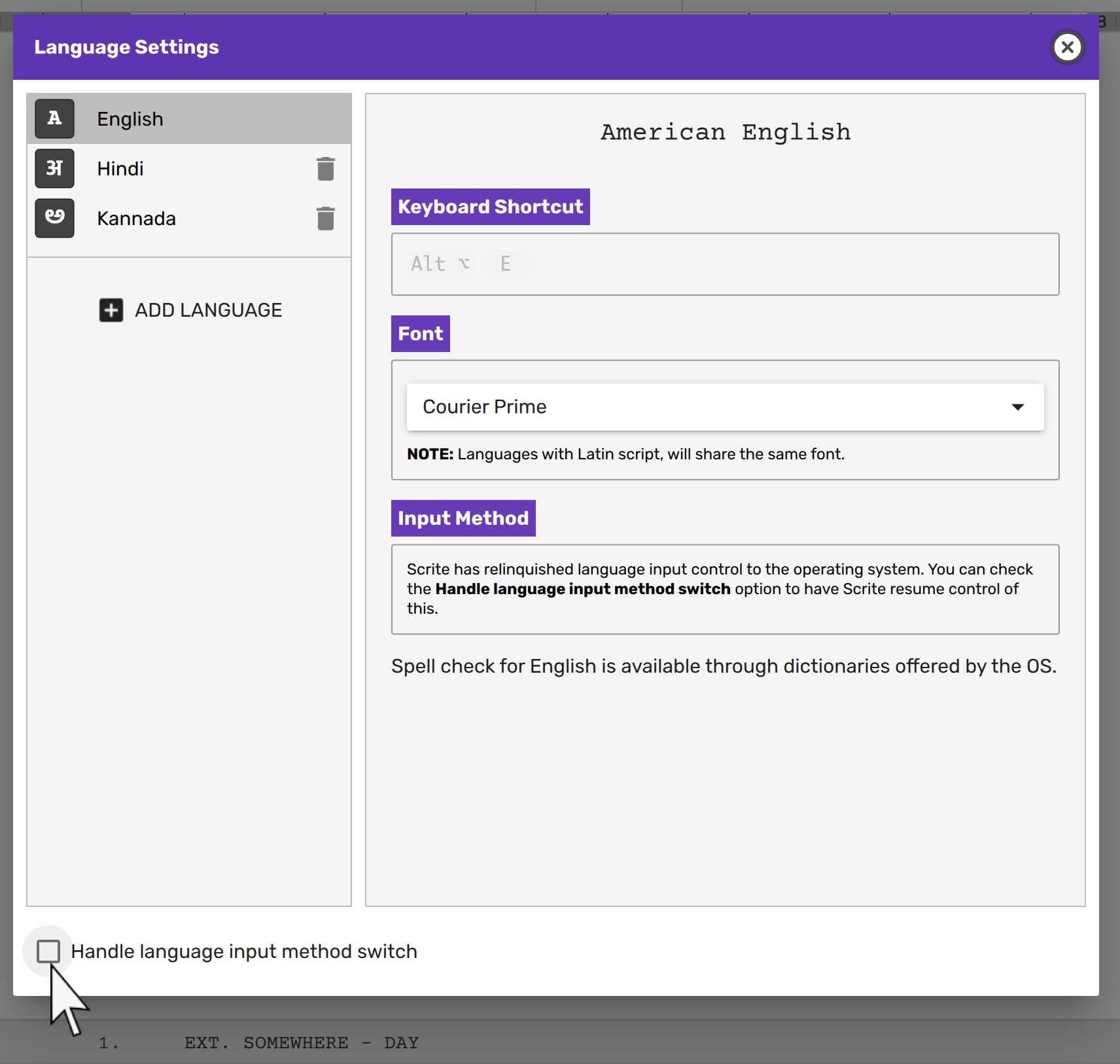
Scrite will no longer show you language switch menu, nor does it respond to lanugage shortcuts within the app. All language switching will now have to be managed by using menus and shortcuts configured with the operating system. Scrite does however show a language icon in the toolbar to report the language input method currently activated in the OS. Font associations, however, will continue to work.
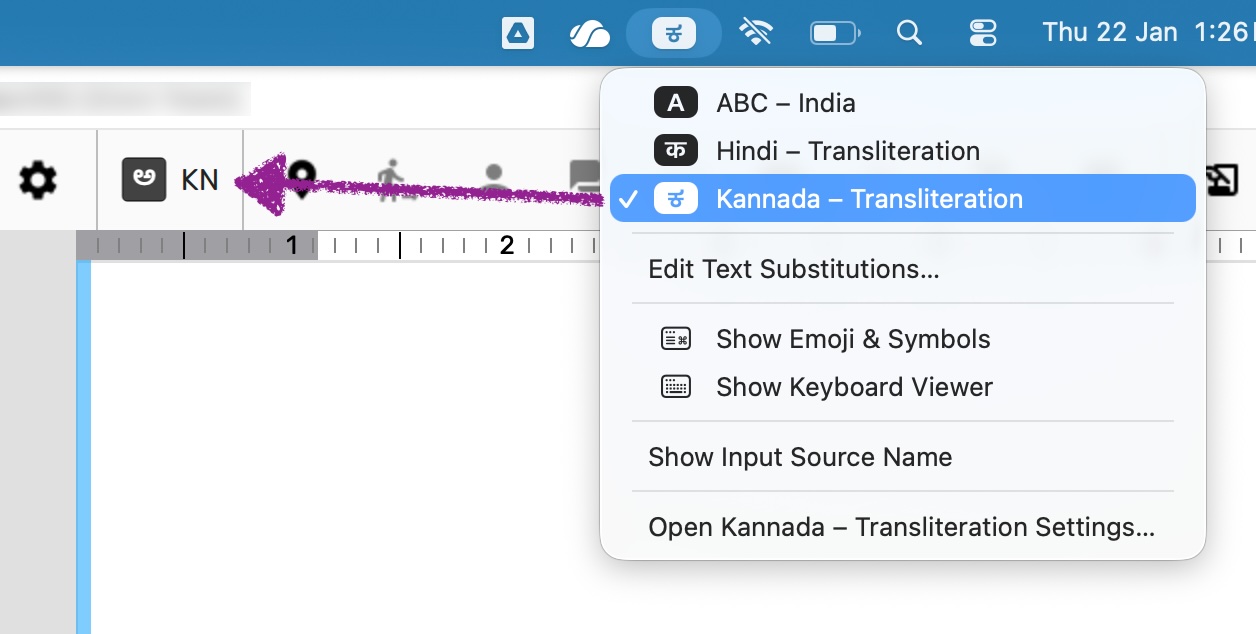
When you click on the language toolbutton in the Scrite UI, a dialog box is shown as follows.
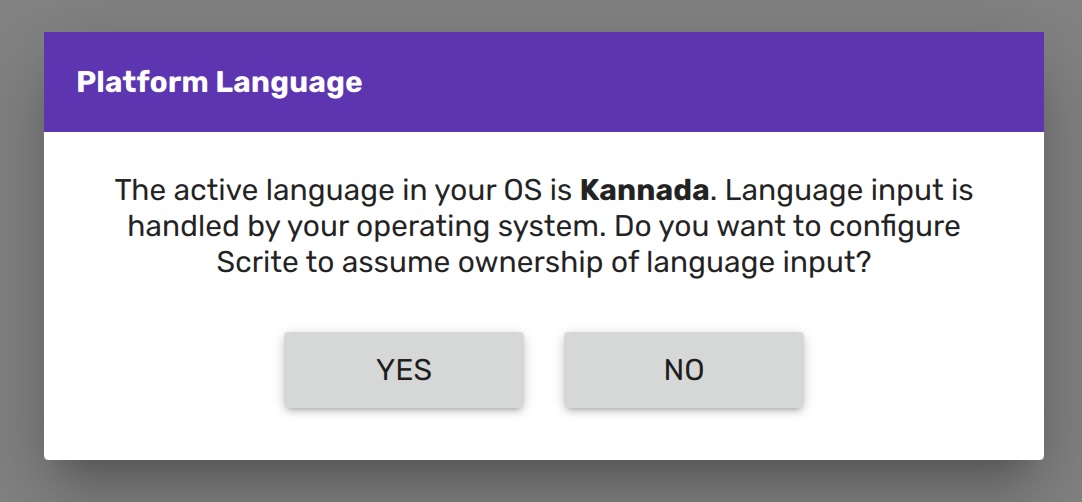
You can click Yes in this message box to open the Language Settings dialog
and toggle the Handle language input method switch option ON, and have Scrite
resume control of switching between input methods for languages.