User Account
When you installed Scrite for the first time, you would have created a Scrite account. All your subscriptions are tagged to this account and you can always stay on top of that information in the User Account Dialog.
This dialog brings together profile information, subscription status, a catalog of activated devices, and in-app messages. Visiting it allows you to update your profile, reiview subscription and device activations.
User Account Dialog
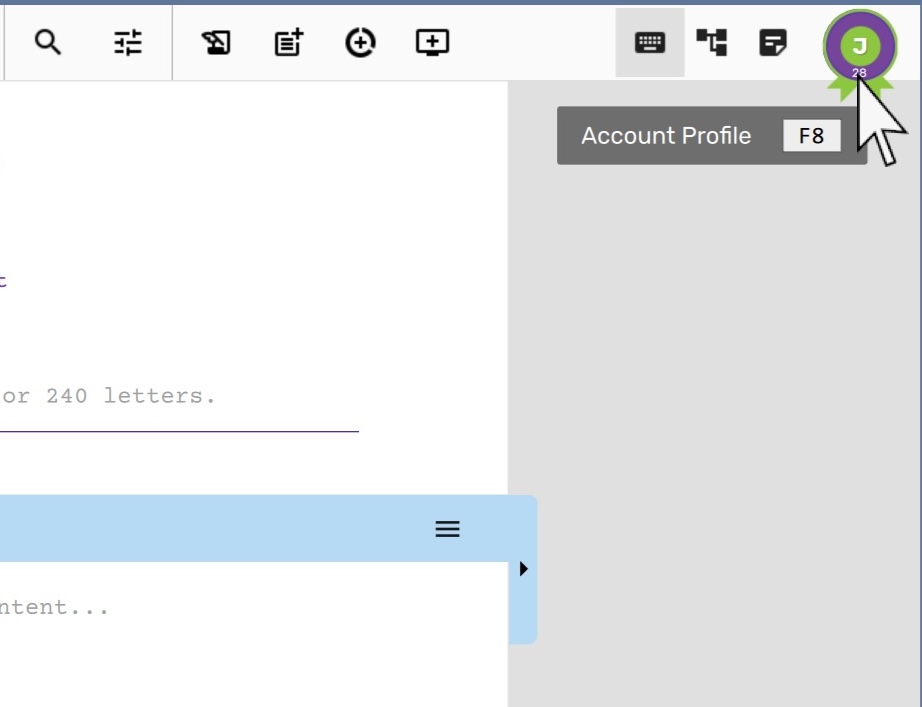
There are two ways to launch the user account dialog.
- One is by clicking on the user account icon to the top right corner of the main-window,
- The other is by using the
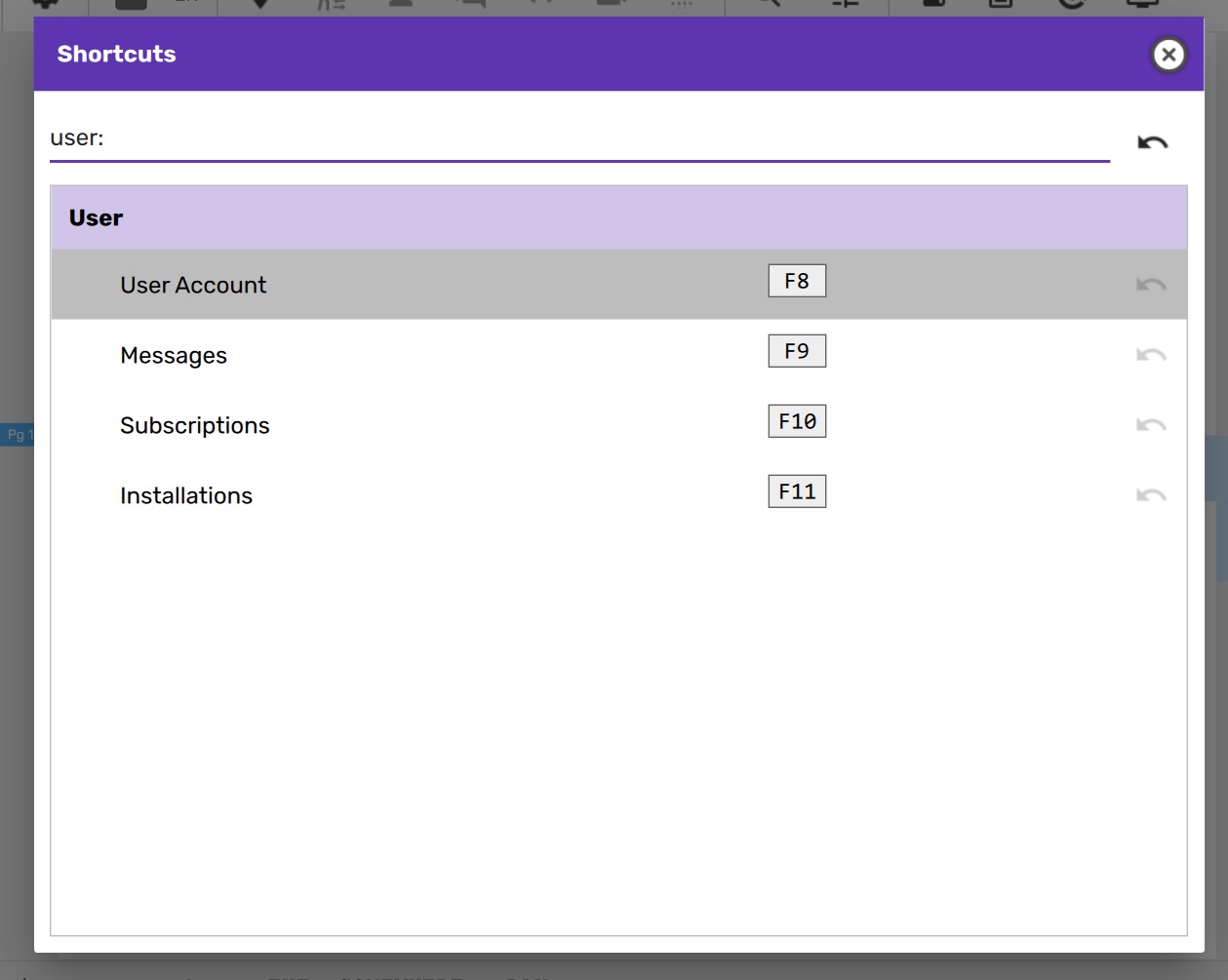
F8shortcut.
You can discover and configure shortcuts for each of the pages displayed here in the shortcuts dialog.
Profile Page
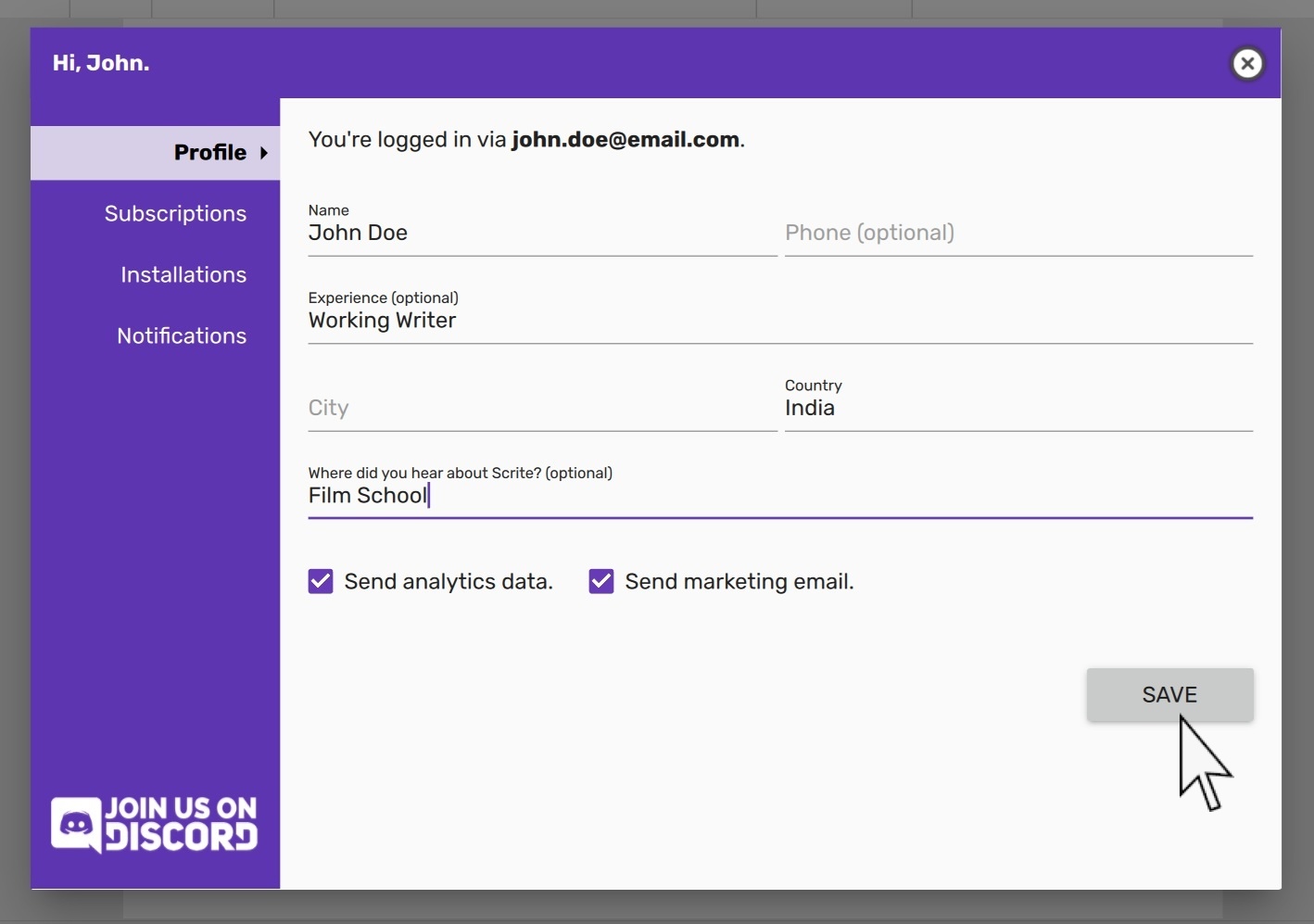
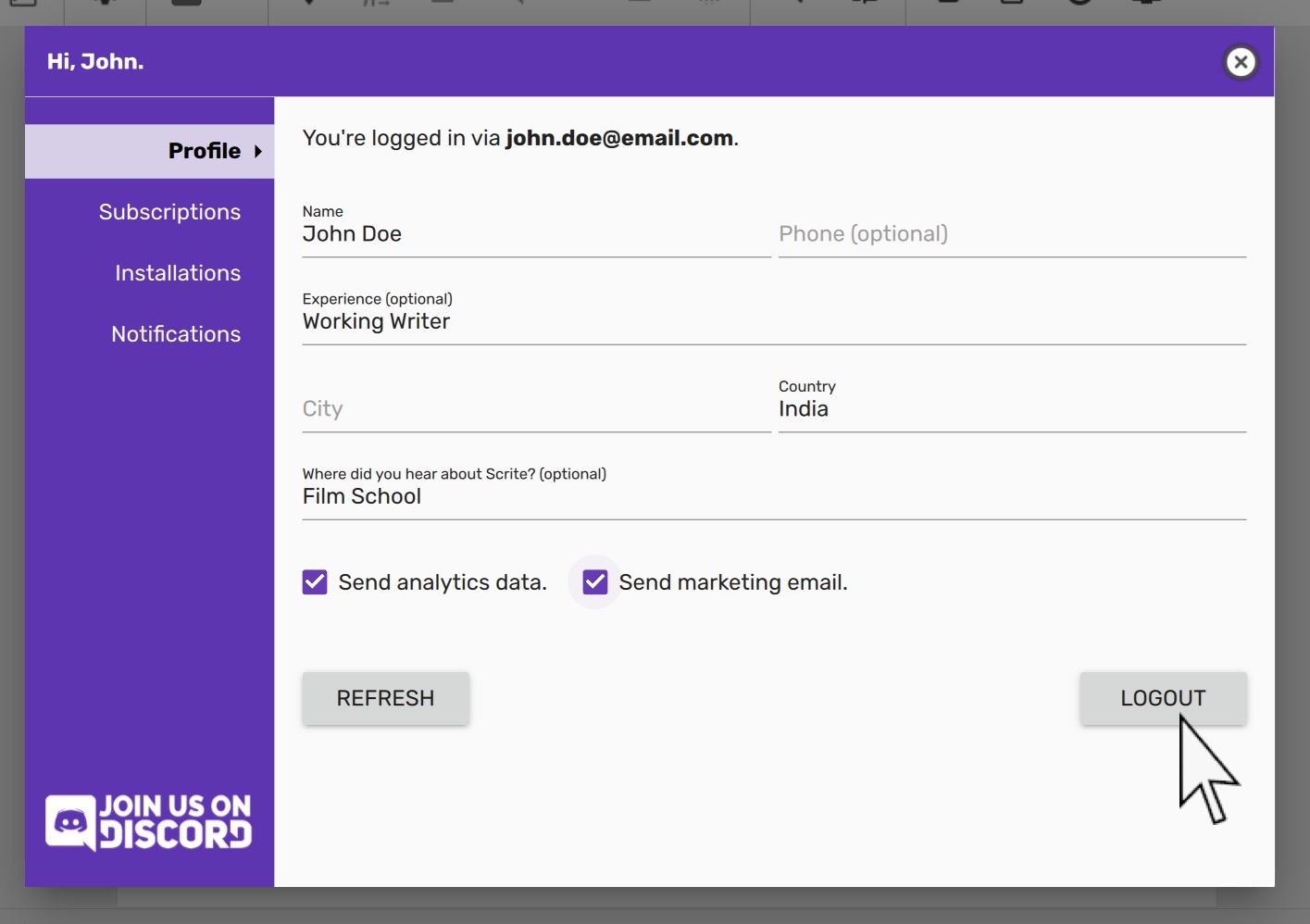
The Profile page displays the e‑mail address linked to your Scrite account and lets you edit your personal details.
Below the fields are four checkboxes for managing your communication and data preferences:
- Consent to send usage analytics – enable or disable data collection.
- Consent to receive emails – opt in or out of email communications.
- Consent to product feedback calls – allow or disallow phone calls for feedback.
- Consent to WhatsApp messages – opt in or out of WhatsApp updates.
After changing any field or toggle, click Save to apply the updates.
Usage Analytics
The Consent to send usage analytics (formerly Send analytics data) checkbox controls whether Scrite sends activity logs to the Scrite servers.
What is collected: When enabled, Scrite periodically sends logs that record which features you use and how often. Each log includes enough information to identify your account and device so the team can attribute activity to a subscription tier and platform.
How this helps: Telemetry data lets the team see which features are actually used and which are not. That informs decisions about where to invest development effort, what to improve in the product, and how to shape subscription offerings so they reflect how writers genuinely use Scrite.
What is never collected: The logs contain no content from your screenplays or documents. Your creative work stays entirely on your device and is never transmitted to the Scrite servers.
When disabled: Scrite still records the bare minimum needed to maintain your account and license — specifically, that the app was launched. All other in-app activity logging stops.
You can change this preference at any time. Click Save after toggling the checkbox for the change to take effect.
NOTE: The checkbox label changed from "Send usage analytics" to "Consent to send usage analytics" in version 3.0.7 and later. The functionality remains the same across all versions.
Communication Consent
Scrite uses the following channels to keep you informed about product updates and gather your feedback. Your personal information (email address or phone number) is never shared with third parties and is used exclusively by the Scrite team to communicate with you about the product. The only exceptions are when required for billing, payment processing, or compliance with relevant tax authorities and government agencies.
You can change these preferences at any time. Click Save after toggling any checkbox for the change to take effect.
Email Communications
The Consent to receive emails checkbox controls whether Scrite can send you emails related to product updates, announcements, and feedback requests. Emails are sent only when we have important product updates, new features, or specific requests for your feedback on features you use. We never send random marketing emails or promotional offers unrelated to the product.
Product Feedback & Support Calls
The Consent to product feedback calls checkbox controls whether members of the Scrite team can reach you by phone for product support, feedback collection, and feature discussions. We only call when we want to understand how you use Scrite, gather feedback on specific features, or provide direct support for issues you've encountered. Calls are never for promotional or sales purposes.
WhatsApp Updates
The Consent to send WhatsApp updates checkbox controls whether Scrite can send you messages on WhatsApp about product updates, announcements, and feature availability. Messages are sent only for significant product updates, new features, and important announcements. We use WhatsApp as an alternative communication channel for users who prefer it, but follow the same principle as email: focused product information, never random promotional content.
NOTE: Separate consent checkboxes for each communication channel were introduced in version 3.0.7. In earlier versions, a single "Send marketing email" toggle controlled consent for all three channels at once. If you wish to manage communication preferences independently, please update to version 3.0.7 or later.
Logout
You can click on the Logout button to volutarily relinquiesh the activation of your subscription
on the current device. This allows you to recycle your subscription on a new device. Please read the
section on Installations for more information.
Account Deletion
To request account deletion, send an email to support@scrite.io with your request. Account deletion requests are typically processed within 90 days.
What gets deleted: - All usage analytics logs associated with your account.
What we cannot delete: - Device information – We retain device data to prevent trial abuse. This applies to all users, including those on trial and paid subscriptions. - Billing and compliance records (paid subscribers only) – For paid subscribers, we cannot delete your email, phone number, subscription details, and payment history. These records are retained for legal compliance, tax purposes, and accounting requirements.
After account deletion:
You can recreate your Scrite account at any time using the same or a different email address. However, any trial activations that were previously used on your devices will be counted against your trial limits. This means future trial activations on those devices may be limited. You can always sign up for available paid plans instead.
Subscriptions Page
The Subscriptions page shows two kinds of information:
- Your subscription history – the plans you’ve already purchased.
- Available plans – new plans you can buy when your current plan is ending or has ended.
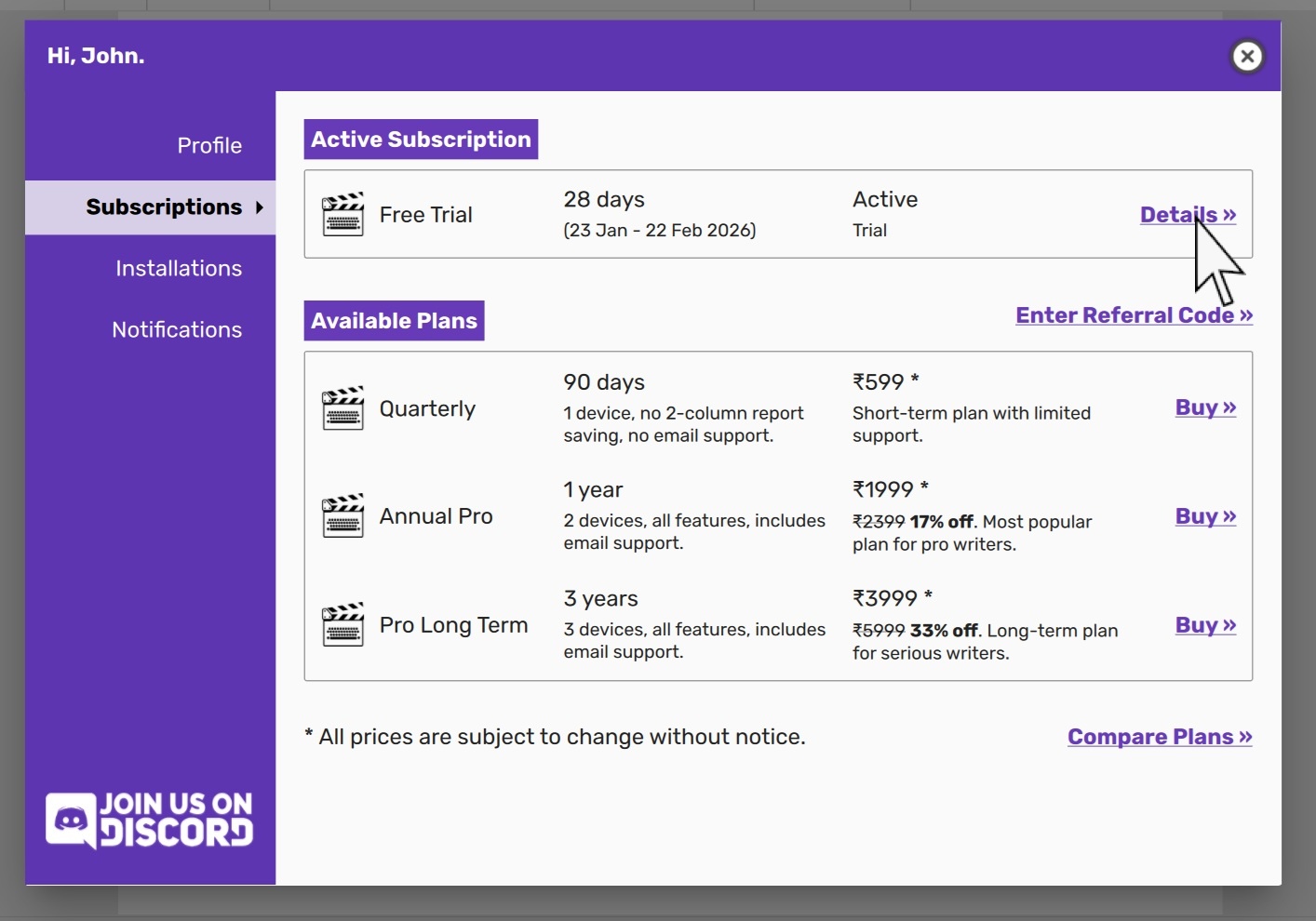
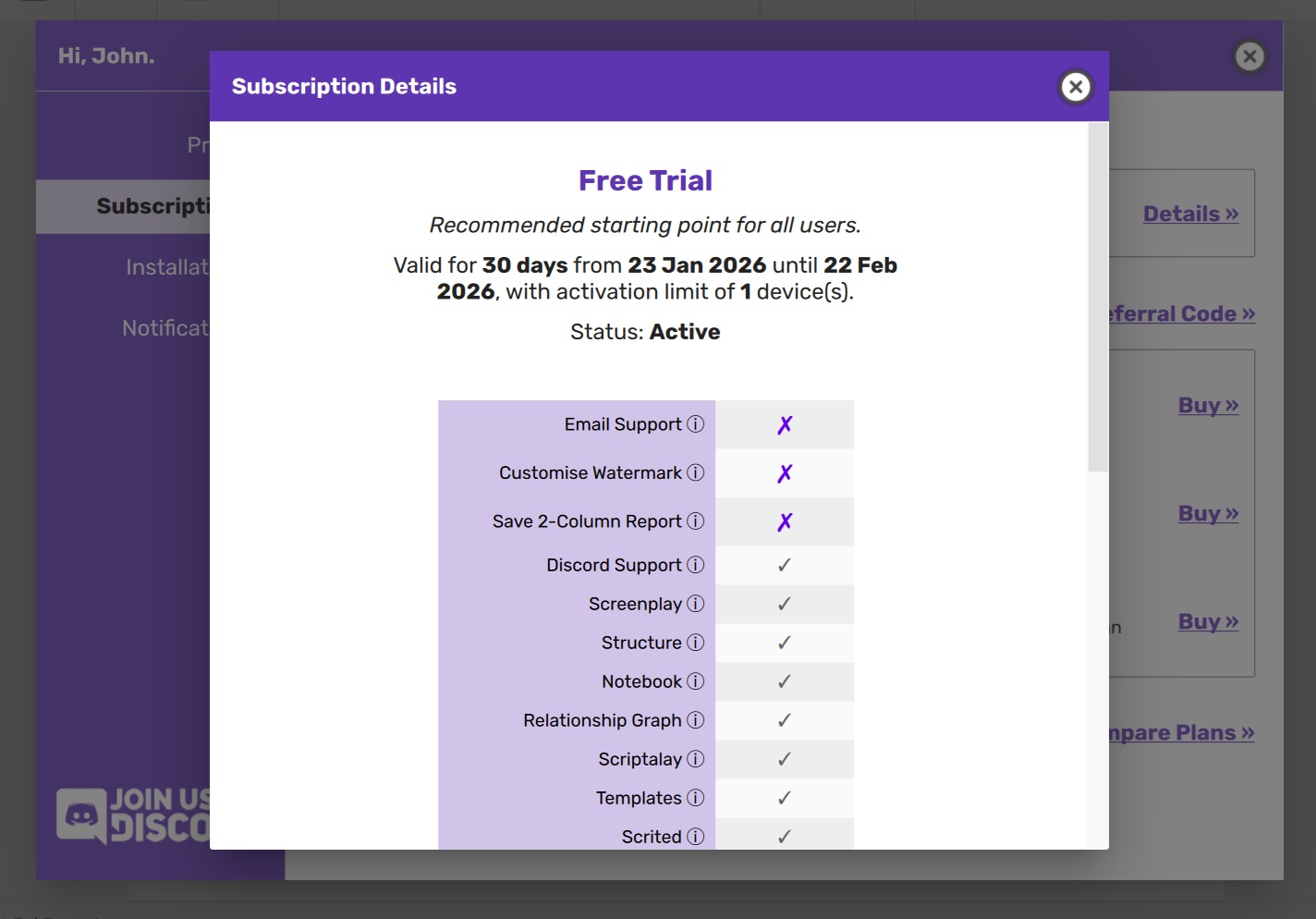
Each subscription entry has a Details link. Clicking it opens a dialog that lists the plan’s features, the start and end dates, and any billing details you may need.
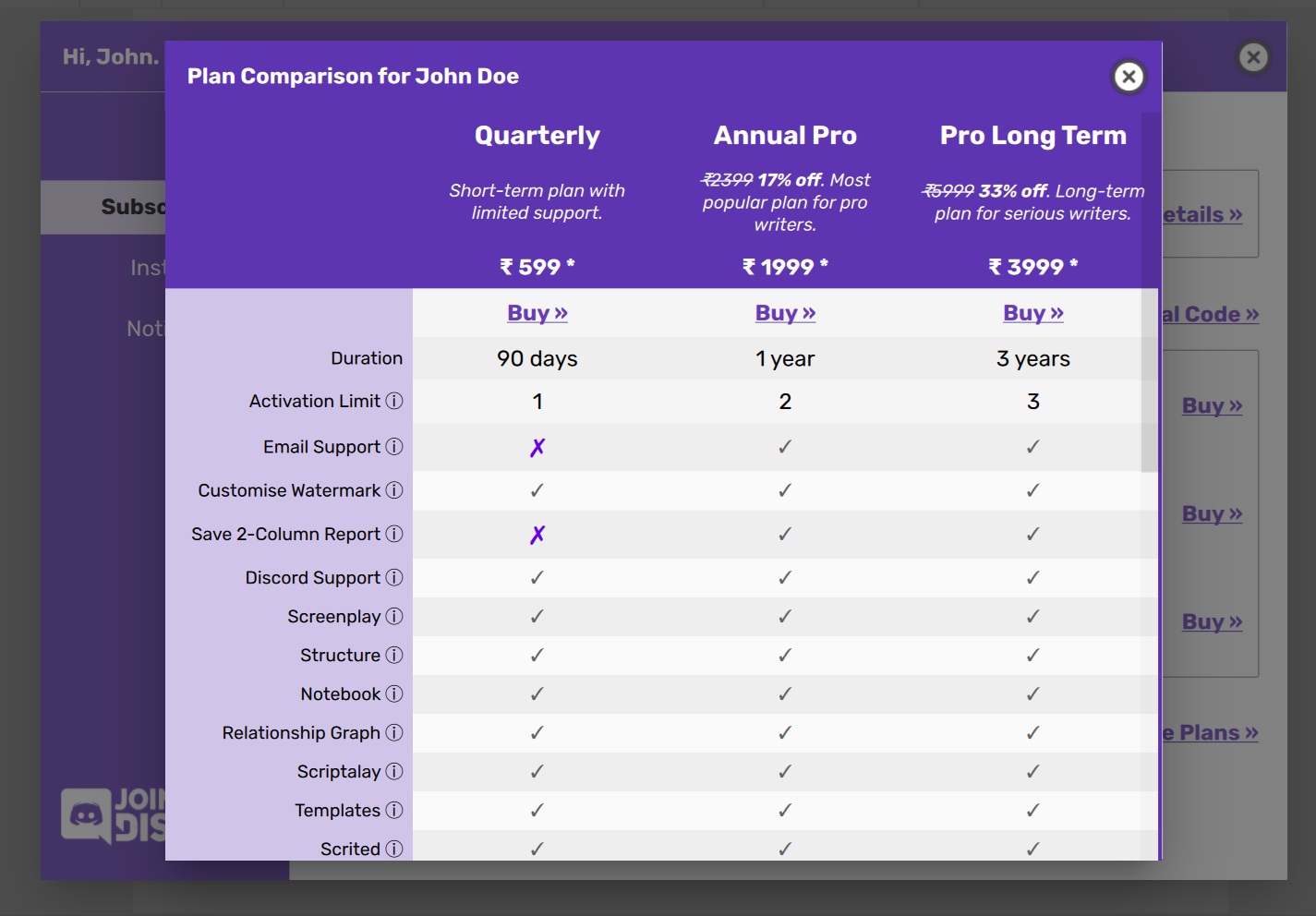
To compare the feature sets of all plans, click the Compare Plans link. This opens a side‑by‑side comparison table that highlights the differences between each tier.
Buying a new plan
Next to every plan that’s available for purchase you’ll see a Buy link. Clicking it opens a web page where you can complete the payment. Once the transaction finishes, the Subscriptions page refreshes automatically to show the new plan.
Active Feature Set
If you purchase a new plan while an existing subscription is still active, the new plan appears as an Upcoming subscription. You can immediately use all features of the new plan.
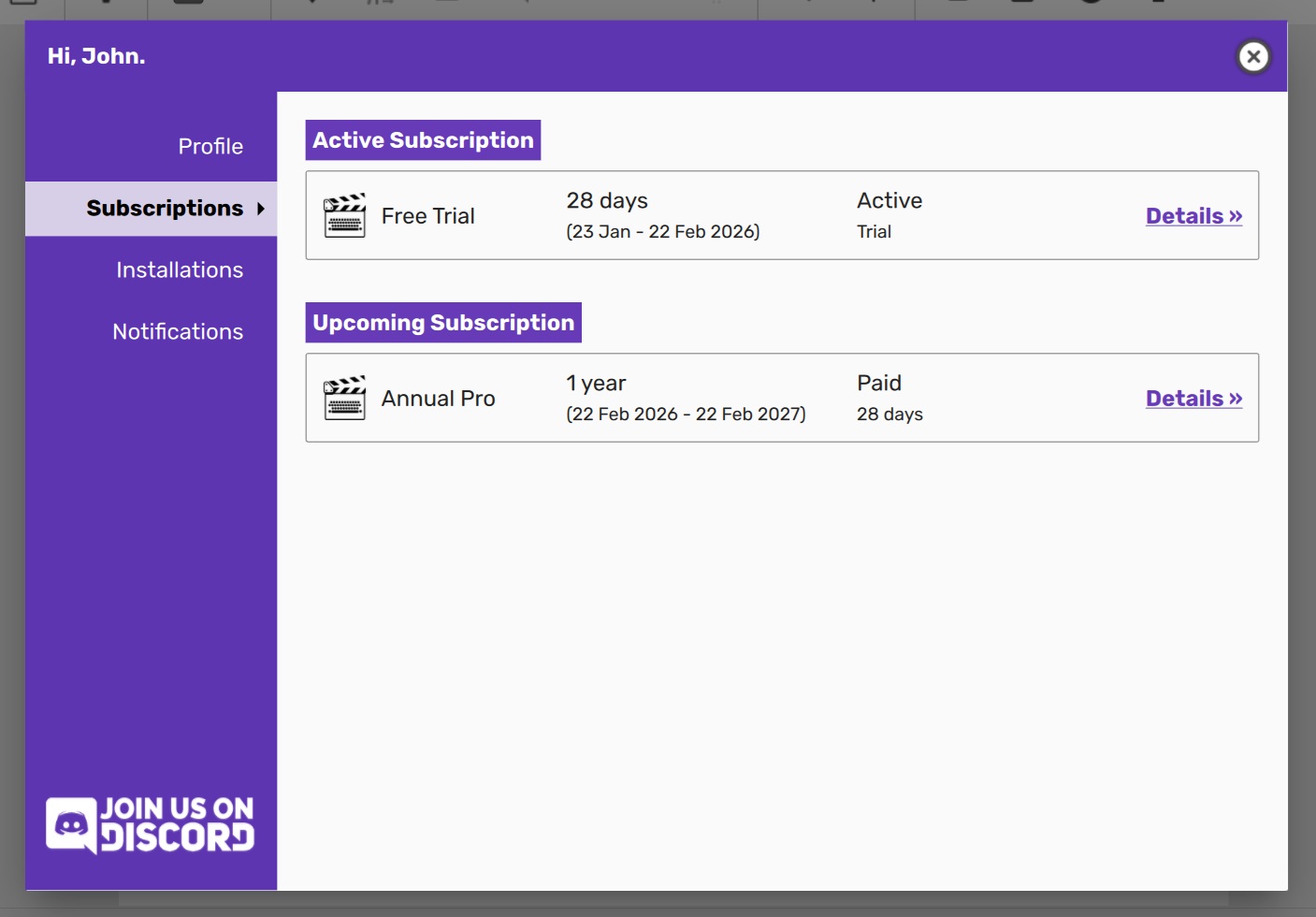
For example, buying a yearly plan while on the Free Trial lets you edit or remove watermarks from PDFs for the remainder of the trial period.
Referral Codes
Referral codes unlock special plans that aren’t normally available. Special plans thus unlocked may offer you access to a new set of features and/or offer a significant discont on generally available plans. You may get hold of referral codes from a friend, or a video on social media, or by participating in partner events and workshops.
Click Enter Referral Code link, and type the code you received from a video or a friend.
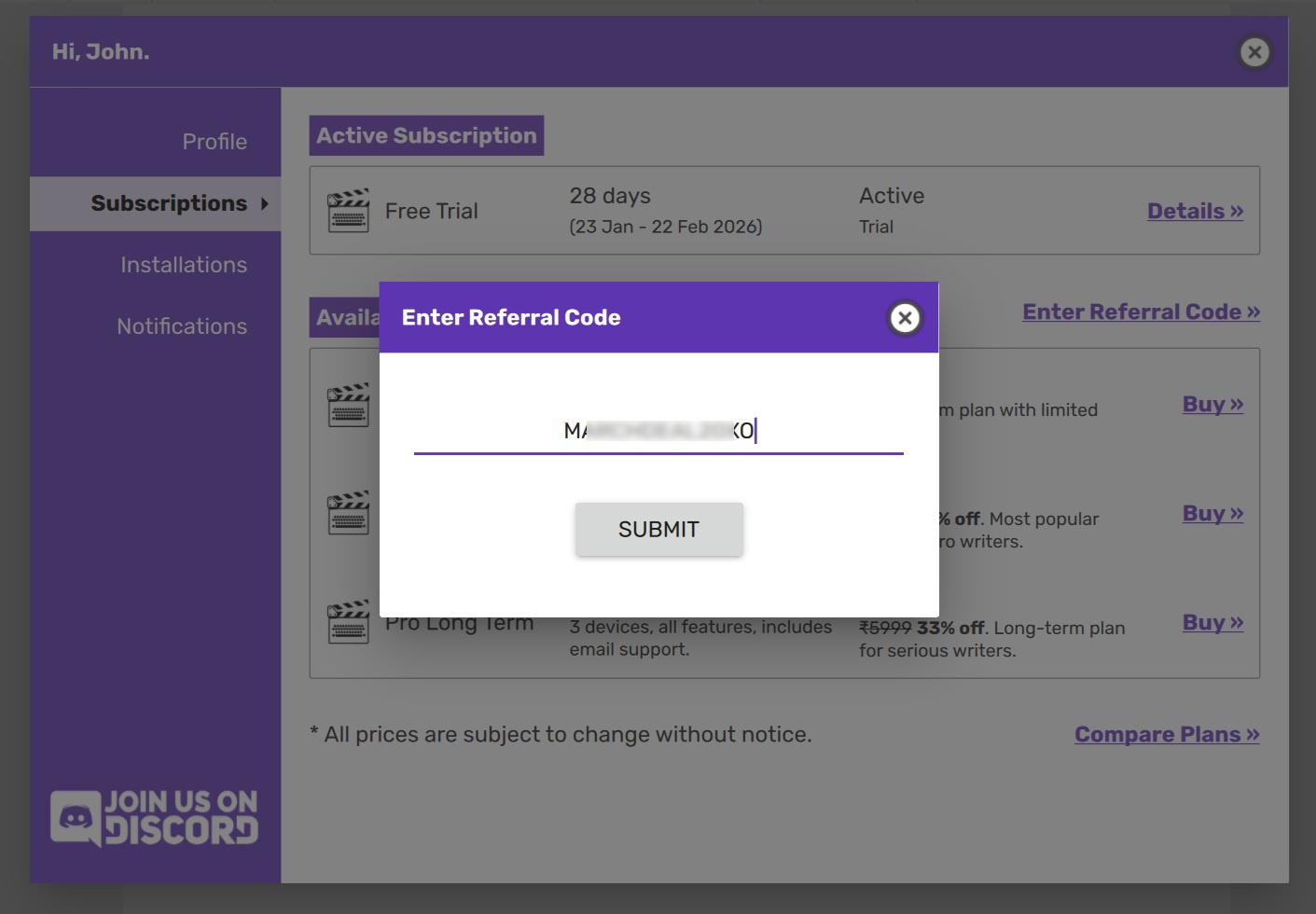
After submitting, the page will refresh to show any new plans that have been unlocked.
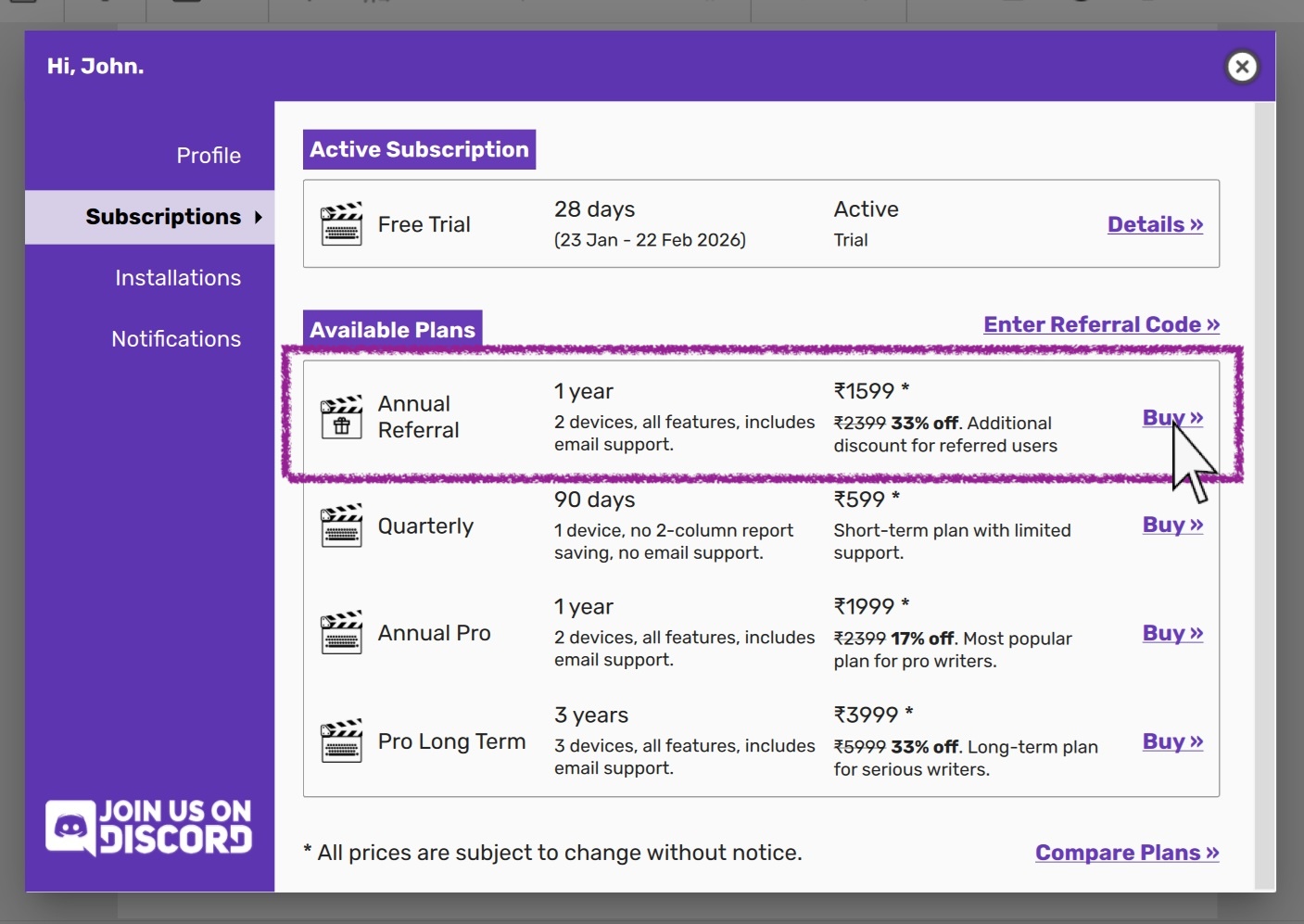
These plans can be purchased exactly like the regular ones by clicking the Buy link next to them.
NOTE: Plans unlocked via a referral code may expire after a short period. Use them quickly before they become unavailable.
NOTE Screenshots above are for references purposes only.
Installations Page
This page shows every device that has ever activated Scrite under your account. The current device is highlighted in bold; other devices are listed below in order of most recent session time.
Each entry has a Sign Out button. Clicking it removes the device from the active list. The change takes effect on the remote device after it reconnects or restarts, which may take up to an hour.
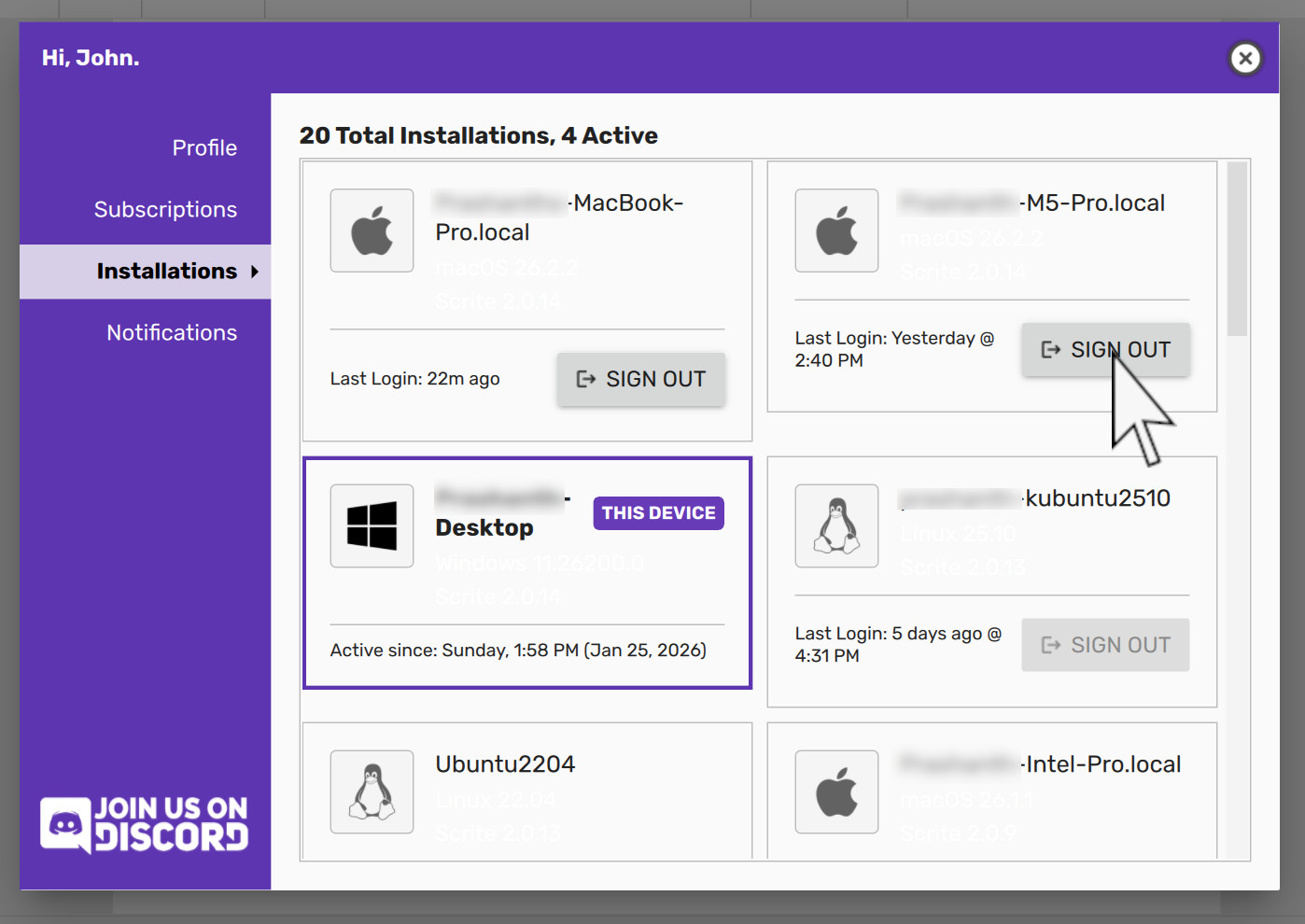
Device Limits
Scrite enforces a maximum number of active devices per subscription tier. If you exceed the limit, you’ll need to log out of an existing device before adding a new one. Use the Logout button either on another device in this page, or in the Profile page to free a slot.
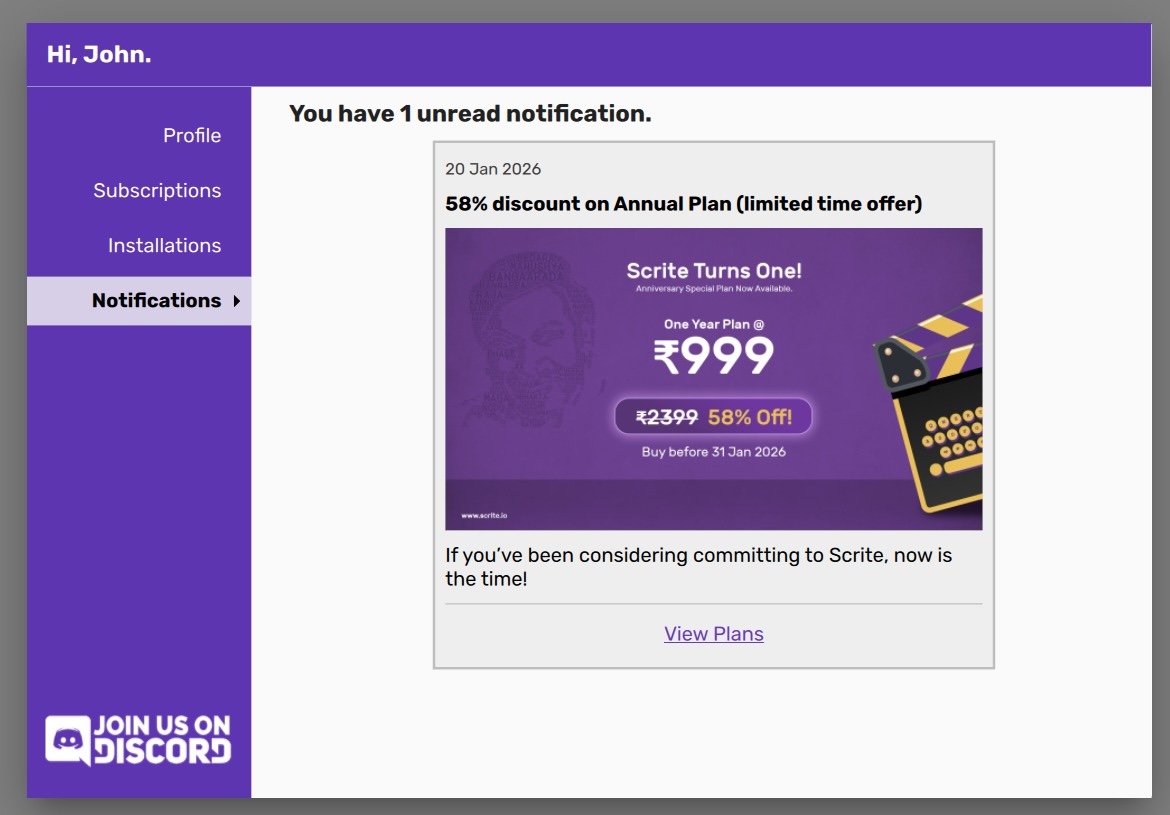
Messages Page
All messages from the Scrite project appear here. A badge on the user‑account icon shows the number of unread messages; clicking the icon jumps straight to this page. Critical messages also trigger a notification in the main window.