Dark mode. A Scene Metadata Report for production breakdowns. Open Screenplay Format support. A new transliteration engine for Indian languages, with cross-script conversion between Indic scripts. Smarter auto-capitalization. A new MSIX installer on Windows.
That is the short version. Read on for the details.
If you are still on version 2.x and not ready to upgrade yet, that is fine; you can continue to use that version. But we think you will want version 3, and your scripts will open in it exactly as they are.
To download the latest version while reading this release announcement, head to the downloads section.
What’s New
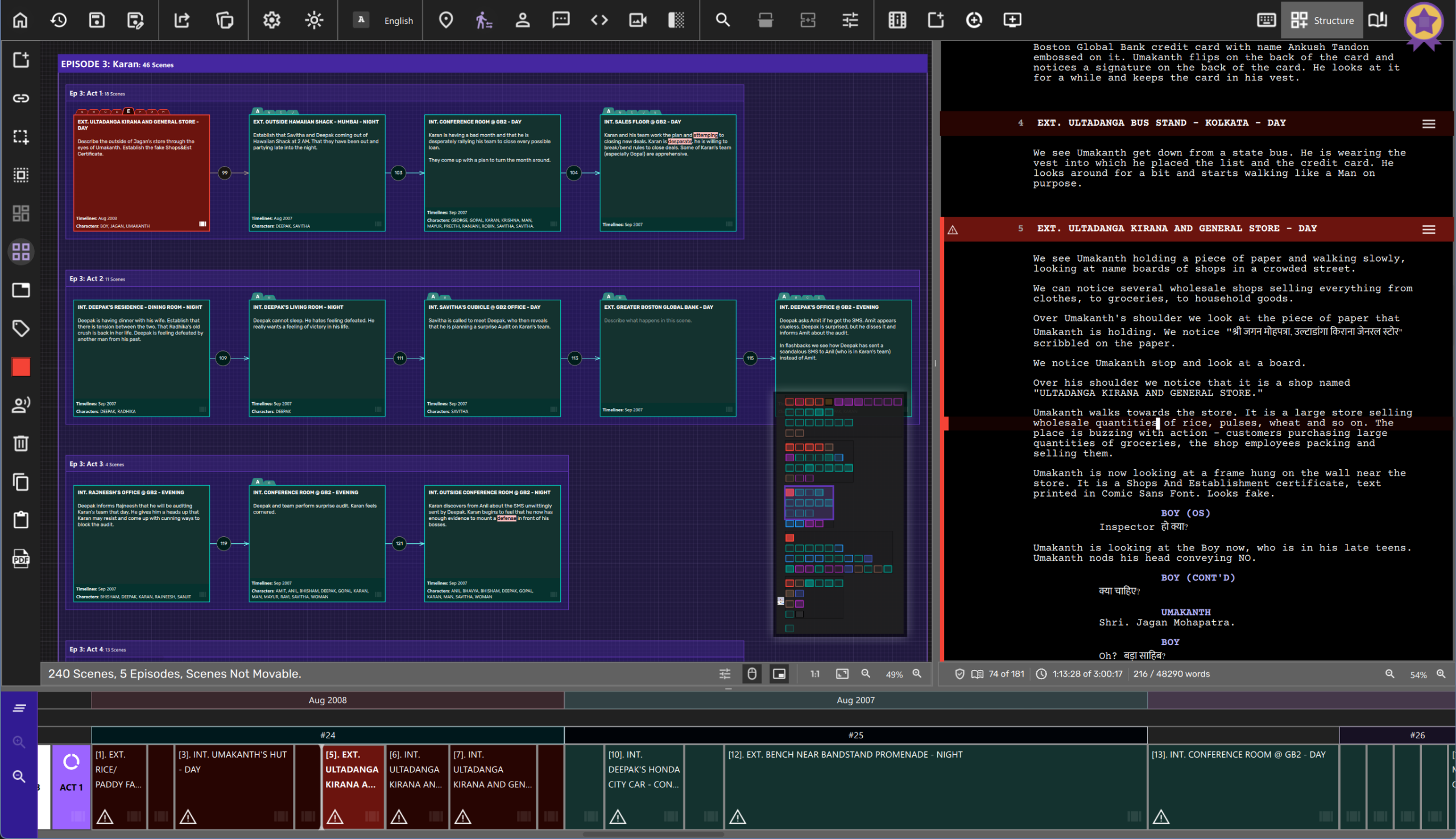
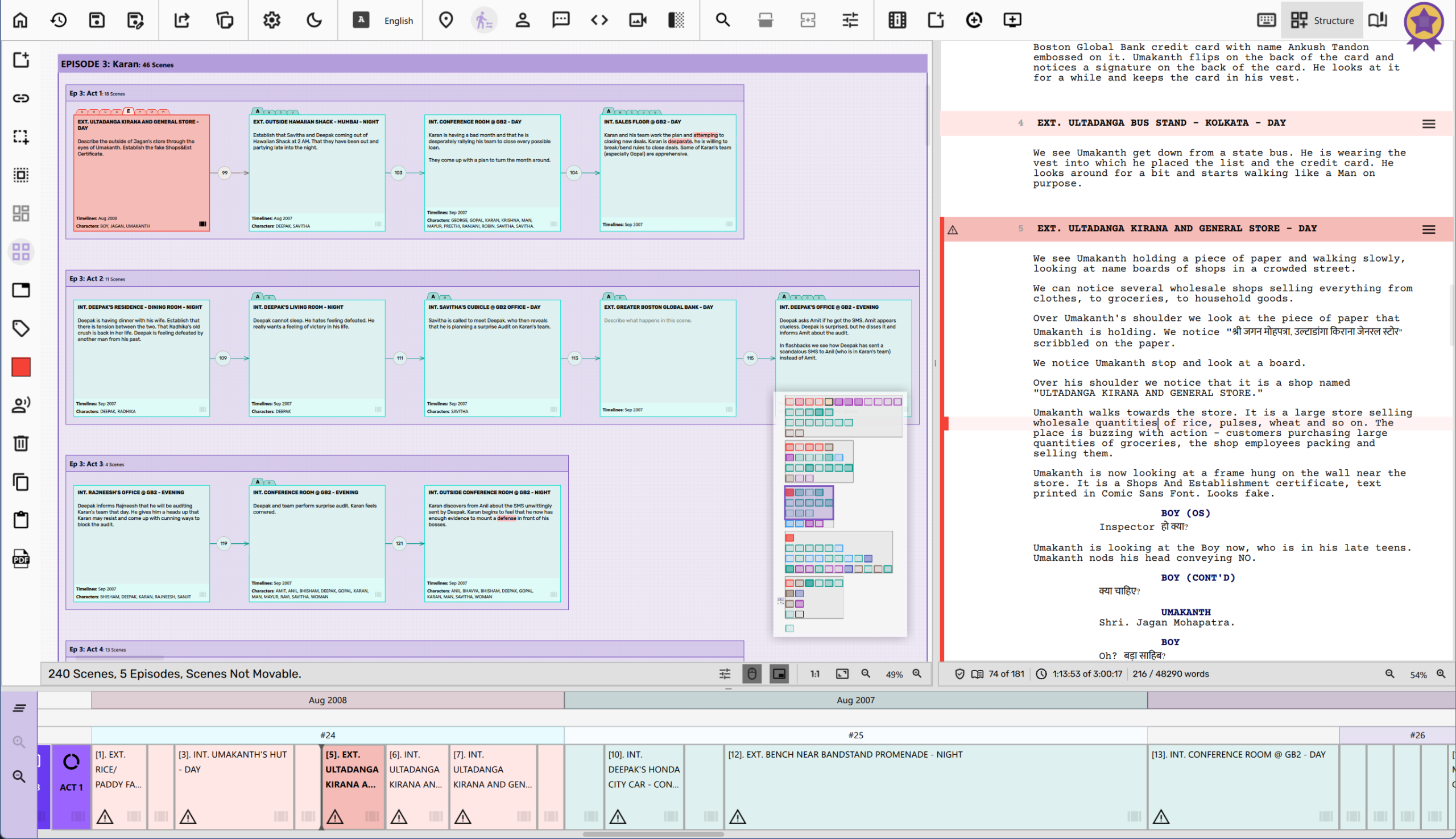
Dark Mode
Late-night writing sessions just got a lot easier on the eyes.
Dark Mode is now available across every part of Scrite: the Screenplay Editor, Structure Canvas, Notebook, Timeline, Scripted view, all dialogs, all panels. Colors are system-palette aware, so the app responds correctly when you switch your OS theme.
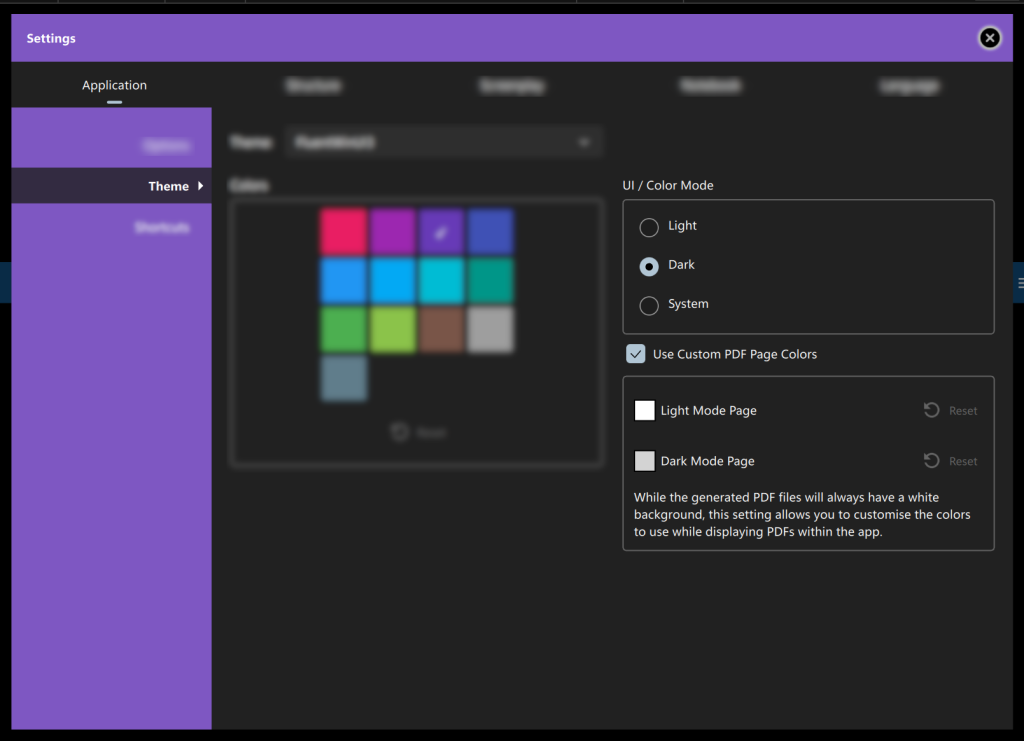
By default UI/Color Mode is System, which means it will automatically switch to dark/light mode depending on the color theme specified by your OS.
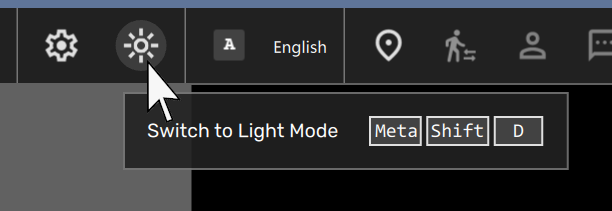
A toggle button in the main toolbar lets you flip between light and dark with a single click. The keyboard shortcut is Cmd+Shift+D on macOS and Meta+Shift+D on Windows and Linux.
On Windows 11, Scrite now defaults to the FluentWinUI3 visual style for a native look that fits right in with the rest of the operating system.
Scene Metadata Report
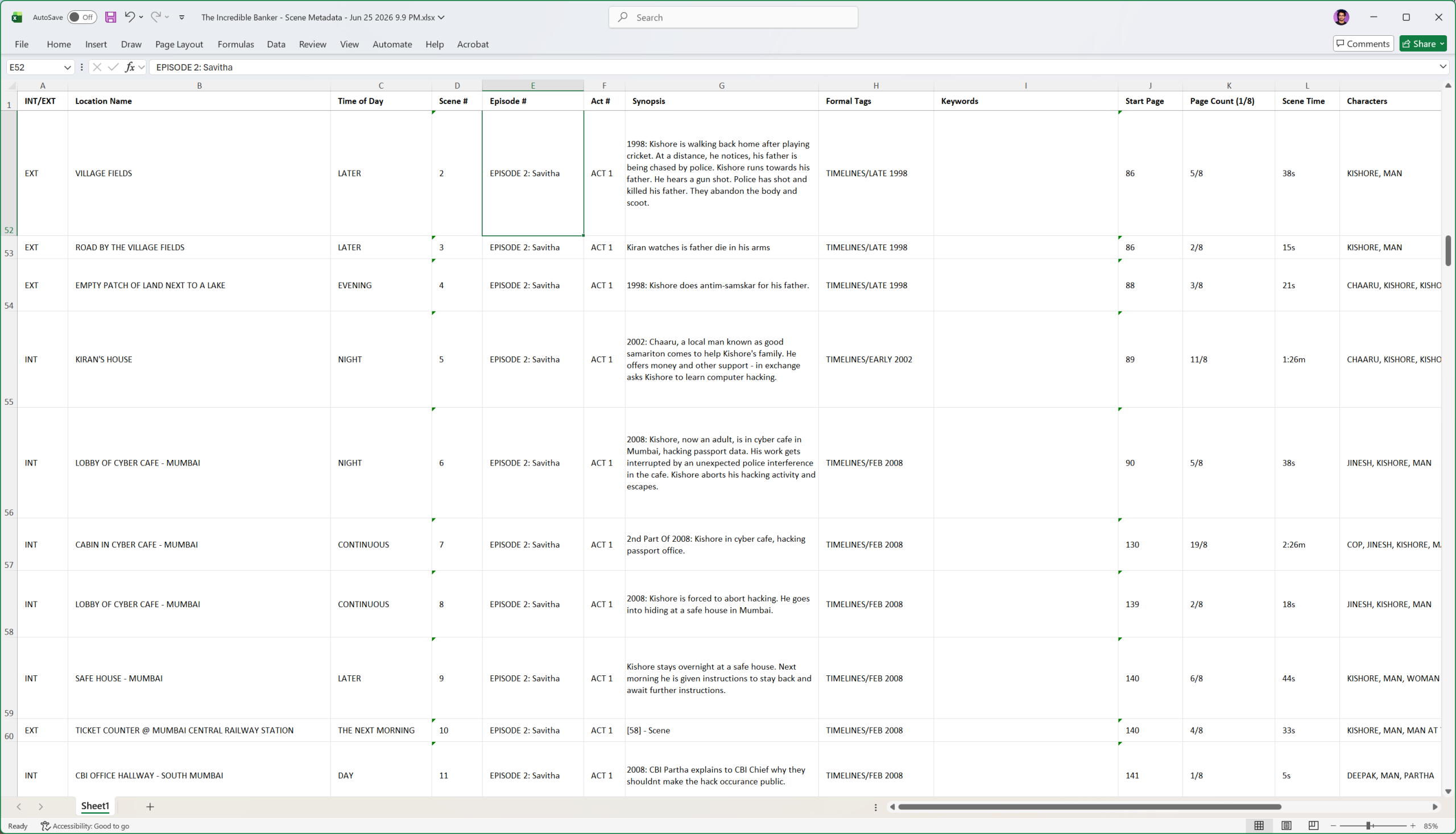
If you have ever had to hand-build a production breakdown spreadsheet from your script, you know how tedious that is. The new Scene Metadata Report does it for you.
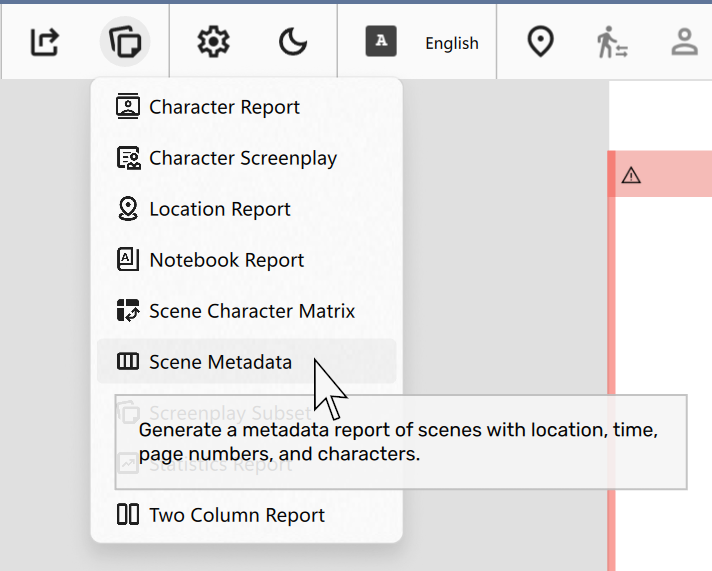
Every scene becomes a row. You choose which columns to include from a set of ten: INT/EXT, Location Name, Time of Day, Scene Number, Synopsis, Formal Tags, Keywords, Start Page, Page Length (in 1/8ths), Scene Time, and Characters. Export as a formatted PDF (A3 landscape) or as an XLSX spreadsheet ready to open in Excel or Google Sheets.
This is the report to hand your line producer on day one of prep.
Open Screenplay Format (OSF) Support
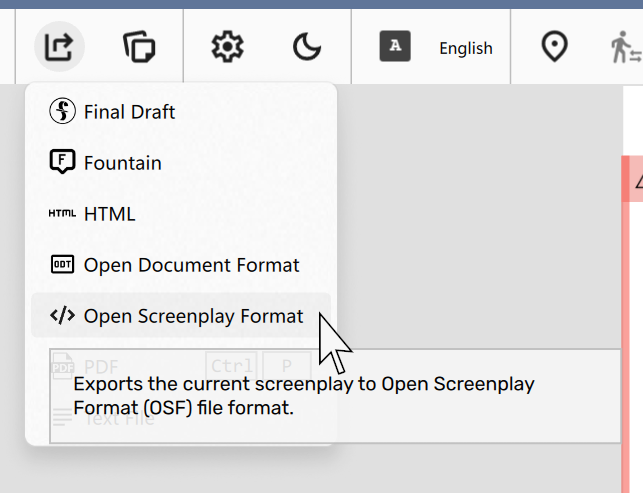
Scrite now reads and writes Open Screenplay Format (OSF) files. OSF is an open XML standard for screenplay interoperability, and it sits alongside Final Draft, Fountain, and HTML in both the Import and Export menus. If another tool in your workflow supports OSF, you can now move scripts between them without losing formatting.
Improved Transliteration for Indian Languages
Transliteration for Indian languages has been overhauled in this release, with three significant additions.
A second built-in engine. Scrite now ships with two built-in transliteration engines for its 11 natively supported Indian languages. PhTranslator, the original engine, uses a static phonetic mapping. The new Sanscript engine, powered by the sanscript.js library, follows the ITRANS romanization scheme and opens up capabilities that PhTranslator couldn’t offer. You can choose either engine per language in Language Settings.
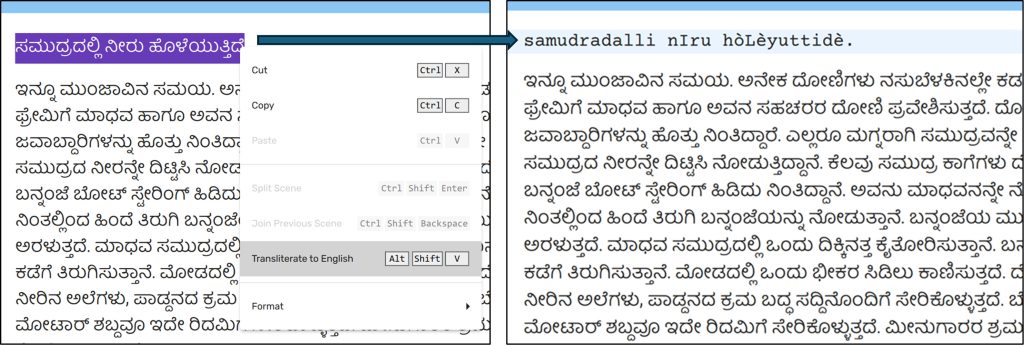
Cross-script conversion. The new Cross-Transliteration feature lets you select any passage of text and convert it to a different Indian script from the right-click menu. You can type in English phonetics and convert to Kannada. You can take a line already written in Kannada and render it in Telugu. The conversion is phonetic, not semantic, but for working across scripts it is exactly what was missing. This feature requires Sanscript as the active input method for the target language and is turned off by default; enable it in Screenplay Editor Options.
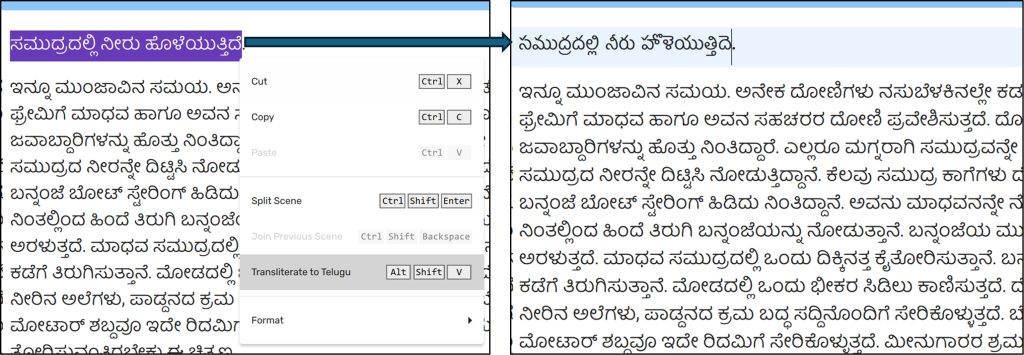
Dictionary-backed suggestions. For Kannada and Malayalam, transliteration suggestions are now also drawn from the Alar and Olam dictionaries via the Dictpress service, giving you richer and more accurate options as you type.
Auto-Capitalization Exception List
Scrite auto-capitalizes the first word of each new sentence. The problem was abbreviations: etc., vs., e.g., and similar all end with a period, and the capitalizer had no way to know that what follows is not a new sentence.
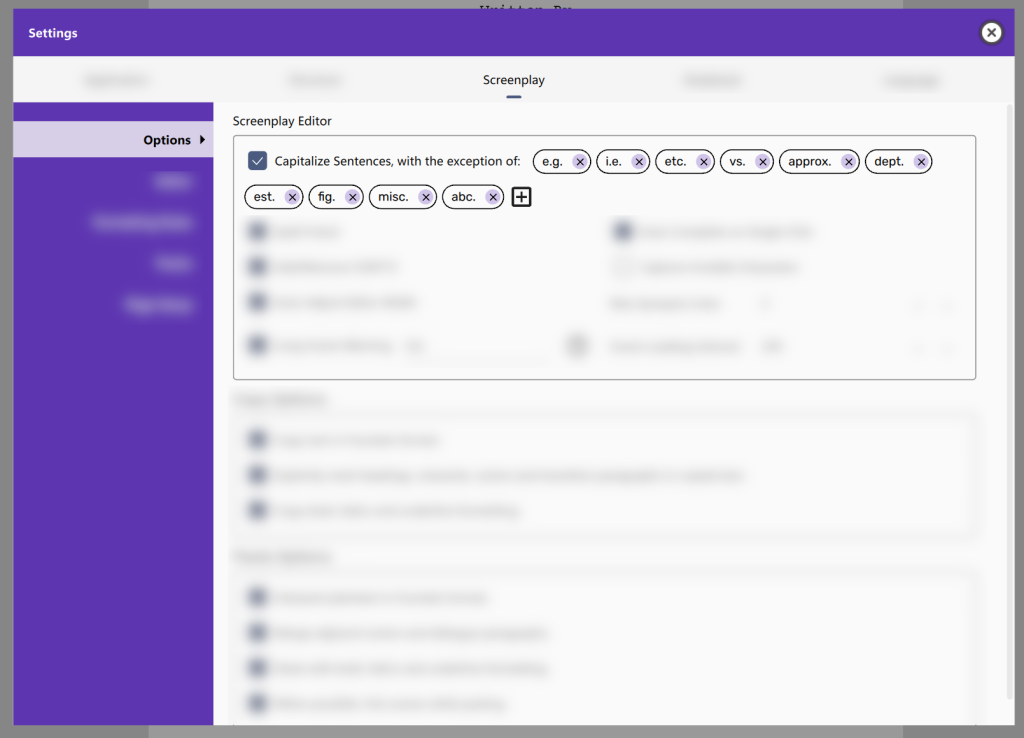
That is fixed. The auto-capitalization system now has a configurable exception list. The default list covers the most common abbreviations. You can add your own in Settings > Screenplay > Options. Consecutive periods (.. or ...) no longer trigger capitalization either. And any abbreviation in the exception list is automatically excluded from spell-check too, so it will not be flagged as a misspelled word.
Per-Tab Undo / Redo
Until now, Scrite used a single shared undo/redo stack across all tabs. That meant switching from the Structure tab to the Screenplay tab and pressing Ctrl+Z could undo something you did on the canvas, not in the editor. That was confusing, and it is now fixed.
Each tab (Screenplay, Structure, Notebook, Timeline) has its own independent undo/redo stack. Ctrl+Z always undoes the last thing you did in the tab you are currently in.
Note: Undo history does not survive tab switches. With per-tab undo stacks, switching tabs clears the undo history for the tab you are leaving. This is intentional: Ctrl+Z in any tab now only undoes work done in that tab.
Page Length in 1/8ths
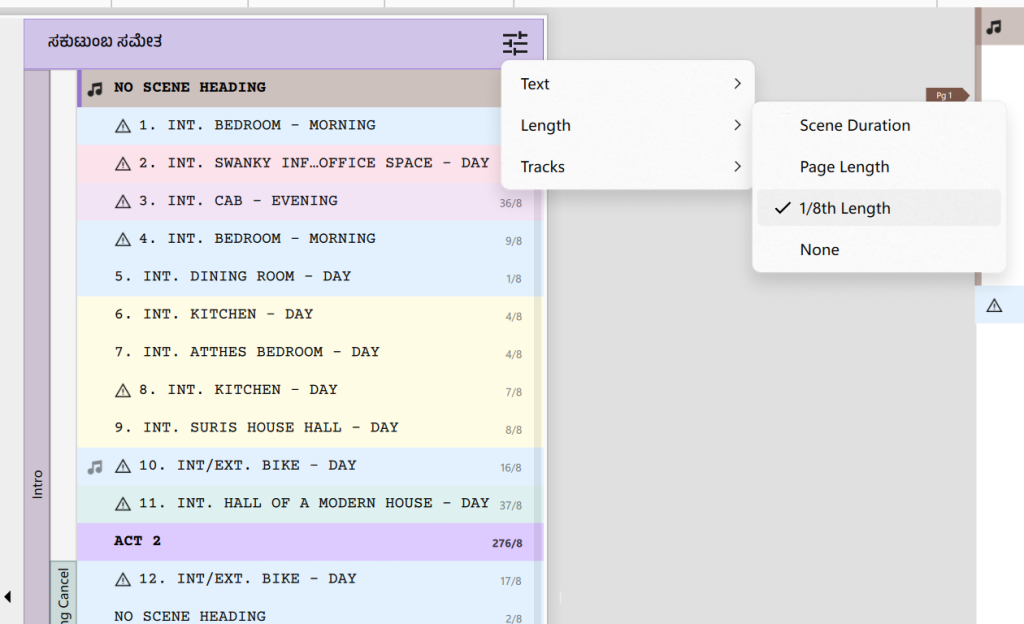
Scene length expressed in eighths of a page is the standard unit for production scheduling, and the Scene List panel and Timeline view now show it alongside page count. If your AD is asking for page lengths in eighths, you can give them the number without doing the arithmetic yourself.
Scene Character Matrix: Now Exports as XLSX
The Scene Character Matrix report now exports as an XLSX file instead of CSV. Columns are auto-sized, so the matrix is immediately readable when you open it in Excel or Google Sheets, without any formatting work.
Smarter Report File Names
When you generate a report with active filters, the suggested file name now reflects what is in it. A Character Report filtered to three characters will suggest something like MyScript – Alice, Bob, Carol Character Report – 2025-06-01.xlsx rather than a generic name. No more opening five identically named files to find the one you want.
Zoom in PDF Preview with Ctrl+Scroll
The PDF preview now supports Ctrl+Scroll (Cmd+Scroll on macOS) to zoom in and out, the same way most document viewers work.
Built on Qt 6.11
Version 2 ran on Qt 5.15 throughout its life. Scrite 3 completes the migration to Qt 6.11, the current generation of the cross-platform framework the app is built on, and the last major piece of infrastructure work before we focus entirely on features.
For users, this means a faster rendering pipeline, tighter platform integration on all three operating systems, and the modern look that the FluentWinUI3 theme on Windows 11 and the full dark mode depend on. For the project, it means every future release can focus on what writers need rather than on keeping up with a framework migration.
Windows: New MSIX Installer
The Windows version of Scrite 3 is distributed as an MSIX package, replacing the NSIS setup wizard used in version 2. MSIX is the modern Windows application format. A few things are worth knowing before you install.
Your Browser May Warn You
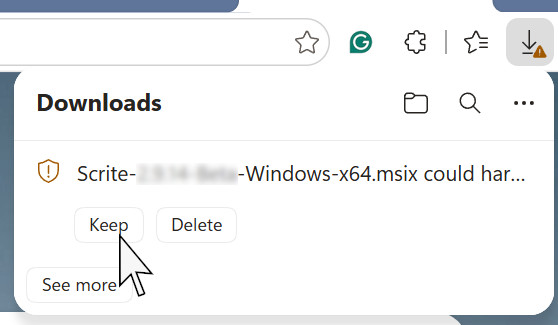
When you download the MSIX file, your browser may show a warning, something like “This type of file can harm your computer” with Keep and Discard options. This is normal. Scrite is signed with a new EV (Extended Validation) code-signing certificate, and new EV certificates start with low reputation in SmartScreen and browser databases until they build a track record. Click Keep in Chrome or Edge, or Allow in Firefox. The file is genuine.
Official packages are signed using the EV token belonging to IEDN Technologies Pvt. Ltd. and are served from Scrite’s Linode server.
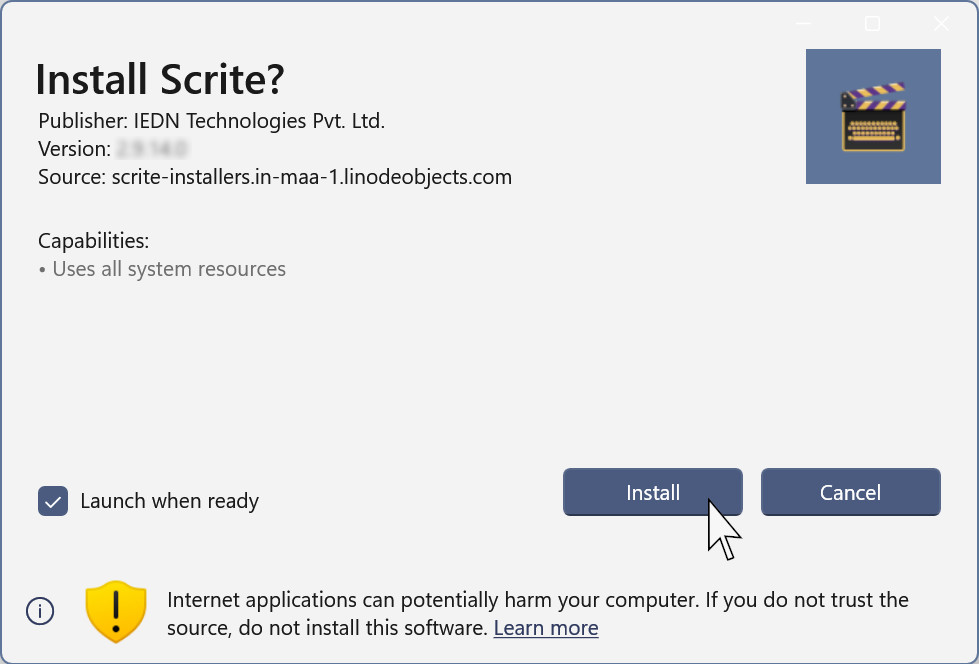
Uninstall Scrite 2.x or Earlier First
If you have Scrite 2.x or any earlier version installed, we recommend uninstalling it before installing the MSIX for the first time. Go to Windows Settings > Apps, find Scrite, and remove it. Your scripts and documents are not affected; uninstalling Scrite does not touch your files.
If you forget, don’t worry. Scrite will take care of migrating your settings and will remind you to uninstall the older version when the time is right. Once you are on the MSIX build, each future update will write over the existing installation and you will never need to do this again.
64-Bit Only
Scrite 3 for Windows is 64-bit only. If you are on a 32-bit PC, you can continue using Scrite 2.x, which remains available for download for some more time. We recommend moving to a 64-bit machine when you can; 32-bit hardware and software have been end-of-life across the industry for several years, and Scrite will not ship 32-bit builds going forward.
No Installation Folder Choice
MSIX packages install to a location managed by Windows. You will not be asked to choose a folder. The app appears in the Start menu and in Settings > Apps like any other installed application.
Future Updates Install Over the Existing Version
Once you are running an MSIX build, each new version of Scrite writes over the existing installation. There is no uninstall-then-reinstall step, and no intervention required from you. Your settings and preferences are preserved, unless you delete the %USERPROFILE%\.scrite folder yourself.
Your Data Location
Scrite keeps all user data (preferences, backups, and application state) in %USERPROFILE%\.scrite (for example, C:\Users\YourName\.scrite). This folder is separate from the application package and is never touched by updates or uninstalls.
Bug Fixes
- Undo / Redo
- Paste-then-undo-then-redo no longer crashes the app.
- Operations on a text selection are now undone as a single unit.
- An empty paragraph no longer requires two Ctrl+Z presses to undo.
- Screenplay Editor
- Autocomplete and completion popups now appear reliably.
- The current-line highlight no longer extends beyond the right edge of the text area.
- Spell-check context menu was missing in a few places; fixed.
- Copy, Paste, Undo, and Redo shortcuts now work correctly inside the Story Beats dialog.
- Structure Canvas
- Deleting index cards via the toolbar buttons now works correctly.
- Index card stacks in PDF exports are no longer taller than the primary card.
- Images on the canvas are now loaded at display resolution rather than uploading full-resolution textures to the GPU. Panning and zooming around annotated canvases is noticeably smoother, especially with large images.
- Reports
- The Scene Metadata Report now correctly sizes row heights to fit synopsis content.
- XLSX-format reports no longer incorrectly show “ODT” as the format type in the UI.
- macOS
- Pinch-to-zoom on the Structure Canvas now starts from the current zoom level instead of resetting to 1.0.
- The first Cmd+Q press now quits the application reliably.
- Windows
- The app window no longer restores with the title bar hidden above the top of the screen.
Upgrading from 2.x
A few things to be aware of on first launch after upgrading:
- Theme resets once. Your UI theme will default to the platform best-fit: FluentWinUI3 on Windows 11, native style on macOS, Material elsewhere. Change it back in Settings > Application > Theme if you prefer something different.
- Data migration. Your preferences and application data including settings, files in vault and other personalization will be copied over to a new location.