AI Reports
An AI Report is a piece of writing about your story or one of your characters, produced from instructions you give in plain language, and saved as a new note in the Notebook. It is the most open-ended AI workflow: you decide what the report is for.
What Kinds of Reports Can You Create?
You can ask for a report about the whole story, a character, a scene, or an act or episode. Here are some ideas to start from. They are only examples, and you are free to ask for anything else.
About the Whole Story
- Script review. A balanced review from a script reader's point of view: strengths, critical feedback, continuity errors, legal and production precautions, a budget impression and a rating. Be a tough script reader and tell me what's good and what's not about this film.
- Script coverage. The formal kind that a production company's reader writes: a cover page, logline, graded categories, synopsis, analysis, and a Pass, Consider or Recommend verdict. Write script coverage for my screenplay.
- Plot hole analysis. Logic gaps, contradictions and unearned events, with advice on how to fix them. Where does my story stop making sense?
- Pacing note. Where the story sags or hurries, from beginning to end. Tell me where the story sags or hurries, act by act.
- Theme analysis. What the story is really about, and where those ideas surface. Which themes am I dealing with, and are they coming through?
- Pitch deck. A slide-by-slide presentation that sells the story to producers, financiers or platforms. I'm meeting a financier next week, draft the slides to pitch this film.
- Trailer script. A trailer written out as a script, assembled from real moments and lines, that teases the premise without giving away the plot. Cut me a two minute trailer from this screenplay.
About a Character
- Audition note. A casting brief: who the character is, what an actor needs to bring, and which scenes suit an audition. Write a casting brief for this role.
- Character arc. How the character changes from start to end, and the scenes where it happens. Is his transformation believable, and where does it happen?
- Relationship map. The people the character is connected to, and how each bond develops or breaks down. Map her connections with the other characters.
- Character review. How well the character is written, with strengths, critical feedback, the kind of actor to cast, and a rating. Is she well written? Tell me what works and what doesn't.
About a Scene
- Scene purpose. What the scene contributes, and whether it earns its place or could be shorter, merged or removed. Is this scene pulling its weight, or can I cut it down?
- Dialogue notes. Voice, subtext, exposition and the quality of individual lines. Any lines that feel stiff or on the nose?
- Tension analysis. How the scene builds suspense, where it peaks, and how it releases. Walk me through how the pressure rises and falls here.
- Scene review. A full review of the scene, with strengths, critical feedback, production precautions, a costing estimate and a rating. Tell me honestly what's working and what's weak in this scene.
About an Act or Episode
- Pacing analysis. Where the act or episode moves too slowly or too quickly. Check the tempo of this episode and tell me where it rushes.
- Setup and payoff. What the act plants and what it delivers, including dangling threads and payoffs that arrive unprepared. List the things planted here and where they pay off.
- Turning points. The moments where the story changes direction, each tied to its scene. Pick out the big shifts in this act and the scenes they live in.
- Act or episode review. A full review, with strengths, critical feedback, continuity errors, production precautions, a budget impression and a rating. Read this episode closely and tell me what works and what doesn't.
Beyond These
Reports are not limited to this list. A few more ideas: a two-page brief for an actor auditioning for a role, a one-page note on how a character changes across the story, or a checklist of props for a shoot. Describe what you need, who it is for, and how long it should be.
Visual Reports Are Coming
The reports you generate today are all rich text. In a future update, we will bring in support for visual reports, complete with images, charts and, where appropriate, even slide decks.
Prerequisites
Reports are written from existing summaries. Generate the story summary (for a story report) or the character summary (for a character report), the scene summary (for a scene report), or the act or episode summary (for an act or episode report) first. See Story Analysis and Character Analysis.
For best results, also index your screenplay for search, so Scrite can find the scenes your instructions are about. To pick the scenes yourself, search for them and use the results in a report from there.
Writing a Report
- Open the Notebook page that the report is about: the Story page, a character's page, a scene's page, or the page of an act or episode.
-
Click New Note and choose AI Report.
-
In the dialog, describe the report: what it is for, what it should cover, and how long it should be.
-
Click an example below the box to start from it.
- Type @ to refer to a note in your Notebook. The AI reads it only when it needs to.
- Leave Let the AI look up scenes when needed ticked. It lets the AI read the summary or full text of the scenes the report needs, and what a character says word for word. It needs a model with tool support. Without it, the report is written only from the summaries.
- Click Generate. Scrite first finds the scenes closest in meaning to your instructions, then writes the report.
Use the Settings button for the other common options. The model comes from the provider settings. If you want reports to use a larger model than the rest of your work, give the report usecases, such as Story Report and Scene Report, one of their own in AI Connectors.
The finished report appears as a new text note on that Notebook page, in Markdown.
The next two sections walk through a typical story report and a typical character report.
Use Case: Script Review
A story report is written from the Story page of the Notebook. Here, the writer wants a candid review of the screenplay: what works, what doesn't, plot holes, and unresolved setups.
- Open the Story page and choose New Note → AI Report.
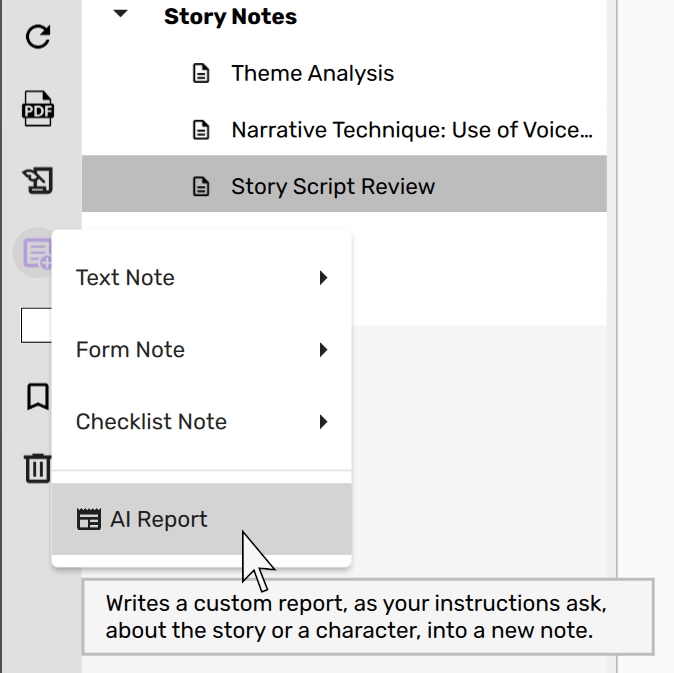
- Enter instructions, such as: Review this screenplay as a script reader would. Cover what works, what doesn't, plot holes and unresolved setups. Keep it under two pages.
- Click Generate.
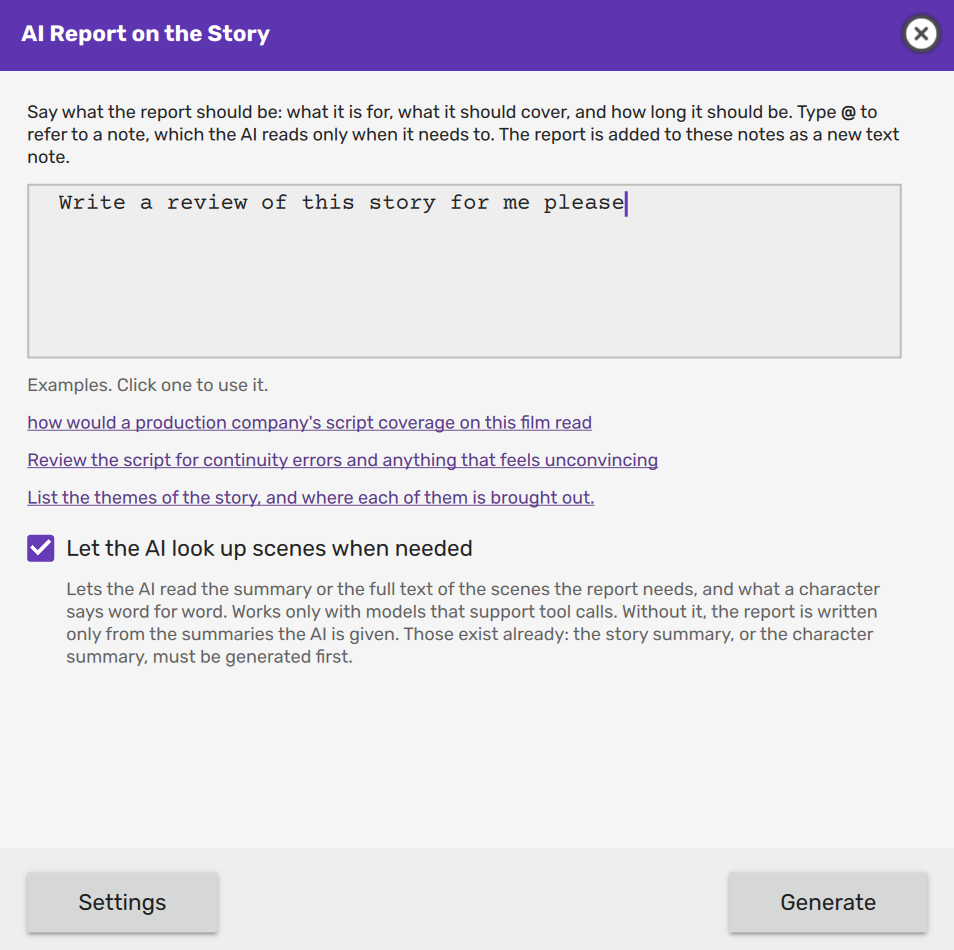
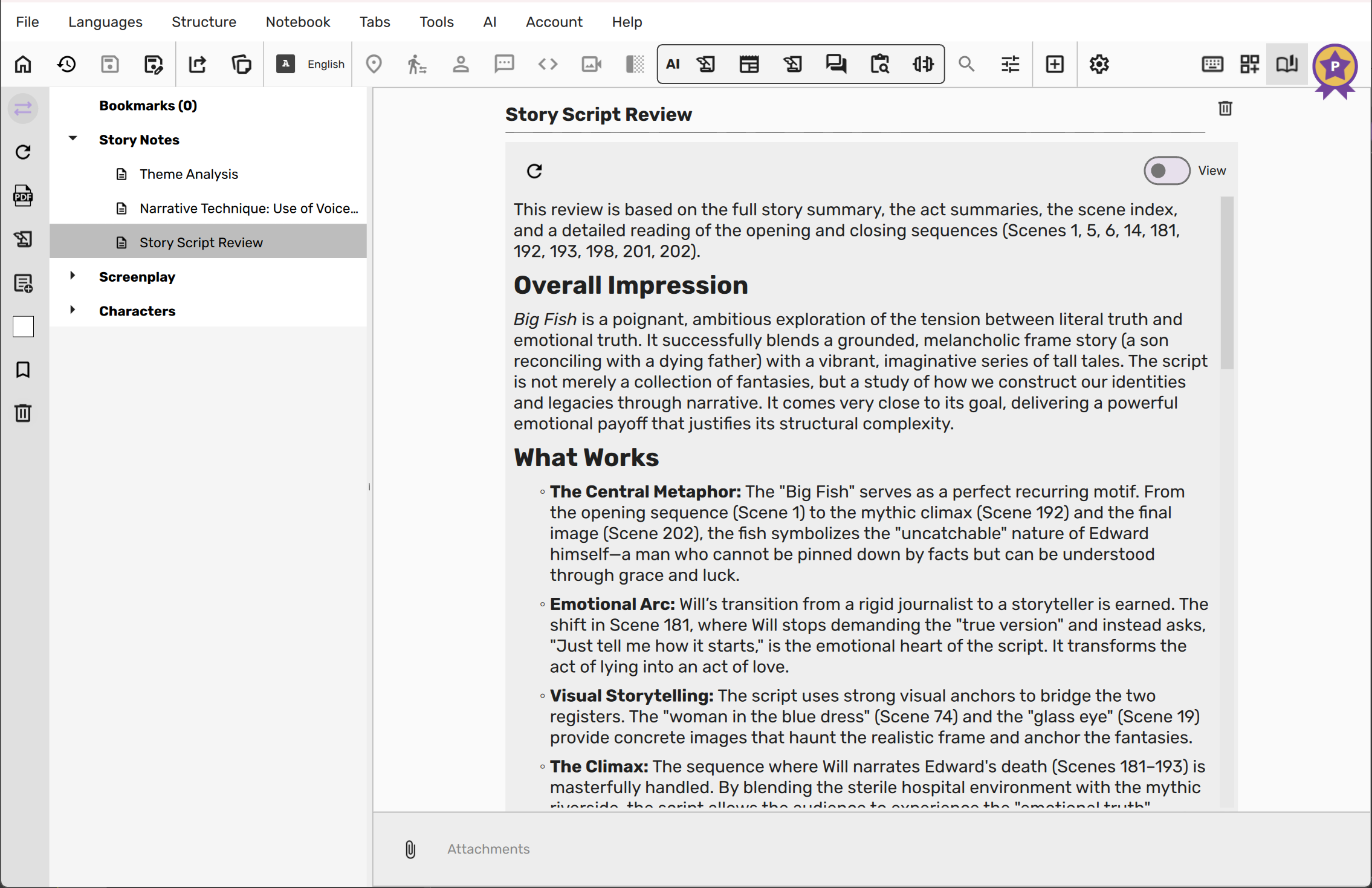
The review appears as a new note on the Story page, as in the picture at the top of this chapter.
Use Case: Audition Note
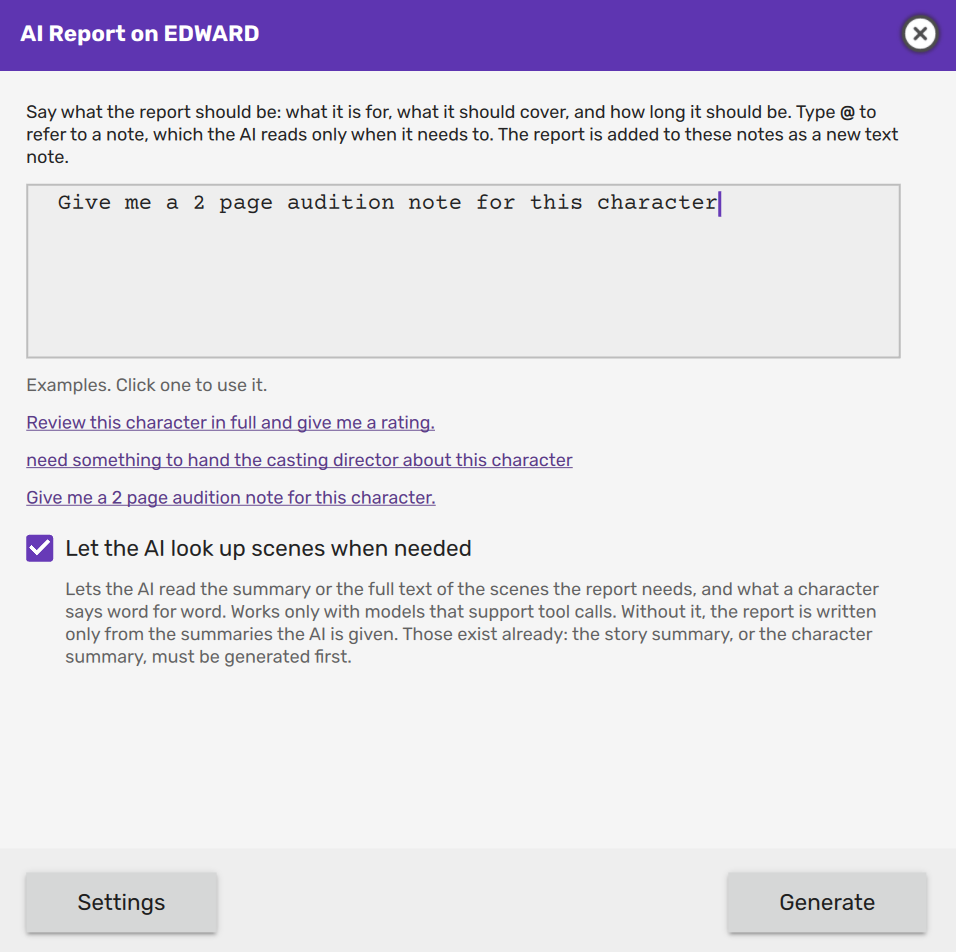
A character report is written from a character's page. Here, the writer wants a brief to hand an actor who is auditioning for the role.
- Open the character's page and choose New Note → AI Report.
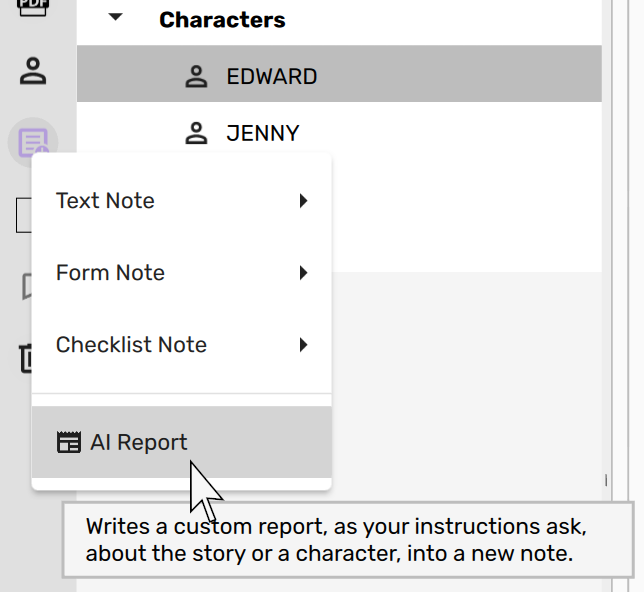
- Enter instructions, such as: Write a two-page brief for an actor auditioning for this role: who the character is, what they want, how they speak, and two or three scenes to prepare.
- Click Generate.
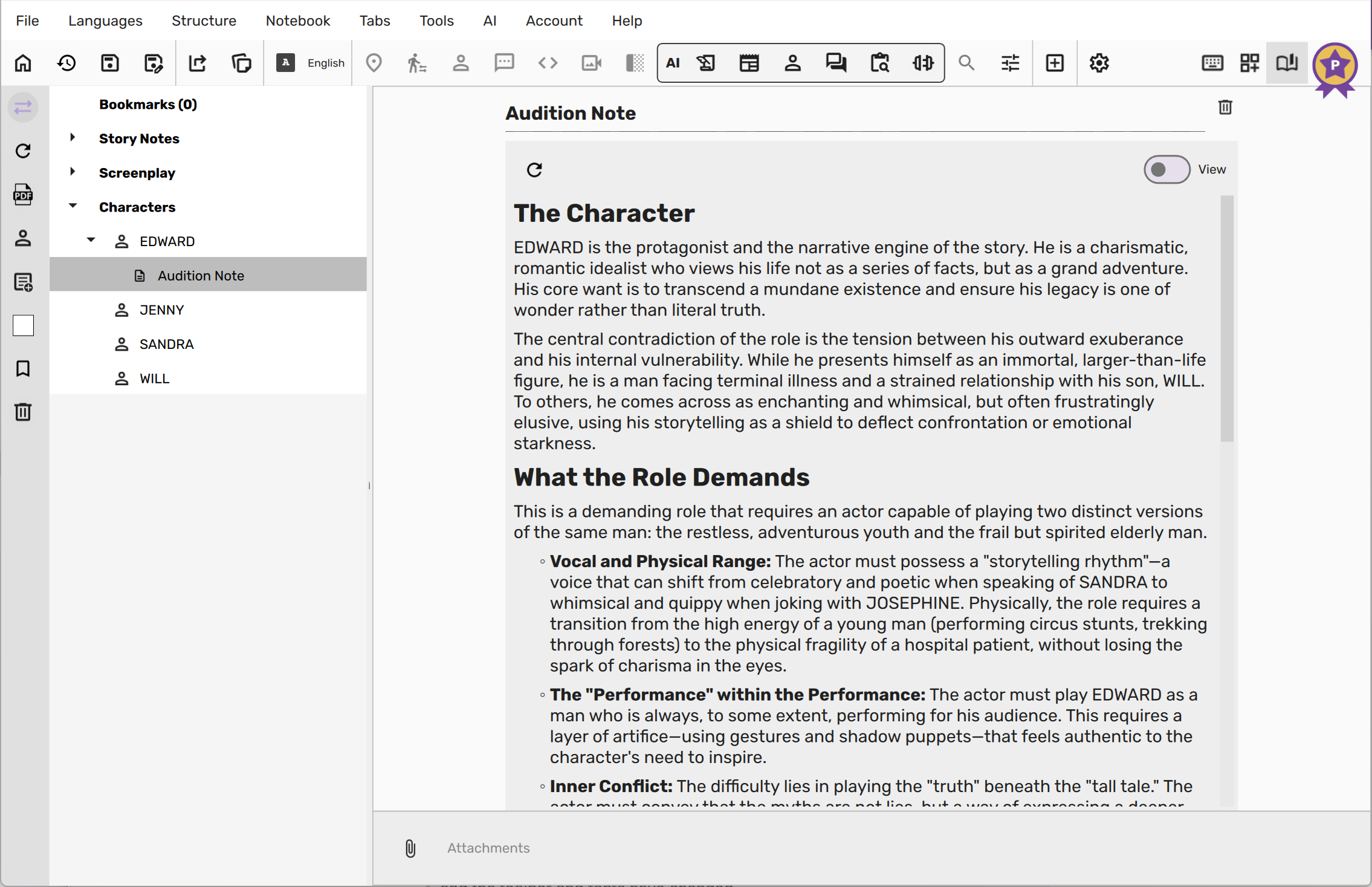
The brief appears as a new note on the character's page. You can edit it, save it as a PDF, and send it to the actor.
Editing a Report
A generated report is a normal text note written in Markdown, so you can edit it yourself like any other note. Open it in the Notebook and click in the text to start typing.
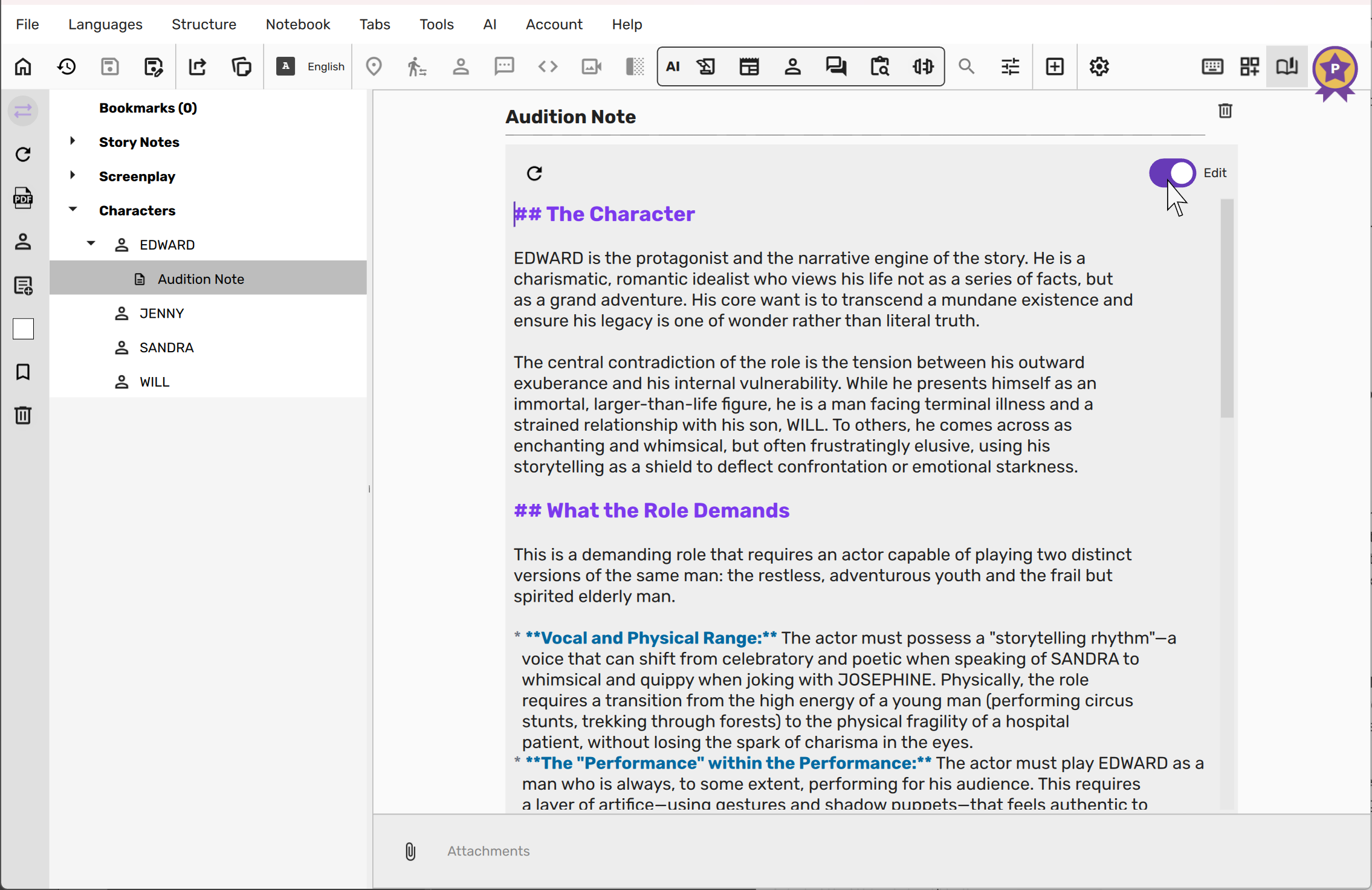
The note's toolbar helps you format the text without typing Markdown symbols by hand: headings, bold,
italics, lists and so on. If you prefer, you can type the Markdown syntax directly — # Heading,
**bold**, - list item — and Scrite shows it styled as you type.
- Your edits are saved with the document, like any other change.
- If you later rewrite the report, the text it has then, including your changes, is kept as an attachment of the note, so nothing you did is lost.
- While you are typing in a report, an AI client that asks to edit the same note will fail. Finish editing first. See Approving Changes.
Getting a PDF of a Report
To share a report or print it, save it as a PDF straight from the note.
- Open the report in the Notebook.
- Click the PDF icon in the note's toolbar.
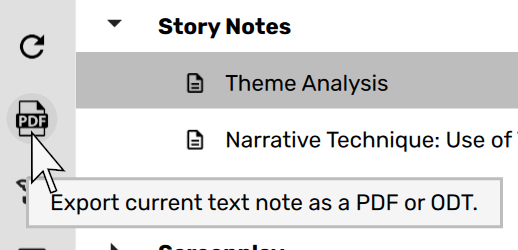
- A preview of the PDF opens. Check how it looks.
- Save it to disk from the preview.
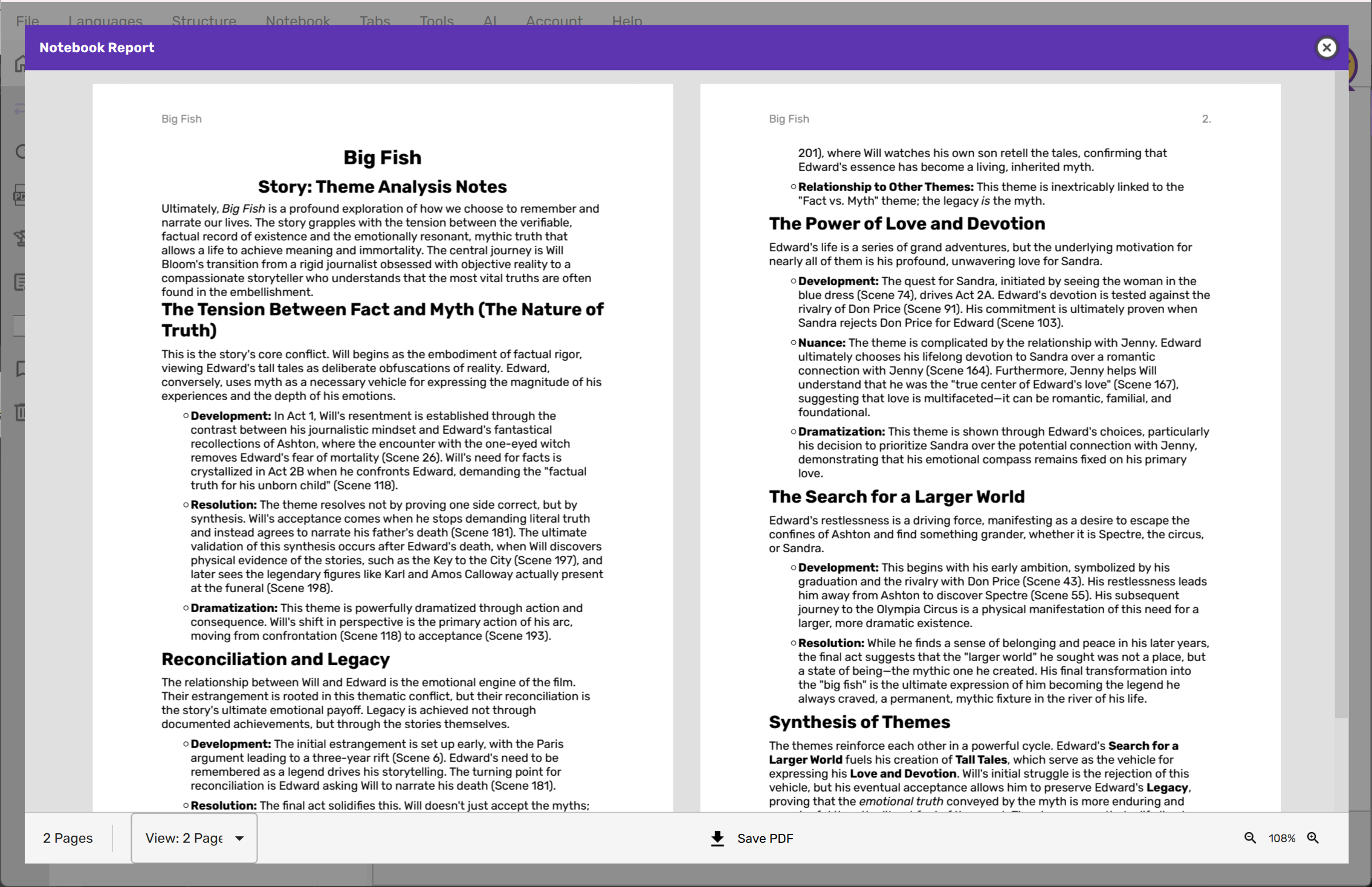
The PDF is made from the current text of the note, so any edits you made are included. Edit the note, then export again to get an updated PDF.
If you would rather keep working on the report in a word processor, you can also download the note as an ODT from the note's toolbar. Like the PDF, it is made from the current text of the note.
Rewriting a Report
Open a note that an AI report created. A Rewrite this report with new instructions button (a refresh icon) appears in the note's toolbar.
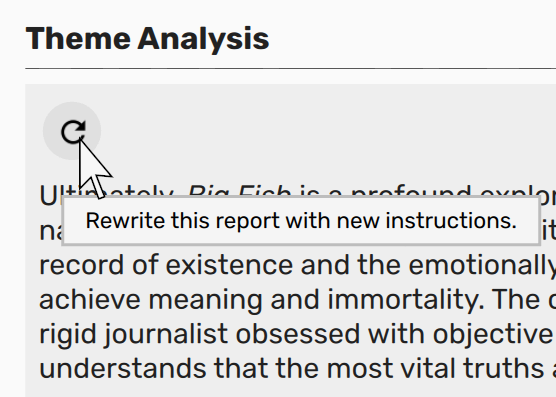
Click it to open the Rewrite AI Report dialog.
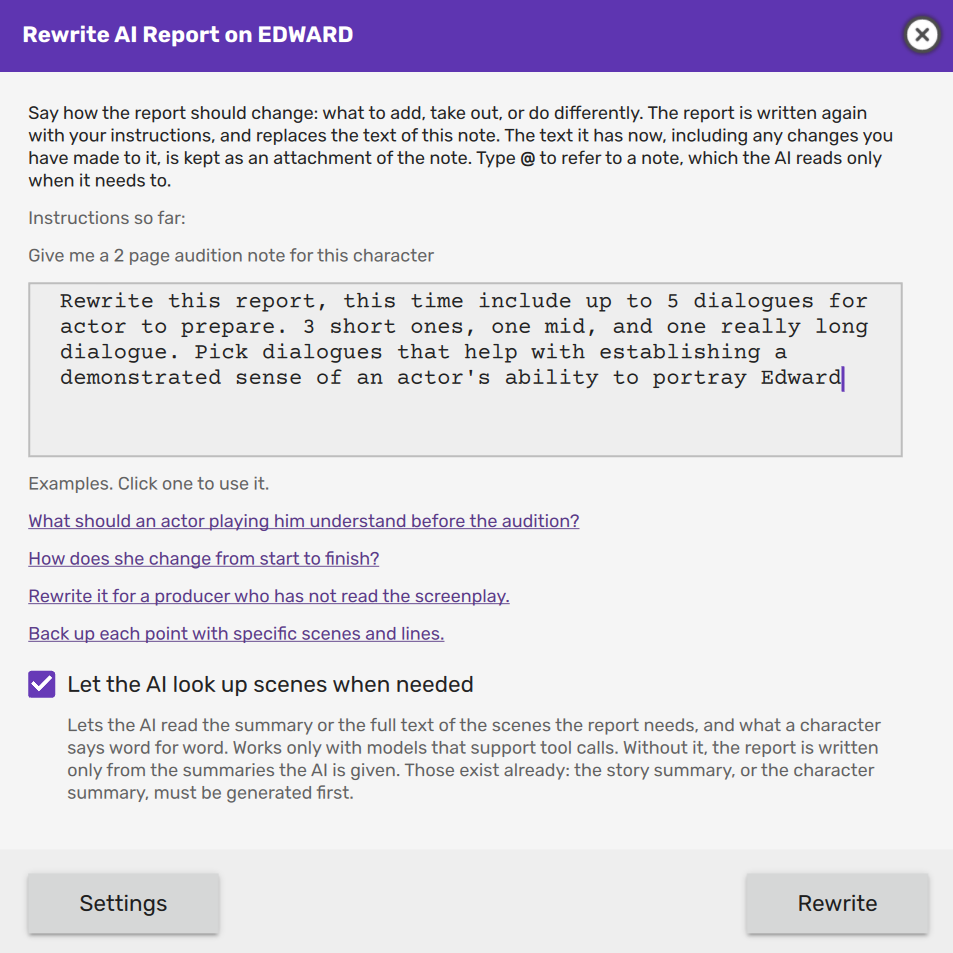
- Instructions so far lists the requests the report has been written with, oldest first. Use it to remember what you asked for.
- In the box below, say how the report should change: what to add, take out, or do differently. For example, Make it shorter, and focus on the second half of the story.
- Click one of the examples to start from a ready-made change.
- Type @ to refer to a note, as when writing a report.
- Click Rewrite.
The report is written again, and replaces the text of the note.
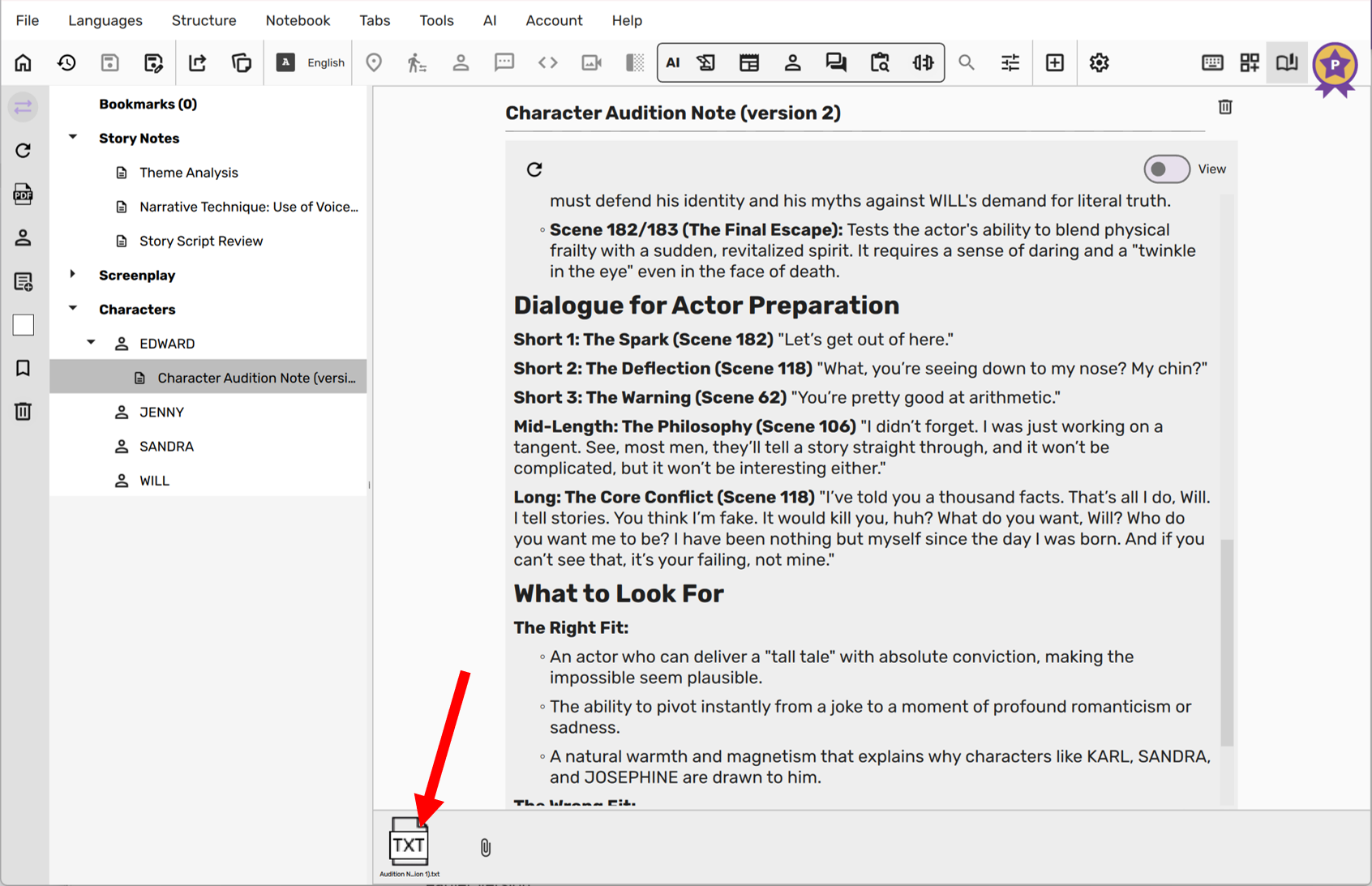
The text it had before, including any edits you made, is kept as an attachment of the note. Open the note's attachments if you want to compare, or go back to the earlier version.
You can rewrite as many times as you like. Each rewrite adds to the instructions listed in the dialog.
Taking a Report Further in AI Chat
Any report generated in Scrite can be referenced and fine-tuned in AI Chat. Refer to the report with @, and ask for it to be made more blunt, or build budget estimates, pitch decks, trailer scripts and more from it, starting from a report you already trust. See Build on Your Reports. This unlocks a whole, unbounded set of use cases, and you are encouraged to try it in inventively new ways. The same works from Claude, AnythingLLM, or any other chat app that supports MCP. See Chat Apps MCP.
Need a Different Kind of Report?
Scrite comes with a small library of reports, such as the script review, script coverage and audition note described above. If you have a particular structure in mind for the reports you need, such as a format that is followed across the industry, tell us about it on our Discord community. We extend the library based on what writers ask for, so your request may become a report that every Scrite user can pick from.
Tips
- Be specific about the reader and purpose: "for the actor playing Meera, auditioning next week" gets better output than "write about Meera".
- Say how long it should be.
- Reports are plain notes. Export them with the Notebook report and share them.
Where to Go Next
- AI Chat: fine-tune a report, or build a budget estimate or a pitch deck from it.
- Story Analysis: the summaries that story reports are written from.
- Character Analysis: the profiles that character reports are written from.
- Search Scenes by Meaning: pick the scenes a report should focus on.
- Chat Apps MCP: write reports with Claude or AnythingLLM.