Story Analysis
Story analysis has the AI read your screenplay as a whole, and produces a coverage-style analysis of the story, and of each of its acts and episodes. It is what the rest of Scrite's AI builds on.
How Scrite Has the AI Analyze Your Story
Scrite has the AI analyze your story by having it summarize a hierarchy of the things in your script, from the smallest to the largest.
- Scenes come first. Each scene is summarized on its own. See Scene Analysis.
- Acts and episodes come next, each summarized from the scenes that belong to it.
- Characters follow, each profiled from the scenes they appear in. See Character Analysis.
- The story as a whole comes next, from everything below it.
- Story structure is optional, but recommended. It files every scene under a beat of a popular beat sheet, or one designed just for your story. See Story Structure.
Each layer is built on the one before it, so the AI never has to take in the whole screenplay at once. Summaries are condensed layer by layer, and the story summary is written from a reading of the acts, the characters and the scenes, and not from raw text. That is what lets it work on a feature-length screenplay, and why it understands the whole story so much better than a model that is simply given the script. You don't have to run each layer yourself. Story Summary runs the first four, and skips what is up to date, and offers the structure breakdown at the end.
How the Analysis Is Used: A Variation of RAG
If you have read about AI, you may have come across RAG, short for retrieval-augmented generation. Instead of handing the AI a whole document, you find the parts that matter for the question, and hand it only those. Most RAG systems cut a text into chunks of a set length, and pick the chunks that look most like the question. That works for many documents, but a chunk can begin in the middle of one scene, and end in the middle of another.
If you would like to know more about RAG, these are good places to start:
- What is Retrieval-Augmented Generation (RAG)?, a short video from IBM Technology.
- RAG Tutorial for Beginners, a video that explains RAG without any coding.
- Retrieval-augmented generation on Wikipedia, for the words that you come across.
The analysis above is not retrieval. It is what makes good retrieval possible. When you then ask a question, in AI Chat, in an AI report, or from a chat app, Scrite works out what the question is about, and gives the AI only that. It does so in a way that is shaped for screenplays.
- The unit is a scene, and not a chunk. A search by meaning finds scenes, and what it returns means something to you, and to the tools that read a scene. A very long scene is cut into pieces to be searched, but it is still reported as the one scene.
- The summaries are a hierarchy. A question about the whole story is answered from the story, act and episode summaries. Looking for a few matching passages is poor at those questions, since the answer is not in any few passages.
- Some questions are looked up exactly. Who is in which scenes, or what a character says, is not a matter of meaning. Scrite answers those from the screenplay itself, word for word.
The idea of using the structure that a document already has, and not chunks of a set length, is shared by research such as STAIR (STructure Aware Information Retriever), which uses a book's table of contents to find the right section. The methods are different, but the thought is alike.
What Is Generated
Each scene, each act and episode, and each character gets a summary, as a note in your Notebook. And finally, there is a summary of the story as a whole.
NOTE: This can take a while, especially for a feature-length screenplay. You can't use your screenplay until it is done. Scrite holds it while the AI works, so plan to take a break. You can abort at any time, and the work finished so far is kept.
Story Summary
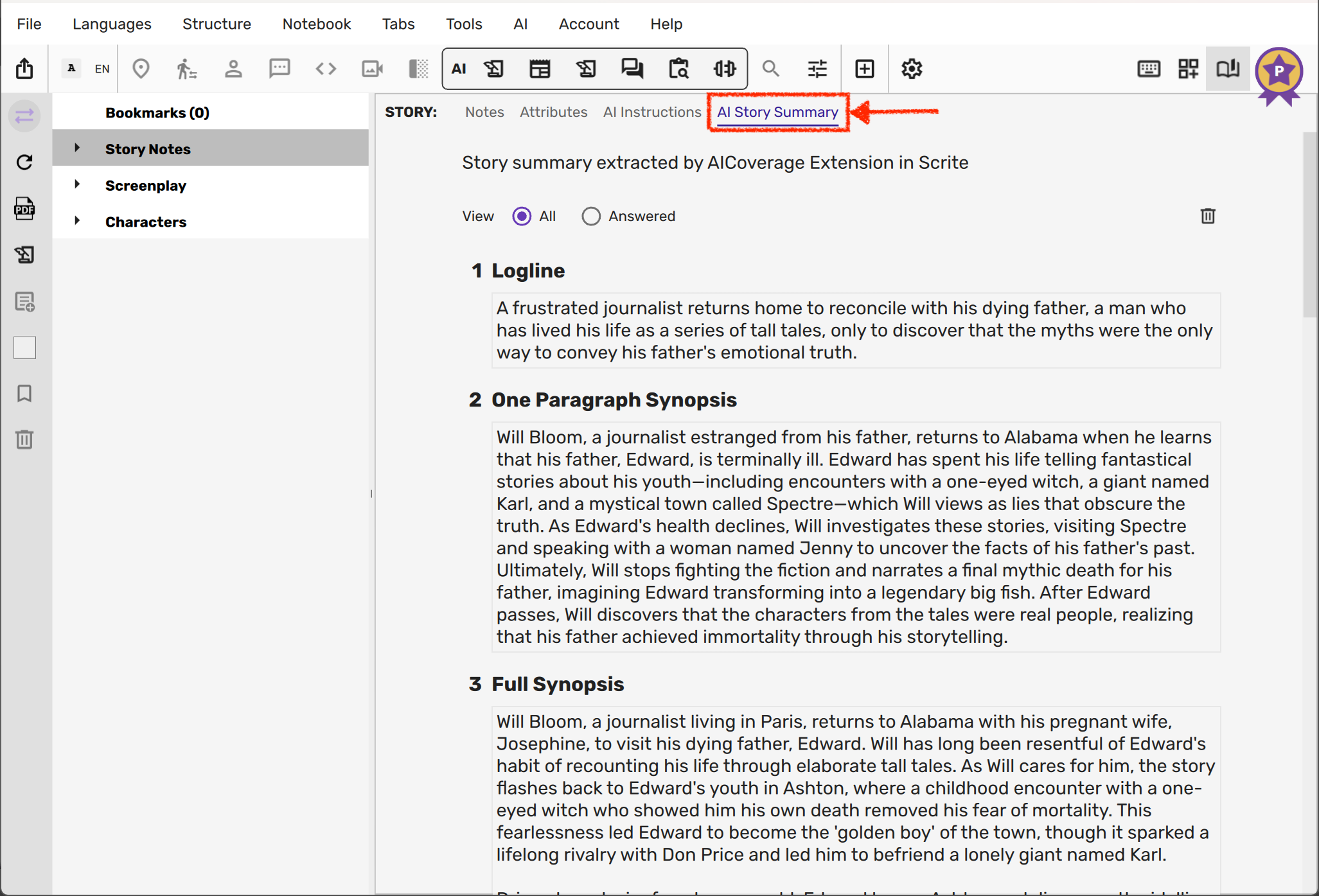
An AI Story Summary note on the Story page of the Notebook, containing:
| Field | Description |
|---|---|
| Logline | Who the protagonist is, what they want, what stands in their way, and what is at stake. |
| One Paragraph Synopsis | Beginning, middle and end — including the ending. |
| Full Synopsis | Four to eight paragraphs in story order. |
| Premise and Theme | The premise and the themes explored. |
| Protagonist's Arc | Who they are at the start, how they change, and who they are at the end. |
| Central Conflict and Stakes | The main conflict, the opposing forces and what is lost if the protagonist fails. |
| Structure Breakdown | One or two sentences per act or episode. |
| Major Turning Points | In story order, naming the scenes where they happen. |
| Character Arcs | One line per major character other than the protagonist. |
| Tone and Genre | A short phrase. |
| Strengths | What works well in the story as written. |
| Open Questions | Unresolved threads, setups without payoffs, unclear motivations, gaps in logic. |
TIP: The story summary, and the act and episode summaries, are notes like any other, so you are free to export them. Use the note's toolbar to export a note as a PDF, or download it as an ODT to open in a word processor. A logline, synopsis and turning points are handy to share with producers and collaborators.
Act and Episode Summaries
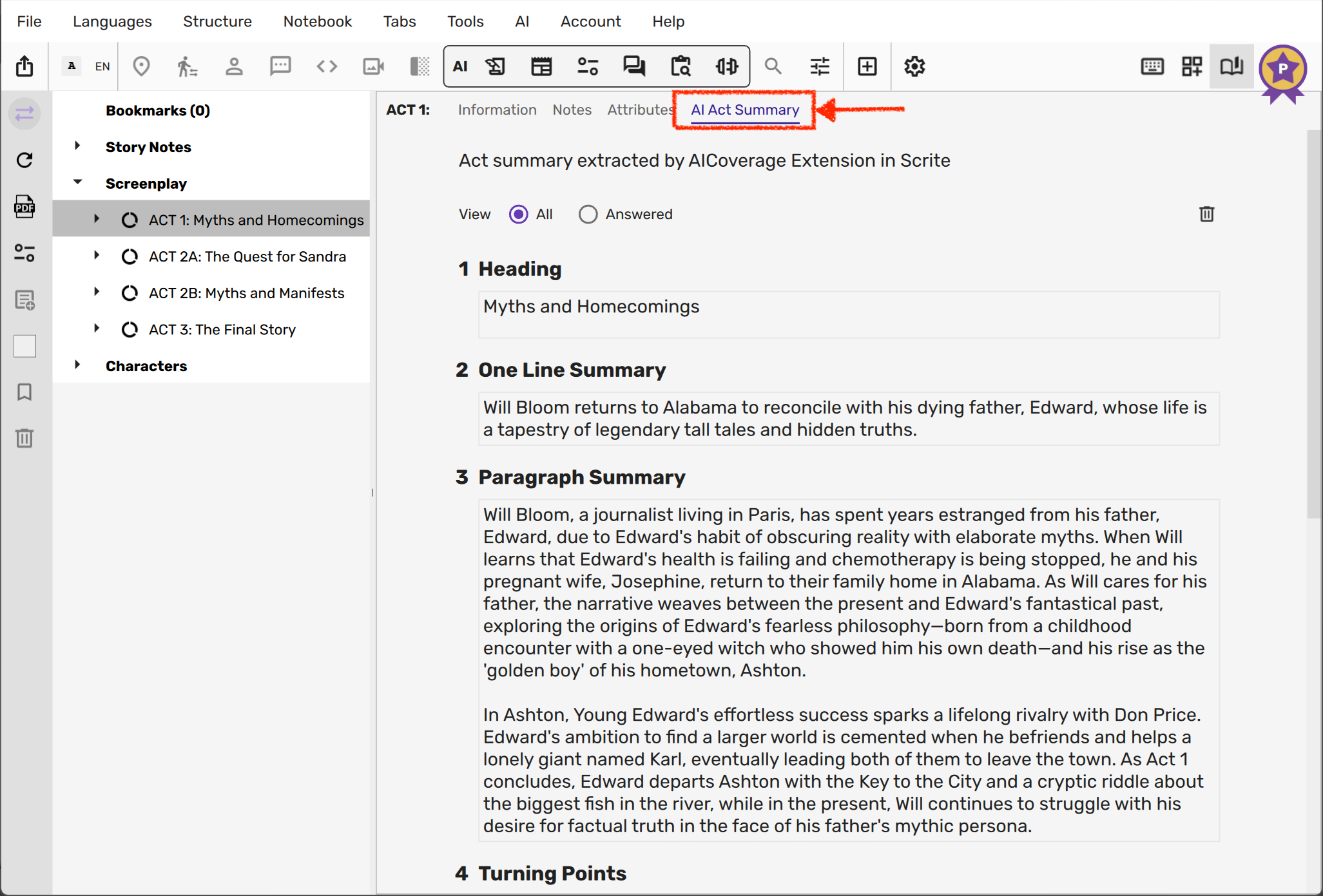
Each act and episode break gets its own AI summary note, along with a summary and a subtitle on the break itself, written as the synopsis choice allows. By default, a summary or subtitle that you wrote is kept. These appear in the screenplay editor's break headers.
Running Story Summary
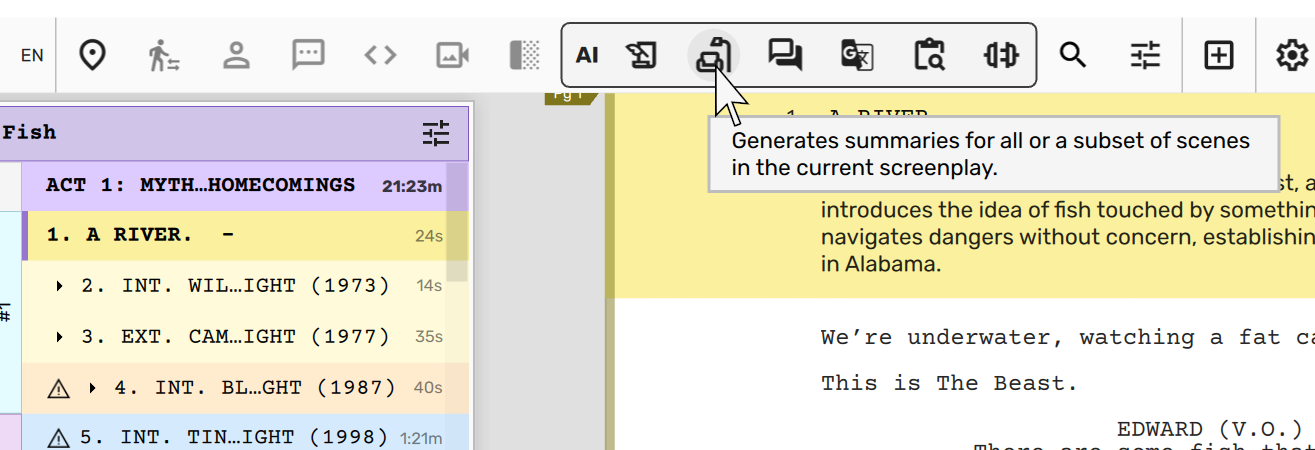
Click Story Summary in the AI group of the toolbar, or choose AI → AI Analysis → Story Summary.
Options
| Option | Meaning |
|---|---|
| Regenerate summaries, even if they are up to date | Redo story, episode, act and character summaries. Scene summaries are used as they are. |
| Summarize characters too | Also profile the characters and work out their relationships. Untick to summarize only the story, acts and episodes. |
| Break down story structure afterwards | Once the story summary is ready, open the Story Structure dialog. On by default if your story has no summary yet. |
| Let the AI read full scene text when needed | The AI may look up scenes while it works. Needs a model that supports tool calls. |
| Synopsis and summary fields | What the run does to a synopsis, summary or subtitle that is already there: Update only if empty, or still as the AI wrote it (the default), Keep what is there as it is, or Always replace with the new one. It applies to the synopses of the scenes that are summarized in the run, the summaries and subtitles of acts and episodes, and the summaries of characters. The AI notes are always written. See Synopsis and Summary Fields. |
| Batch Size / Chunk Size | See below. |
Batch Size and Chunk Size
A long screenplay won't fit into a model's context window in one go. Scrite first condenses runs of scenes into digests, then summarizes acts, episodes and the story from those digests.
- Batch Size — number of scenes bundled into one chunk (5 to 40).
- Chunk Size — number of letters bundled into one chunk (2,000 to 60,000).
Use smaller chunks with models that have small context windows. Changing chunk sizes means digests from earlier runs can't be reused.
Prerequisites
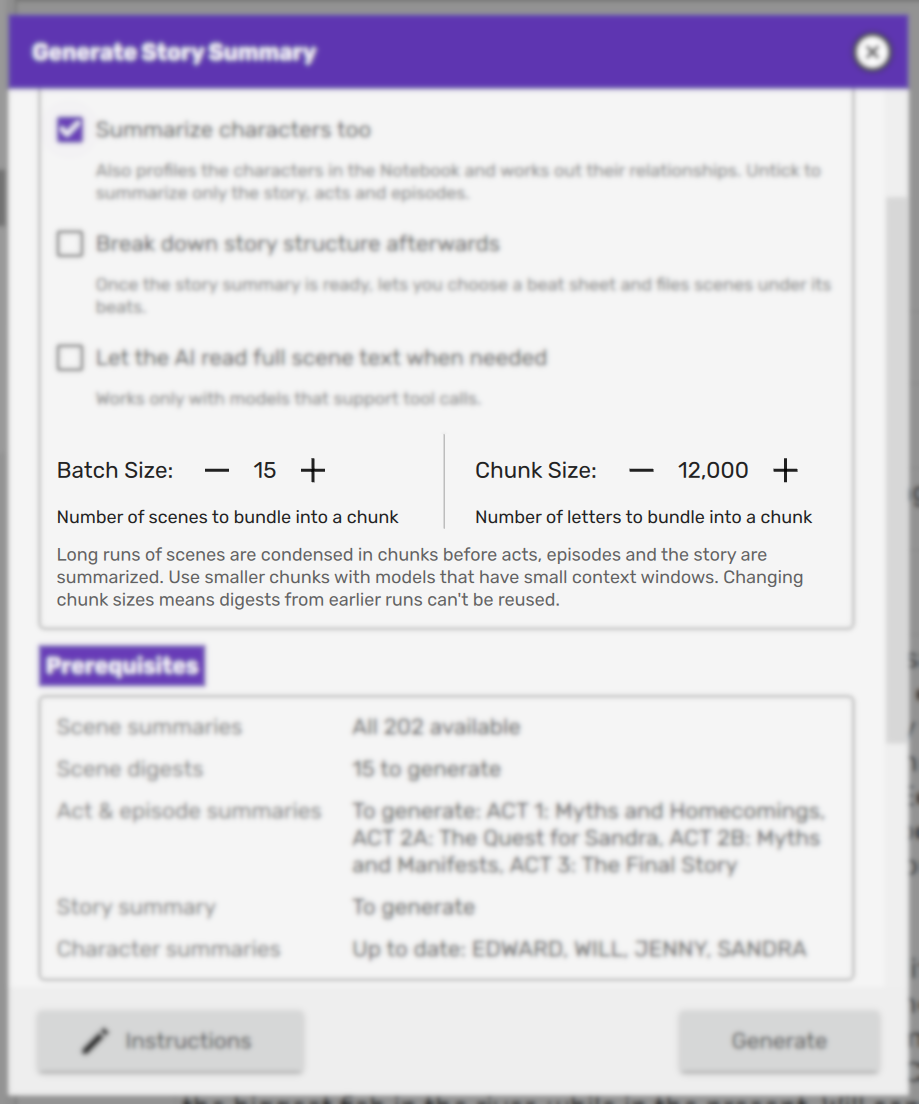
The dialog checks what is ready before you start, and shows it in the Prerequisites box.
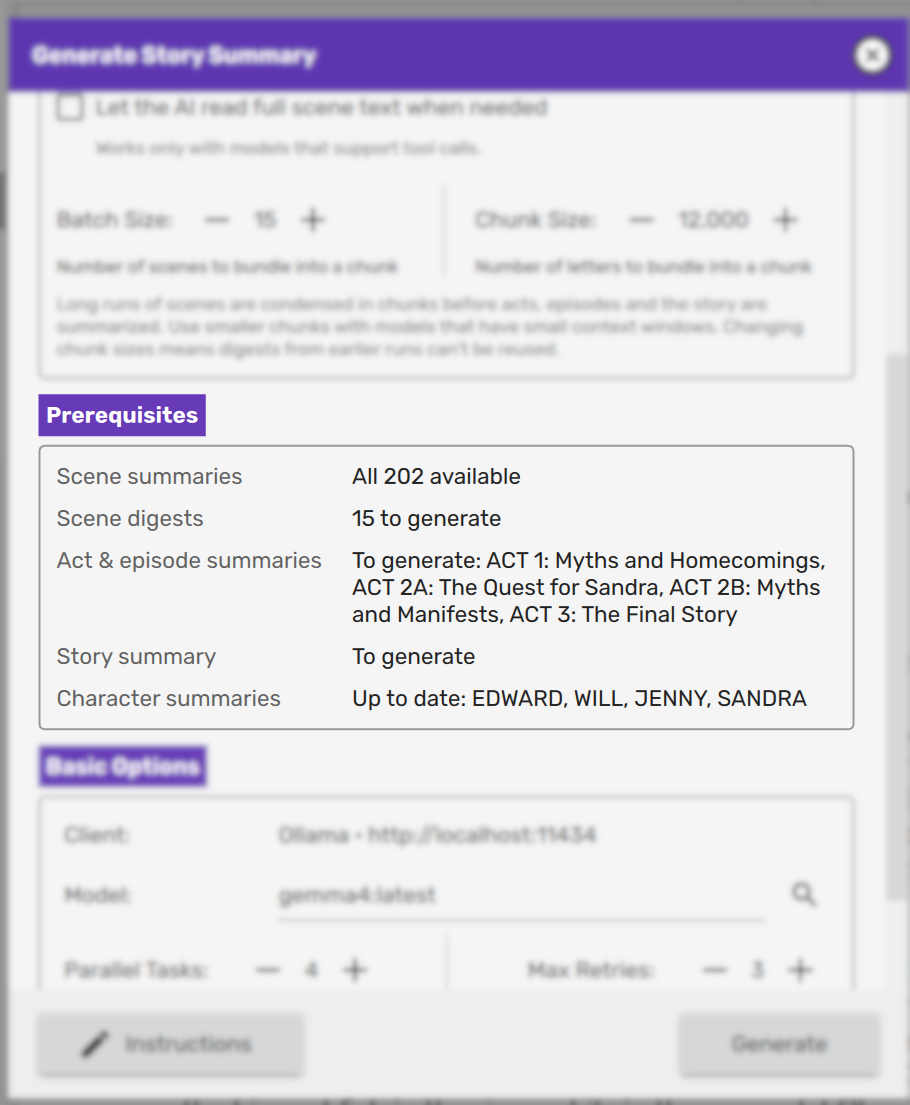
| Row | What it tells you |
|---|---|
| Scene summaries | How many are missing. Missing ones are generated first. |
| Scene digests | How many chunks need to be digested, and how many are reused from earlier runs. |
| Act & episode summaries | Which are up to date and which will be generated. |
| Story summary | Up to date, or to be generated. |
| Character summaries | Characters to be generated, those up to date, and digests. |
If everything is up to date, Scrite tells you so, and suggests ticking Regenerate.
Review and Correct Your Summaries
Read the summaries of your story, acts and episodes, and correct them where they are wrong. They are notes like any other, so you edit them in the Notebook. A correction guides every analysis that comes after it. Reports, chats, translation and conversations with your characters all read these summaries, so fixing a wrong turning point, or a misread ending, makes all of them better.
CAUTION: Whenever the AI is asked to regenerate a summary, it may overwrite your edits. If you have corrected a summary and want to keep it, don't regenerate it. See Staying Up to Date.
How Story, Act and Episode Summaries Are Used
These summaries are not only for you to read. Scrite automatically sends the relevant ones to the AI when it does more advanced work:
- AI Reports about the story are written from the story summary, along with act and episode summaries and scene summaries.
- Scene translation uses them, with scene summaries, to understand where a scene sits in the story.
- Conversations with a character in AI Chat, or in a chat app, use them to give the AI the shape of the story the character lives in.
Without these summaries, Scrite may not be able to do these tasks well from scene text alone. A report on a whole story, for instance, needs an overview of every act and episode, and the AI can't reliably build one from raw scenes. So run Story Summary before you use story reports, scene translation or conversations with a character.
Staying Up to Date
Scrite remembers which scene summaries each story, act and episode summary was generated from. When one of those scene summaries changes, the summaries built on it are detected as out of date. Run Story Summary again, and only those are regenerated.
NOTE: Scrite does not notice when you edit the text of a scene. A scene's summary stays as it is until you regenerate it, and the story, act and episode summaries are only out of date once a scene summary has changed. So after you change scenes, first regenerate their scene summaries, then run Story Summary. To find out why summaries are not updated automatically, see Why Summaries Are Not Updated Automatically.
You can also generate a single summary from the Notebook (an AI Summary action appears for the story, an act, an episode, a scene or a character page).
To update the summary of a single scene, click the Scene Summary icon in the AI group of the toolbar, with the cursor in that scene. The context menu of an act or episode break in the screenplay editor also has an AI Break Summary item, for summarizing that one break.
Where to Go Next
- Character Analysis: profile your characters, and map how they relate.
- Story Structure: file your scenes under the beats of a known structure.
- AI Reports: write a script review, coverage or a pitch deck from the story summary.
- AI Chat: ask where the second act sags, and which setups never pay off.
- Scene Analysis: keep the summaries current.