Story Structure
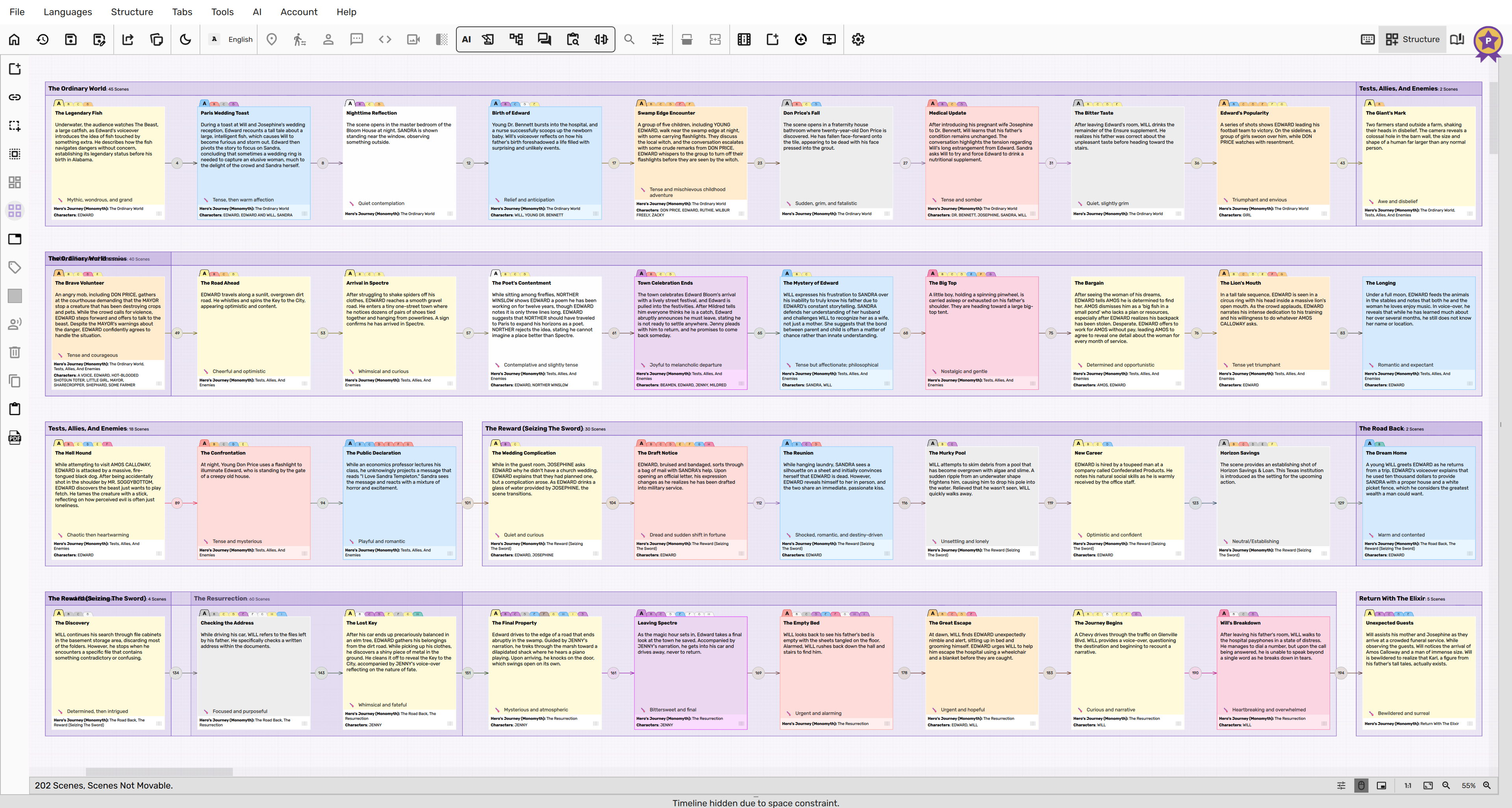
Story Structure Breakdown files every scene under a beat of a beat sheet, so the Structure canvas shows how your story is laid out against a known structure — Save the Cat, the Hero's Journey, or a structure designed just for your story.
Before You Begin
The story needs a story summary and scene summaries. If they are missing, the dialog says so under Prerequisites. Run Story Summary first, or tick Break down story structure afterwards there, to do both in one go.
Running It
Click Story Structure Breakdown in the AI group of the toolbar, which is there on the Structure tab, or choose AI → AI Analysis → Story Structure Breakdown.
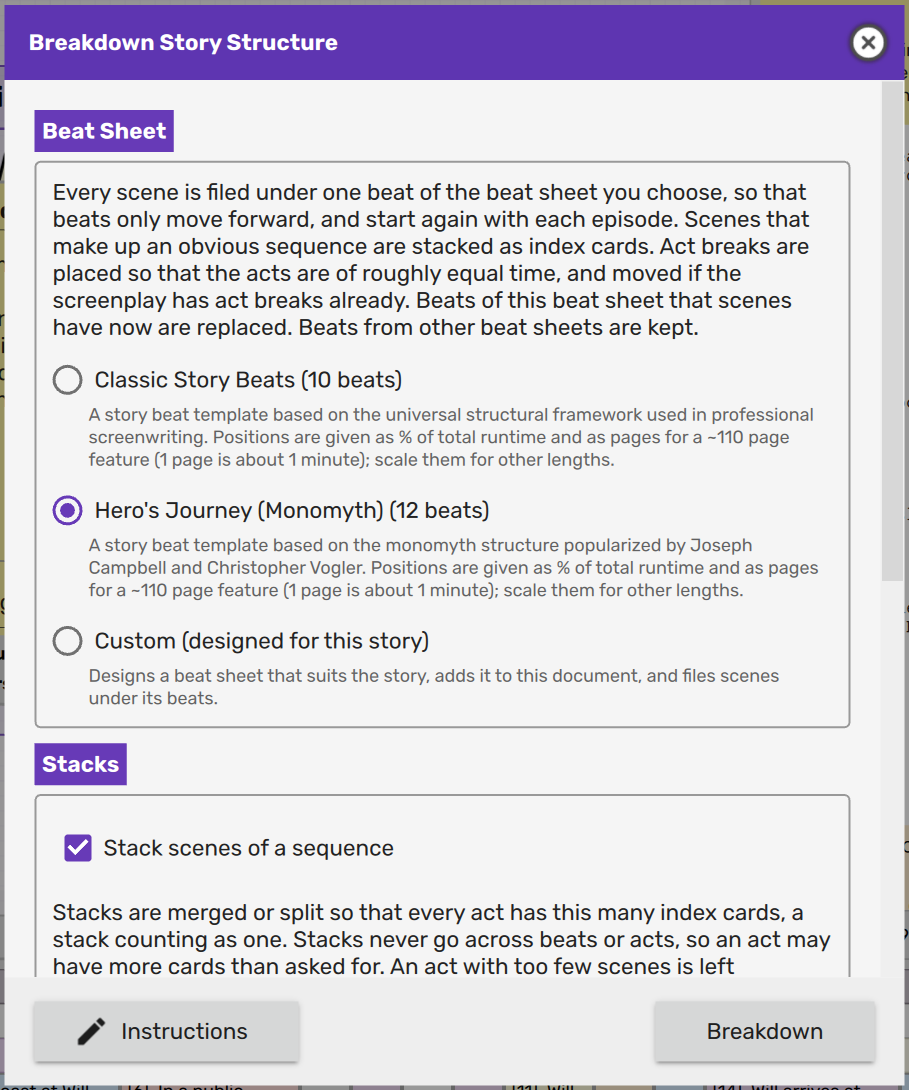
Choose a Beat Sheet
The dialog lists the beat sheets in your document, each with its number of beats and a description. Your document's preferred beat sheet is pre-selected.
Or choose Custom (designed for this story). Scrite then:
- Designs a beat sheet of 10 to 15 beats that suits your story, using the story summary and scene summaries.
- Adds it to your document, replacing an earlier AI-designed sheet of the same name if there is one.
- Files scenes under its beats.
If your screenplay has episodes, a single beat sheet is designed for all of them, and every episode goes through the whole of it.
What Happens
- Every scene is filed under one beat. Beats only move forward through the story, and start again with each episode.
- Sequences are stacked. Scenes that make up an obvious sequence are stacked as index cards on the Structure canvas.
- Act breaks are placed so that acts are of roughly equal time. If your screenplay has act breaks already, they are moved.
- Beats are replaced only from this beat sheet. Beats scenes carry from other beat sheets are kept.
When the run is complete, Scrite reports what was done: the number of scenes filed, sequences found, stacks made and acts placed.
NOTE: Stacks are shown on the Structure canvas in index card view. If the canvas is in another view, Scrite reminds you to switch.
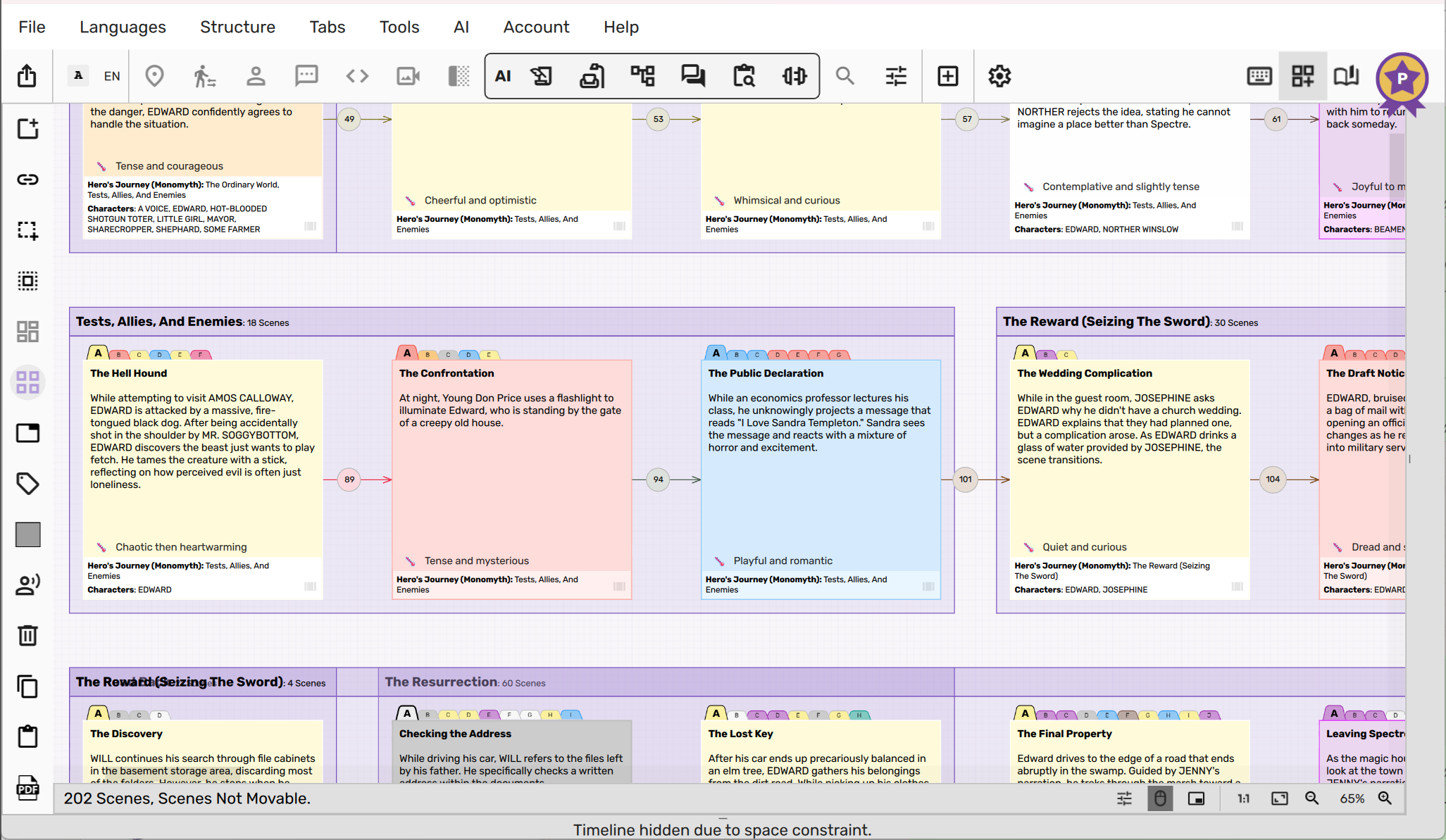
Switch to the Structure tab to see your story laid out in its beats.
Tips
- Try a ready-made beat sheet first. If none of them fits, use Custom.
- Beat assignments are ordinary Scrite beat assignments. You can drag scenes to other beats or remove them like any others.
- Re-run it after major restructuring. It is quick when scene summaries are already up to date.
Where to Go Next
- Story Analysis: keep the summaries current, so the next breakdown is quick.
- AI Chat: create acts, episodes and beat sheets, or file scenes under beats, by asking.
- AI Reports: write a pacing analysis or a review of an act or episode.
- Character Analysis: profile the people who carry the story.