Setting Up a Local LLM
You don't have to send your screenplay to a cloud service. You can run an AI model on your own computer, and point Scrite at it. Nothing leaves your machine, there is no per-use charge, and it works offline. A local model is the way to get absolute privacy, because Scrite then has nowhere to send your screenplay except your own computer. Scrite does not provide any models itself, and the choice of model is yours. See Cost, Speed and Privacy.
Scrite doesn't offer AI models, or servers to run them. It only brokers the conversation between your screenplay and a provider that you choose, from the ones it can connect to. Where the model runs, what it costs and what happens to your text are between you and that provider. See Why Scrite Doesn't Bring Its Own AI.
This chapter sets up free tools that run AI models on your computer.
- Ollama is the easiest way. It is also the one that Scrite uses for searching by meaning.
- llama.cpp is an alternative to Ollama, for those who prefer it. See Step 4: Set Up llama.cpp.
If you also want to use a chat app such as AnythingLLM with Scrite, see Chat Apps MCP.
NOTE: A local model is usually slower and less capable than the largest cloud models. Summaries, profiles and reports still work well, but expect long runs on a big screenplay, and try a few models to find one you like.
TIP: Even if you are comfortable using cloud models for everything else, consider installing Ollama on your computer anyway, just for search. Searching by meaning, and letting AI Chat find scenes by what they are about, need an embedding model, which Scrite runs through Ollama on your computer. Without it, there is no search index. It is small, free, and quick to set up, needs only about 2 to 4 GB of GPU memory, and your screenplay does not leave your computer for it. You can leave Scrite's main AI on a cloud provider. See A model for search below, and Search Scenes by Meaning.
What You Need
- A GPU, or a Mac with Apple Silicon. A model runs fast only when it fits in the memory of the GPU. That memory, and not the speed of your processor, is what decides how well a local model runs.
- Disk space: each model takes a few gigabytes.
How Much Memory Is Enough?
A model has to fit in memory, with room left for your screenplay. The memory that matters is the memory of your GPU (VRAM), the memory on the graphics card. It is not your computer's RAM. A computer with 64 GB of RAM and a graphics card with 6 GB of VRAM can only run small models well. The exception is a Mac with Apple Silicon, whose single pool of memory is shared by the processor and the GPU. For that Mac, the memory you have is the number to use. An Intel Mac is like a Windows or Linux computer: what counts is the VRAM of its dedicated graphics card, if it has one.
This is a rough guide. It is only a guide, and the numbers change as models do.
| GPU memory (VRAM) for the model | What to expect |
|---|---|
| Under 8 GB | Only small models. Fine for trying things out, but expect weak summaries and poor use of tools. Consider a cloud model instead. |
| 8 to 12 GB | Small to medium models. Usable for a short screenplay, if you keep Parallel Tasks at 1. |
| 16 GB | The place to start. gemma4:latest and models of its size work well. |
| 24 GB | Comfortable. Larger models, and longer chats. |
| 32 GB or more | Plenty. The largest local models, long screenplays, and Parallel Tasks raised. |
Windows
- A dedicated graphics card with 16 GB of VRAM or more, the memory on the card. Check Ollama's list of supported GPUs before you buy one, because support differs by brand and model.
- No suitable card? It still works, but on the processor, and slowly. A short test may be fine, but a feature-length screenplay can take several hours. Use a cloud model instead.
- System memory (RAM): 16 GB at the least, and more is better.
- To see what you have, open Task Manager, go to Performance, and click your GPU. Dedicated GPU memory is the VRAM.
macOS
- An Apple Silicon Mac (M1 or later) is all you need. These Macs share one pool of memory between the processor and the GPU, so the model can use most of it, and there is no graphics card to buy.
- 16 GB works. 24 GB or more is a breeze. A Mac with 8 GB is tight, and will do only small models.
- Intel Macs depend on the VRAM of their dedicated graphics card, as Windows and Linux computers do, and not on the memory of the Mac. Many have a card with 4 to 8 GB, which is small, and some have none. They will work, but slowly, and are best left to cloud models.
- To see what you have, choose About This Mac from the Apple menu. On an Apple Silicon Mac, Memory is the pool that the model uses. On an Intel Mac, look at Graphics for the card and its VRAM.
Linux
- A dedicated graphics card with 16 GB of VRAM or more, the memory on the card. Check Ollama's list of supported GPUs before you buy one, because support differs by brand and model.
- No suitable card? It works on the processor, slowly. Use a cloud model instead for anything big.
- System memory (RAM): 16 GB at the least.
- To see what you have, use the tool that comes with your card's driver. For an NVIDIA card, run
nvidia-smiin a terminal. The memory it shows is the VRAM. Other cards have their own tools.
We recommend gemma4:latest or better. It needs at least 10 GB for the model alone, and the rest is
used while it works on your screenplay.
NOTE: If you have less memory than this, choose a smaller model. Expect lower quality, and test it on a few scenes first. Better still, try a few scenes with a cloud model first, to see what a larger model can do, before you decide whether a computer of your own is worth upgrading.
Low-End Computers: Cloud Models
If your computer can't run a model like this, use a cloud model. It runs on a provider's servers instead of your computer. You don't download it, so it works on any computer.
You can connect Scrite to many cloud providers. Several of them host the same open models that you could run yourself, such as Gemma and gpt-oss, and others have models of their own. You choose one in the AI Provider settings, under Online (cloud). Then you enter the provider's API key, and choose a model. Getting Started shows the steps, with one provider as an example.
Plans, prices and free credits differ from one provider to the next, and change often. Compare what each one offers on its own website, and its own price list, before you choose. Some also have cloud models that you reach through software on your computer, as Ollama does with its cloud models, and those need the provider's own plan.
NOTE: Any plan, credit or usage that you sign up for with a provider is outside of Scrite's scope, and is governed by the terms that the provider offers. Scrite cannot change its plans, limits or prices.
PRIVACY: A cloud model is not local. The text of your screenplay is sent to the provider's servers. Before you use a cloud model with a script you want to keep private, read the provider's privacy policy for what it collects and retains. The Choose an AI Provider window has a link to it, where Scrite knows it. See Data Privacy.
If you need your screenplay to stay on your computer, use a local model only.
You don't have to choose one or the other for everything. With AI Connectors, your computer can do the many small jobs, such as scene summaries, and a cloud provider the few big ones, such as reports. Only the kinds of work that you give to the cloud send their text there.
Step 1: Install Ollama
- Download Ollama for your operating system from https://ollama.com/download and install it.
- Start it. On macOS and Windows, Ollama runs in the background and shows an icon in the menu bar or system tray. On Linux, it runs as a service.
- Check that it is working by opening http://localhost:11434 in a browser. It should say that Ollama is running.
Step 2: Download a Model
You need two kinds of models, one for writing and one for search. You don't need a terminal for either. Scrite can download a model from inside its own window, with a progress bar, once Ollama is running. If you would rather use the command line, each section also gives the command.
A model for writing
This is the model that reads your screenplay and writes summaries, profiles, reports and
translations. We recommend gemma4:latest or better.
To download it from Scrite
- Open the AI Provider page of the settings, and choose Ollama as the provider.
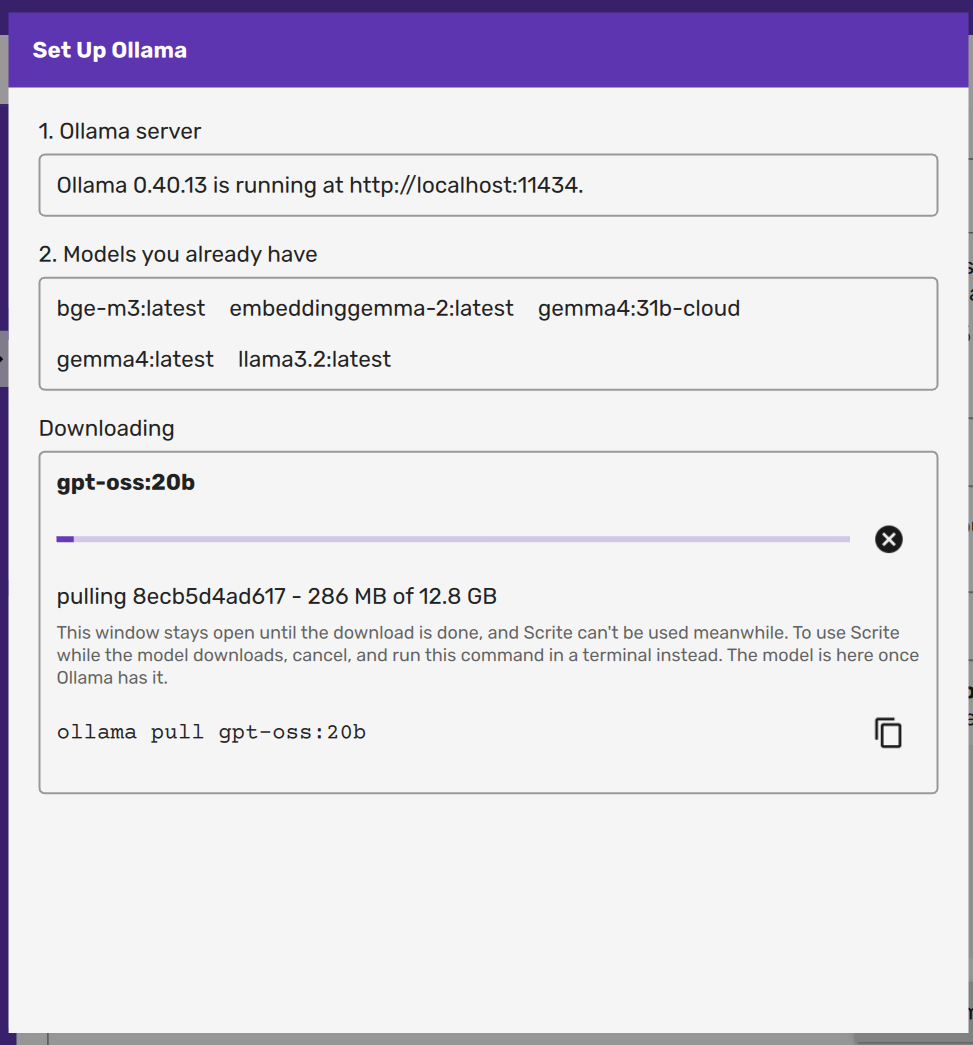
- Click the download arrow next to Model. Its tooltip says Check that Ollama is running, and download models to it. A window titled Set Up Ollama opens.
- The window first checks that Ollama is running, and lists the models that you already have.
- Type the name of the model, such as
gemma4:latest, or click one of the Suggestions below the field. Then click Download, or press Enter. Browse the Ollama library opens the library in your browser, where you can look for another. - A progress bar shows how far the download has got, and how much has come in of the whole. The cross next to it cancels.
- When it says The model is ready to use, click Use This Model. It becomes your model on the AI Provider page.
The window stays open until the download is done, and you can't use Scrite while it is open. See Downloading Models for what to do if you need Scrite in the meantime, and for how it works with llama.cpp.
Or with the command line. Downloading with Ollama's own command, in a terminal (or Command Prompt on Windows), gives the same result.
ollama pull <model-name>
For example:
ollama pull gemma4:latest
You can also use a much smaller model such as llama3.2, but the results may not be great. If you are
just curious how all this works, it is a fine way to start and try things out. You can always upgrade
to a better model later.
ollama pull llama3.2
Models worth trying
If your computer has between 16 GB and 48 GB of memory for the model, here are some models from the Ollama library to consider. All of them support tool calls, and the Qwen3 and Muse Glimmer families say they cover 100+ languages, which helps if you write in an Indian or other non-English language.
| Model | Memory it needs | Notes |
|---|---|---|
gemma4:12b |
About 8 GB | A good fit for a computer with 16 GB, with room left to work on your screenplay. |
qwen3:14b |
About 9.3 GB | A good fit for a computer with 16 GB, and strong in many languages. |
gemma4:26b |
16 to 19 GB | A much larger Gemma than gemma4:latest. Comfortable at 24 GB. |
muse-glimmer:30b |
About 18 GB | Trained on 100+ languages. Comfortable at 24 GB. |
qwen3.8:27b |
About 18 GB | A newer Qwen. Comfortable at 24 GB. |
qwen3:30b |
About 19 GB | Strong in many languages, with a very large context. Comfortable at 24 GB. |
gemma4:31b |
19 to 20 GB | The largest Gemma that runs locally. Comfortable at 32 GB. |
qwen3:32b |
About 20 GB | A dense, larger Qwen. Comfortable at 32 GB. |
The memory shown is the size of the download, which is roughly what the model takes up once loaded. Your screenplay needs more on top of that, and long screenplays and several parallel tasks need even more. So leave some headroom, as the "comfortable" suggestions do. On 48 GB, you can run any of these with plenty of room for long screenplays and for raising Parallel Tasks.
NOTE: The Ollama library changes quickly, and sizes can differ between versions of a model. Check a model's page on ollama.com/library before you download it. And try any model on a few scenes first, especially in your own language, before relying on it.
To try others, browse the Ollama library.
- Choose a model that is tagged for tools. Workflows that look things up in your screenplay need tool support. See Settings.
- Start with a small or medium size. Larger models are better, and slower, and need more memory.
- If you write in an Indian or other non-English language, choose a model that handles your language well, and try it on a few scenes first.
A model for search (recommended)
This is the embedding model. It lets Scrite find scenes by meaning. Scrite recommends bge-m3, which understands many languages, including Indian ones, but is large, at about 1.2 GB. nomic-embed-text is small and fast, at about 270 MB, and is for English only.
To download it from Scrite
- Open the AI Search page of the settings: AI → AI Control Panel → Settings, and then the AI Search tab.
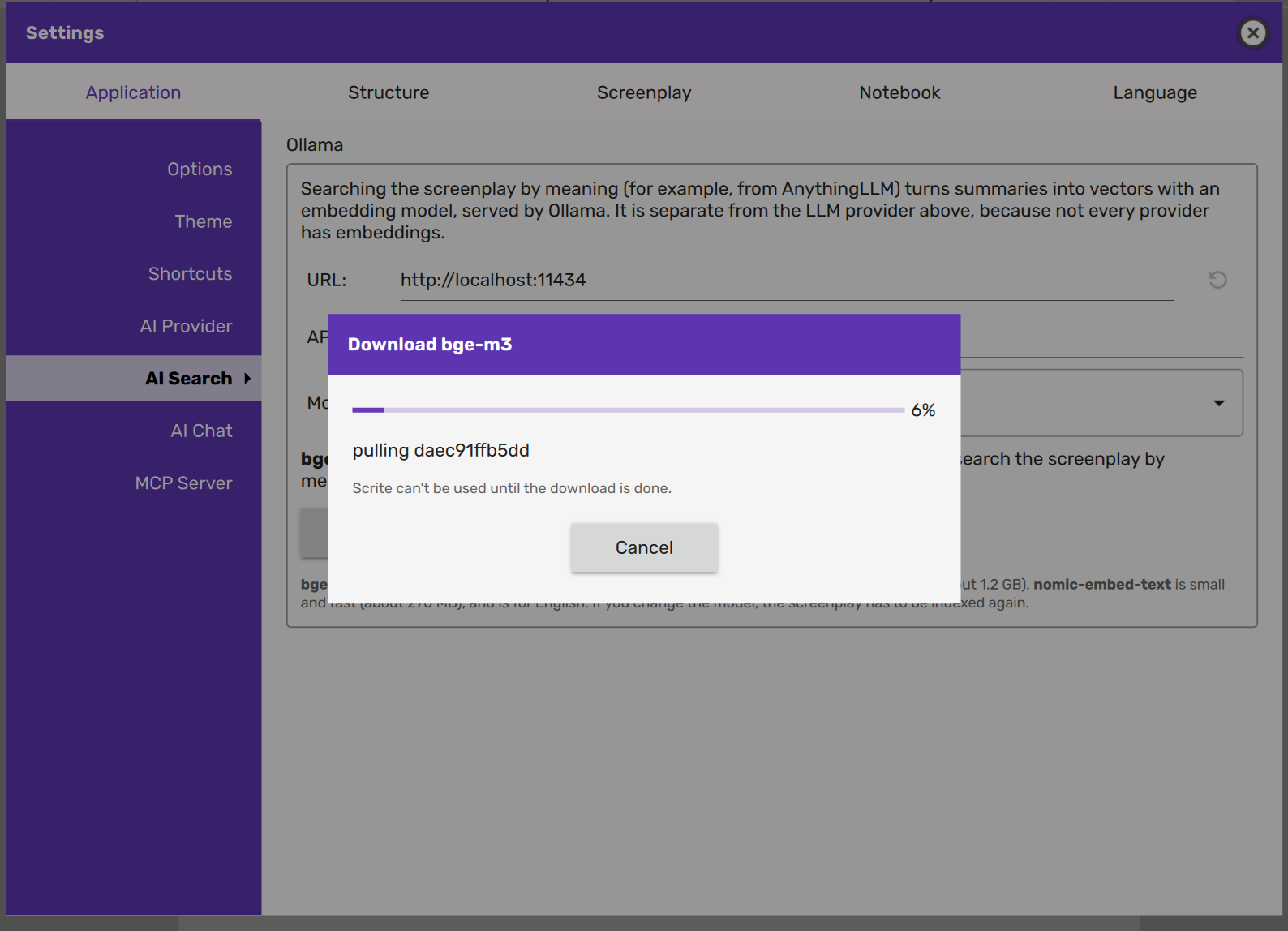
- With Ollama running, and the model that Scrite wants not yet there, the page shows a Download button with the model's name on it. Click it.
- A small window shows a progress bar, with the percentage, and closes by itself when the model is in.
- Click Test to check that it works.
You can't use Scrite while the download goes on. If you change the model later, run Search Index again, since results made by different models can't be compared. See Search Scenes by Meaning.
Or with the command line.
ollama pull bge-m3
Or, for English only:
ollama pull nomic-embed-text
Search needs little. About 2 GB of GPU memory is enough for nomic-embed-text, and about 4 GB
is comfortable for bge-m3. With no suitable GPU, it still works on the processor, only slower.
Indexing is done once, and after that Scrite looks again only at the scenes that changed.
A small model for understanding report requests (optional)
When you ask for an AI report, Scrite first works out what kind of report you are asking for, so that the report can be written to suit it. This step reads only what you typed (and the earlier instructions for the same report, if you are rewriting it). It does not read your screenplay.
Scrite can do this step on your own computer, even when the report itself is written by a model in the cloud. Then this step is quicker, and it does not send what you typed to the cloud. The report itself is still written by the cloud model, so it still receives your instructions and the parts of your screenplay that the report needs. You don't have to set anything up. Scrite uses what you have installed:
- If you write reports with one of Ollama's cloud models, and you have a small local model such
as
llama3.2installed, Scrite uses the smallest local model you have for this step. - If you have
nimbleinstalled, Scrite uses it, whatever model writes the report.
ollama pull nimble
nimble is a model made for choosing between options. It is about 9.3 GB, which is large, so pull it
only if your computer has memory to spare. While Ollama loads it, Ollama may have to unload the
model that writes your reports, and load that again afterwards. The first report after a pause is
also slower, as nimble is loaded from disk.
If you have neither, nothing changes. The model that writes your reports does this step as well.
You can list what you have installed at any time.
ollama list
Step 3: Connect Scrite to Ollama
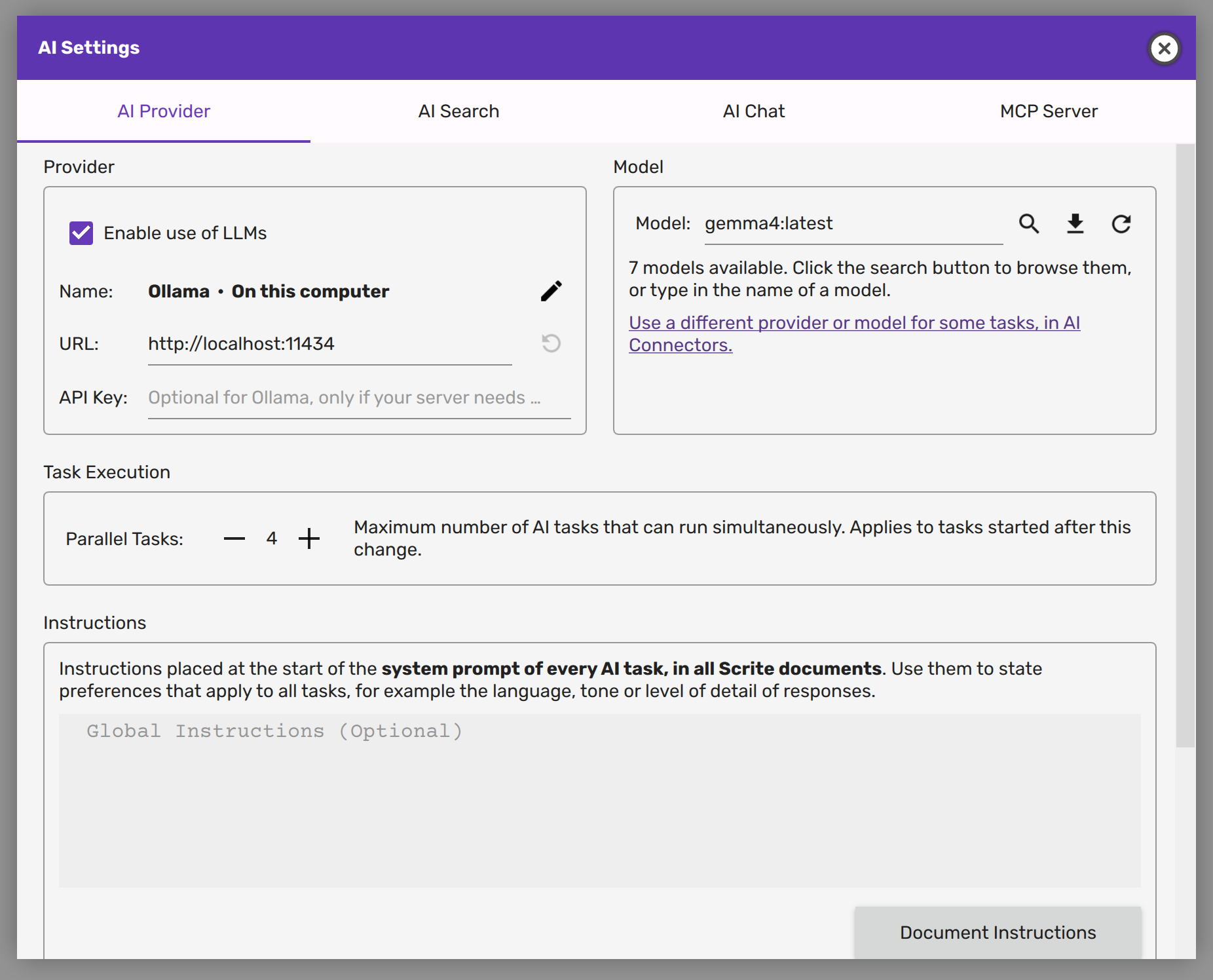
- Choose AI → AI Control Panel → Settings, and go to the AI Provider page. If no provider is set up yet, the Configure button in the AI group of the toolbar opens it.
- Click the edit button next to Name. In the Choose an AI Provider window, click On this computer, select Ollama, and click Use Ollama.
- Leave URL at its default, which is the address of Ollama on your computer. Change it only if Ollama runs on another computer on your network.
- Leave API Key empty. It is not needed.
- Choose your model from the Model list. If the list is empty, click the refresh button, and make sure Ollama is running.
If you pulled an embedding model, open the AI Search settings, click Detect and then Test. See Search Scenes by Meaning.
Then try a first run, as described in Getting Started.
Tips for local models
- If tasks time out, raise Timeout in the workflow's Basic Options. Local models can take a long time to answer.
- Keep Parallel Tasks low, 1 or 2. A local model usually can't serve many requests at once.
- If summaries come back incomplete or oddly formatted, try a larger model.
- If a long story fails to summarize, reduce Batch Size and Chunk Size, so each request is smaller.
- In AI Chat, Scrite asks Ollama for a window of up to 32,768 tokens, for models that run on your computer. That is a size most computers can bear. If your computer has memory to spare, and you have long chats, raise Context Window in the chat's settings. A bigger window uses more memory, and a chat that doesn't fit in memory gets very slow.
- For chats, choose a model that supports tool calls, or it can talk about your story but can't read it. Larger models use tools better than very small ones.
Step 4: Set Up llama.cpp (Optional)
llama.cpp is another way to run models on your own computer. Use it if you already have it, if you prefer it, or if you want models from Hugging Face, which has the largest collection of open models. If you have no preference, Ollama, in Steps 1 to 3, is easier.
NOTE: llama.cpp does not replace Ollama for searching by meaning. That needs an embedding model, which Scrite runs through Ollama. If you want search, install Ollama as well, and set up a model for search. Everything else can use llama.cpp.
Install llama.cpp
- Open the llama.cpp releases page, and download the build that matches your operating system and your graphics card.
- Unpack it. The program that Scrite talks to is
llama-server.
Start the server
Scrite needs llama-server to run in router mode. That means it runs without a model of its own,
and loads the models as they are asked for. Only a server in router mode can download models, and it
is what lets Scrite list the models that it has. Use a recent build, and in a terminal (or Command
Prompt on Windows), start it with no model.
llama-server --port 9931
9931 is the port that Scrite looks at by default. Keep the terminal open. The server runs for as long
as it does.
Connect Scrite to llama.cpp
- Choose AI → AI Control Panel → Settings, and go to the AI Provider page. If no provider is set up yet, the Configure button in the AI group of the toolbar opens it.
- Click the edit button next to Name. In the Choose an AI Provider window, click On this computer, select LlamaCpp, and click Use LlamaCpp.
- Leave URL at its default,
http://localhost:9931. Change it only if you used another port, or the server runs on another computer. - Leave API Key empty. It is not needed.
- Click the download arrow next to Model. A window titled Set Up LlamaCpp opens. It checks that the server is running, lists the models that it has, and downloads new ones.
Download a model
llama.cpp has no command that only downloads a model, so Scrite's own window is the easiest way to get
one. A llama.cpp model is a Hugging Face repository and a quantization, joined by a colon, such as
ggml-org/gemma-3-270m-it-GGUF:Q8_0.
- Type the name in the window, or click one of its Suggestions. Browse GGUF models on Hugging Face opens the page where you can look for others.
- Click Download, and wait for the progress bar to finish.
- Click Use This Model.
The server keeps the files in its own cache, and picks the model up without a restart. For how the window works, see Downloading Models.
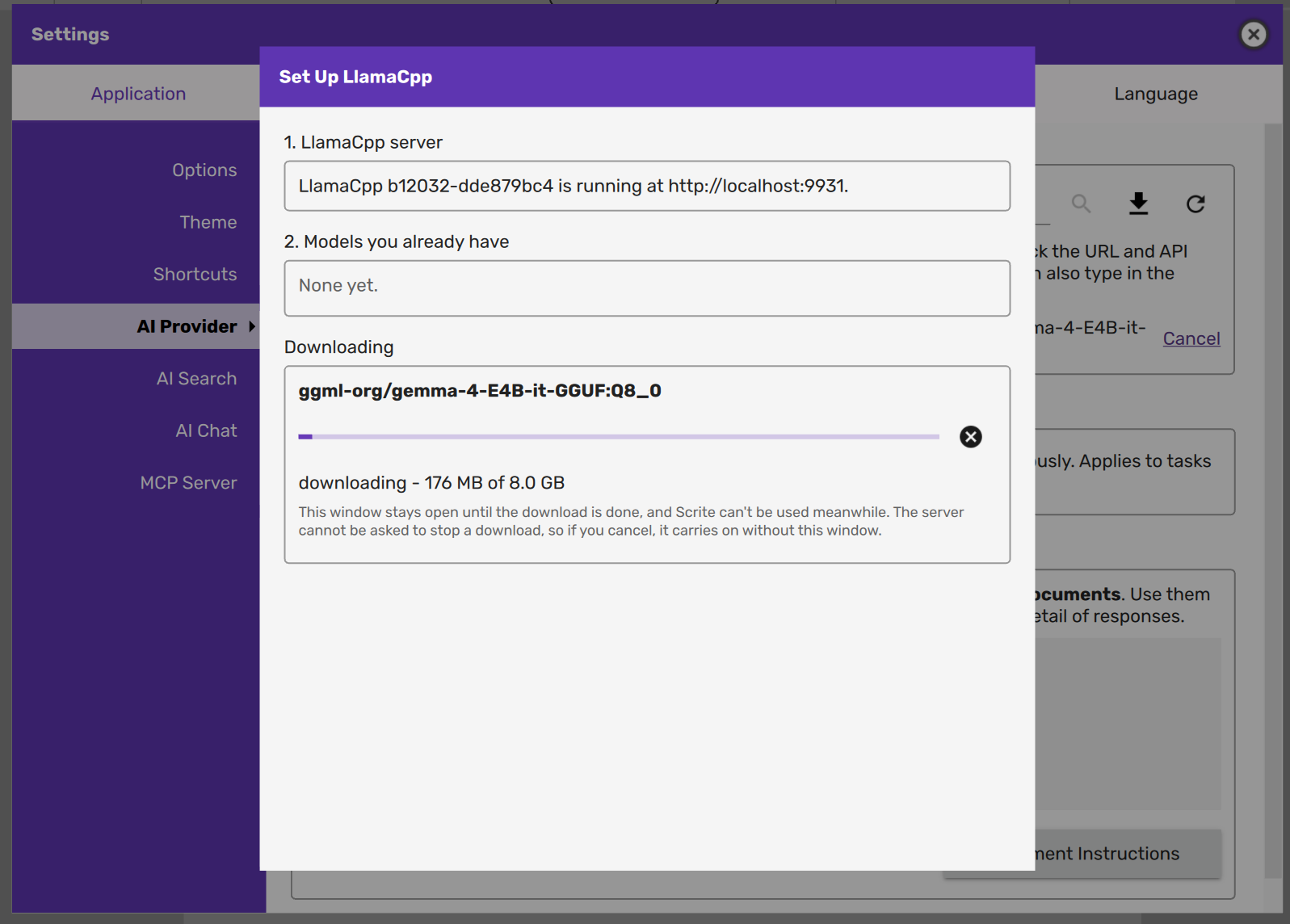
The model in that example is tiny, and is good only for trying things out. For real work, choose a
bigger one. Pick one that fits in the memory of your GPU, as in How Much Memory
Is Enough?, and that supports tool calls. The magnifying glass button next
to Model shows each model's size, context and abilities. See Choosing the Right
Model. A name such as Q8_0 or Q4_K_M says how compactly the model is
stored, and a lower number means a smaller, faster model, with a little less quality. See
Size.
Everything in Tips for local models applies to llama.cpp as well. If Scrite's
model list is empty, check that llama-server is running in router mode, and that the URL is the
one it listens on.
PRIVACY: llama.cpp runs on your computer, so your screenplay stays on it. If you point Scrite at a
llama-serveron another computer, Scrite shows its Privacy note, since it can't know who else can see that machine. See Data Privacy.
Troubleshooting
| Problem | What to try |
|---|---|
| Scrite's model list is empty | Check that Ollama is running. Open http://localhost:11434 in a browser. Then click refresh next to Model. |
| "Could not reach Ollama" in the embeddings settings | Same as above. Also check that the URL matches where Ollama runs. |
| The model isn't listed | Run ollama list to see what is installed. Pull the model if it is missing. You can also type a model's name in Scrite. |
| Tasks are very slow | Use a smaller model, close other heavy apps, or lower Parallel Tasks. |
| Tasks fail with timeouts | Raise Timeout in the workflow's options. |
| Results are poor | Try a larger model, and fill in Document Instructions. |
| Scrite can't reach llama.cpp | Check that llama-server is running, in router mode, and that the URL in the AI Provider settings matches its port. Click the download arrow next to Model, and then Check Again. |
| llama.cpp has no models | A new server has none. Download one from Scrite. See Download a model. |
| AnythingLLM can't see Scrite | See Chat Apps MCP and Troubleshooting. |
Where to Go Next
- Getting Started: run your first summary, and analyze your story, with the model you just set up.
- Settings: change the provider or the model, and know what each setting does.
- Search Scenes by Meaning: put the search model to work.
- AI Chat: talk to your screenplay with your local model.
- Chat Apps MCP: bring AnythingLLM or another chat app along.