Usage Statistics
The Scrite app sends a small set of numbers about how much AI you use, for analytics, so that we can optimise token usage across various workflows. This chapter tells you exactly what those numbers are, what is never sent, where you can see your own copy, and how to turn it off.
In one sentence: Scrite sends counts and sizes, never words. Nothing you wrote, and nothing the AI answered, is in these numbers.
Why These Numbers Are Collected
Every AI request costs tokens, which are small pieces of text. (See Choosing the Right Model.) Cloud providers bill by the token. A model that runs on your own computer doesn't bill you, but it still takes longer, and needs more memory, when there are more tokens. So fewer tokens help everyone, whichever kind of model you use. If we can see which jobs use a lot of tokens, and which settings waste them, we can trim the instructions and the steps that Scrite gives the AI in future updates. That is the only purpose of these numbers.
What Is Sent
For every AI job that Scrite runs, such as a summary, a report, a translation or a chat reply, it counts:
- How much it used. The tokens sent to the AI and received back, and the sizes, in bytes, of the instructions, the tools that were offered and the answer.
- How long it took, how many attempts it needed, and whether it worked.
- Which model, and its settings. The name of the model, and numbers such as Temperature and Top P.
- Which provider, and whether it ran on this computer. The name of the provider, such as
SarvamorOllama, and whether the model ran locally or in the cloud. With AI Connectors, different kinds of work can use different providers, so each job says its own. - Which kind of work it was for. The usecase of AI Connectors, such as
AICoverage.Story.Summary, which is a name from a fixed list, so that Scrite can tell what each kind of work uses. It is never the name of your job, only one of those. - Where the AI runs.
defaultif you use the provider's usual address,localhostif the model runs on this computer,local-networkif it runs on another computer on your network, or else the host name of the server, for exampleapi.groq.com. Never a full web address. - Which tools the AI used to look things up in your screenplay: their names, how many times, and how big the questions and answers were. Never the questions or the answers themselves.
- The kind of request that was recognized, when Scrite works that out. For example, which kinds of report your instructions asked for. These are names from a fixed list, not your words.
- A code for the document, which is not its id. See The Document ID.
What Is Never Sent
- The text of your screenplay, notes, chats, instructions, prompts, or the answers of the AI.
- The names of AI jobs, the titles of chats, scene headings, character names, or the name or location of your file.
- The document's own id.
- Your API key.
The Document ID
Every document carries an id of its own, inside the file, and every copy of the file shares it. Scrite never sends that id. Scrite tells its server which numbers came from the same document with a code that it works out from the id instead.
- The code is a one-way hash. It can't be turned back into the document's id.
- It is the same code every time you open that document, so the server can add up your use of a screenplay over time, without knowing which screenplay it is.
If no document is open, there is no code.
Who It Is Tied To
Like every other request Scrite makes to its server, these numbers carry your Scrite account and the computer they came from. That is how Scrite can tell users apart. It doesn't carry anything about the contents of your work.
Scrite's server may also ask the app to send only some of your jobs, or to stop sending altogether.
Your Own Copy
Scrite keeps a copy of every number it counts on your computer, whether or not you share them. It
is a database file, llmusage.sqlite, in the ai folder next to Scrite's settings file
(settings.ini). It is yours: it is never sent anywhere, and Scrite never deletes anything from it.
You can open it with any program that reads SQLite files, such as the free DB Browser for SQLite. Scrite writes to it while it runs, so work on a copy of the file, or open it read-only.
It has four tables:
| Table | Has |
|---|---|
runs |
One row for each job that Scrite ran as a whole, such as a report, with its start, end and status. |
tasks |
One row for each step of a run, or for each reply of a chat: tokens, sizes, time, the provider, the model and its settings, and the usecase it was for. |
tool_calls |
The tools that a step used. |
task_intents |
The kinds of request that were recognized for a step. |
The tasks table also has sent_at, the time at which Scrite's server accepted that row. It is empty for
rows that were not sent, for example because you had sharing turned off.
A run's document_id is the real id of the document, which stays here and goes nowhere, so you can add
up your own use across a screenplay. reported_document_id is the code that the server was told.
Two small examples:
-- Tokens used by each model
SELECT model, SUM(prompt_tokens) AS prompt, SUM(completion_tokens) AS completion
FROM tasks GROUP BY model;

-- Tokens used by each document
SELECT r.document_id, SUM(t.prompt_tokens + t.completion_tokens) AS tokens
FROM tasks t JOIN runs r ON r.run_key = t.run_key GROUP BY r.document_id;
Writing queries is for people who like SQL. There are two ways to look at your use of AI without them.
- For one document, you can already use the Call Log. It is a dashboard inside Scrite, with a Summary of the tokens used and a Calls tab with every call. It belongs to the document that is open, and shows what was sent as well as how much.
- For all your documents together, we plan to build another dashboard inside Scrite. It will add
up the numbers in
llmusage.sqlite, which cover every document you have worked on, on this computer, so that you can draw insights from your own use of AI without writing a query. It isn't there yet. Your copy is already being kept, so when the dashboard arrives it will have your history to show.
When It Is Sent
Numbers are sent while you are signed in to your Scrite account and have an internet connection.
- A report or a multi-step job is sent when it is done.
- Chat replies and single jobs are gathered, and sent about a minute after the last one, or when there are fifty of them.
- What is left when you quit is sent the next time you start Scrite.
Until the server has accepted them, the numbers wait in a small file, llmusage.json, in the same ai
folder. If they can't be sent, Scrite tries again a little later, and more slowly each time, and keeps
at most the latest few thousand rows. When the server accepts them, they are removed from that file.
They stay in your own copy.
Turning It Off
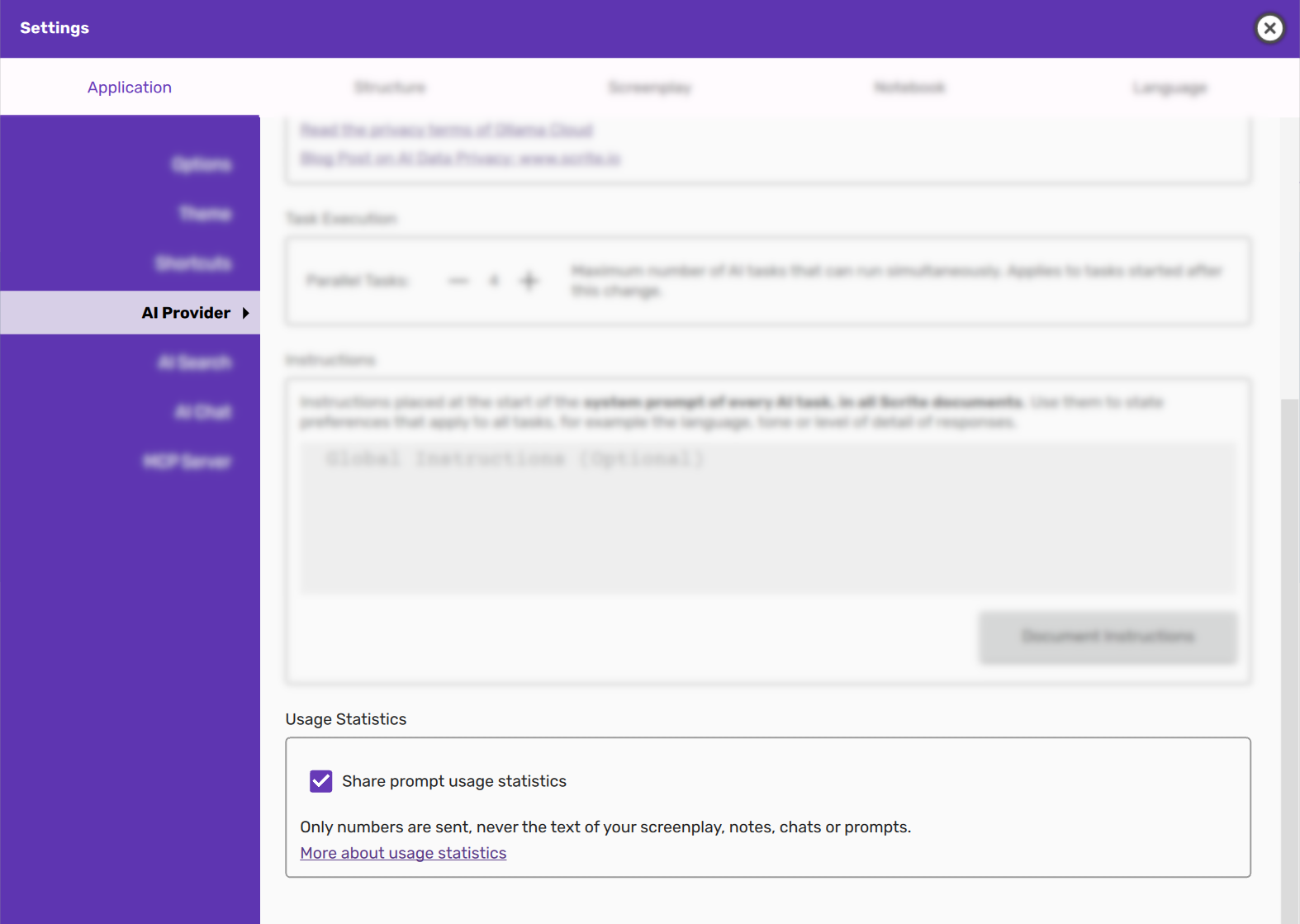
Share prompt usage statistics is on by default. To turn it off, open AI → AI Control Panel → Settings, go to the AI Provider page, and clear the checkbox in the Usage Statistics box. See Settings.
When you do:
- Scrite stops sending.
- Numbers that were waiting to be sent are deleted.
- Your own copy keeps being written, since it never leaves your computer. To get rid of it, close
Scrite and delete
llmusage.sqlite.
You can turn sharing back on at any time.
Questions?
If something here is unclear, write to support@scrite.io. Scrite's own policies are at scrite.io/privacy-policy.
Where to Go Next
- Data Privacy: where your text goes when you use AI.
- Settings: where the checkbox is.
- Call Log: see the text of every call, which is kept in your document and is never sent with these numbers.