Character Analysis
Scrite can profile your characters from the scene summaries, and work out how they relate to one another. The results go into the Notebook's character pages.
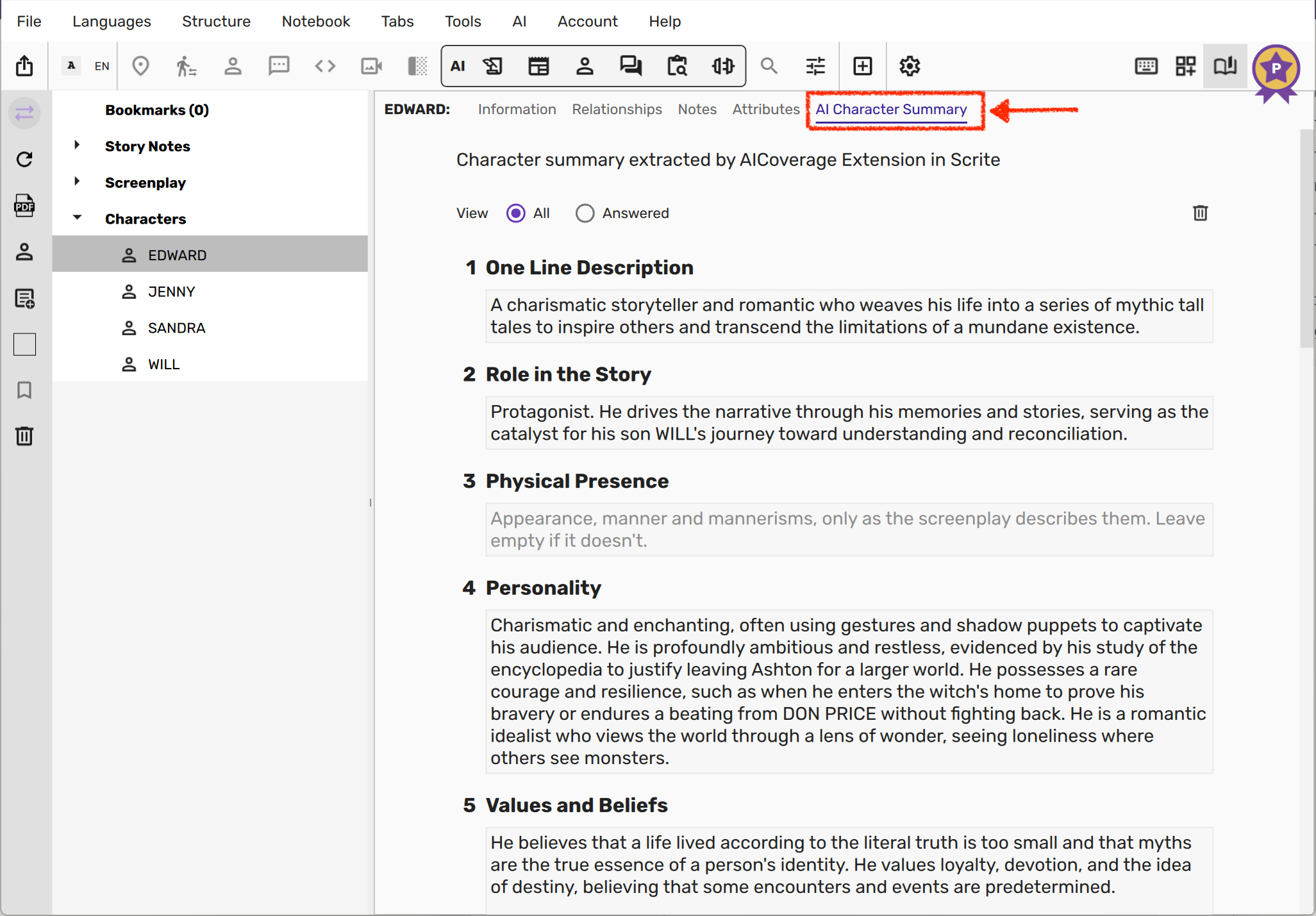
Character Summaries
What Is Generated
An AI Character Summary note on each character's Notebook page, with these fields.
| Field | Description |
|---|---|
| One Line Description | Who the character is and what they do in the story. |
| Role in the Story | Protagonist, antagonist, mentor, foil, love interest... and what they make happen. |
| Physical Presence | Appearance and mannerisms, only as the screenplay describes them. |
| Personality | Traits shown through action and dialogue, with an example of each. |
| Values and Beliefs | What they hold true, and what they would never do. |
| Wants and Needs | The external goal, and the internal need they may not be aware of. |
| Fears, Flaws and Secrets | What frightens them, where they fall short, and what they hide. |
| Backstory | Only what the screenplay reveals or clearly implies. |
| Journey Through the Story | Their state of mind, goal and situation across acts or stretches of scenes. |
| Character Arc | Start, change and end. |
| What They Know | What they know and don't know by the end. |
| Voice and Speech | Rhythm, vocabulary and verbal habits, and how speech changes with the listener. |
| Signature Lines | Three to six lines of dialogue, word for word, with scene numbers. |
| Key Scenes | Scenes that matter to the character and why. |
| Questions for the Writer | What the screenplay leaves open about the character. |
TIP: A character summary is a note like any other, so you are free to export it. Use the note's toolbar to export it as a PDF, or download it as an ODT to open in a word processor. It makes a good reference sheet to hand to an actor or a director.
Scrite also fills in blank designation, type, gender, age and summary fields of the character. Details you have already entered are never overwritten. The one exception is the summary, which the AI rewrites, as the synopsis choice in the dialog allows. By default, a summary that you wrote is kept.
If a character hasn't been added to the Notebook yet, Scrite adds the most prominent ones for you.
Running It
Choose AI → AI Analysis → Character Profile. The dialog is also reached from a character's Notebook page.
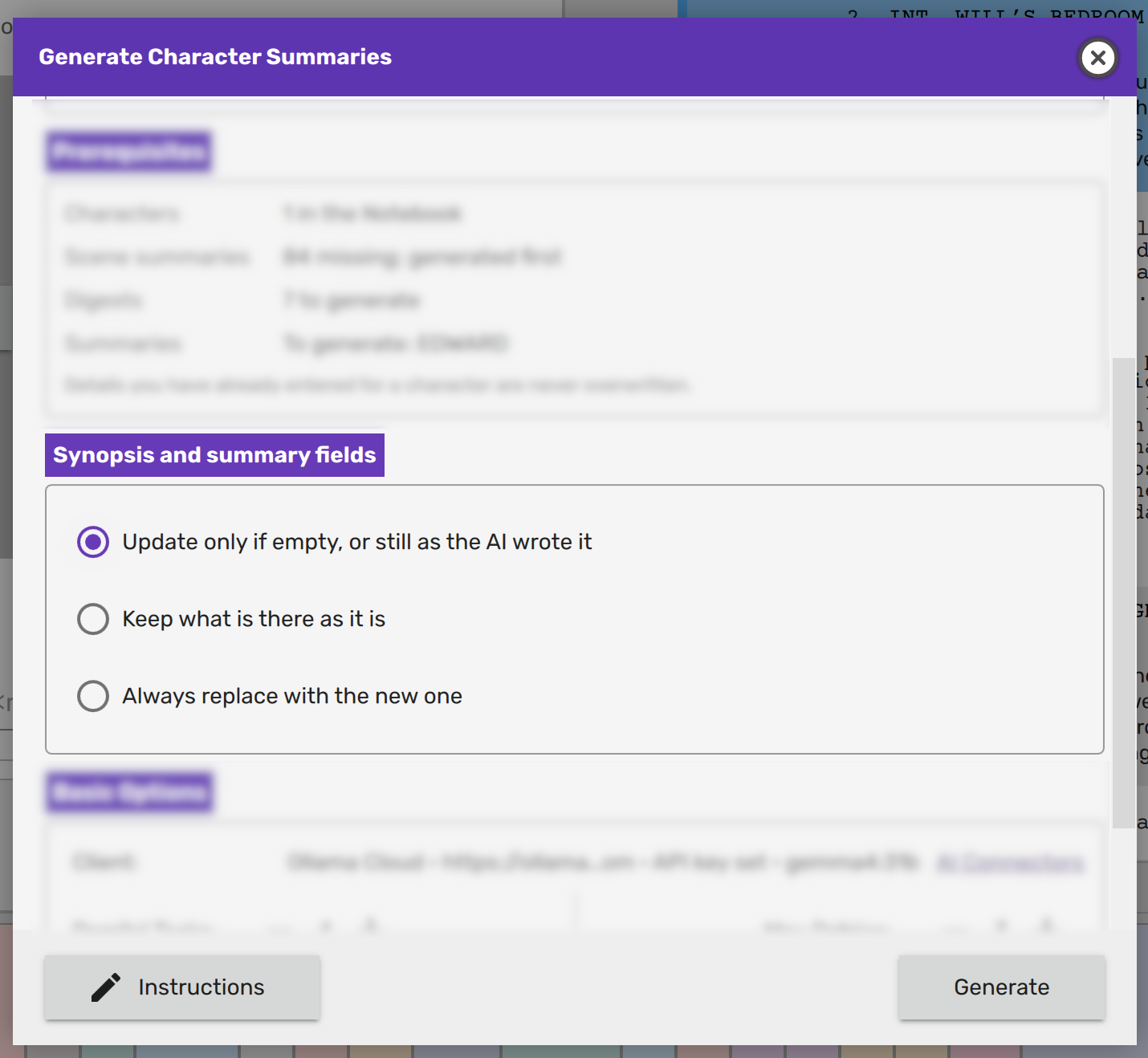
- Characters — pick specific characters, or leave empty for all. Opening it from a character's page pre-selects that character.
- Regenerate character summaries, even if they are up to date — redo summaries that exist.
- Synopsis and summary fields — what to do with a character summary, or a scene synopsis, that is already there: update it only if it is empty or still as the AI wrote it (the default), keep it, or always replace it. The AI notes are always written. See Synopsis and Summary Fields.
- Let the AI read full scene text when needed — on by default. Lets the AI look up what a character says word for word, and the other characters in the screenplay. Works only with models that support tool calls. Without it, Voice and Speech and Signature Lines may come out empty.
- Prerequisites — shows missing scene summaries (generated first), digests that can be reused, characters to generate, characters up to date, and characters skipped because they are in no scene.
Characters in many scenes are condensed into digests first, as with story summaries, so large casts remain affordable.
Why Profiles Matter
A proper character profile is more than a reference sheet.
- It enables conversations. When you talk to a character in AI Chat, or in a chat app over MCP, the profile is what the AI uses to play the character: their voice, what they know, what they want and how they relate to others. Without one, the AI has only scattered scenes to go on.
- It prepares for what is coming. In a future update, we plan to add text-to-speech (TTS), for voice narration of your screenplay and for voice conversations with your characters. A good profile will help pick an appropriate voice and avatar for each character, and will also make those conversations possible.
So it is worth generating profiles for your main characters, and fixing anything the AI got wrong. See What's Coming for more on where we are headed.
Character Relationships
Choose AI → AI Analysis → Character Relationships.
Scrite reads the scene summaries and adds relationships — family, friends, rivals and so on — that characters in the Notebook don't have yet. Existing relationships are never changed. The new relationships appear on each character's page and in the relationship graph.
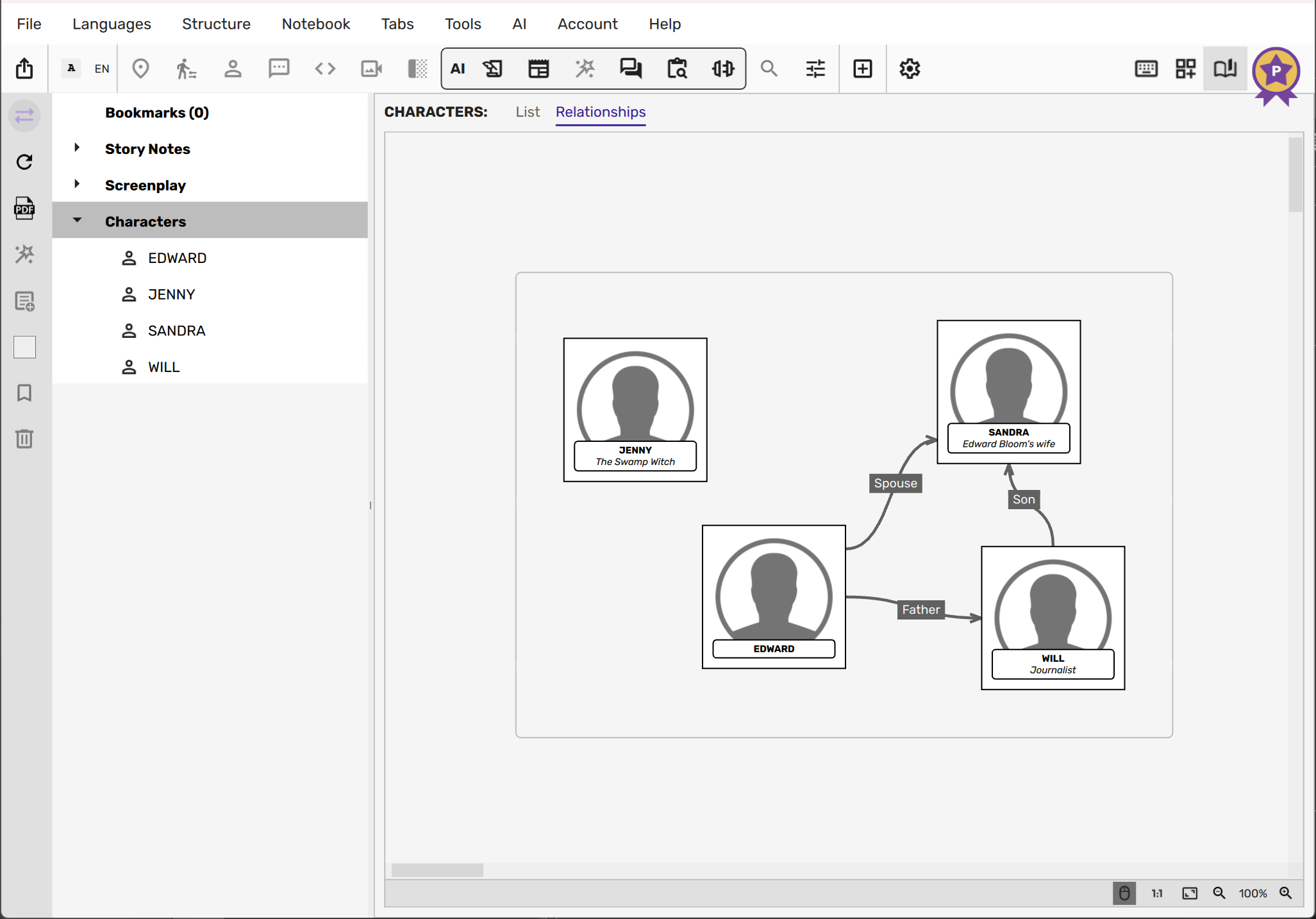
Relationships are also generated as part of Story Summary when Summarize characters too is ticked.
How Character Summaries Are Used
Character summaries are not only for you to read. Scrite automatically sends the relevant ones to the AI when it does more advanced work:
- AI Reports about a character, such as an audition note, are written from the character's summary.
- Scene translation uses it to translate each line in the voice of its speaker.
- Conversations with a character in AI Chat, or in a chat app, use it to play the character, for a conversation set at the end of the screenplay.
Without a character summary, Scrite may not be able to do these tasks well from scene text alone. The AI would have to work out who the character is, how they speak and what they know from scattered scenes, and it will miss things.
Using the Results
- Read a character's profile when you need to remember what you established. The Questions for the Writer field is a good prompt for your next draft.
- Character summaries are the basis of actor briefs and of talking to a character.
- Generate the profile after scene summaries are final. Scrite does not notice when a character changes through rewrites. A character who already has a summary is left as it is, so tick Regenerate character summaries, even if they are up to date when you want a fresh profile.
Where to Go Next
- Talking to a Character: interview a character, or let two of them argue.
- AI Reports: write an audition note, a character arc or a relationship map.
- Scene Translation: translate dialogue in the voice of each speaker.
- Story Structure: see how the story is laid out in beats.
- Story Analysis: analyze the story the characters live in.