AI Connectors
By default, one provider and one model do all your AI work. AI Connectors let you choose a different provider and model for each kind of work: scene summaries, reports, chat, automation and more. They are meant for power users who want fine-grained control over which model is used, and where it runs. You can get started with just one provider and model, set on the AI Provider page, and come back to AI Connectors whenever you want more control.
Why Use AI Connectors
On the AI Provider page, you can start with a single provider and model for all your workflows. That works, but you will rarely find one model that is a good fit for every job.
- A large model for everything is a machine gun for an ant. Run locally, it can be slow, and it needs a lot of hardware. In the cloud, it costs more. And all of that for tasks such as summarizing a scene, which a small model does just as well.
- A small model for everything gives poor results where it matters. A model that is great at summaries may write a thin report, or make a chat dull and forgetful.
So match the model to the job.
- It saves money. Cloud providers charge by the token. A small model, or one on your own computer, can summarize every scene cheaply, and a larger one can write the few reports.
- It gets better results. A role-play chat wants a model that writes naturally, and a high temperature, which makes it more daring and varied. A report wants a large, careful model, and a low temperature, which makes it stick closely to your screenplay. Indian-language translation wants Sarvam. See Choosing a Model for Each Job.
- It makes the best use of what you have. Let your computer do the bulk work for free, and the cloud do the heavy lifting, and spread the rest over more than one provider, so that no one machine, plan or limit is the bottleneck. A single run can use several at once. And text that you are uneasy about can stay on your computer.
How It Works
Each kind of work in the AI features is a usecase. Scene Summary is one. Story Report is another. Chat Reply is a third. The full list is below. Every usecase has a connector, which is what it uses to talk to an AI: a provider, a URL, an API key, a model, a few settings about how the AI writes, and instructions.
The rule is simple: a setting that you have set is used. A setting that you haven't is the one from the AI Provider page. A connector with nothing set is the AI Provider page. So:
- When you change the default provider on the AI Provider page, every usecase that you haven't customized changes with it.
- A usecase that you have customized keeps its own, whatever the default is.
Opening AI Connectors
- Click AI → AI Control Panel → Connectors in the menu bar.
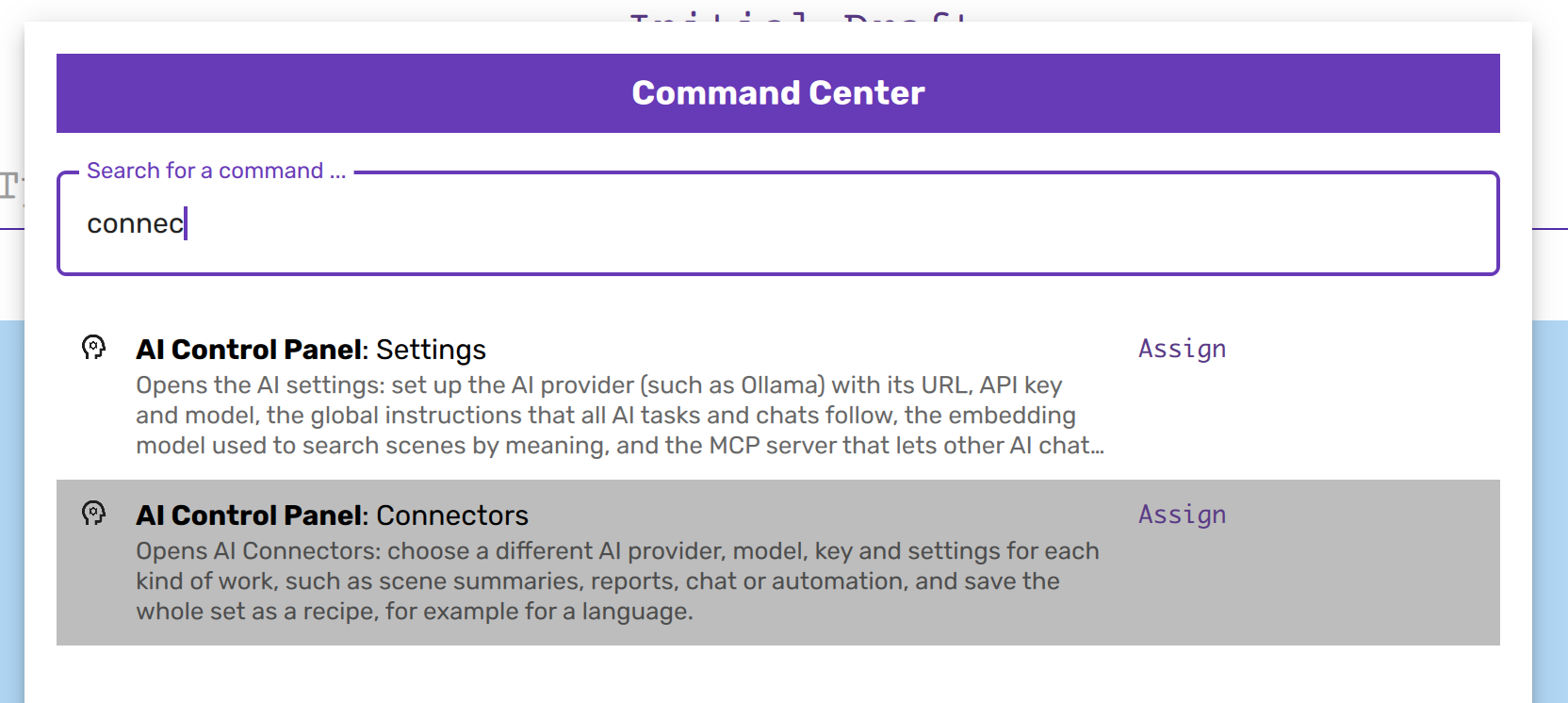
- Or search for connectors in the Command Center.
- Or click the link at the bottom of the Model box on the AI Provider page. It reads Use a different provider or model for some tasks, in AI Connectors. Once some usecases have settings of their own, it says how many instead, such as 3 usecases use their own settings in AI Connectors.
NOTE: While an AI task is running, the Connectors action is greyed out. If the dialog is already open, its settings are locked, and it says Settings can't be changed while an AI task is running. That way, a run that has started finishes with the settings it started with. Once the run ends, or you stop it, you can change them again.
The Dialog
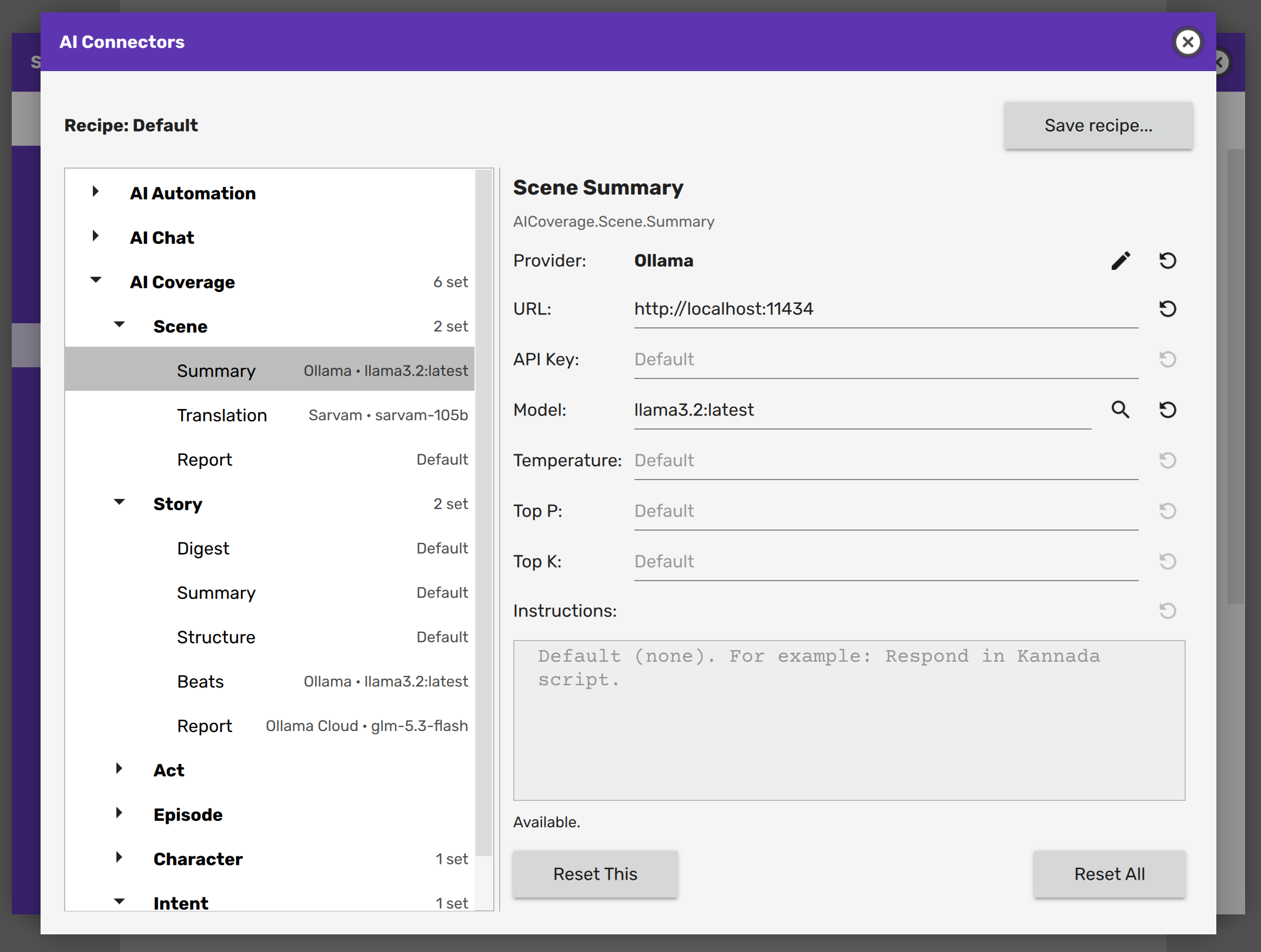
The dialog has three parts: a recipe row at the top, the usecases on the left, and the settings of the selected usecase on the right. Every change applies as you make it. There is no OK button and no Cancel. Close the dialog with the close icon or Esc.
The Usecases
The usecases are a tree. Click a group or an area to open or close it. Click a usecase to select it. Next to each usecase, the tree shows Default if you haven't set anything for it, or the provider and model if you have. Next to a group or an area, it shows how many of the usecases under it have settings of their own, so you can find what you changed even when the tree is closed.
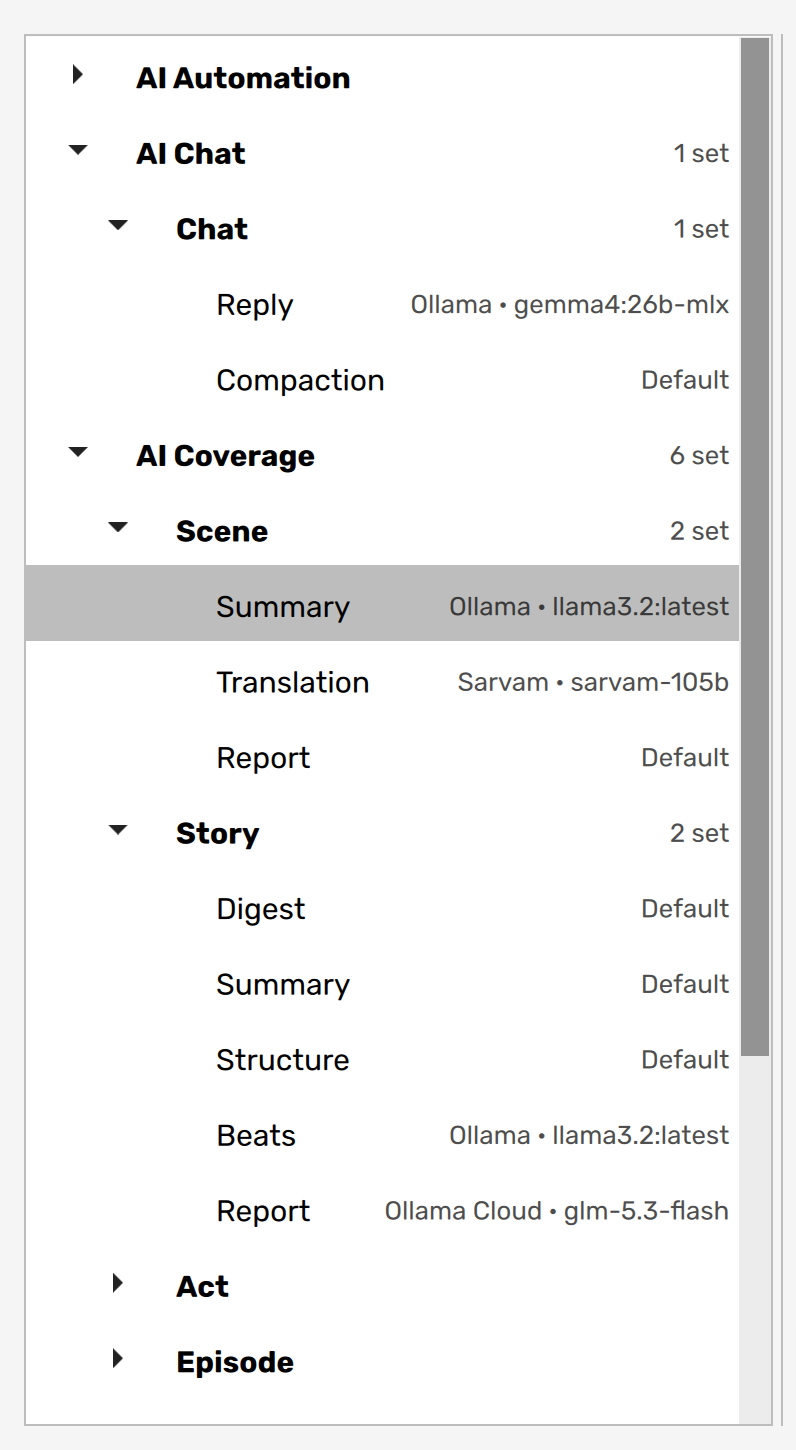
When the dialog opens, it selects the first usecase that you have customized, so you see what you set last. A link in another window, such as the task progress window, can also open the dialog with its own usecase selected.
The Settings of a Usecase
Select a usecase, and its settings are on the right. The title of the usecase is at the top, with its id under it.
| Setting | What it does |
|---|---|
| Provider | Default (Ollama), or whatever the AI Provider page has, until you choose one. The edit button opens the same Choose an AI Provider window as the AI Provider page. See Choosing a Provider. |
| URL | Where the provider is. It is filled in for you when you choose a provider. Change it if you run your own server. |
| API Key | The key for this provider. Not needed for providers that run on your computer. The characters are hidden. |
| Model | The model to use. Type its name, or click the magnifying glass to browse the models of this provider, with your key. See Choosing the Right Model. |
| Temperature, Top P, Top K | How varied the writing is. When you set one, it is used for that usecase, and replaces what the task would have used. Leave it empty to let the task decide. In a chat, what you set for the chat itself, in its settings, is used first, and what you set here for Chat Reply is used when the chat leaves it empty. A chat has no Top K of its own. Not every model accepts all three. See Data Privacy. |
| Instructions | Words for the AI that go into every request of this usecase, in every document, for example Respond in Kannada script. They can't refer to notes with @, because notes belong to one document, and these don't. |
A field that you haven't set is empty, and says Default. Next to each there is a reset button, which puts that one back to the default. Resetting the provider also resets the URL, the key and the model, since they go with it.
At the bottom are two buttons.
- Reset This puts everything of the selected usecase back to the default.
- Reset All does it for every usecase, and asks first. It also leaves you with no current recipe. It is at the far end, so that you don't click it by mistake. Your saved recipes and API keys are not touched.
Press Tab to move between the fields, from URL down to Instructions.
Changing the Provider
When you choose a provider for a usecase, Scrite fills in that provider's usual URL. Nothing else carries over, because the model of one provider means nothing to another. So the Model field, and the API Key field, if the provider needs one, say Required. Fill them in.
Until you do, the usecase is not configured. The status line under the fields says:
Not configured: using the default provider.
A usecase that isn't configured runs on the default provider, with the default URL, key and model, as if you had set nothing. It never fails because you haven't finished. That also means your text goes to the default provider, which you chose. The sampling settings and the instructions that you have set still apply.
When it is complete, the status line says Available. If it says Not available, the provider is off, can't be reached, or doesn't list the model. Check the URL and the key.
Privacy
On the AI Provider page, you choose the provider that gets your text, and Scrite tells you where it goes. Here, you choose it again for one usecase, so the dialog does the same. If the usecase has a provider of its own, and that provider is not on your computer, a red note says:
Your requests go to the provider's servers over the internet. That includes the text of your screenplay, notes and chats that the AI tasks work on.
with a link to the provider's privacy terms, when Scrite knows them. When the provider is one you set up yourself, at an address that isn't one of Scrite's, the note names the server and has no link. Read its terms yourself. See Data Privacy.
A usecase that follows the default has no note. You agreed to that provider when you chose it.
PRIVACY: Mixing providers mixes where your text goes. You can keep everything on your computer by default, and send only one usecase, say the translation, to a cloud provider. Only that usecase's text goes there. This is useful. It also means that a quick glance at the AI Provider page no longer tells the whole story. When the page says N usecases use their own settings, look in AI Connectors to see where they go. For a script that must not leave your computer, choose only local providers, in every usecase that you customize.
API Keys
Keys are never written into the settings of AI Connectors. They are kept in your computer's keychain, where the operating system keeps passwords, and a recipe, which is a file, never has one. If your computer has no keychain, Scrite keeps them in a scrambled form in its own settings, which keeps them from being read at a glance, and is not strong protection.
- The key that you enter for a usecase is kept for that usecase and that provider. So two usecases can use the same provider with different keys, perhaps one for each of two accounts.
- If the provider has no key on the AI Provider page yet, the key is stored there too, so that usecases that follow the default can use it.
- A key goes only to the provider it was entered for. Choose another provider and the key doesn't come with it. Choose the first one again, and it is still there.
- Resetting, or loading a recipe, never deletes a key. Keys that were stored are used again when that usecase and that provider meet again. That is also why a recipe can change providers freely, and doesn't need your keys.
- Changing the key of a provider on the AI Provider page later doesn't change the usecases that took it before. Open the usecase and set it again.
Recipes
A recipe is the whole set of connectors, saved under a name. It is made for the case where you work in more than one way, and want to switch in one step. For example:
- Kannada, with Sarvam for the usecases that read and write your scenes, and instructions to Respond in Kannada script.
- Hindi, the same, with instructions for Hindi.
- English, Private, where every usecase uses a local model.
- Pitch, where reports use the strongest cloud model that you have.
A recipe works as a document does: you save it, save it under another name, load it, and rename or delete it. It has a name, and a description for you, so that you remember what it is for.

The recipe row, at the top of the dialog, says which recipe you are in.
| What the row says | What it means | Buttons |
|---|---|---|
| Recipe: Default | The settings are not in a recipe | Save recipe..., and Load recipe... if there are any saved |
| Recipe: Kannada | The settings are as the recipe saved them | Save (off), Save as..., Load recipe... |
| Recipe: Kannada (modified) | You have changed something since | Save, Save as..., Load recipe... |
Editing never changes a recipe by itself. Your edits are kept, as you make them, and they are still there when you start Scrite again. But the file of the recipe changes only when you click Save. That is the difference between modified and saved, as in a document. So you can try something, see the word (modified), and go back by loading the recipe again.
Saving a Recipe
- Click Save recipe..., or Save as... when you are already in a recipe.
- Give it a Name, such as Kannada, and, if you like, a Description, such as Sarvam for the scenes, and Kannada instructions.
- Click Save.
The window is titled Save Recipe the first time, and Save Recipe As when you are already in a recipe.
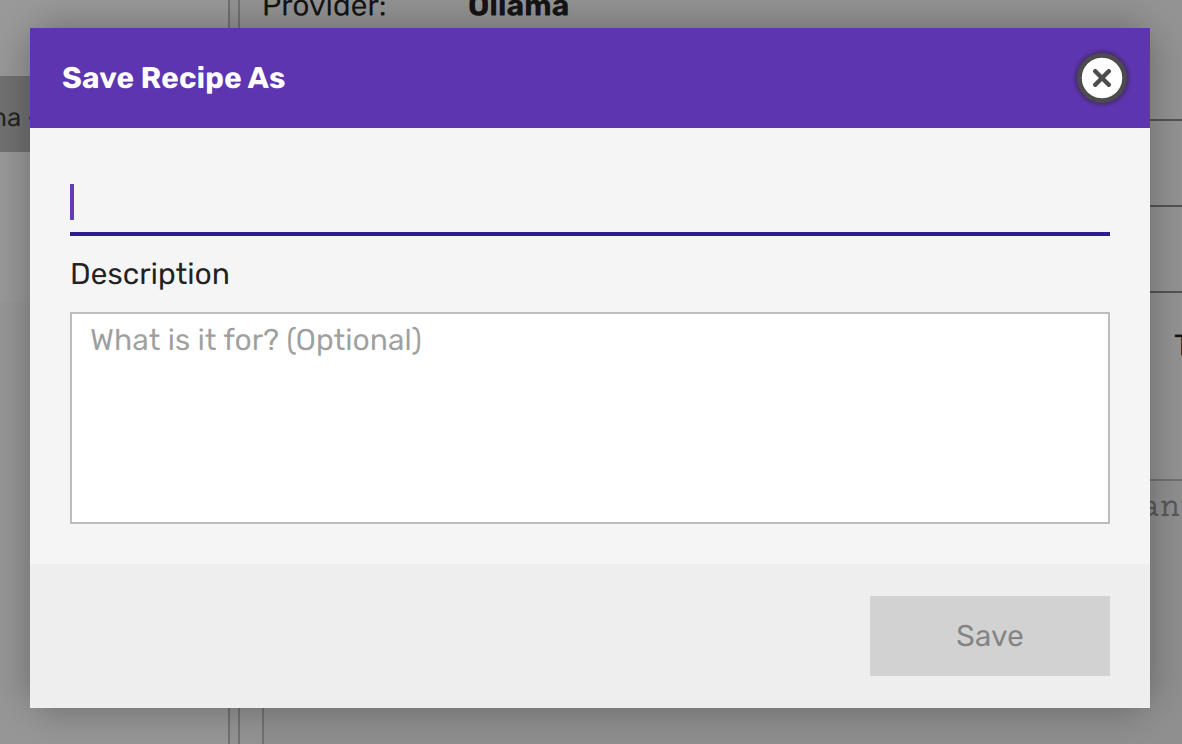
Save is off while the name is empty, and when a recipe with that name exists, which the dialog says in red: A recipe with this name already exists. It doesn't matter whether the letters are big or small. Save as... makes a new recipe, and the one you were in is left as it was last saved.
Save, next to it on the row, writes your changes into the recipe you are in, and is on only while it is modified.
Loading a Recipe
- Click Load recipe.... It is there only when you have saved a recipe.
- Pick one in the list, which shows the name and the description of each. Double-click it, or click Load.
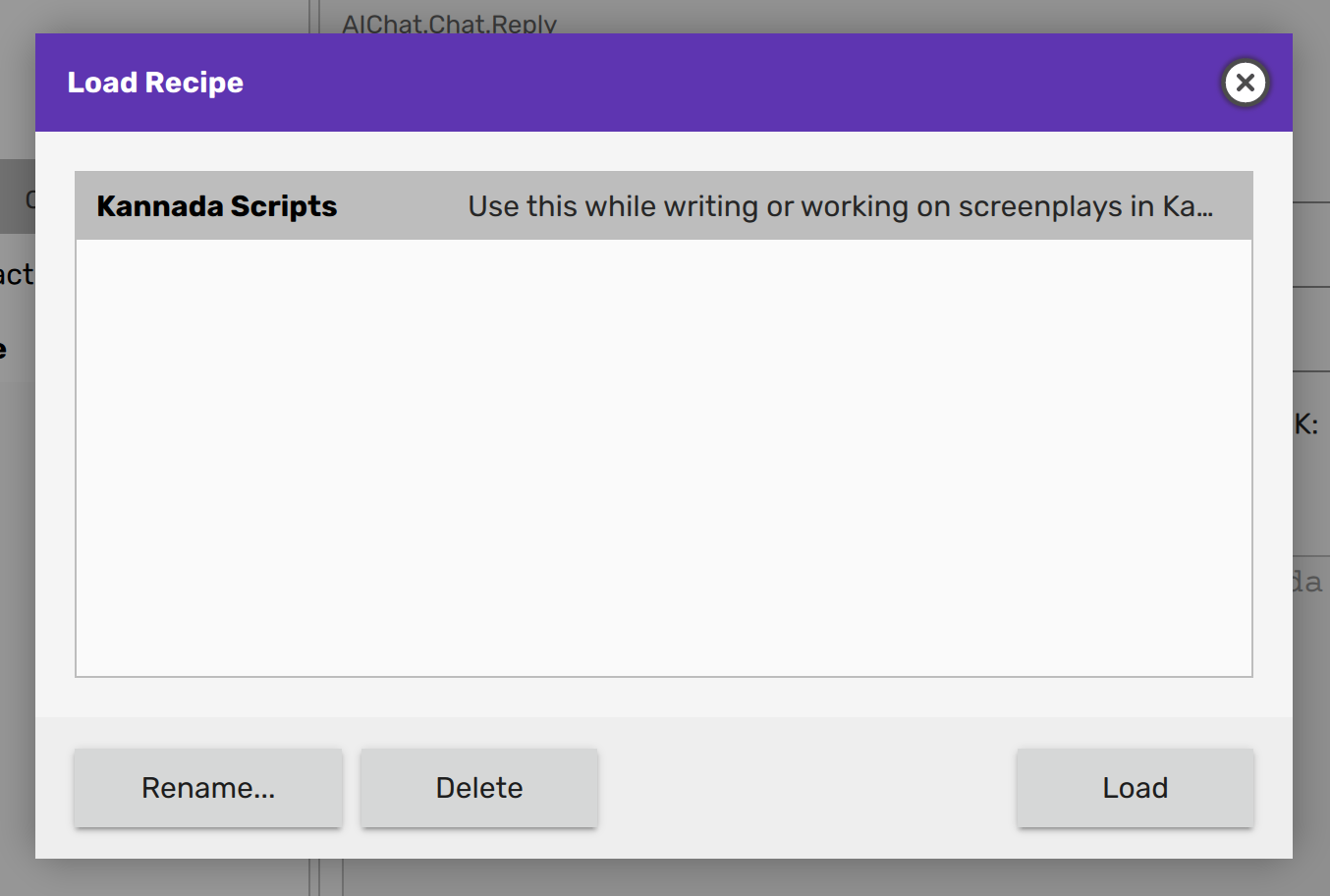
Loading replaces everything. Every usecase gets what the recipe says. A usecase that the recipe doesn't mention goes back to the default. That is what makes a recipe the whole set. So Scrite asks first, when it matters:
- If the current recipe is modified: Save changes to Kannada before Hindi is loaded? Choose Save to keep your changes in Kannada, or Don't Save to leave them behind.
- If you are in no recipe, but have customized some usecases: Replace the settings of all usecases with those of Hindi?
In the same window, Rename... changes the name and the description of the recipe that is selected, and Delete removes it, after asking. Deleting a recipe doesn't change the settings that are in use now. Deleting the last one closes the window, and Load recipe... goes from the row.
Where They Are Kept
Recipes are files, one each, in the ai/recipes folder inside the folder where Scrite keeps its
settings. A recipe has no API keys. You can copy a recipe to another computer, or send it to a friend.
The keys have to be entered there, but nothing else does. The recipe is listed after you open the
dialog again.
The Usecases
Every usecase of the AI features is in the tree, under a group and an area. Here they all are.
AI Coverage
| Area | Usecases | What they do |
|---|---|---|
| Scene | Summary, Translation, Report | Scene summaries, translation, and scene reports |
| Story | Digest, Summary, Structure, Beats, Report | Story summaries, and what they are built from; the structure and beats of the story; and the story report |
| Act | Summary, Report | Summaries and reports of an act |
| Episode | Summary, Report | Summaries and reports of an episode |
| Character | Digest, Summary, Relationships, Report | Character profiles, how the characters relate, and the character report |
| Intent | Classification | Working out what you asked for, when you write a prompt for a report or an automation |
AI Chat
| Area | Usecases | What they do |
|---|---|---|
| Chat | Reply, Compaction | The replies of AI Chat, and the summaries that it writes of long chats, so that they fit. See Compacting a Chat |
AI Automation
| Area | Usecases | What they do |
|---|---|---|
| Scene, Character | Automation | Automations that work on scenes, and on characters |
| Act, Episode, Interval | Automation | Automations that work on an act, an episode, or an interval |
A summary of the whole story, an act and an episode are each a usecase, so you can have a different provider for each. A run that has many kinds of tasks in it, such as a story summary, which makes scene summaries, digests and then the summary, uses each task's own connector, all in the same run. The number of tasks that run at once is still the one for the run.
What isn't here. The model that finds scenes by meaning is set on the AI Search page. The chat apps that you connect bring their own AI. And the small local models that Scrite sometimes uses to understand a prompt quickly, without calling the AI at all, are chosen by Scrite. Connectors don't apply to any of them.
Choosing a Model for Each Job
There is no best model, only a best model for a job. The names below are examples, since models change quickly. Read Choosing the Right Model to judge any model by its size and abilities, and try a model on a few scenes before you rely on it.
| Kind of work | What it needs | Models to try | Temperature |
|---|---|---|---|
| Scene summaries, digests, character digests (many requests) | Speed and low cost, and a model that follows the form it is asked to fill | A small model that runs on your computer, such as gemma4:latest or gpt-oss:20b, from Ollama |
Low |
| Story, act and episode summaries, character summaries, structure and beats | Judgment over a long, condensed text | A larger model, such as gemma4:31b, qwen3:30b or gpt-oss:120b, on your computer if it is big enough, or hosted by a provider such as Groq, Together AI or Ollama Cloud |
Low |
| AI reports (coverage, pitch, notes for an actor) | Careful reading, good writing, and a long context. Used a few times, so the cost is small | The largest model that you can run or afford, such as gpt-oss:120b, qwen3:32b, or a cloud model from Claude or OpenAI |
Low to medium |
| Chat | Natural, helpful writing, good judgment, and tool calls, so that it can read your screenplay | gemma4:31b, gpt-oss:120b or qwen3:30b |
Medium |
| Chat as a character (role-play) | A model that stays in character and keeps the details straight, over a long chat | gemma4:31b, qwen3:32b, or a Hugging Face model that is tuned for creative writing and role-play |
Medium to high |
| Chat compaction | A faithful summary, and low cost | A small model, such as gemma4:latest |
Low |
| Automation (the same change to many scenes or characters) | Obeying the instruction exactly, every time, and tool calls | A model that is strong with tools, such as gpt-oss:20b or gpt-oss:120b |
Low |
| Translation | Knowing the language, and its dialects | Sarvam for Indian languages, a large multilingual model such as qwen3:30b for others |
Low to medium |
| Intent classification (working out what a prompt asks for) | Speed. It is a small question | A small, quick model | Low |
Give a usecase a model of its own in Provider and Model, as above. If a model is hosted by a provider, only the usecases that you give it to send text there. The models that run on your computer can come from Ollama, or from Hugging Face through llama.cpp. See Setting Up a Local LLM.
Temperature, Top P and Top K
Three settings decide how adventurous a model is with its words. They are in the same place as the model, and they apply to that usecase alone. Leave them empty to use what the task already uses. Tasks such as summaries, analyses and reports run at a temperature of 0.2 and a Top P of 0.95, to keep them steady. See Settings That Keep the AI Steady.
- Temperature is how much the model is willing to vary. A low temperature, around 0.2, gives cautious, predictable answers, which is what summaries, reports and automations need. A higher one, 0.7 to 1, is more daring and more surprising, which suits brainstorming and role-play. Too high, and it wanders, makes things up, or loses the plot.
- Top P is how wide a net the model casts for each word. Low, it sticks to the most likely words. At 1, it considers all of them. A value close to 1, such as 0.95, is usual. Change it or the temperature, not both, since both do much the same thing.
- Top K limits the model to the K most likely words for each choice. A small number, such as 20 to 40, keeps it focused. A large one lets it range. Not every provider accepts it, and then it has no effect.
TIP: Change one thing at a time, and try it on a few scenes. For role-play in chat, raise the temperature a little, and a character will sound less like a report. For anything that you will check against your screenplay, such as a summary, keep it low, so that the AI sticks to what is there.
Not every model accepts all three, and some, such as models that think before they answer, may ignore them. A value that the provider doesn't accept can make a request fail. If that happens, clear it with its reset button. See Chat Settings for the same settings in a chat.
Where You See Them at Work
A run can use more than one provider, so the rest of Scrite says which one was used.
- The options of a run have no model of their own. The model comes from the connector of the usecase, or from the AI Provider page, if the usecase has no connector of its own. The Client line in those options says which is the default, and has a link to AI Connectors. See Options Common to Every Workflow.
- The task progress window shows the provider and the model that each task really used, and an icon that says whether it ran on your computer or in the cloud. If a usecase wasn't configured, the window shows the default provider, because that is what it used.
- The call log has the provider and the local or cloud icon for every call, and you can break down and filter by provider.
- AI Chat uses the Chat Reply connector. The status bar shows its provider and model. If you change them while a reply is on its way, the reply finishes as it was, and the next message goes to the new one.
- Usage statistics say which provider ran, and which usecase it was for, as numbers and names only, never your text.
Tips
- Start with one usecase. Most people need to change only one or two. Reports and translation are the usual ones, because they gain most from a larger model, or a model that knows your language.
- Set the model, and its provider, together. A model name that is right for one provider is usually wrong for another. Use the magnifying glass, so that you pick a model that the provider really lists.
- Use recipes for languages. Setting Sarvam for each usecase and the instructions for a language takes a few minutes, once. After that, switching language is one click.
- Look at the call log if you are not sure what a usecase used. Every call says its provider and model.
- Keep things on your computer by choosing local providers, such as Ollama, LlamaCpp, LM Studio or vLLM, for the usecases that read your story. See Setting Up a Local LLM.
If Something Doesn't Work
- The usecase ignores my provider. It is probably not configured. Select it, and look at the status line. Fill in whatever says Required: the model, and the key for a cloud provider.
- Everything is greyed out, or the Connectors action is off. While an AI task is running, the settings are locked. They are available again when it ends.
- The model list is empty. Check the URL and the API key of that usecase, not the ones on the AI Provider page. See Troubleshooting.
- I changed the default provider, and a usecase didn't follow. It has its own settings. Reset it, with Reset This, to make it follow again.
- My recipe's settings aren't what I expected. A recipe stores everything except keys. Check that the keys are set for each provider, and click Save after changes.
Where to Go Next
- Settings: the AI Provider page, which is the default for everything.
- Choosing the Right Model: pick a model for each usecase.
- Data Privacy: where your text goes, with each provider.
- Call Log: see which provider and model each call used.
- Instructions: tell the AI about your story, in every usecase.