Choosing the Right Model
When you pick a model in Scrite, you are shown a table full of names and numbers that may look like a foreign language. This chapter translates it. By the end you will know what every column means, what it means when a column is empty, and how to pick a model that suits your work and your computer.
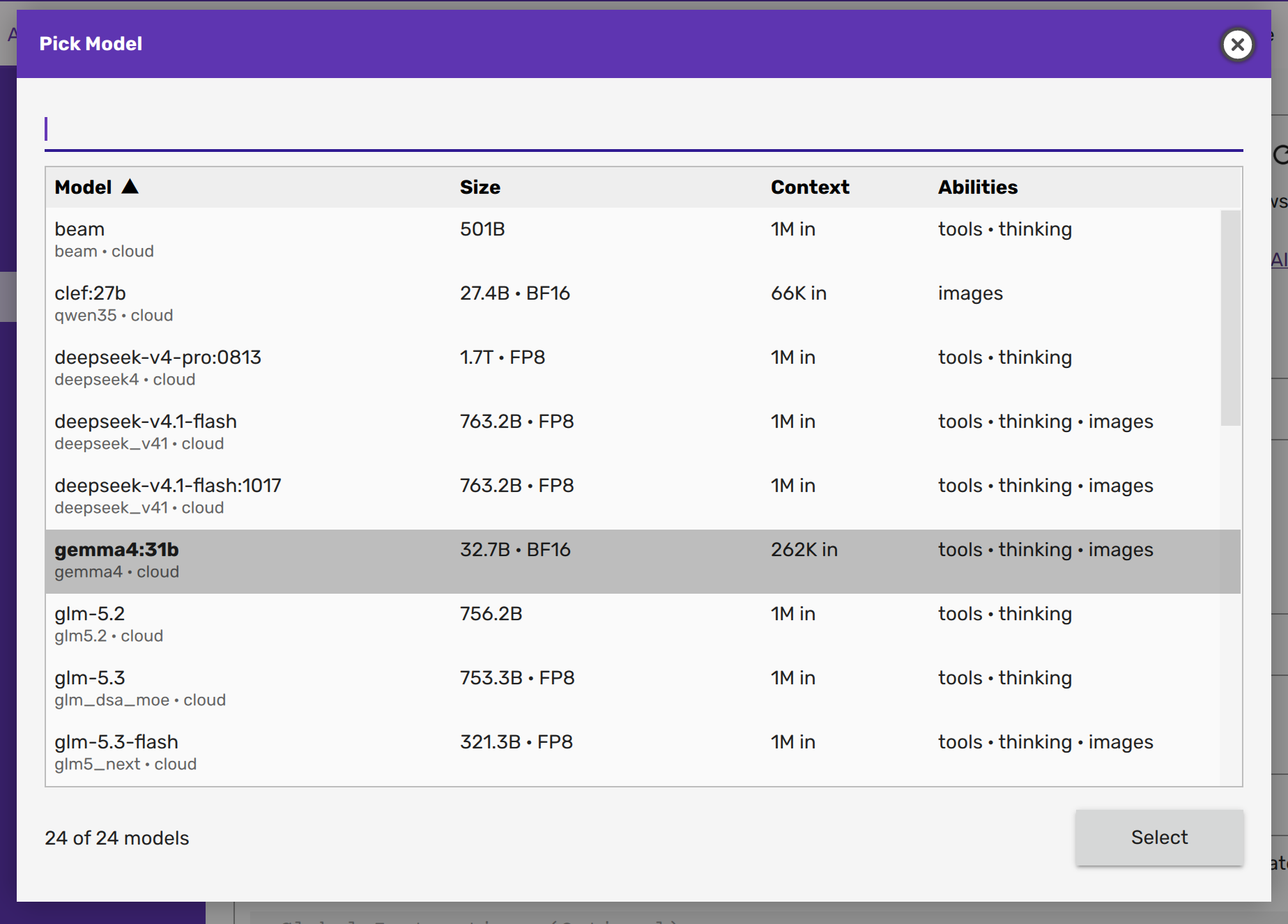
You don't need to be technical. Everything here is explained from scratch, and where a topic is bigger than this guide can cover, there is a link to somewhere you can learn more. What you learn about choosing a model will help you with any AI tool, not just Scrite.
First, What Is a Model?
An AI model is the engine behind every AI feature. You send it text, and it sends text back. Scrite does the work around it: it picks the right parts of your screenplay to send, and brings the answers back into your Notebook. Which model to use is yours to choose, and it runs either on your computer or on someone else's.
Why you choose the model, and Scrite doesn't choose it for you. We could have tied Scrite to one model of ours, and kept you on it. We think it is better for you to bring your own, for a few reasons.
- Models keep getting better. New ones come every few months, from many makers. With your own choice, you can move to a better one the day it arrives, and don't have to wait for us.
- Your privacy is your call. You decide whether your screenplay stays on your computer or goes to a provider you trust. See Data Privacy.
- You pay for what you use, and nobody else. A cloud provider bills you directly, with no extra from us, and a model on your own computer costs nothing per use.
- Nothing is locked in. What Scrite writes goes into your Notebook as ordinary notes. If you switch models, everything stays, and the next run simply uses the new one.
- Different work suits different models. A small, fast model may be all that a scene summary needs, and a larger one may suit a long chat about the whole story.
The price of this freedom is that you have a choice to make, and that is what this chapter is for. See also Why Scrite Doesn't Bring Its Own AI.
The models behind chat apps like ChatGPT, Claude and Gemini are called large language models, or LLMs. An LLM has read an enormous amount of text, and has learned to predict what words are likely to come next. That one skill is what lets it summarize a scene, describe a character, or answer a question about your story.
If you'd like to see how this works, these are good places to start. Both are made for people who are not experts.
- Large Language Models explained briefly, a short video.
- Intro to Large Language Models, a one-hour talk for when you want more depth.
- Large language model on Wikipedia, for the words you come across.
Models differ in how smart they are, how fast, how much text they can handle, what extra skills they have, and where they run. The Pick Model table tells you about all of these.
Opening the Table
On the AI Provider page in the Settings, click the magnifying glass button next to Model (its tooltip says "Browse the models available") to open Pick Model, shown at the top of this chapter. The same table opens from the Model field of a usecase in AI Connectors, where it lists the models of that usecase's own provider. Here is what you can do in it.
- Search at the top finds a model by part of its name, its family or its description.
- Click the title of a column to sort by it. Click again to reverse the order. A small arrow (▲ or ▼) shows which column the list is sorted by.
- Drag the edge of a title to make a column wider or narrower.
- Hover over a row to see everything about it. This is the best way to read what a column cuts short.
- Double-click a row, or select it and click Select, to choose it. Esc closes the dialog without choosing anything.
- The count at the bottom, such as "25 of 25 models", shows how many match your search.
NOTE: Scrite asks the provider for the list first, and then asks about each model one by one while the dialog is open. So the cells of a row may fill in as you watch. If you see blanks at first, give it a moment. See When a Cell Is Empty.
Reading the Table
Model
The first column is the name of the model, and it has two lines.
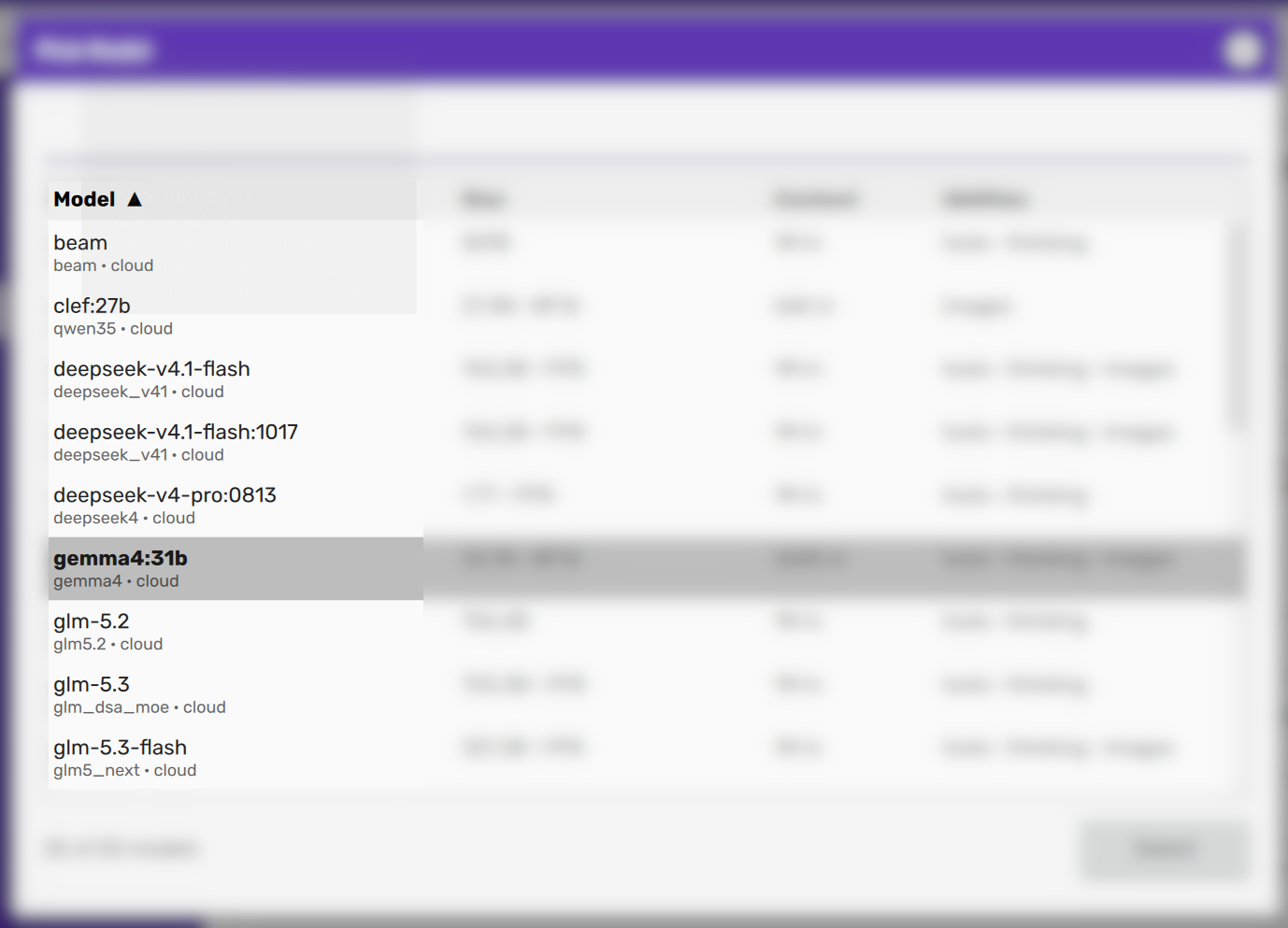
The big line is the model's ID, the exact name its provider gives it. The model you are using now is shown in bold.
Names look cryptic, but they follow patterns that, once you know them, tell you a lot.
| Part of the name | What it usually means | Example |
|---|---|---|
| The first word | The family, a line of models from one maker. Models in a family share a style. | gemma4, qwen3, deepseek |
| A number followed by b | The number of parameters, in billions. See Size. | gemma4:31b is 31 billion |
| A word after a colon or dash | A version, variant or tag. It can mean a size, a release, or the way the model was prepared. | :latest (the newest), :12b, :1017 |
| flash, mini, lite, small | Usually a lighter, faster and cheaper version. | deepseek-v4.1-flash |
| pro, large, max | Usually the stronger, slower and dearer version. | deepseek-v4-pro |
| instruct, chat, it | The model was trained after its first training to follow instructions and answer questions, which is what Scrite asks of it. Prefer these. | gemma-3-270m-it |
| base, pt | The model was not trained to follow instructions. It only continues text, like autocomplete, so it may carry on your question, and not answer it. Avoid these for Scrite. | |
| embed | An embedding model. Not for chat. See Models You Should Not Pick. | nomic-embed-text |
| cloud at the end | It runs on the provider's servers. Scrite treats such a model as a cloud model. | gpt-oss:120b-cloud |
These are common habits, not rules. Every maker names its models differently, and the names change from month to month. If you are unsure what a name means, search for it. For models you run with Ollama, the Ollama library has a page for each, with a description of what it is good at and what sizes it comes in.
The small line under the name has up to three parts, separated by dots:
- The model's friendly name, or its family, when it has no friendly name.
- loaded means the model is already in your computer's memory, and will answer without a start-up wait. This applies only to models on your computer.
- cloud or this machine says where it runs. This one matters for your privacy. A
cloudmodel sends your text to someone else's computer. Athis machinemodel keeps it with you. See Data Privacy.
Size
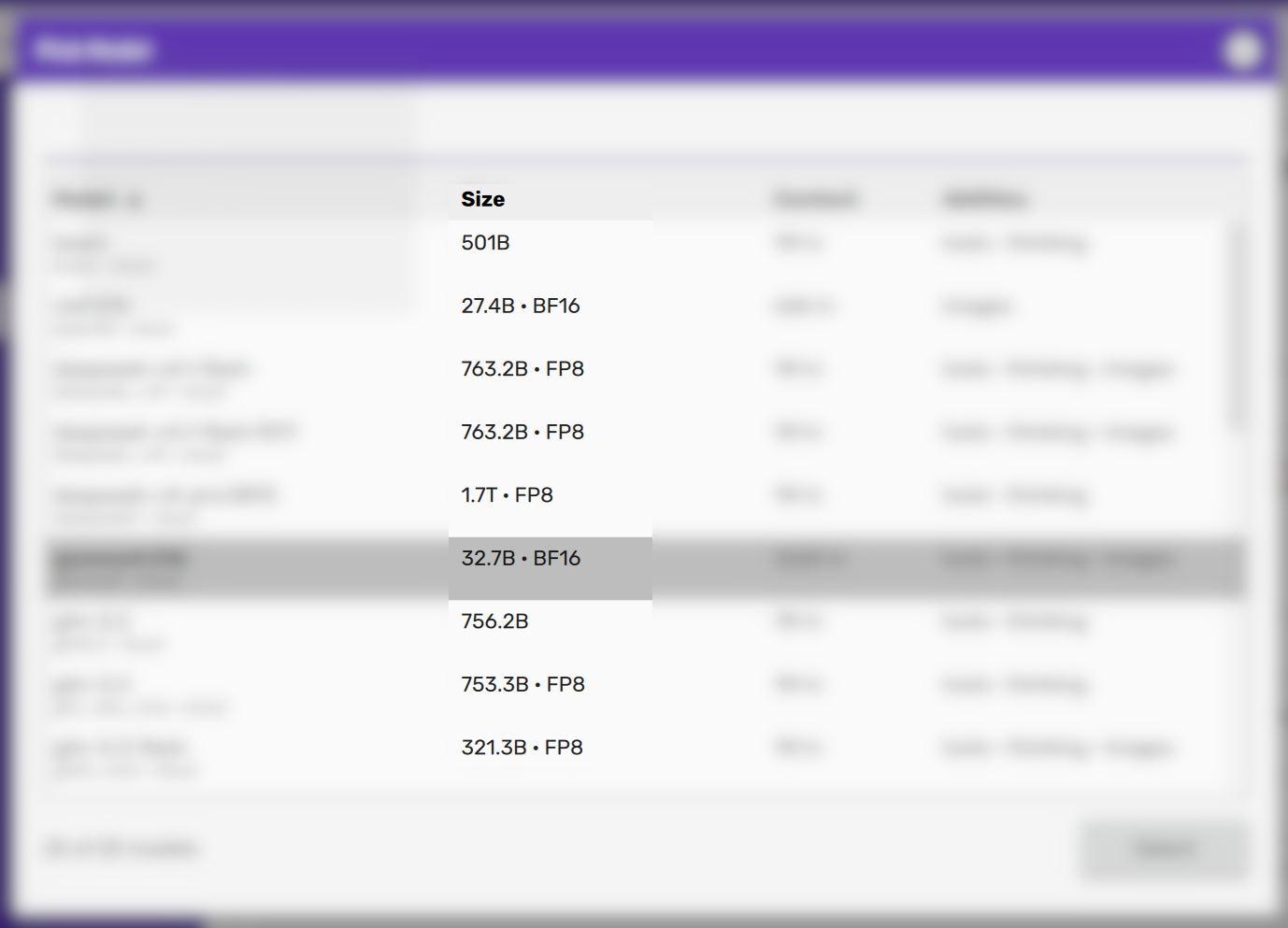
Size says how big the model is, and how much computer it needs. It has up to three parts, separated by
dots, such as 27.4B · BF16, or 31B · Q4_K_M · 18.5 GB.
Parameters (27.4B, 1.7T). A model's knowledge is stored in a huge table of numbers called
parameters. Think of them as the connections in a brain. B is billions, and T is trillions.
- More parameters usually means a smarter model, with better judgement, better writing and fewer mistakes.
- More parameters also means slower, and a bigger appetite for memory and for money.
- Don't treat it as a score. A well-made 12B model can beat a careless 70B. But when two models are from the same family, the bigger one is generally the better.
Quantization (BF16, FP8, Q4_K_M). To save space, makers store the numbers of a model with less
detail, a bit like saving a photograph as a smaller file. This is called quantization.
- The numbers in the name tell you how many bits are kept for each number. Fewer bits mean a smaller
and faster model, with a slight loss of quality.
Q4means about 4 bits andQ8means about 8.FP8,BF16andFP16are formats with 8 or 16 bits. - You don't need to choose a quantization. It is shown so that you can tell two versions of the same
model apart. A
Q4version is a common sweet spot for a computer with limited memory. - If you want to learn more, search the web for "LLM quantization explained". Hugging Face's guide is a good one, but it is written for engineers.
Disk space (18.5 GB). This is how much room the model takes on your computer. It is shown only for
models that run on your computer. A cloud model takes no room on your computer, so Scrite leaves it out,
even when the provider lists a size.
How to use it:
- For a local model, the model has to fit in your computer's memory, with room to spare. Compare the number with the guide in How Much Memory Is Enough?.
- For a cloud model, size is a hint about quality, and nothing more.
Context
Context says how much text the model can keep in mind at once. It is shown as 64K in, and
sometimes, on a second line, 8K out.
To understand it, you need to know what a token is. A model doesn't read words. It reads tokens, which are small pieces of text, often a short word or part of a longer one. As a rule of thumb, one token is about three-quarters of a word, so 100 words is about 130 tokens. You can see how any text is cut up with the OpenAI Tokenizer, a free page where you paste some text.
K is a thousand tokens, and M is a million.
- in is the most the model can read at one time. This is its context window. It has to hold everything: your instructions, the scenes it is working on, the whole chat so far, and the reply it is writing.
- out is the most it can write in a single reply. Many providers don't publish this, so it is often missing.
What does it mean for a screenplay? A page of a screenplay has about 150 to 250 words, which is roughly 250 to 350 tokens, as short lines and names add up. Using that as a guide:
| Context | Roughly how much screenplay it can hold |
|---|---|
| 8K | About 25 pages |
| 32K | About 100 pages |
| 128K | About 400 pages |
| 1M | About 3,000 pages |
A feature screenplay of 110 pages is about 30,000 to 40,000 tokens. These are rough figures, and remember that your instructions, the chat so far and the reply all share the same window. In practice you can count on about half to two-thirds of it for your screenplay.
How to use it:
- Larger is better, and for a chat about a whole story, you want 32K or more.
- A small window is not a problem for scene summaries, where Scrite sends one scene or a few at a time. It is a problem for a long chat, which fills up and has to be compacted. See How Full Is the Chat?.
- The number shown is the most the model supports. A local model may be set up to use less, to save memory. The Ollama page on context length explains how.
Abilities
Abilities are the extra things a model is reported to be able to do. Only the abilities that the
provider says are present appear here, joined by dots, such as tools · thinking · images.
| Ability | What it means | How much it matters in Scrite |
|---|---|---|
| tools | The model can use tools: ask Scrite to look up a scene, read a note or a character, and so on, and use what comes back. | Essential. AI Chat needs it, and so do many tasks. |
| thinking | The model can reason before it answers, working through a problem step by step. Replies are slower, and usually better. | A plus. See below. |
| images | It can look at pictures you give it. | Not needed today. |
| audio, video | It can listen to audio, or watch video. | Not needed today. |
| documents | It can read documents such as PDFs directly. | Not needed today. |
| structured output | It can reply in a strict format, which software can read. | Used behind the scenes. You don't need to look for it. |
Always pick a model that lists tools. Without it, AI Chat can't look into your screenplay, and
many tasks will fail or give poor results. Choosing by images, audio or video is a mistake. Scrite
doesn't need them yet, and a model that has them doesn't write any better.
Thinking is worth knowing about. A model that can think takes time to reason before it replies. The
answers are usually much better, especially for analysis and for questions that need several steps of
logic. The cost is speed, and with a cloud model, a larger bill. Scrite leaves thinking off by
default. To turn it on for AI Chat, switch on Think before replying in
the AI Chat settings, or in a single chat. It only works with a model that lists thinking.
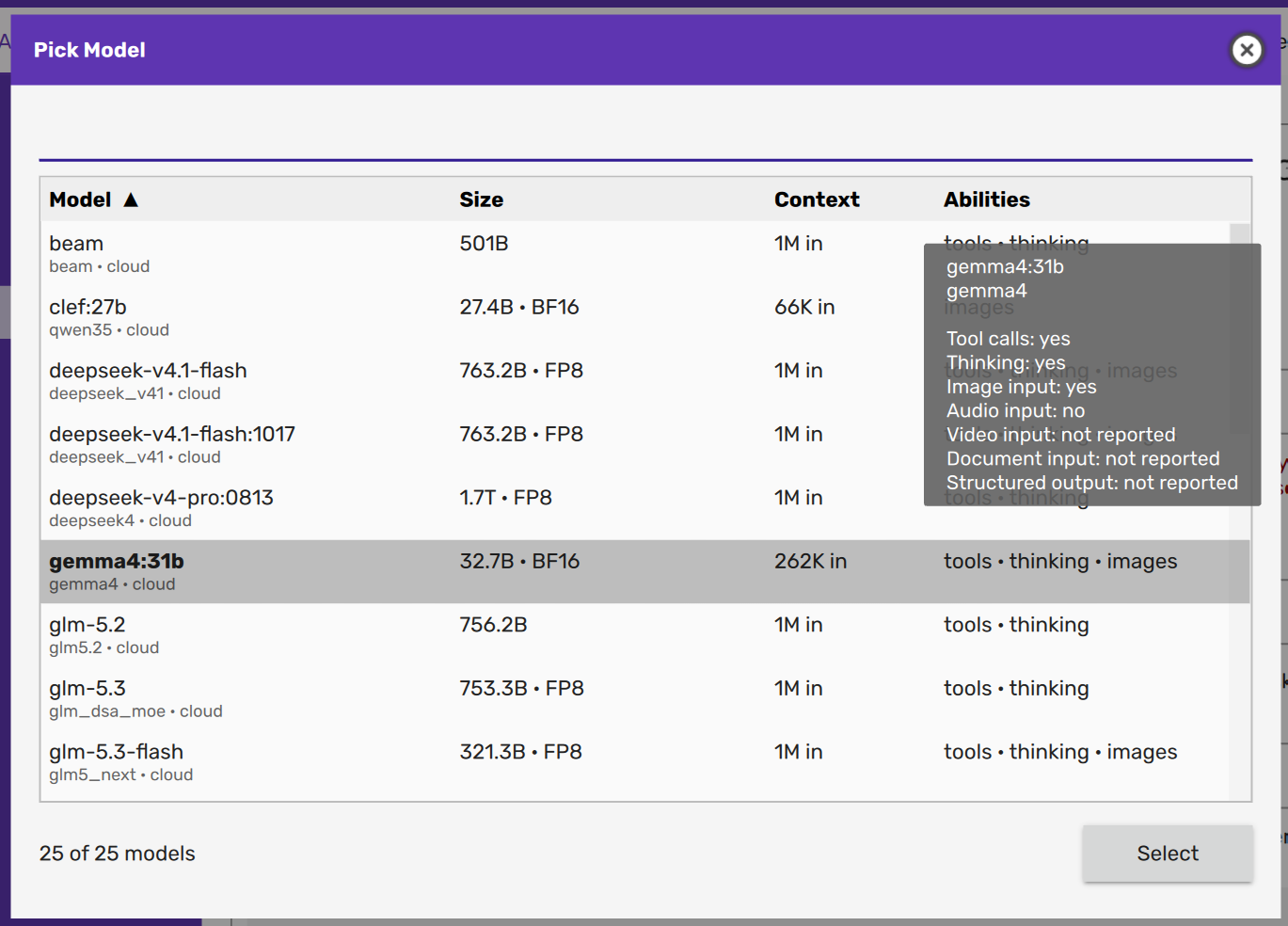
The tooltip of a row spells out each ability as yes, no or not reported.
When a Cell Is Empty
Blank cells are common, and they are easy to misread. The rule is simple:
An empty cell means "the provider didn't tell us". It does not mean "no", and it does not mean "zero".
| What you see | What it means |
|---|---|
| Size is empty | The provider didn't say how big the model is. It might be tiny or huge. Don't assume. |
| Context is empty | The provider didn't publish the limit. The model still has one. |
Only in, with no out |
The most it can read is known, but the most it can write isn't. That is very common. |
| Abilities is empty | Either the provider didn't say, or it said the model has none. The model may still be able to do things that it wasn't reported to do. Hover over the row. The tooltip says not reported for what wasn't said, and no for what was said to be missing. |
| Nothing below the name | The provider gave no friendly name, no family and no location. |
| A cell is blank, then fills in | The details of a model are asked for while the dialog is open. The tooltip says not known yet until then, and not reported afterwards. |
When you sort by a column, the rows with nothing in it always go to the bottom, whichever way you sort.
What to do when it is empty. You can't tell if the model has tools just because the column is blank.
Look it up on the provider's own page, or try it. Open an AI Chat, ask it something that
needs your screenplay, and see if it can find the answer. The Call Log shows what
happened in every call.
Models You Should Not Pick
Some models in the table are not meant for talking at all.
Embedding models, such as nomic-embed-text and bge-m3, turn text into numbers, so that
Search by Meaning can find scenes that are alike. They can't write a summary, hold
a conversation or use tools. If you pick one as your model, AI Chat and tasks will fail, or give nonsense.
WARNING: Don't use an embedding model for AI Chat or for tasks. Look for
embedorembeddingin the name, and for the lack oftools. Embedding models belong on the AI Search page of the Settings. See Search Scenes by Meaning.
So Which One Should I Pick?
Work through these questions, in order.
- Where should it run? If your script is private, pick a model marked
this machine. If you are comfortable with the provider's terms,cloudis open to you. See Data Privacy. - Does it list
tools? If not, pick another. This is the one rule you shouldn't break. - Is the context large enough? Look for 32K or more, if you plan to chat about a whole story.
- If it is local, will it fit? Compare its size with your computer's memory. See Setting Up a Local LLM.
- Does it list
thinking? If so, that is a bonus. You can turn it on when you want better answers and don't mind waiting. - Within a family, go for the bigger one that your computer, or your wallet, can afford.
| Your situation | A sensible choice |
|---|---|
| A private script, and a computer with 16 GB or more of GPU memory | A local model with tools, of 10 to 30 billion parameters |
| A private script, and a modest computer | The smallest local model with tools that gives you summaries you can use. Or accept a cloud model for less sensitive work. |
| You want the best quality, and privacy is less of a worry | A large cloud model with tools and thinking |
| You can't install anything | A model from a cloud provider. See The Providers, and Low-End Computers. |
Models Worth Trying
If you run models on your own computer with Ollama, here are some to start with. They are the ones suggested in Setting Up a Local LLM, for a computer with 16 GB to 48 GB of memory for the model. All of them support tool calls, and the Qwen3 and Muse Glimmer families say they cover 100+ languages, which helps if you write in an Indian or other non-English language.
| Model | Download size | Comfortable at | Notes |
|---|---|---|---|
gemma4:12b |
About 8 GB | 16 GB | A good fit for a computer with 16 GB, with room left to work on your screenplay. |
qwen3:14b |
About 9.3 GB | 16 GB | A good fit for a computer with 16 GB, and strong in many languages. |
gemma4:26b |
16 to 19 GB | 24 GB | A much larger Gemma than gemma4:latest. |
muse-glimmer:30b |
About 18 GB | 24 GB | Trained on 100+ languages. |
qwen3.8:27b |
About 18 GB | 24 GB | A newer Qwen. |
qwen3:30b |
About 19 GB | 24 GB | Strong in many languages, with a very large context. |
gemma4:31b |
19 to 20 GB | 32 GB | The largest Gemma that runs locally. |
qwen3:32b |
About 20 GB | 32 GB | A dense, larger Qwen. |
The download size is roughly what the model takes up once loaded. Your screenplay needs more on top of that, so leave some headroom, as the Comfortable at column does. Sizes can differ between versions of a model, and the library changes quickly, so check a model's page on ollama.com/library before you download it. Try any model on a few scenes first, especially in your own language, before you rely on it.
TIP: Model names change quickly. A model that is the best today will be old in a few months. So don't memorize names. Learn to read the table, and you can pick well from whatever it lists.
If you try a model and don't like it, nothing is lost. Open the table, pick another, and run the task again.
Where to Go Next
- Data Privacy: what
cloudandthis machinemean for your screenplay. - Setting Up a Local LLM: install Ollama and download a model.
- Settings: where the model is chosen.
- AI Connectors: use a different model for each kind of work, such as a small one for summaries and a larger one for reports.
- AI Chat: turn on thinking, and change a chat's other settings.
- Troubleshooting: when the table is empty.