Chat Apps MCP
Everything that you can do in AI Chat, you can do from a chat app such as Claude Desktop or AnythingLLM too. Scrite acts as a server for these apps, using the Model Context Protocol (MCP). Once connected, you can talk to your AI app about the screenplay that is open in Scrite, ask it to make changes, and approve them in Scrite, just as you do in AI Chat.
NOTE: AI Chat is the way to talk to your screenplay, and for most writers it is all they need. It is inside Scrite, with nothing to connect, and it is the one that saves your conversations in the document and lets you point at scenes with @. This chapter is for when you want to bring a chat app along, because of everything else that app comes with. See Why Use a Chat App?.
Why Use a Chat App?
Many writers already plot their stories in ChatGPT, Claude or Ollama, and then copy and paste the results into their screenwriting app. The chat app and the screenplay stay two separate worlds. You are the courier between them.
Connecting a chat app to Scrite changes that. The app acts like a back office, or a front office, of the same organization as your screenplay. It reads your screenplay where it lives, and it files its work back where it belongs. And it brings its own tools to the table.
What Leaves Scrite
A chat app talks to Scrite over MCP, and whatever it reads from your screenplay goes wherever that app sends it, which may be a remote server. If the app uses a cloud model, your scenes, notes and summaries are uploaded to that provider, under its terms.
If you already use Claude, AnythingLLM, ChatGPT or Gemini to help with your stories, and you upload your scripts to them, this is much like that. The difference is that the app can ask only for what it needs, as it needs it, and not the whole script at once. And you stop playing courier. What the app produces is filed back in Scrite, so there is no copying and pasting of your progress. See Turning the Server On for what to check before you connect an app.
Bring Everything the App Comes With
Agentic chat apps do much more than chat. Depending on the app that you use, you may be able to give it
- Skills. A skill is a package of instructions that the app follows when you ask for something specific, such as how your production company writes coverage, how you format a pitch, or what you look for when you review dialogue. Teach it once, and use it on every screenplay.
- Projects and memory. Keep research, references, brand guidelines and earlier conversations together in the app, so that it brings them to every conversation about your story.
- Other tools. Search the web, read your files, work with spreadsheets, documents and slide decks, or use other MCP servers, and combine all of it with what it reads from Scrite.
- Longer jobs. Let an agent work through a big task in many steps, such as going through your whole screenplay scene by scene, and leaving a comment in each.
- The model you already use. Use the one that you pay for, with its own settings and limits.
They are only a few examples. What is available depends on the app, and apps change quickly, so look at what yours offers. Here is the kind of thing that becomes possible.
- "Using my coverage skill, write coverage for my screenplay, and save it as a note on the Story page."
- "Research how heist films have handled the last-minute reveal, and write what you find as a note, along with three ideas for my ending."
- "From the locations and night scenes in my screenplay, build a spreadsheet for the line producer, and save a summary of it as a note."
- "Go through scenes 1 to 40, read each as a script reader would, and leave a comment in each one."
Everything Gets Filed
Conversations with chat apps don't have to disappear into a chat history. The app can send them back to Scrite, where they are filed under the appropriate sections: as a note on a scene, a character or the story, or as new scenes. Scrite asks for your approval before anything is changed. See Approving Changes.
Your Work Builds Up
Summaries, notes, reports and insights that you push over from a chat app into the document stay in the Scrite document. They are saved with your screenplay, and a chat app, or AI Chat, can read them the next time you talk. Over a period of time, that rich set of information makes your interactions with chat apps exponentially better.
Without Scrite, you have to start over each time. A chat app doesn't remember your screenplay between conversations, so you usually upload the whole script again, and again, and again. With Scrite, you don't. Your screenplay, and everything that has been learned about it, is already there.
Better Answers Than Uploading Your Script
Without Scrite, a writer may upload the entire screenplay to a chat app as a Fountain or PDF file. The app then chops the file into chunks, and matches your question to the chunks that look closest (this is called RAG). That can only get you so far. A chunk has no idea where it sits in the story, who is in it, or what came before.
Scrite gives a chat app something better. It keeps a unique set of hierarchical summaries: scenes, acts and episodes, the story as a whole, and characters. A chat app reads the story first, then drills down into the acts, scenes and characters it needs, and fetches only what is required and relevant. It gets back to you with more effective responses, and it doesn't need to read your whole screenplay every time.
NOTE: The quality of conversations with chat apps depends on the model you use, the GPU it runs on, and the capacity of your hardware. A larger model on stronger hardware usually does better.
What You Can Do
All of it, and more. Everything described in AI Chat works in a chat app that is connected to Scrite.
- Understand your story: ask questions, get a review, track characters, get production data and check the structure.
- Work with characters: talk to them, be interviewed by them, rehearse a scene, or let two of them talk to each other.
- Organize and annotate: take notes, drop comments into scenes, tag scenes, and prepare checklists for your department.
- Build a story: from an idea to a plot, to scene outlines, to a draft.
- Rewrite and polish: rewrite, rename, translate, split, merge and reorder scenes.
- Build on your reports: fine-tune a report, or build a budget estimate, a pitch deck or a trailer script from it.
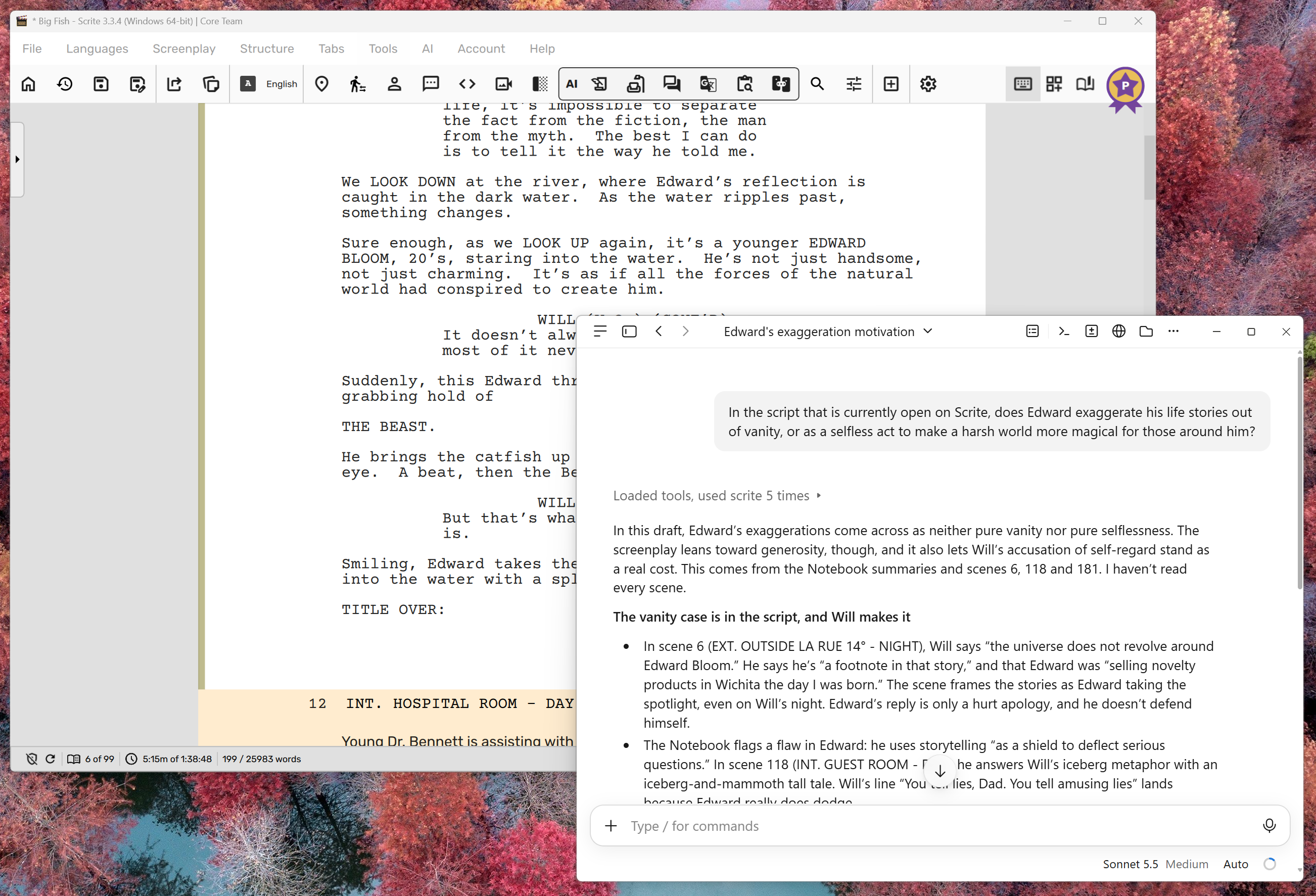
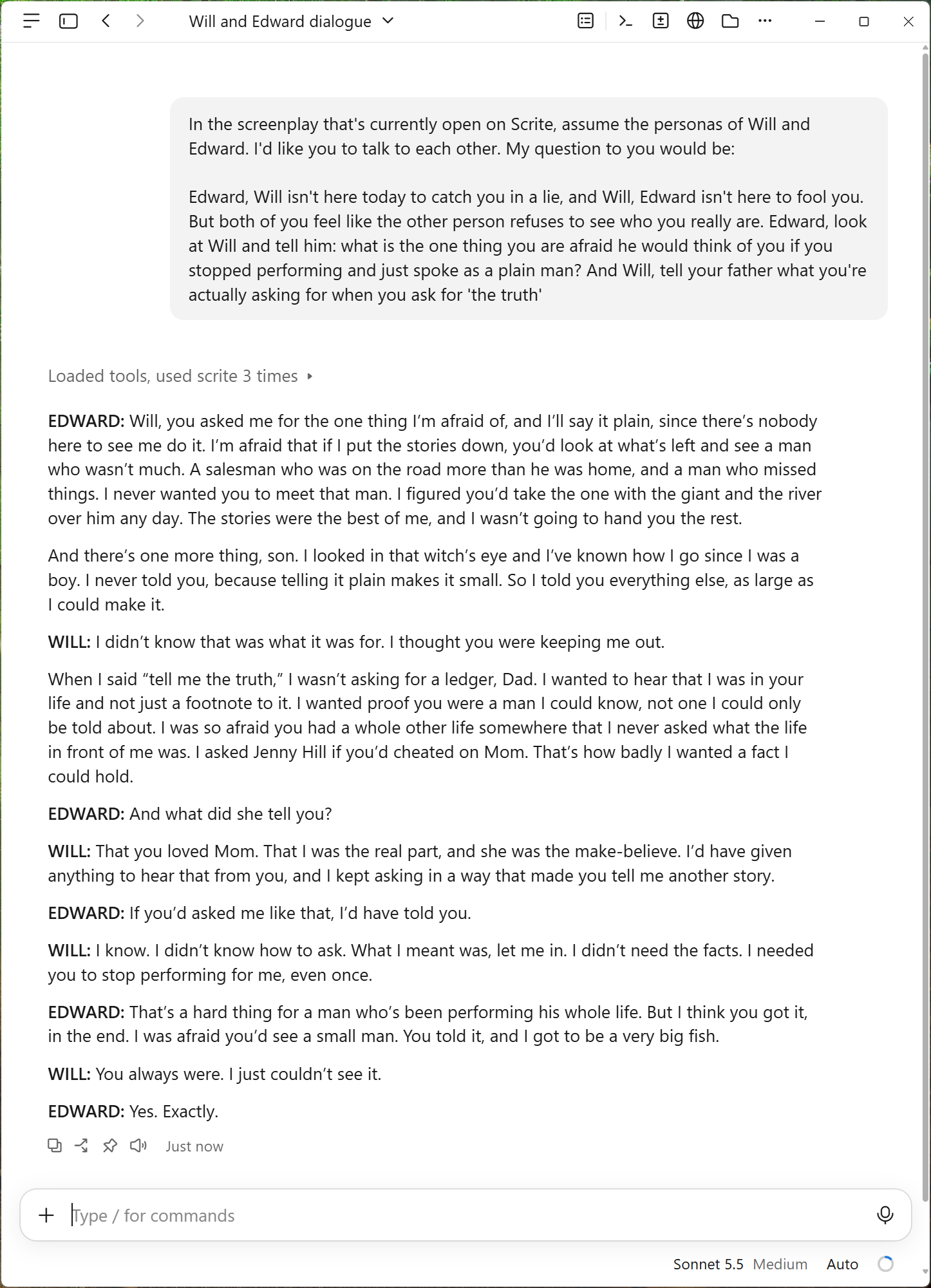
The picture at the top of this chapter shows such a conversation.
TIP: Ask the app to save what it writes as a new note in Scrite, so it stays with your screenplay. You can then export it as a PDF or ODT.
TIP: The more of Scrite's AI summaries your screenplay has, the better a chat app does. Generate scene, story and character summaries first, and your questions get sharper answers.
NOTE: Quality varies with the chat app and the model behind it. Review what it proposes before you approve it. See Approving Changes.
Looking Ahead: Connectors to Video Editors
Scrite does not make video editors, and has no plans to. But video editors may soon have MCP support of their own. When they do, Scrite could connect to the editor you already use, and let the two work together to improve your editing productivity. The screenplay could guide the edit, for example.
Subtitles are a good example. The dialogue of your screenplay is already written down, in order, with each line tied to its speaker and its scene. An editor that could ask Scrite for it might take its subtitles straight from the screenplay, and make a subtitle track for a finished edit, or for just a part of it, such as one scene or one sequence, instead of having the dialogue typed or transcribed again. Combined with translating your scenes, it might even make subtitle tracks in other languages.
It could work the other way too. The editor might leave edit notes against individual scenes, such as the take for this scene runs long, the dialogue here was re-recorded, or cut to the wide shot at this line, as ordinary notes on those scenes in Scrite. The writer, the director and the editor would then share one place for what each scene needs. Like every change that a chat app proposes, these would wait for your approval first. See Approving Changes.
We don't have an established demo of these yet, so treat them as future possibilities. It is one more reason to learn how chat apps work with Scrite today. See What's Coming for the rest of our plans.
Turning the Server On
Open AI → AI Control Panel → Settings → MCP Server.
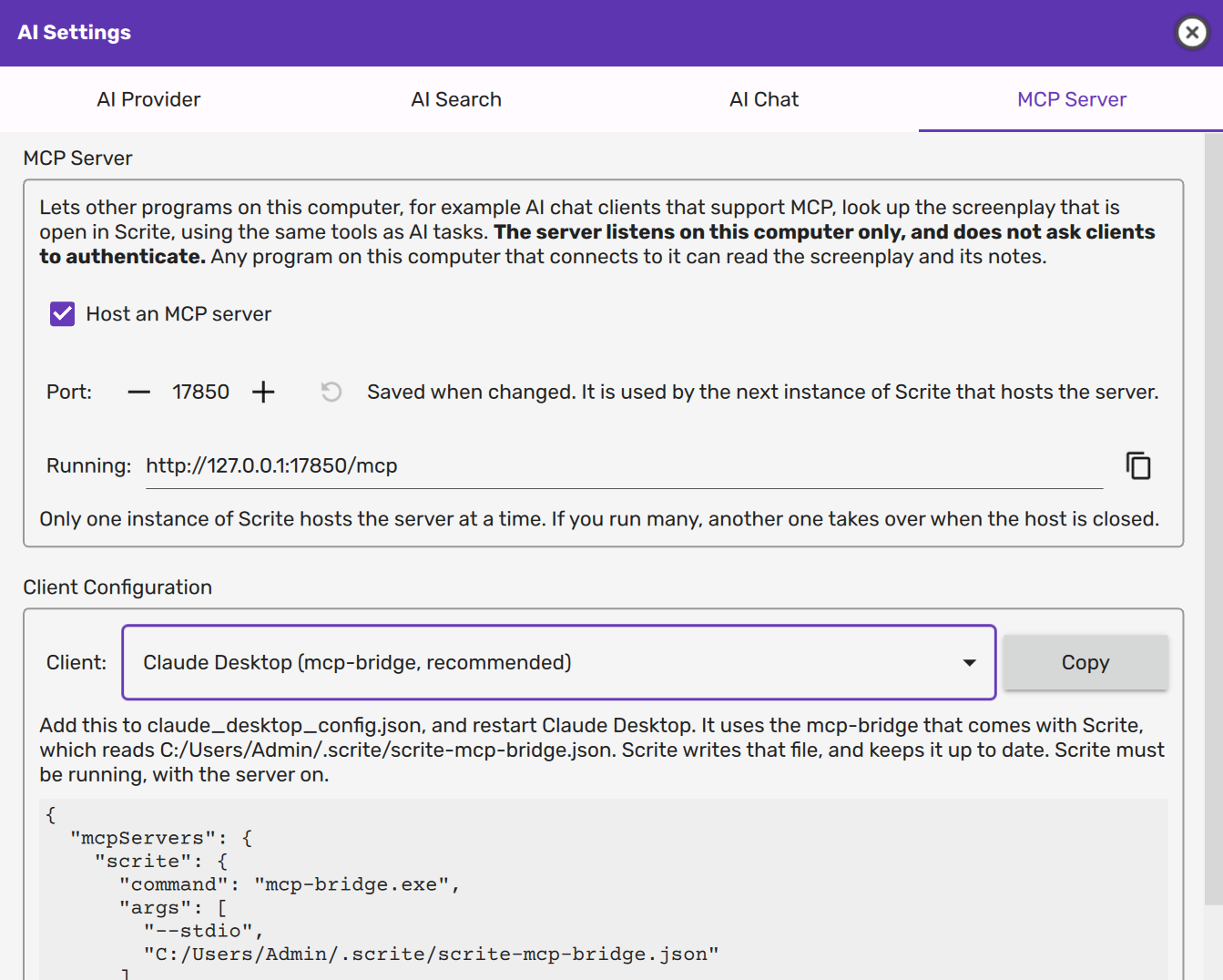
- Tick Host an MCP server.
- Note the endpoint address shown.
- If the default Port is in use by another program, choose a different one.
PRIVACY: The server listens on your computer only, and does not ask clients to log in. Any program running on your computer can read your open screenplay and its notes while the server is on. Turn it off when you are not using it.
PRIVACY: Whatever the client reads from Scrite goes wherever the client sends it. AnythingLLM can use a local model or a remote one, depending on how you configure it. Claude Desktop uses cloud models. Even if Scrite itself is set to use a local model, a client such as AnythingLLM can fetch your screenplay over MCP and forward it to a remote or cloud model. Check which model your chat client uses before you let it read your screenplay. See Your Responsibility.
If you run Scrite more than once, only one instance hosts the server at a time. The others take over if the host closes.
The MCP Status Button
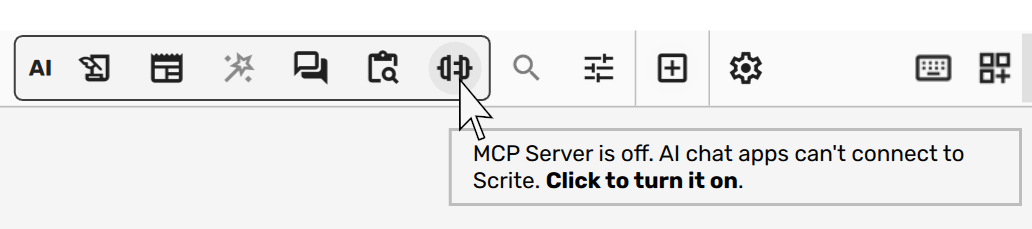
The AI group of the toolbar ends with a plug button, which shows whether the server is on without opening any settings. Click it to open the MCP Server settings, where you can switch the server on or off.
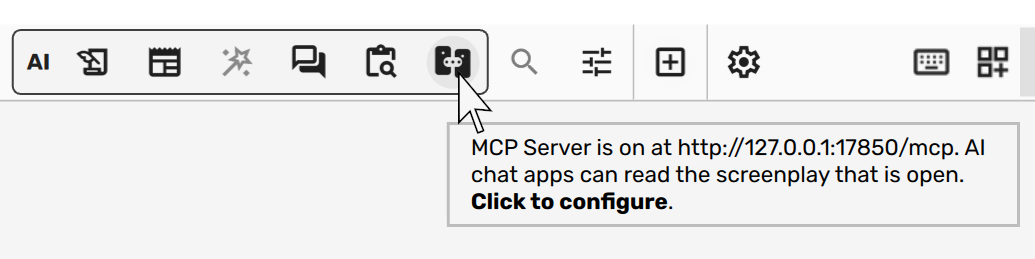
The server is on. The button shows a connected plug, and this Scrite is hosting the server. Rest the pointer on the button to see its address.
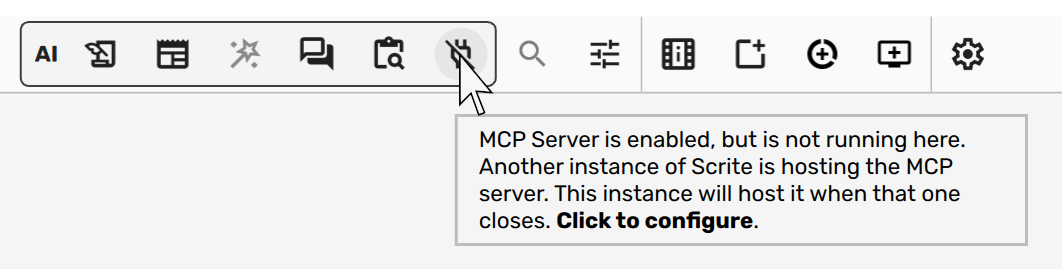
The server is enabled, but is not running in this Scrite. The button shows a crossed-out plug. Another Scrite is hosting the server, and this one takes over when that one closes, or the port can't be used. Rest the pointer on the button to see which.
The server is off. The button shows a plug with its two halves apart, and chat clients can't connect.
Connecting a Client
The Client Configuration box on the same page gives ready-to-copy settings.
| Client | Setup |
|---|---|
| AnythingLLM | Add the configuration to anythingllm_mcp_servers.json, in the plugins folder of AnythingLLM's storage directory. |
| Claude Desktop (mcp-bridge, recommended) | Add the configuration to claude_desktop_config.json and restart Claude Desktop. Uses the mcp-bridge that comes with Scrite. |
| Claude Desktop (npx) | Alternative if the bridge doesn't work. Needs Node.js. |
| Other clients | Use the common mcpServers format, or just the endpoint URL if your client asks for one. |
Select your client, click Copy, and paste it into the client's configuration file, as described for each client below.
Scrite must be running, with the server on, whenever the client uses it.
AnythingLLM
AnythingLLM is a good fit if you want to keep everything on your computer. Pair it with a local model, such as one served by Ollama, and your screenplay never leaves your machine. It can also use the same embedding model that Scrite uses for searching by meaning. If you haven't set up Ollama yet, see Setting Up a Local LLM.
First, set AnythingLLM up with a model.
- Download AnythingLLM Desktop from https://anythingllm.com/desktop, install it, start it, and go through its welcome screens.
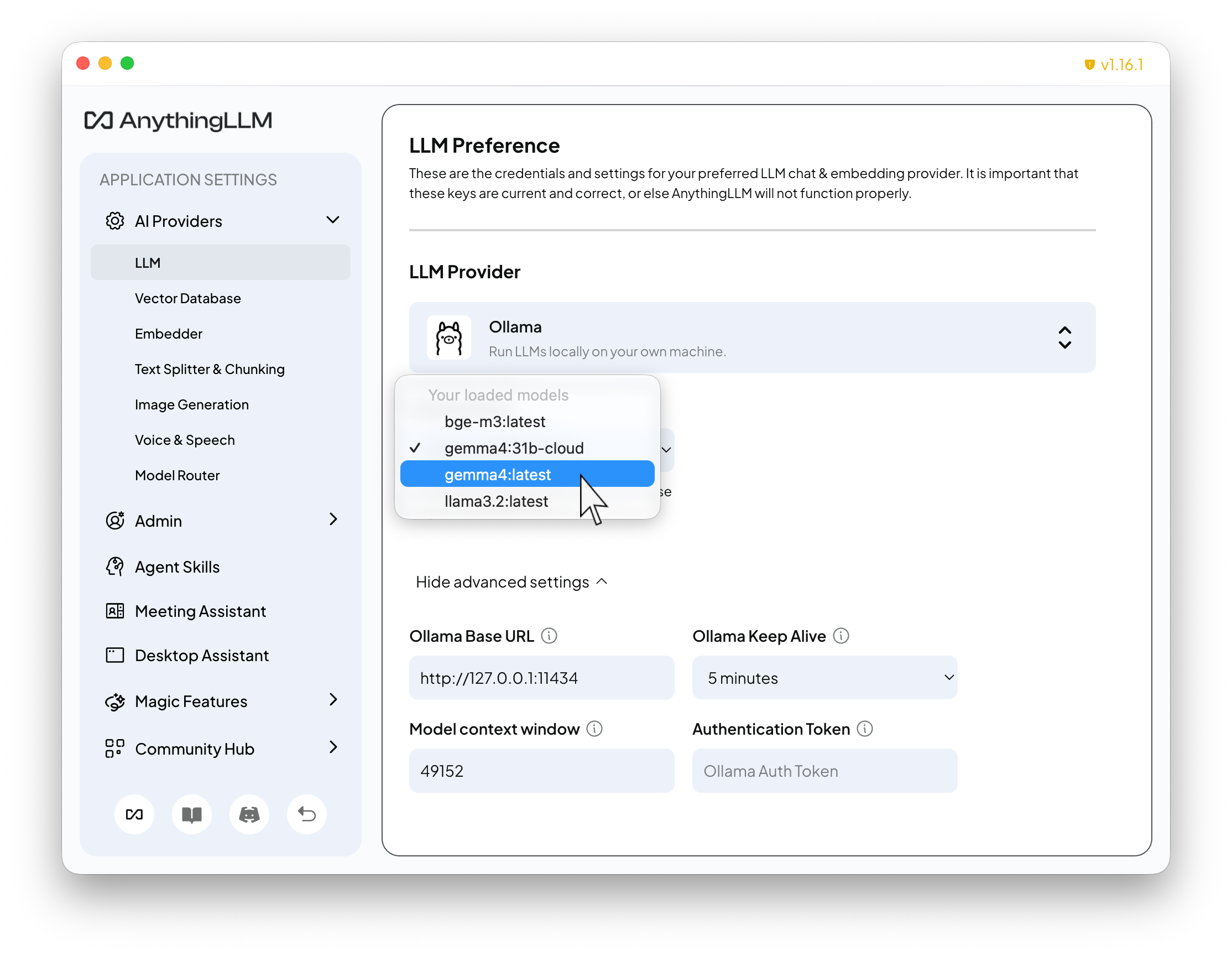
- When it asks which LLM provider to use, or in its settings, choose Ollama. Set the address to
the one that Scrite uses, normally
http://127.0.0.1:11434, and choose the model you pulled. If it asks for an embedder, choose Ollama as well, with the embedding model you pulled. - You can leave AnythingLLM's built-in embedder and storage as they are. They apply to documents that you upload into AnythingLLM, and Scrite does not use them.
Then connect it to Scrite.
- In Scrite, open AI → AI Control Panel → Settings → MCP Server, tick Host an MCP server, and choose AnythingLLM in the Client Configuration box.
-
Click Copy. It looks like this, with your own port in the address.
{ "mcpServers": { "scrite": { "type": "streamable", "url": "http://127.0.0.1:17850/mcp" } } } -
Paste it into
anythingllm_mcp_servers.json, which is in the plugins folder of AnythingLLM's storage directory. If the file already has other servers, addscritealongside them. See how to add or remove an MCP server in AnythingLLM's documentation. - Restart AnythingLLM, or refresh its list of MCP servers, and check that
scriteappears there. - Chat in a workspace that uses an agent, and ask about your screenplay.
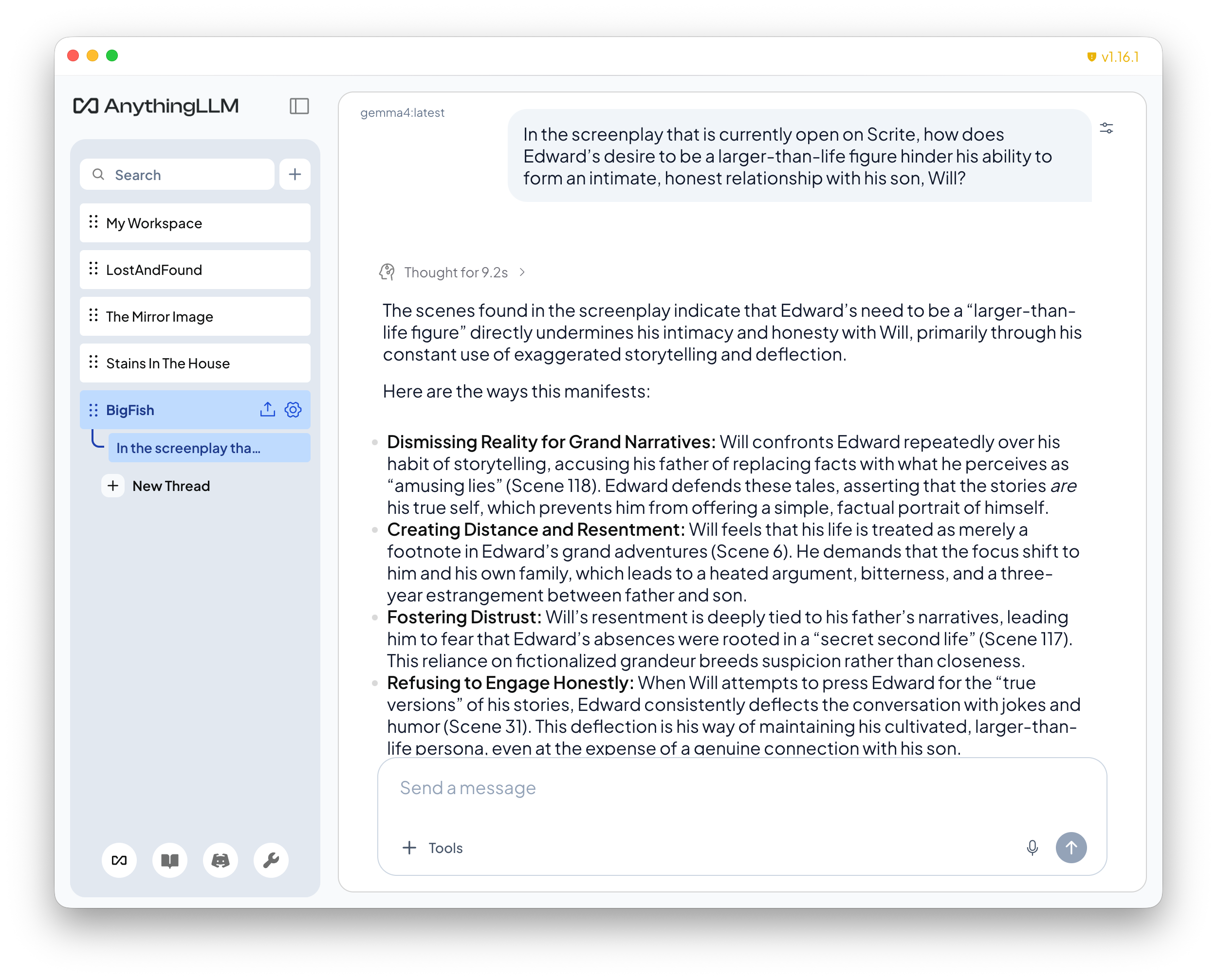
TIP: Use a model that supports tool calls. Without them, AnythingLLM can talk about your story, but cannot look anything up in it.
Claude Desktop
Claude Desktop can only start programs, not connect to an address, so Scrite offers two ways to
bridge the gap. The recommended one uses mcp-bridge, which comes with Scrite and reads a small
file that Scrite keeps up to date. The other uses npx and mcp-remote, and needs Node.js.
To connect it to Scrite:
- In Scrite, open AI → AI Control Panel → Settings → MCP Server, tick Host an MCP server, and choose Claude Desktop (mcp-bridge, recommended) in the Client Configuration box.
- Click Copy.
-
Open
claude_desktop_config.json. In Claude Desktop, you can reach it from Settings → Developer → Edit Config. Or open it directly from the location for your system.System Location Windows %APPDATA%\Claude\claude_desktop_config.json, which is normallyC:\Users\<you>\AppData\Roaming\Claude\claude_desktop_config.json. If you installed Claude Desktop from the Microsoft Store, look in%LOCALAPPDATA%\Packages\Claude_<id>\LocalCache\Roaming\Claude\instead.macOS ~/Library/Application Support/Claude/claude_desktop_config.jsonLinux ~/.config/Claude/claude_desktop_config.json. Anthropic does not ship an official Claude Desktop for Linux, so this is the usual location for community builds, and yours may differ. -
Merge what you copied into that file. Don't replace the file. If it already has an
mcpServerssection, add thescriteentry inside it, next to the servers that are there. If it has nomcpServerssection, add the whole section, as the example below shows. Keep the other settings in the file as they are, and take care of the commas between entries.{ "preferences": { "...": "whatever was already in your file" }, "mcpServers": { "another-server": { "...": "a server that was already there" }, "scrite": { "...": "what Scrite copied for you" } } } -
Save the file and restart Claude Desktop, by quitting it fully and not just closing its window. Scrite should appear among its tools.
Everything else in this chapter, and everything in AI Chat, such as talking to a character, approving changes and searching by meaning, works the same way in AnythingLLM as in Claude.
What Chat Clients Can Read
You don't need to know how this works to use it. But if you are curious, this is what a chat app can do with your screenplay once it is connected. Think of it as a few things it is allowed to ask Scrite for. AI Chat can ask for the same things.
- Look through your screenplay. It can ask for lists of your scenes, characters, notes, locations, acts and episodes, beat sheets and keywords. It can narrow a list down, for example to a range of scenes, one act or episode, one beat, one keyword, one character, or scenes that mention a certain word.
- Read the details. It can open any of those and read more, including your notes, Scrite's AI summaries and the full text of a scene.
- Look up what a character says. It can fetch a character's lines, word for word.
- Get to know a character. It can ask Scrite for everything it knows about a character, so that it can play that character in a conversation.
- Suggest changes. It can propose edits to your scenes and notes, but nothing changes until you approve it. See Approving Changes.
Approving Changes
When a chat app asks for a change, the Pending Edits window opens in Scrite, as it does for AI Chat. The app waits, and nothing changes until you approve it there. You see each change before and after, and approve or discard it.
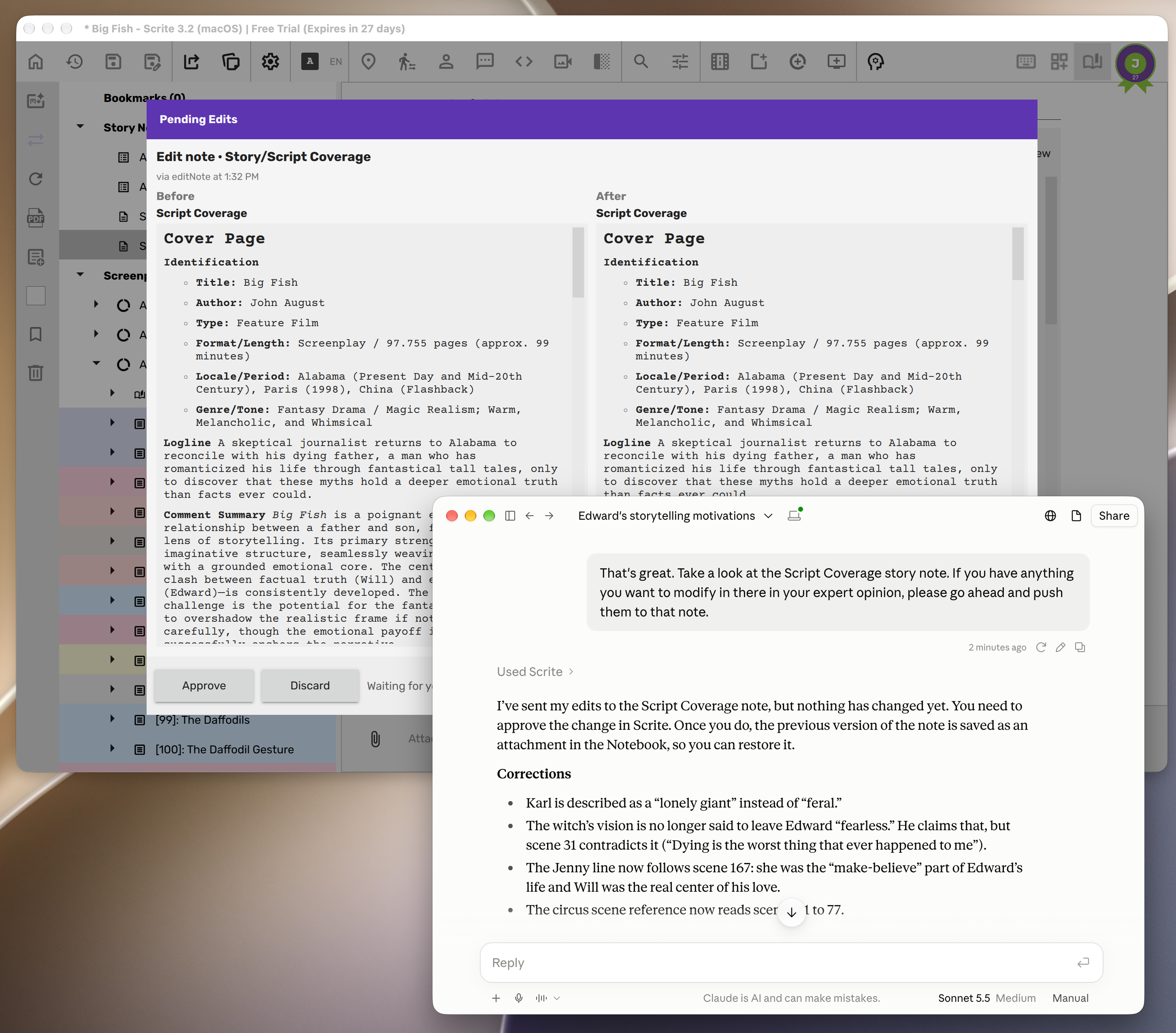
NOTE: If you have a note open and are typing in it, an edit to that note will fail. Finish editing, then ask the app to try again. If a scene has changed since the app read it, its edit is refused, and the app has to read the scene again.
Every call that a chat app makes, and every change that it asks for, is recorded in the MCP Call Log.
Searching by Meaning
If you've set up AI Search and indexed your screenplay, chat apps that support search can find scenes by what they are about, not just by the words in them. AI Chat can too.
Where to Go Next
- AI Chat: everything above, inside Scrite, with nothing to connect.
- MCP Call Log: see what your chat app read, and asked to change.
- Setting Up a Local LLM: run a model on your own computer, for AnythingLLM or for Scrite itself.
- Story Analysis: give your chat app the summaries that make its answers better.
- Troubleshooting: fix a chat app that can't connect.