Call Log
Scrite records every request it sends to the AI and the response that comes back, inside your document. Open it from AI → AI Control Panel → Call Log, or search for it in the Command Center.
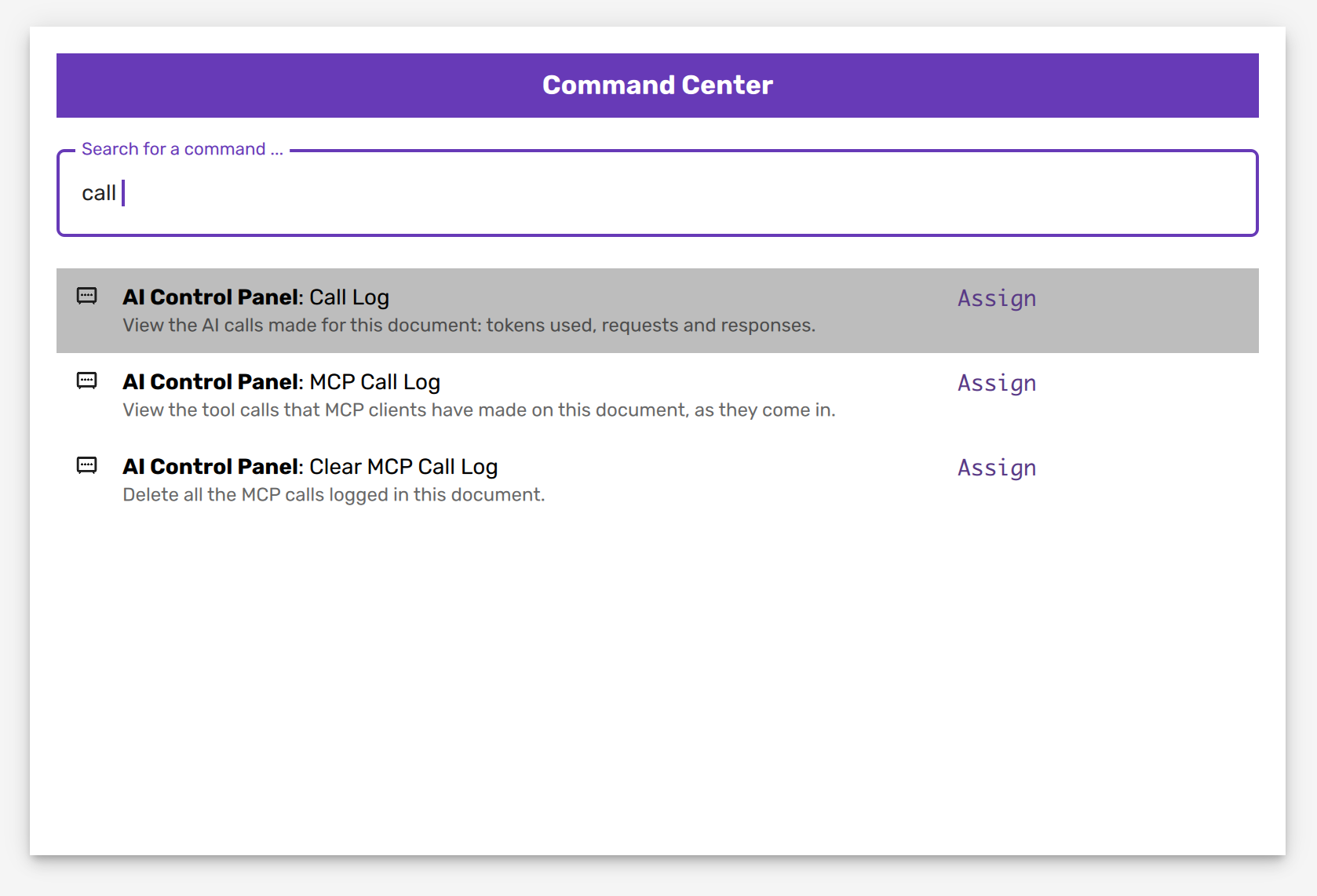
The AI Control Panel menu has two more entries for the same purpose on the chat-client side. MCP Call Log shows the requests that chat clients made to Scrite, and Clear MCP Call Log empties it. See MCP Call Log below.
Use it to see what the AI was actually given, understand why a result looks the way it does, track token use and cost, and collect details when asking for help in the Discord community.
Summary Tab
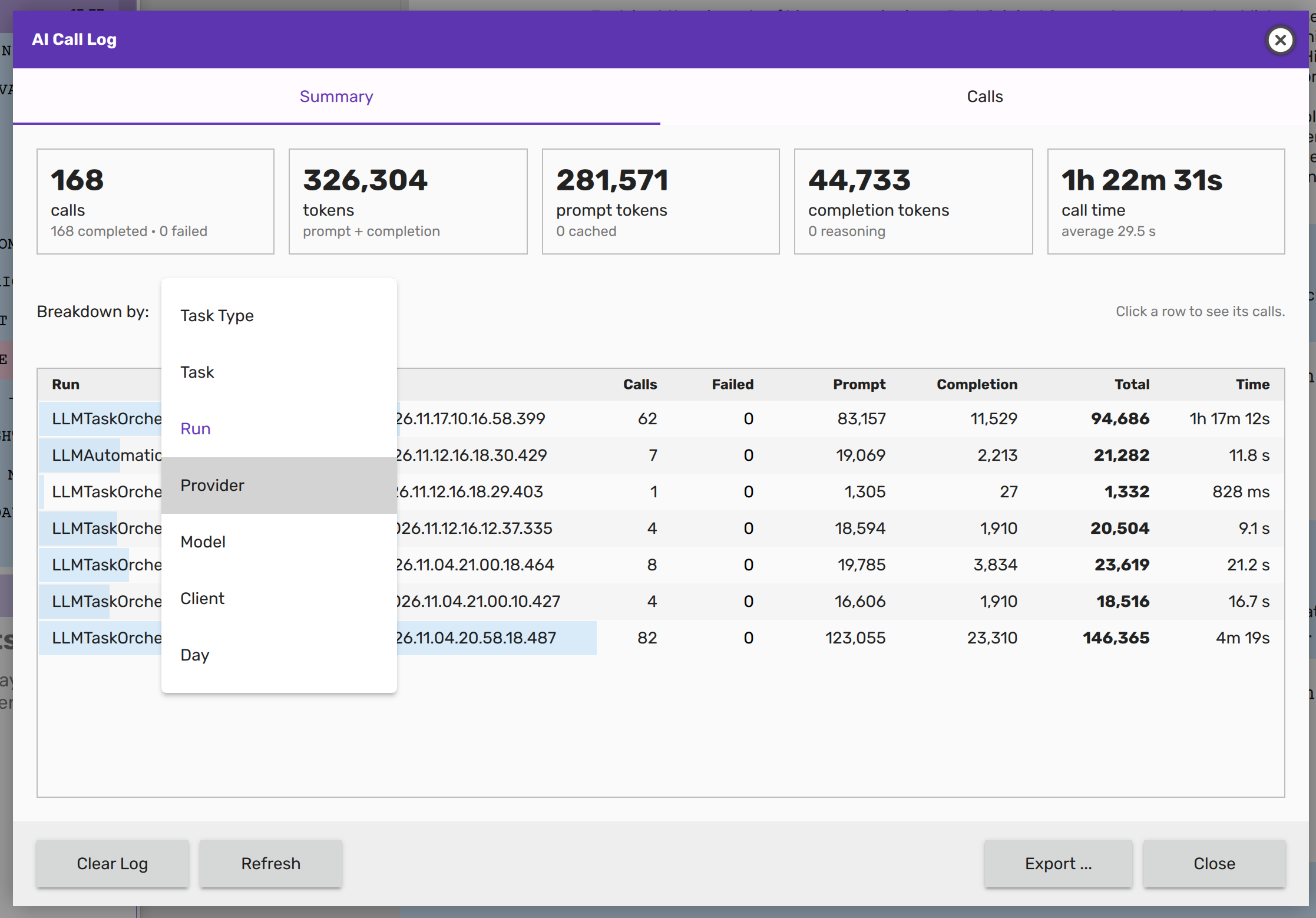
Totals of calls, tokens and call time, with a breakdown by task type, task, run, model, provider, client or day. Click a row to see its calls in the Calls tab.
Provider is the one that really served each call, such as Sarvam or Ollama. It matters once you have given some kinds of work a provider of their own in AI Connectors, because then a run can use several. Client is the technical kind of connection, such as one that speaks the way OpenAI's does, which many providers share. Calls logged before providers were recorded show the client.
Your AI Chats are in it too, so you can see what everything has used, workflows and chats together. Each message that you send in a chat is one call, of type Chat. Under Run, a chat is listed as Chat: followed by its title, with all of its calls together, and the tokens add up with the other AI work of the document. Deleting a chat does not remove its calls from the log.
NOTE: The time shown here is the sum of the time spent by each individual task. Several tasks run in parallel, so the time you actually wait, on the clock, will be much less.
Calls Tab
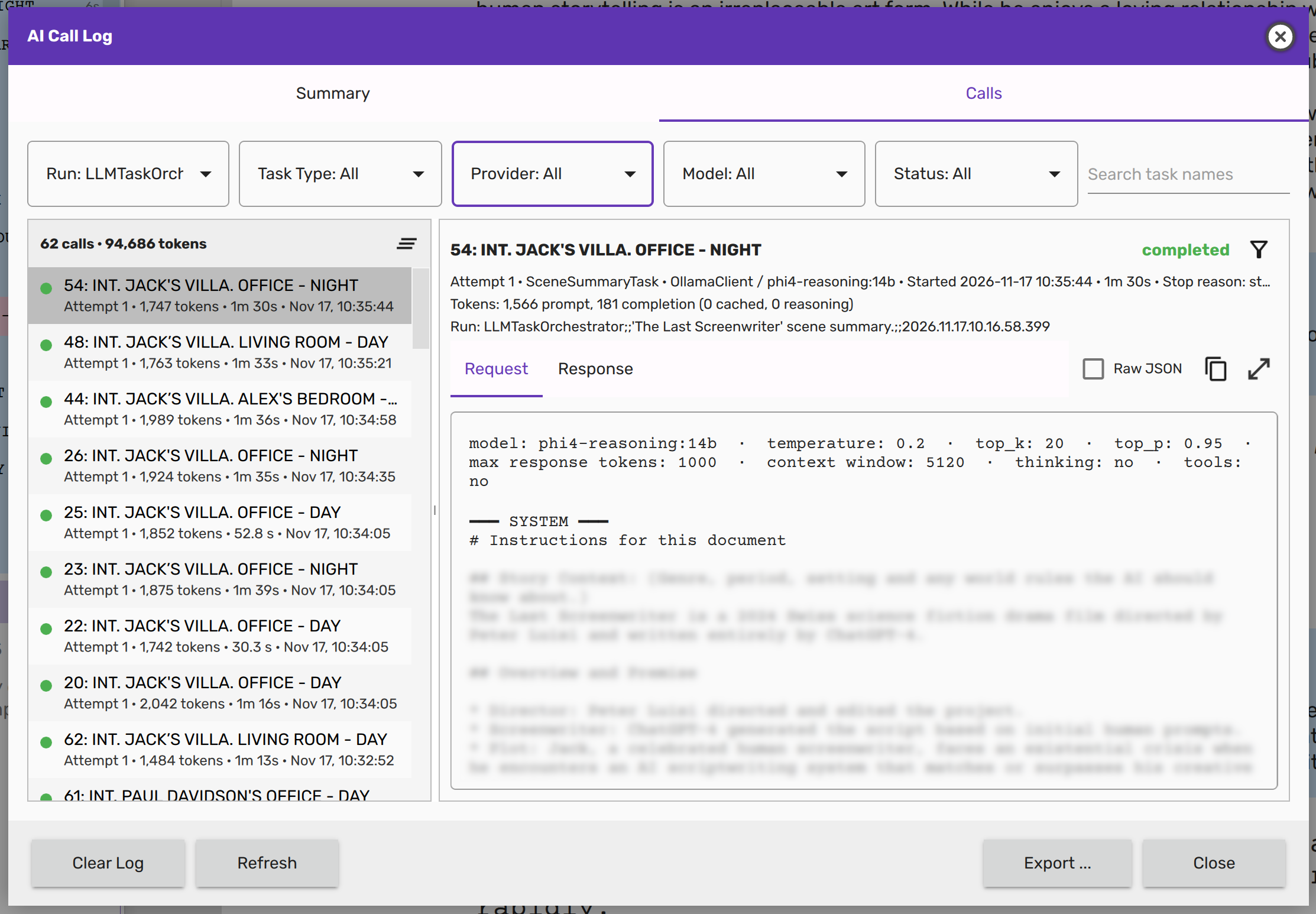
A list of calls, newest first. Filter them by run, task type, model, provider, status or task name. The details of a call say which provider it went to, with an icon that tells you whether it ran on your computer or in the cloud. If a kind of work in AI Connectors wasn't completely set up, the call shows the default provider, because that is where it went.
Select a call to see its details:
| Tab | Shows |
|---|---|
| Request | What was sent — model, every parameter that was set, such as the temperature and the size of the window, the instructions and your screenplay text — in readable form, or as raw JSON. |
| Response | What the AI answered. |
| Thinking | The AI's reasoning, for models that provide it. |
| Tools | Tool calls the AI made while answering — each with arguments, full result and timing. |
| Error | Why a call failed. |
A task that was retried shows each attempt separately, such as Attempt 2. Tasks that look things up first show Lookups and Answer phases.
The call of a chat message is logged with the message that you sent, the instructions and the tools that the AI was given, and what it answered. It does not repeat the earlier messages of the chat, which would put the whole conversation in the log again for every message. A note at the end of the request says so.
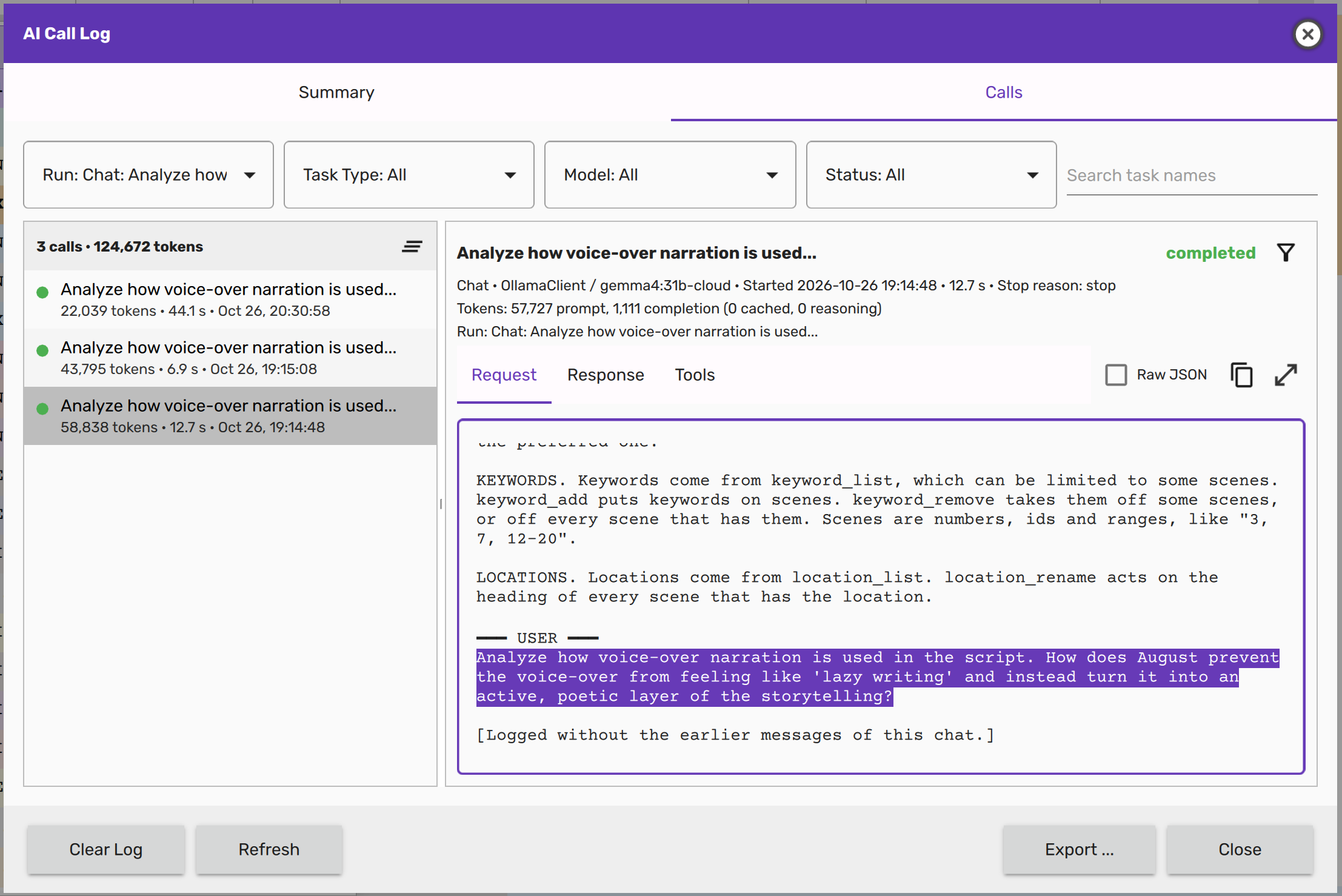
Buttons let you show every call from the same run, task or task type. Ctrl/Cmd+click and Shift+click select several calls. Arrow keys, Page Up/Down and Home/End move through the list.
Exporting
You can export all, filtered or selected calls as a JSON file, for other tools or to share when asking for help. You can also clear the log. Clearing it does not delete your AI Chats, which are kept separately.
PRIVACY: Exported logs contain the screenplay text that was sent to the AI. Review before sharing.
MCP Call Log
The Call Log above records what Scrite asked the AI. The MCP Call Log records the opposite: what a chat client such as AnythingLLM or Claude Desktop asked of Scrite. Every time a chat client looks up a scene, reads a note, or proposes a change, Scrite writes it down inside your document. Open it from AI → AI Control Panel → MCP Call Log.
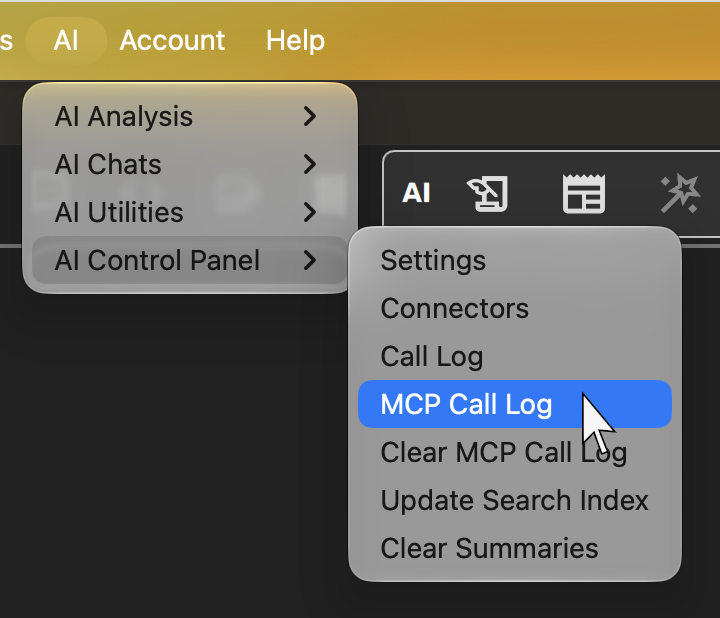
Use it to see exactly what a chat client read from your screenplay, and what it asked to change. That is useful if you want to know what left Scrite, or why a chat client answered the way it did.
The log fills up as the chat client works. You don't need to close and reopen it.
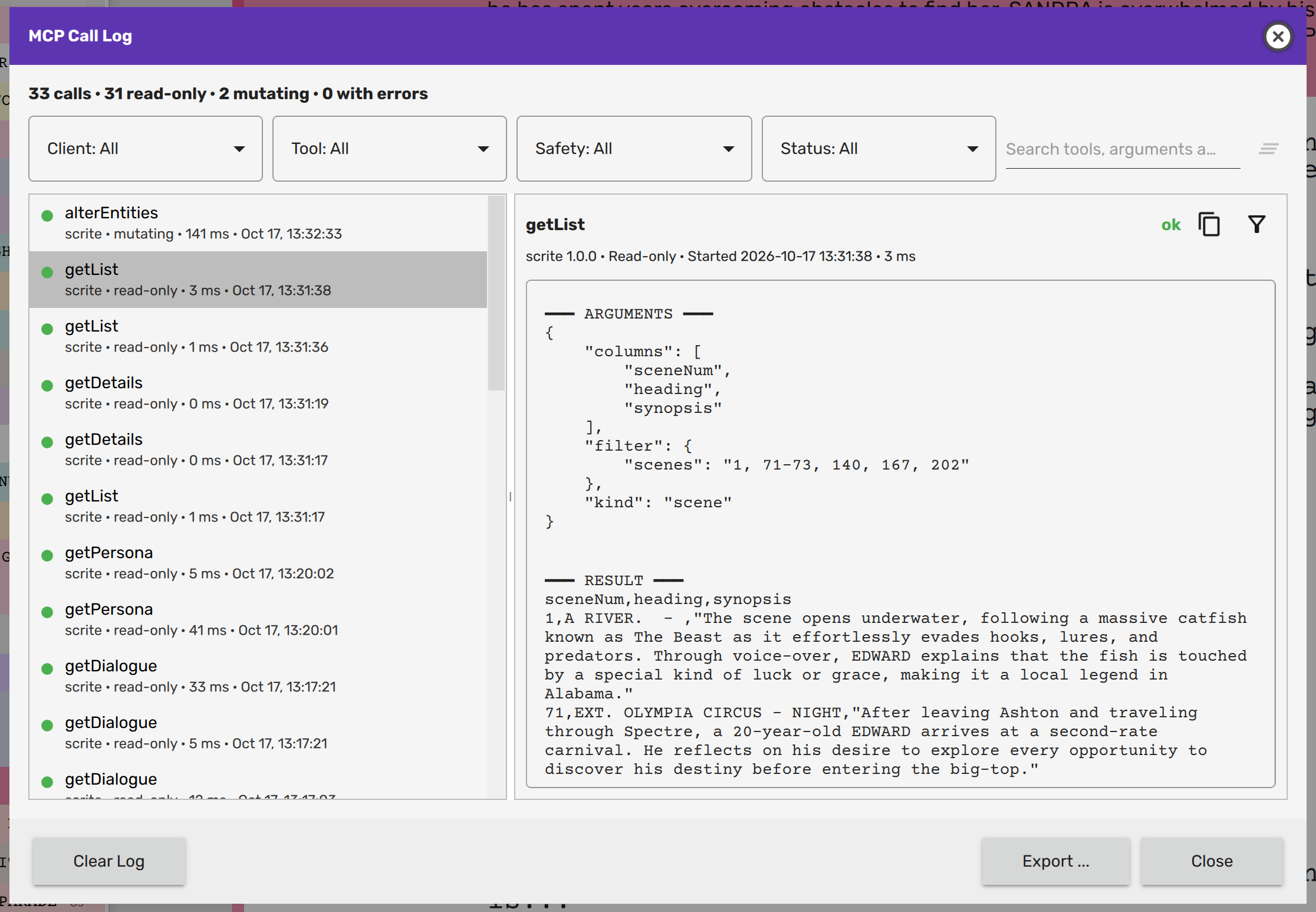
- The top line shows how many calls were made, and how many of them were read-only (the client only looked), mutating (the client asked to change something) and with errors. Changes a chat client asks for still wait for your approval. See Approving Changes.
- The list on the left shows calls, newest first. A green dot means the call worked, and a red one means it failed. Each row shows what the client asked Scrite to do, the name of the client, whether it was read-only or mutating, how long it took, and when.
- The details on the right show what the client sent, what Scrite answered, and the error, if any. Use the copy button to copy all of it.
- The filter button next to the details lets you see all calls made with the same request, or by the same client, or copy the call's ID.
Use the boxes at the top to narrow the list down by Client, by the kind of request made (Tool), by Safety (read-only or mutating) or by Status. You can also search the text of the requests and answers. The button beside the search box clears all filters.
At the bottom, Export saves all calls, or just the ones you filtered, as a JSON file. Clear Log deletes every MCP call logged in the document. You can also do this from AI → AI Control Panel → Clear MCP Call Log. You will be asked first, and this can't be undone.
PRIVACY: Exported MCP logs contain what chat clients asked for and were sent, which includes text from your screenplay. Review before sharing.
What to Expect
AI work on a screenplay uses a lot of tokens, because Scrite sends your screenplay, in pieces, for the AI to read.
NOTE: The numbers and prices in this section are only there to help you understand what AI use can cost. They are estimates, not promises. Check with your provider for what you will actually be charged, and rely on your own call logs, in the Summary Tab, for the number of tokens that your work really uses.
Roughly:
- The first run on a feature film can use up to a million tokens. Close to 85% of them are prompt tokens, which is the screenplay and the instructions going to the AI. The AI's own answers, the completion tokens, are only a small part.
- A document can use 1 to 3 million tokens in a month, and more if you run many reports or chat a lot. A chat adds the tokens of the earlier messages to each new one, see AI Chat.
- The actual number depends on the length of the screenplay, how many tasks you run, the model, and whether the AI is asked to think.
What It Can Cost
With a cloud provider, tokens are what you are billed for, and they are not all priced alike. Providers charge for completion tokens, which the AI writes, at four to five times the price of prompt tokens, which it reads. Prompts are most of what Scrite sends, but the answers are not cheap.
Prices are given per million tokens, so for any model:
cost = (prompt tokens ÷ 1,000,000 × prompt price) + (completion tokens ÷ 1,000,000 × completion price)
The table works it out for a typical feature film, with the numbers above:
- The first run: 1 million tokens, 85% prompt (850,000) and 15% completion (150,000).
- A month of use after that: 2 million tokens at most, in the same split (1,700,000 prompt and 300,000 completion).
| Model | Prompt / completion price, per million | First run | Next month, at most |
|---|---|---|---|
| Gemma 4 26B A4B | $0.04 / $0.15 | $0.06 | $0.11 |
| gpt-oss-20b | $0.075 / $0.30 | $0.11 | $0.22 |
| Gemma 4 31B | $0.14 / $0.40 | $0.18 | $0.36 |
| gpt-oss-120b | $0.15 / $0.60 | $0.22 | $0.44 |
| GPT-6 Luna | $0.10 / $0.50 | $0.16 | $0.32 |
| Claude Haiku 5.5 | $0.10 / $0.50 | $0.16 | $0.32 |
| GPT-6.1 Terra | $1 / $5 | $1.60 | $3.20 |
| Gemini 3.8 Flash | $1.50 / $7.50 | $2.40 | $4.80 |
| Claude Sonnet 5.5 | $2 / $10 | $3.20 | $6.40 |
| Claude Opus 5.5 | $4 / $20 | $6.40 | $12.80 |
- Gemma 4 and gpt-oss are open models. Their prices are those of hosting services such as Groq and OpenRouter, and differ a lot between them, by several times. Run on your own computer, they have no per-token charge at all.
- Prices change often, and these were gathered in November 2026 from comparison sites, not from the providers. Gemini 3.8 Flash is cheaper until the end of 2026. Some models also charge more for very long prompts. Check your provider's own price list for what you will really pay, and put its prices in the formula.
- Cached tokens (prompt tokens that the provider has seen recently) are charged much less by some providers. Your bill can be lower than the table says.
- A big document, a lot of chatting or a model that thinks will use more. A reasoning model's thinking is charged as completion.
With a local model there is no charge, but more tokens take more time. Either way, the Summary tab shows you where they went, so you can run the formula on your own totals.
Where to Go Next
- AI Chat: keep the tokens of your chats down.
- Settings: change the provider, the model or the number of parallel tasks.
- Setting Up a Local LLM: run a model on your own computer, with no per-use charge.
- Maintenance: clear summaries, and the cache.
- Troubleshooting: find out why a task keeps failing.