Document Instructions
AI does better work when it knows something about your story up front. Scrite lets you give instructions at three levels. They are all added to the request automatically.
| Level | Applies to | Where to write it |
|---|---|---|
| Global | Every AI task in every document | AI Provider settings → Instructions |
| Document | Every AI task in the current document | The AI Instructions note in the Notebook |
| Usecase | One kind of work, such as scene summaries, in every document | The Instructions box of that usecase in AI Connectors |
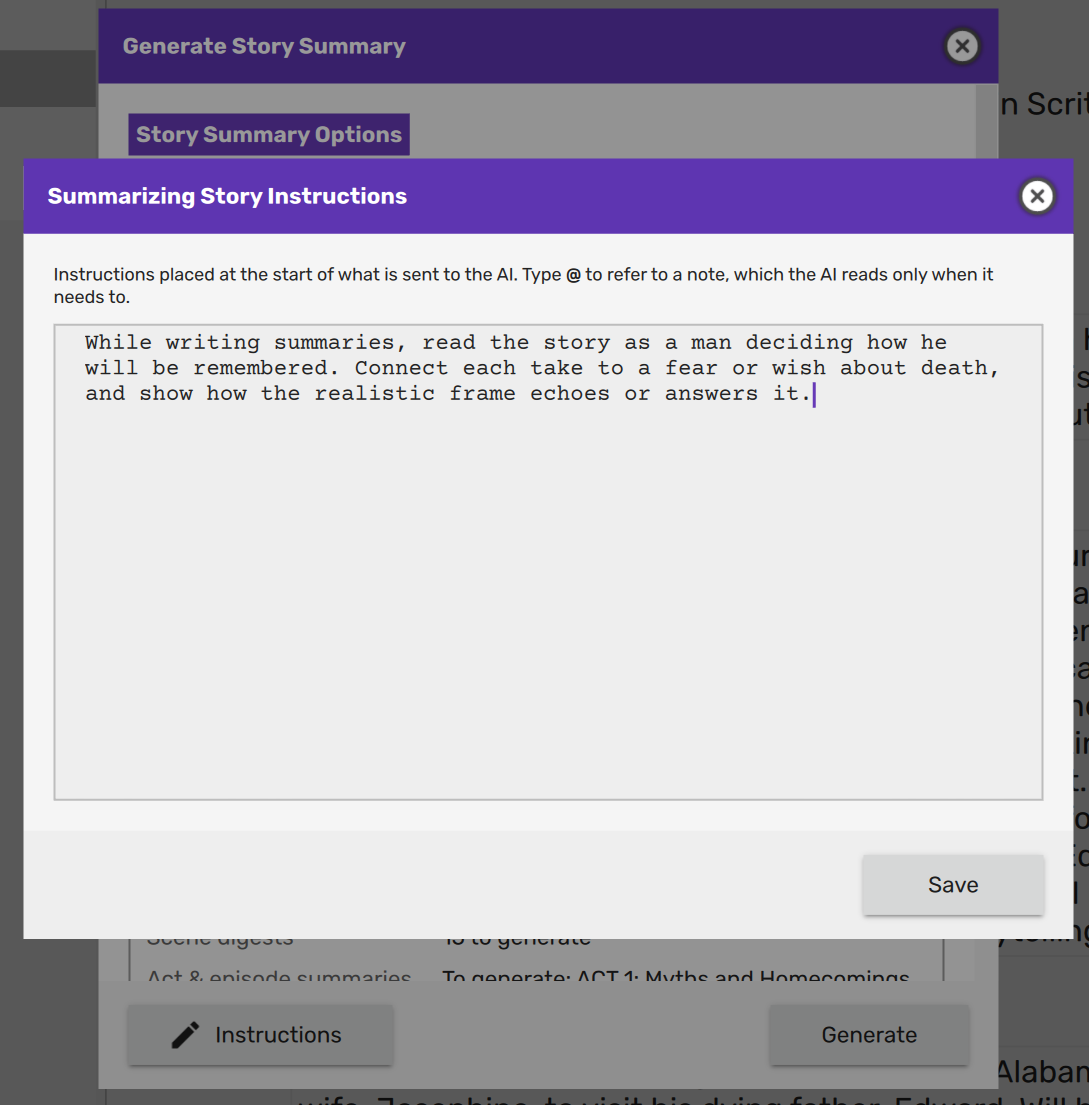
| Workflow | One run of one workflow | The Instructions button in a workflow's dialog |
Global instructions come first, followed by the document's, followed by the workflow's. A usecase's instructions go with them, and the workflow's have the last word. Use the usecase level for what is true of one kind of work every time, such as Respond in Kannada script. for scene summaries.
AI Chat adds two levels of its own, which only chats use: the AI Chat page of the settings has instructions for every chat, and the settings of each chat can have instructions for that chat alone. They follow the global and the document's. A chat can leave out the document's instructions. The global ones are always sent.
Writing Document Instructions
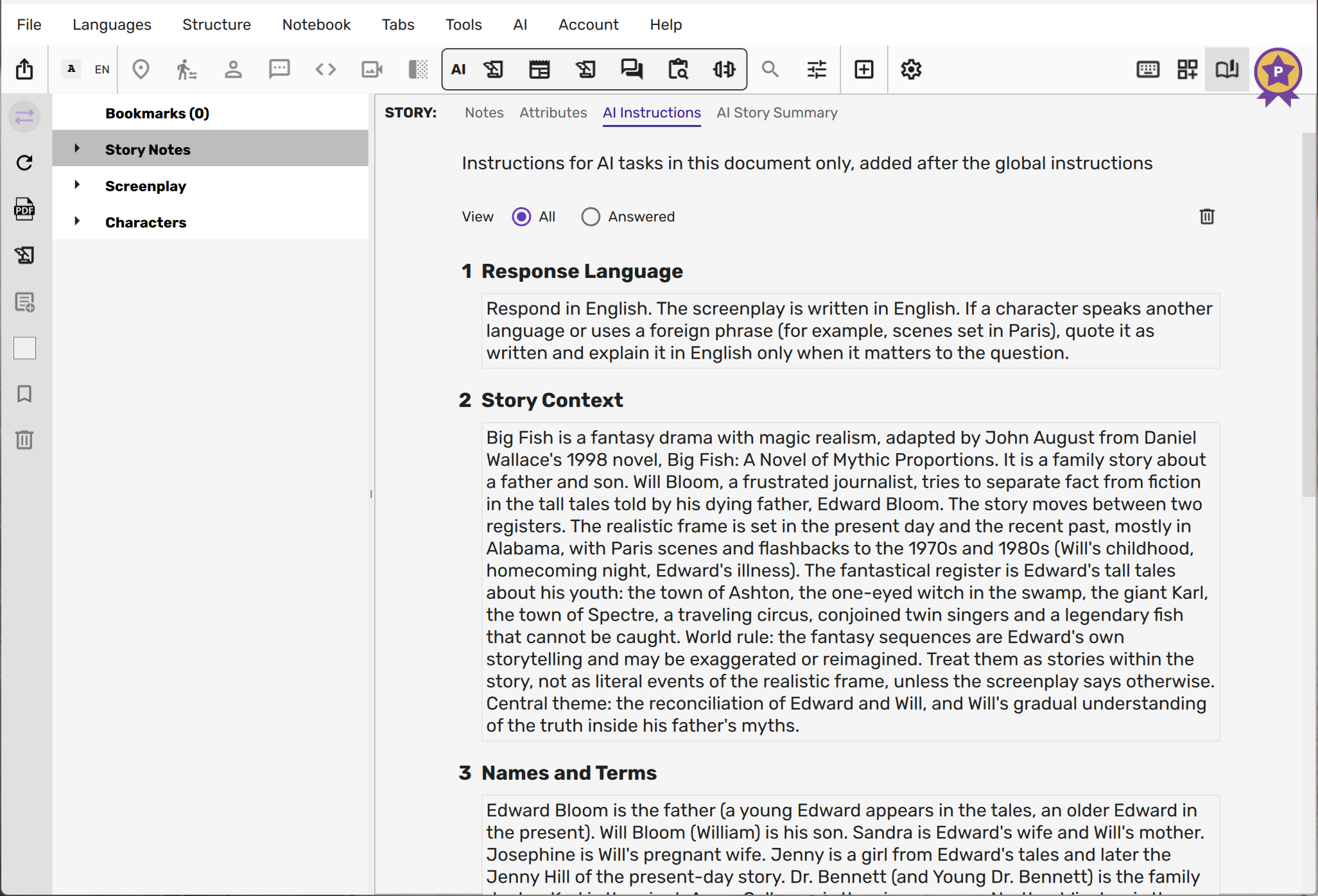
Open them from AI → AI Control Panel → Settings → AI Provider → Document Instructions, or when Scrite offers them before your first AI run in a document. It asks whether you want to fill them in now or later. Either way, a note called AI Instructions is added to the Story section of the Notebook, and you are not asked again. Fill Now opens the note. Fill Later carries on with the run, and the note waits for you.
The picture at the top of this chapter shows the note.
The note is a form with these questions. Answer only the ones that matter to you.
| Question | What to write |
|---|---|
| Response Language | The language you want responses in, and how to treat dialogue written in other languages or scripts. |
| Story Context | Genre, period, setting and any world rules the AI should know about. |
| Names and Terms | Spellings of character names, nicknames and pronouns, and the meaning of any invented or regional terms. |
| Response Style | Tone, level of detail and intended reader. |
| Things to Avoid | Things the AI should not do — for example, reveal spoilers or guess at things the screenplay doesn't say. |
| Other Instructions | Anything else to keep in mind. |
TIP: If you write in a language other than English, or in a mix like Hinglish, say so in Response Language and Names and Terms. This single step improves almost every result.
Workflow Instructions
Each workflow dialog has an Instructions button at the bottom left. Use it for one-off guidance, such as "Keep one-line summaries under 15 words". The button shows a different icon once you have written something.
Referring to a Note
Type @ in an instruction box to refer to a note in your Notebook. The AI reads the note only when it needs to. This works in the box of every workflow, in the AI Report dialog, and in the instructions of an AI Chat.
- A list of the notes in your Notebook opens as you type. Each is named by what it belongs to, then
its title, for example
RAHUL / Styling NotesorScene 14 / AI Summary. A note on the story is shown by its title alone. Keep typing to narrow the list. - Use Up and Down and Enter to choose one, or click it.
- It then appears in the box by its name, as
@[RAHUL / Styling Notes], in a colour of its own. One that no longer exists, because you deleted or renamed it, turns red. Remove it, or refer to the note again.
TIP: A note is a good place for long background that you don't want in every instruction, such as a character's history, or the rules of the world of your story. Refer to it, and the AI reads it when it matters, so you don't pay for its words in every request.
Keep Them Short
Instructions are sent with every request. Long instructions cost tokens on every call, and can crowd out your screenplay on models with small context windows. Global instructions are limited to about 80 words for this reason.
Where to Go Next
- Story Analysis: analyze your whole story.
- Scene Analysis: summarize your scenes, with the instructions in place.
- AI Reports: write reports that follow your instructions.
- AI Chat: add instructions for your chats.
- Settings: write the global instructions.