Maintenance
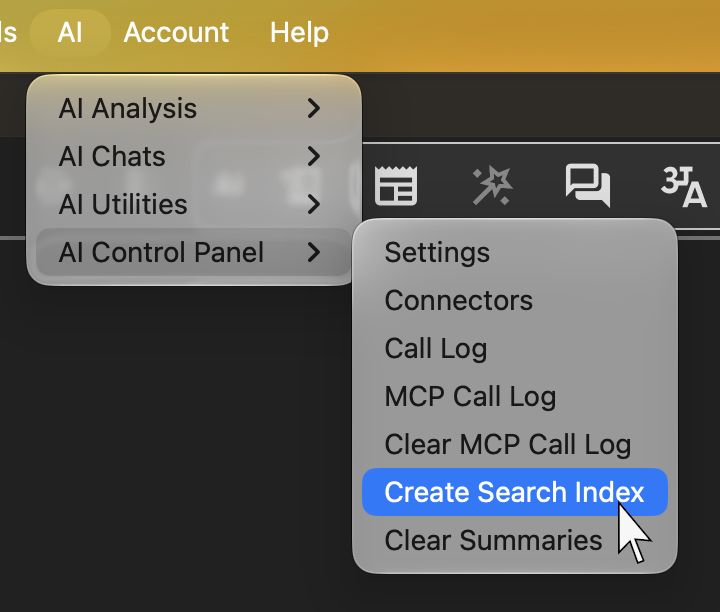
Maintenance actions are in the AI Control Panel submenu of the AI menu in the menu bar, along with Settings and the Call Log.
Search Index
Search Index indexes the text and the summaries of your scenes so that the Search Scenes by Meaning dialog, AI Chat, other chat clients and AI Reports can find scenes by meaning. It needs an embedding model.
Run it after generating or regenerating scene summaries, and after changing the embedding model. Once a screenplay has been indexed, Scrite keeps the index up to date as you write. The search dialog also indexes the screenplay by itself the first time you search it, and has a button to index it again. A progress dialog shows how far it has got, and when it ends, it says how it went.
Clear Summaries
Deletes all AI summaries in the document — of scenes, acts, episodes, characters and the story — and the cache of intermediate results. Use it to start over.
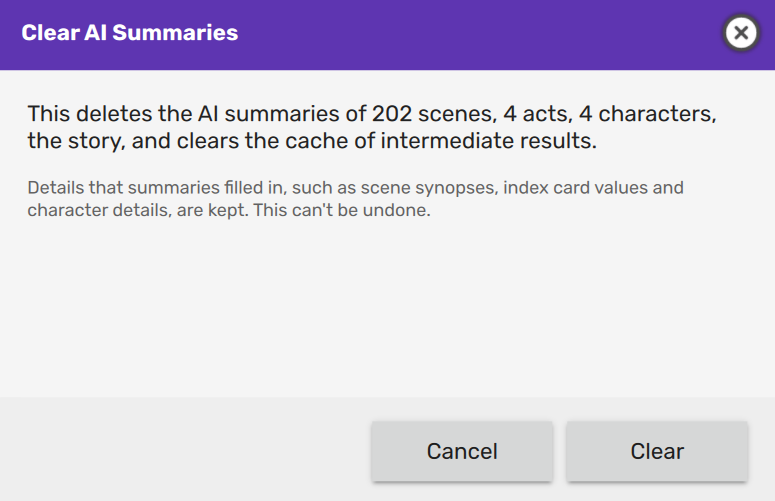
- The dialog first tells you what it found, for example 12 scenes, 2 acts, 3 characters, and the story.
- Clear deletes the notes one at a time, with a progress bar. You can't close the dialog while it works.
- This can't be undone.
- Details that summaries filled in are kept, because you may have edited them since: scene synopses, index card values, break summaries and subtitles, and character details.
Clear Coverage Cache
To avoid repeating work, Scrite keeps intermediate results in your document: digests of runs of scenes and characters, a record of which inputs produced each summary, and the search index. This is the coverage cache.
Clear Coverage Cache discards it. Summaries already generated are kept, but the next story summary run treats story, episode and act summaries as out of date, and generates them again.
NOTE: The cache is stored inside your
.scritefile, so it grows the file a little. Clearing it is also a way to shrink the file.
Opening Your File in a Version Without AI Features
While you use AI workflows, Scrite keeps these inside your file.
- The search index, which lets Scrite find scenes by what they are about.
- The call log, the record of what was sent to the AI and what came back.
- The coverage cache, the work Scrite remembers so it doesn't repeat itself.
- Your AI Chats, with what you referred to in a message that you have not sent yet.
A version of Scrite that has no idea about these could drop them when it saves the file. Scrite protects them in two ways.
- Earlier versions can't open the file. A file that you save in Scrite 3.3 or later is refused by versions before it, which say that it was created using an updated version. So an older version never gets the chance to save over it. To open it, update Scrite.
- A later version without AI workflows leaves them alone. Scrite 3.3 and later remember which files in your document belong to an extension, and keep them even when that extension isn't there. You can open the file in such a version, edit your screenplay, and save it. The search index, the call log and your chats are still there when you come back to a version that has AI workflows.
Your summaries and notes stay either way. They are ordinary notes in your document, so every version of Scrite keeps them.
NOTE: A file that you saved before this protection existed may have lost its search index, call log or coverage cache in a version without AI workflows. Run Search Index again to rebuild the index, and expect the next Story Summary to take longer, because Scrite redoes some work. New calls are logged as usual, and your chats start from there.
TIP: If you move between versions often, keep a copy of your file from before you open it in another one.
Saving
The cache, the call log and your AI Chats are part of your document. When they change, Scrite asks you to save, as it does for any other change.
PRIVACY: Chats, the call log and the search index travel with your
.scritefile, and contain text from your screenplay. Before you share the file, delete the chats you don't want others to read, and clear the call log if you want to.
Where to Go Next
- Call Log: see what was sent to the AI, and what it cost.
- Search Scenes by Meaning: search, once your screenplay is indexed.
- Story Analysis: analyze your story again, after clearing summaries.
- Troubleshooting: fix something that isn't working.