Settings
The Quick Start got you connected, and that is all most people need. This chapter is for when you want to change something, such as using another provider or model, or to know what each setting does.
Everything here opens from AI → AI Control Panel → Settings in the menu bar, from the Configure button of the AI group in the toolbar, which is there until a provider is set up, or from the Application tab of Scrite's Settings. The pages are AI Provider, AI Chat, AI Search and MCP Server.
Connecting an AI Provider
The AI Provider page is where you choose the provider and the model.
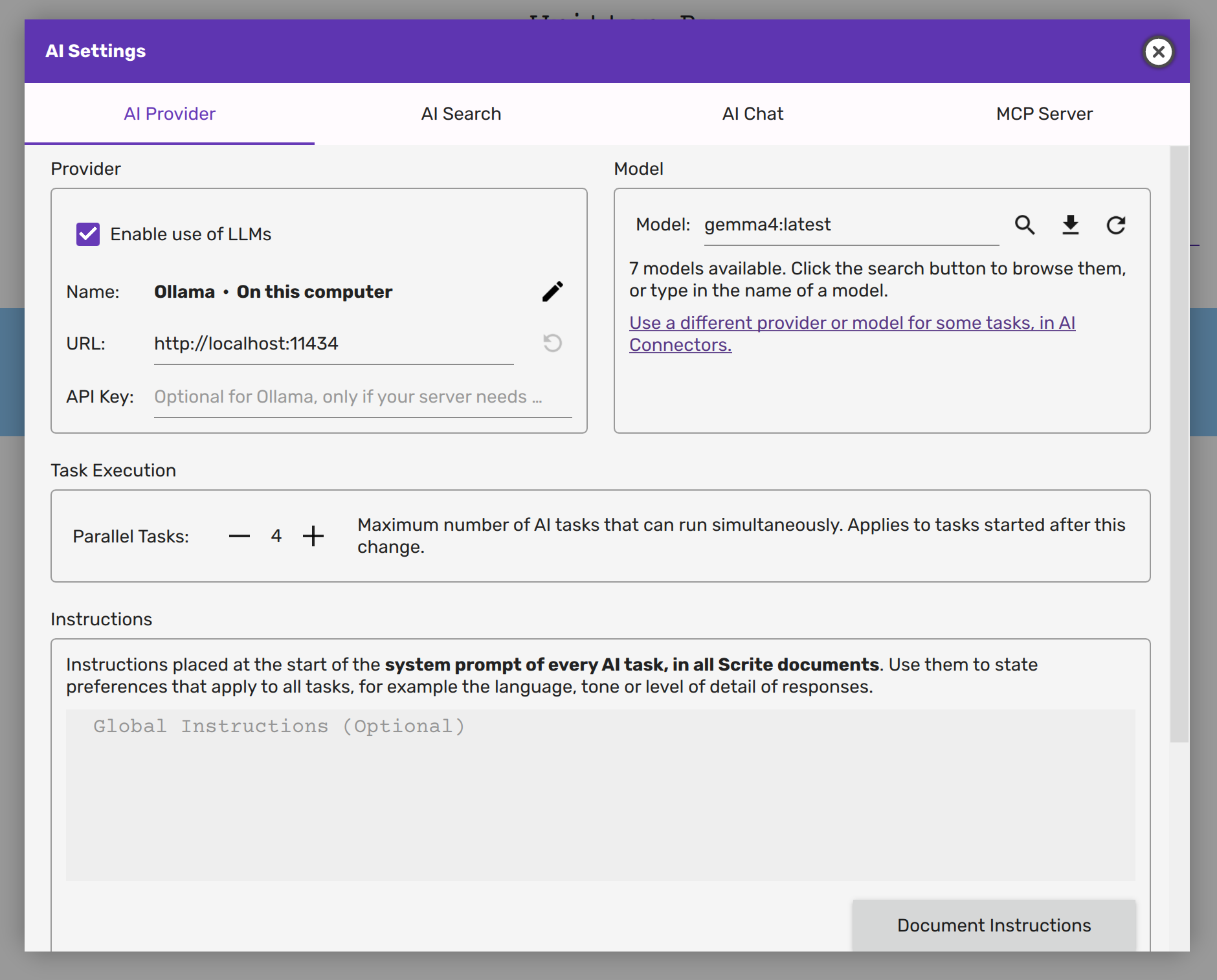
Provider
- Enable use of LLMs — the switch for the whole box. Clear it, and the rest of the box is greyed out and Scrite makes no AI requests.
- Name — the provider that is in use, with On this computer or Online beside it. Click the edit button next to it to choose another. See Choosing a Provider below.
- URL — filled in for you with the provider's usual address. Change it if you run your own server, for example a local Ollama on another machine. The reset button next to it brings the default back.
- API Key — needed for most online providers. The characters are hidden. The field says whether the provider needs one: providers that run on your computer usually don't, and the field says it is optional, for a server of your own that asks for one.
Your API key is kept in your computer's keychain, where the operating system keeps passwords. If your computer has none, the page says so, under the key, and Scrite keeps the key in its settings in an obfuscated form instead. That keeps it from being read at a glance, but it is not strong protection, so don't use a key on such a computer that you can't afford to lose.
Choosing a Provider
Click the edit button next to Name. A window called Choose an AI Provider opens.
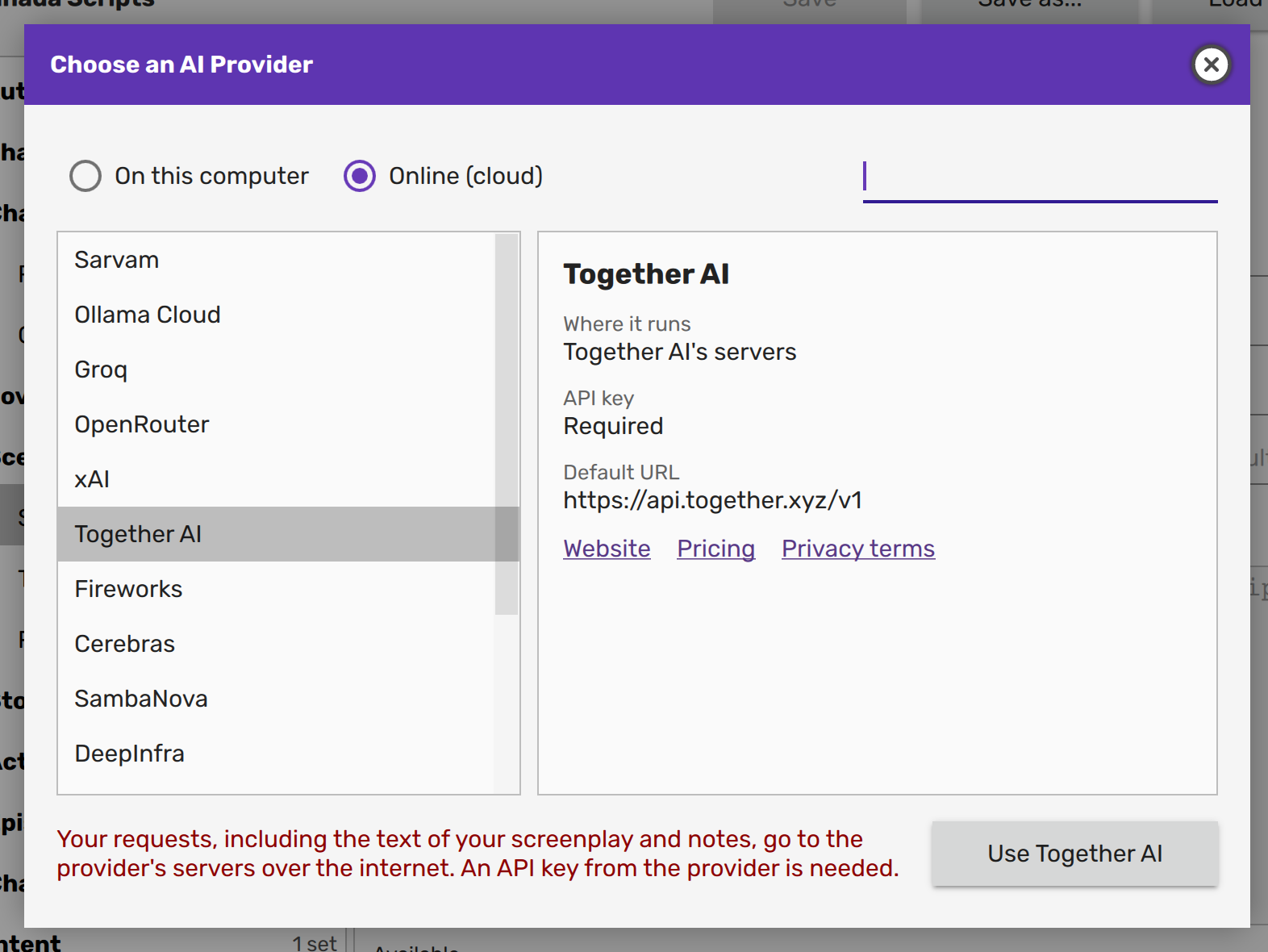
- The first choice is where your screenplay goes. Two buttons at the top, On this computer and Online (cloud), decide which providers are listed. A line at the bottom says what the choice means. For a provider on your computer: Runs on your own computer, so the text of your screenplay stays with you. For an online one, in red: Your requests, including the text of your screenplay and notes, go to the provider's servers over the internet. An API key from the provider is needed.
- Search. Type part of a name, and the list narrows. If the tab you are on has no match, but the other one does, Scrite opens the other.
- Details. Select a provider, and the right side shows where it runs, whether an API key is needed, and its default URL, with links to its Website, its Pricing and its Privacy terms, where Scrite knows them.
- Use it. Click Use and the provider's name, or double-click the provider. The current one is marked (current). Press Esc to leave it as it was.
Choosing a provider fills in its usual URL. You then enter the API Key, if it needs one, and choose a model.
PRIVACY: Scrite only orchestrates requests, and offers no AI model of its own. You choose the provider and the model, and you are responsible for the privacy of your screenplay. If you pick a cloud provider, Scrite sends your screenplay content to it. For absolute privacy, use a local model. See Data Privacy.
To run a model on your own computer, see Setting Up a Local LLM.
NOTE: This page sets the default, which every kind of work uses. If you want a different provider or model for one kind of work, for example Sarvam for translation, or a larger model for reports, use AI Connectors. Whatever you set there is used for that work, and the rest follows this page. A link at the bottom of the Model box opens it. Once some have settings of their own, the link says how many: 3 usecases use their own settings in AI Connectors.
The Providers
These are the providers that you can connect Scrite to. Being on the list does not mean that Scrite has any business relationship with a provider, or recommends it. Scrite gets the list of online providers from its server each time it starts, so it can grow without a new version of Scrite, and a provider here may not be in your list yet, or yours may have more.
Run on your computer. Your screenplay stays with you. None of these needs an API key.
| Provider | What it is |
|---|---|
| Ollama | The easiest way to run models on your computer, with Ollama installed. It can also reach Ollama's cloud models, which run at ollama.com. Cloud models use your Ollama account |
| LlamaCpp | A llama.cpp server on your computer, for those who want more control over how a model runs |
| LM Studio | The models of LM Studio, which has a friendly app for finding, downloading and running them. Turn on its local server |
| vLLM | A vLLM server, for those who have a powerful computer or server of their own and run models at a larger scale |
Run in the cloud. Your text goes over the internet to the company, and you pay for what you use. Each needs an API key from the company's website.
| Provider | What it is |
|---|---|
| Sarvam | Sarvam, an Indian company. Its own models are made for Indian languages, such as Hindi, Kannada, Tamil, Telugu and others, and its Token Factory also offers open models, such as Gemma 4 and gpt-oss. It suggests sarvam-m, sarvam-30b and sarvam-105b |
| Ollama Cloud | The cloud models of ollama.com, without Ollama installed. It needs a paid plan |
| Groq | Open models hosted by Groq |
| OpenRouter | The models of many vendors, through one key, at OpenRouter |
| xAI | The Grok models, from xAI |
| Together AI | Open models hosted by Together AI |
| Fireworks | Open models hosted by Fireworks |
| Cerebras | Open models hosted by Cerebras |
| SambaNova | Open models hosted by SambaNova |
| DeepInfra | Open models hosted by DeepInfra |
| NVIDIA NIM | Models hosted by NVIDIA |
| Moonshot | The Kimi models, from Moonshot |
| OpenAI | The GPT models, from OpenAI |
| Claude | The Claude models, from Anthropic |
| Google AI | The Gemini and Gemma models, from Google |
The Choose an AI Provider window has links to each company's website, its prices and its privacy terms, where Scrite knows them. Scrite also suggests models to start with. Which models it suggests changes quickly, so the table above doesn't list them.
Many of these providers, from Groq to Moonshot, offer an API that works the way OpenAI's does, and Scrite talks to them all in the same way. If a vendor that you want isn't in the list, but offers an OpenAI compatible API, choose OpenAI, then change the URL to the address that the vendor gives, and enter the vendor's own API key. Because the address is not OpenAI's, Scrite shows its red Privacy note with the name of that server, and has no link to its privacy terms, since it doesn't know them. Read them yourself. See Data Privacy.
Ollama and Ollama Cloud are two different providers. Ollama is the one that runs on your computer, and it can also reach Ollama's cloud models, through your Ollama account. Those models run at ollama.com, so when you pick one, your text leaves your computer, and Scrite shows its red Privacy note, even though the provider is the local Ollama. See Data Privacy. Ollama Cloud talks to ollama.com directly, so you don't need Ollama installed, but you need an API key from your Ollama account. See Setting Up a Local LLM.
NOTE: A cloud provider charges for what you use, and receives your screenplay text. See Cost, Speed and Privacy.
Model
Scrite fetches the list of models your provider offers. Choose one. If the list couldn't be fetched, check the URL and API key, and click the refresh button. You can also type in the name of a model. The magnifying glass button opens a table that tells you about each model. To read it, see Choosing the Right Model.
TIP: Summaries and profiles need a model that follows instructions well and returns structured answers. Larger models give better results. Some workflows can also let the AI look things up in your screenplay using tools. That needs a model that supports tool calls, and is mentioned wherever it matters.
TIP: If you want to use a local model through Ollama, we recommend
gemma4:latestor better. Scrite can download it for you. See Downloading Models, and Setting Up a Local LLM.
Downloading Models
A model that runs on your computer has to be there before you can use it. With Ollama or
LlamaCpp, Scrite can fetch it for you, from inside the app. You don't need a terminal, and you
don't need to type ollama pull. A cloud provider has nothing to download, since its models are on its
own servers. Downloading a model does not involve your screenplay.
Models are big, often several gigabytes, so a download can take a while, and the model needs room on your disk and in your computer's memory. See How Much Memory Is Enough? before you choose one.
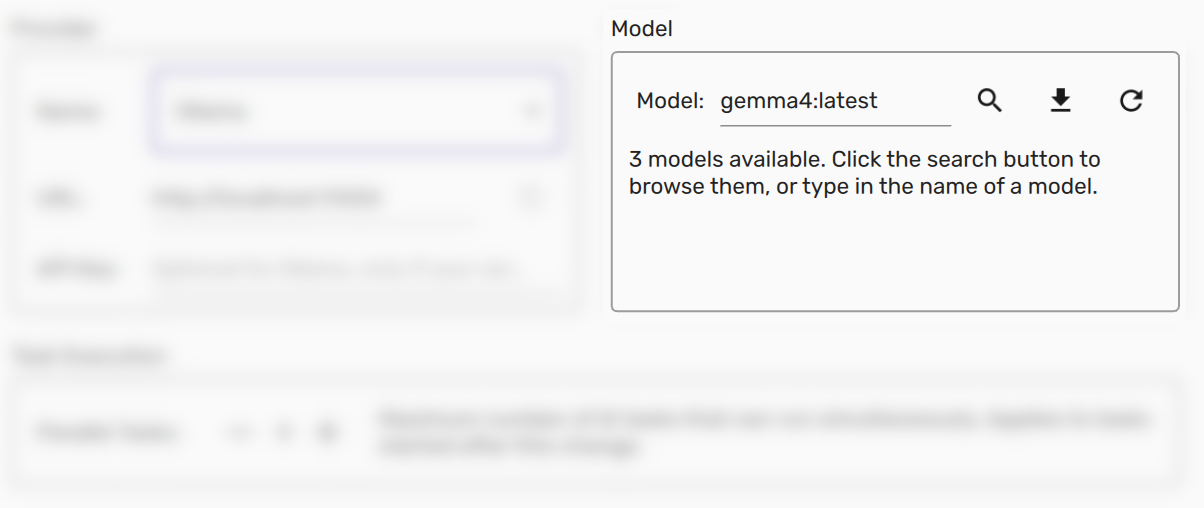
To download a model
- On the AI Provider page, choose Ollama or LlamaCpp as the provider. These are the only two that can download models, so they are the only two that show the download button.
- Click the download arrow next to Model. Its tooltip says Check that Ollama is running, and download models to it. A window titled Set Up Ollama, or Set Up LlamaCpp, opens.
- Work through the three parts of the window, from the top.
1. The server. Scrite first looks for the server at the URL of the page, and says whether it is running, and which version. If it isn't, the window says so, with a Check Again button and a link to the page where you download and install it.
- Ollama has to be started. Once it has, it runs in the background. Download it from ollama.com/download.
- llama.cpp has to run its
llama-serverin router mode, which means without a model of its own, and Scrite has to be looking for it at the URL of the page. Only a server in router mode can download models. Download it from the llama.cpp releases.
2. Models you already have. Once the server is found, the window lists the models that it already has, up to five by name, and counts the rest. It says None yet when there are none.
3. Download a model. Type the name of the model, and click Download, or press Enter. Below the field there are Suggestions. Click one to fill the field in.
- For Ollama, it is a name from the Ollama library, such as
gemma3:4b. Browse the Ollama library opens the library in your browser, where you can look for another. - For llama.cpp, it is a Hugging Face repository and a quantization, such as
ggml-org/gemma-3-270m-it-GGUF:Q8_0. The server keeps the files in its own cache. Browse GGUF models on Hugging Face opens the page where you can look for one. Not sure what quantization means? See Choosing the Right Model.
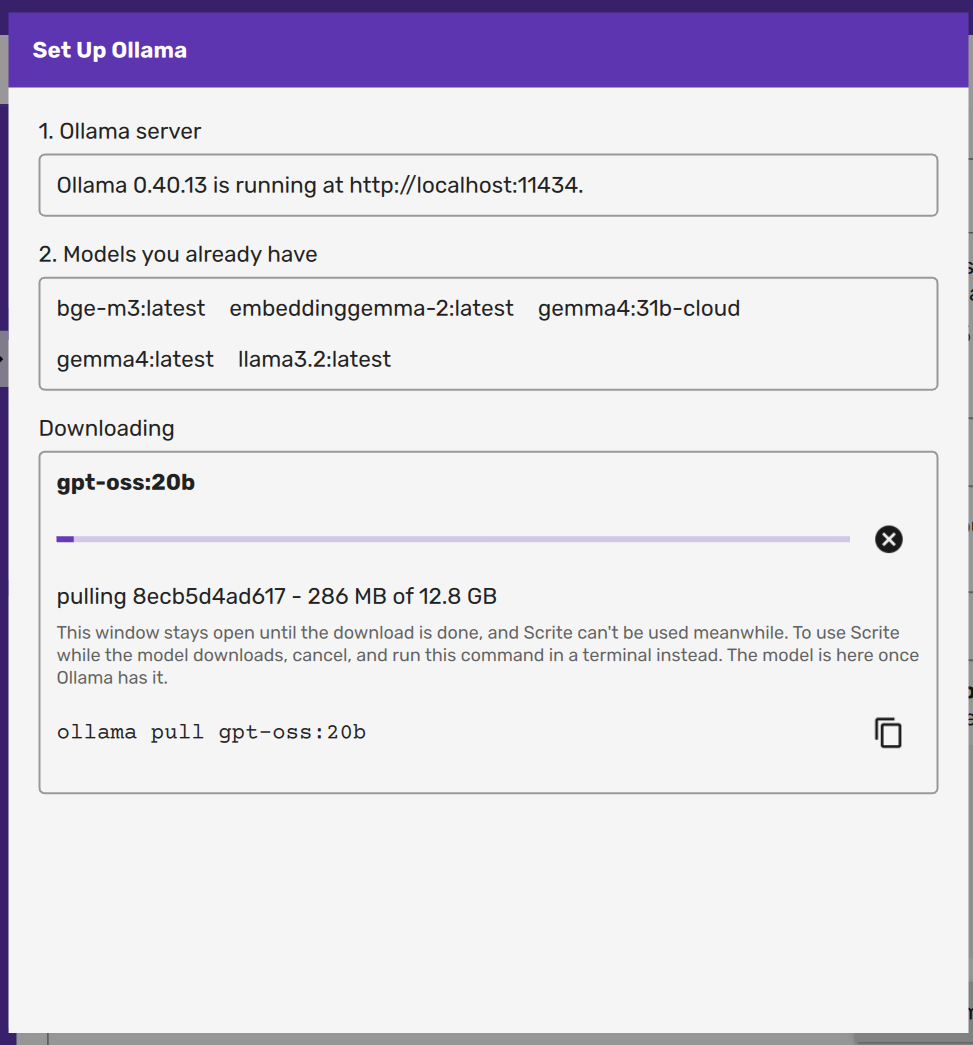
While it downloads, a progress bar shows how far along it is, with the status, and how much has come in of the whole, such as 1.2 GB of 4.8 GB. The bar moves back and forth until the server says how much there is. The cross next to the bar cancels the download.
The window stays open until the download is done, and you can't use Scrite while it is open. If you need Scrite in the meantime:
- With Ollama, cancel the download, and run the command that the window shows in a terminal. The copy button next to it copies the command. Ollama picks up from where it left off, so nothing that came in is lost.
- With llama.cpp, the server can't be asked to stop a download. If you cancel, it carries on without the window, and the model is there when it is done.
When it is done, the window says The model is ready to use. Use This Model chooses it as your model on the AI Provider page, and closes the window. Dismiss leaves your model as it was. The AI Provider page also says how a download is going, for as long as there is one, with a Cancel link.
If the model list is empty when you open the page, and Scrite can't find the server, the page says so, and has a link to download it, so you can start there.
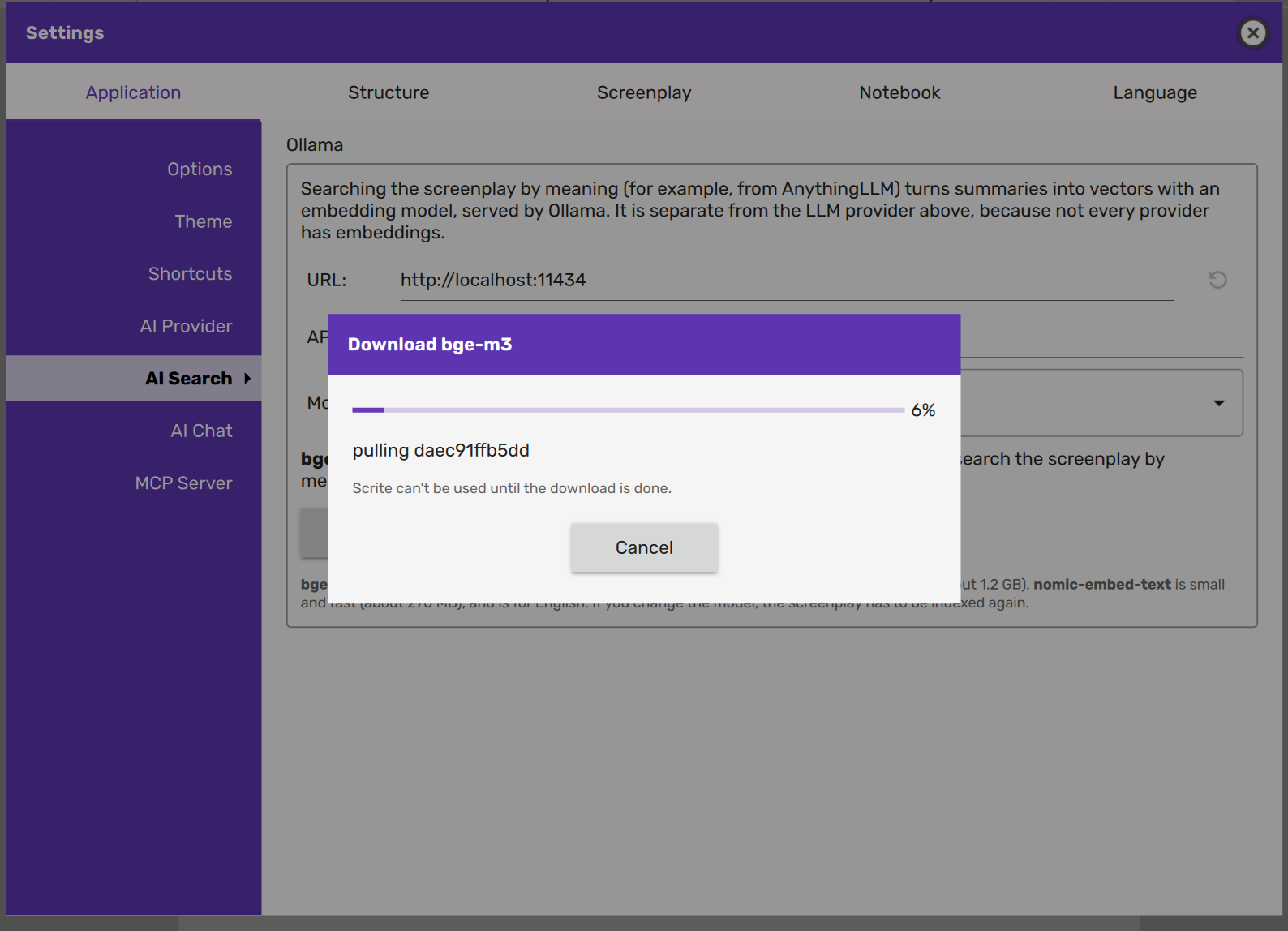
Downloading an embedding model for search. Searching by meaning uses an embedding model of its own, which is set up on the AI Search page, and is served by Ollama. The page does the download too. When the server is running, and the model that it wants isn't there, there is a Download button with its name on it. A small window shows a progress bar, with the percentage, and closes by itself when the model is in. A Test button then checks that it works. Scrite recommends bge-m3, which understands many languages, including Indian ones, but is large, at about 1.2 GB. nomic-embed-text is small and fast, at about 270 MB, and is for English. If you change the model, the screenplay has to be indexed again. Scrite can't be used until the download is done. See Search Scenes by Meaning.
Task Execution
Parallel Tasks sets how many AI tasks may run at the same time (1 to 6). A higher number finishes big jobs sooner, but may hit rate limits on cloud providers, or slow down a local model. You can override this for each job when you start it.
Instructions
The Instructions box lets you write preferences that go into every AI task, in every Scrite document — for example, the language, tone or level of detail you want. Keep these short. They are limited to 80 words and 512 letters, and Scrite shows a live count of words, letters and tokens, and warns you when you reach the limit. The Document Instructions button below the box opens the instructions of the document that is open. For instructions about one particular story, use Document Instructions. To give instructions to only one kind of work, such as Respond in Kannada script for scene summaries, set them in AI Connectors.
Usage Statistics
Share prompt usage statistics is on by default. It sends Scrite's team numbers about how much AI you use, such as tokens and sizes, and never any text from your screenplay. Clear the checkbox if you would rather not. See Usage Statistics for exactly what is sent, and for your own copy of the numbers, which stays on your computer.
Other Pages of the Settings
Three more pages are next to AI Provider.
- AI Chat is how AI Chat behaves by default: what the model may do with your screenplay, how long it may take, and when a chat is compacted. You can leave it as it is. Each chat can also have settings of its own. See Chat Settings.
The other two are optional. The workflows in this guide don't need either of them.
- AI Search lets Scrite find scenes by what they are about, not by the words they use. It needs an embedding model, which Scrite uses through Ollama, and can download for you. See Downloading Models, and Search Scenes by Meaning to set it up.
- MCP Server lets chat apps such as Claude Desktop and AnythingLLM read the screenplay that is open in Scrite, and propose edits to it. It is off by default. The plug button in the toolbar shows whether it is on. See Chat Apps MCP. It is not needed for AI Chat, which is inside Scrite.
Where to Go Next
- AI Connectors: a different provider or model for each kind of work.
- Setting Up a Local LLM: run a model on your own computer.
- Document Instructions: tell the AI about your story.
- AI Chat: the settings of your chats.
- Search Scenes by Meaning: set up AI Search.
- Chat Apps MCP: turn the MCP server on.
- Troubleshooting: fix an empty model list.