Scene Analysis
Scene analysis is where the AI's understanding of your story begins. The AI reads each scene, and analyzes it by summarizing it: what happens, the events that matter, and the mood. The result is a scene summary, written as a note in the scene.
Scene summaries are the foundation of the other workflows. Story analysis, character profiles, story structure and AI reports are all built from them, rather than from raw screenplay text. They are also useful by themselves as index card text and synopses.
What Is Generated
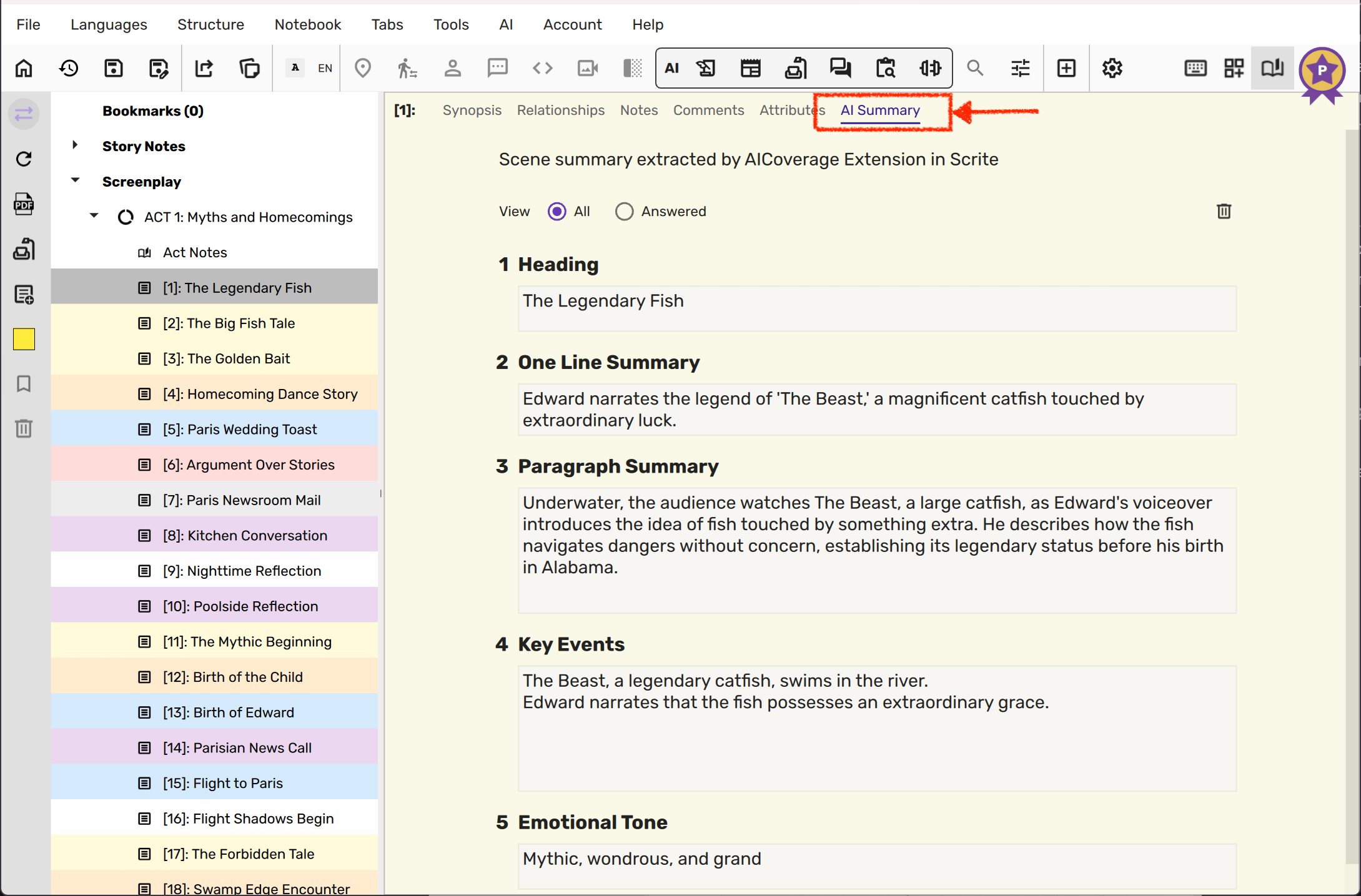
For each scene, Scrite writes an AI Summary note in that scene's notes, with these fields.
| Field | Description |
|---|---|
| Heading | A 2-3 word title for the scene's index card. |
| One Line Summary | A single sentence summary. |
| Paragraph Summary | Two or three sentences on what happens. |
| Key Events | The main story events, one per line. |
| Emotional Tone | A short phrase for the prevailing mood. |
Scrite also uses these to fill in the scene's synopsis, and the title and fields of its index card on the Structure canvas.
Your Index Card Fields
If you have set up your own index card fields, the AI fills them out as it summarizes each scene, from what it reads in the scene. Give a field a name that says what you want in it, such as Conflict or What Changes, and it knows. Without fields of your own, it fills out only one, Emotional Tone. See Index Card Fields in the Scrite User Guide to find out how to set up fields of your own. You can have up to five.
TIP: The summary is a note like any other, so you are free to export it. Use the note's toolbar to export it as a PDF, or download it as an ODT to open in a word processor.
Generating Summaries
Click Scene Summary in the AI group of the toolbar, which is there when scenes are selected or the cursor is in a scene, or choose AI → AI Analysis → Scene Summary. You can also right-click a scene in the screenplay editor or scene list and pick AI Scene Summary.
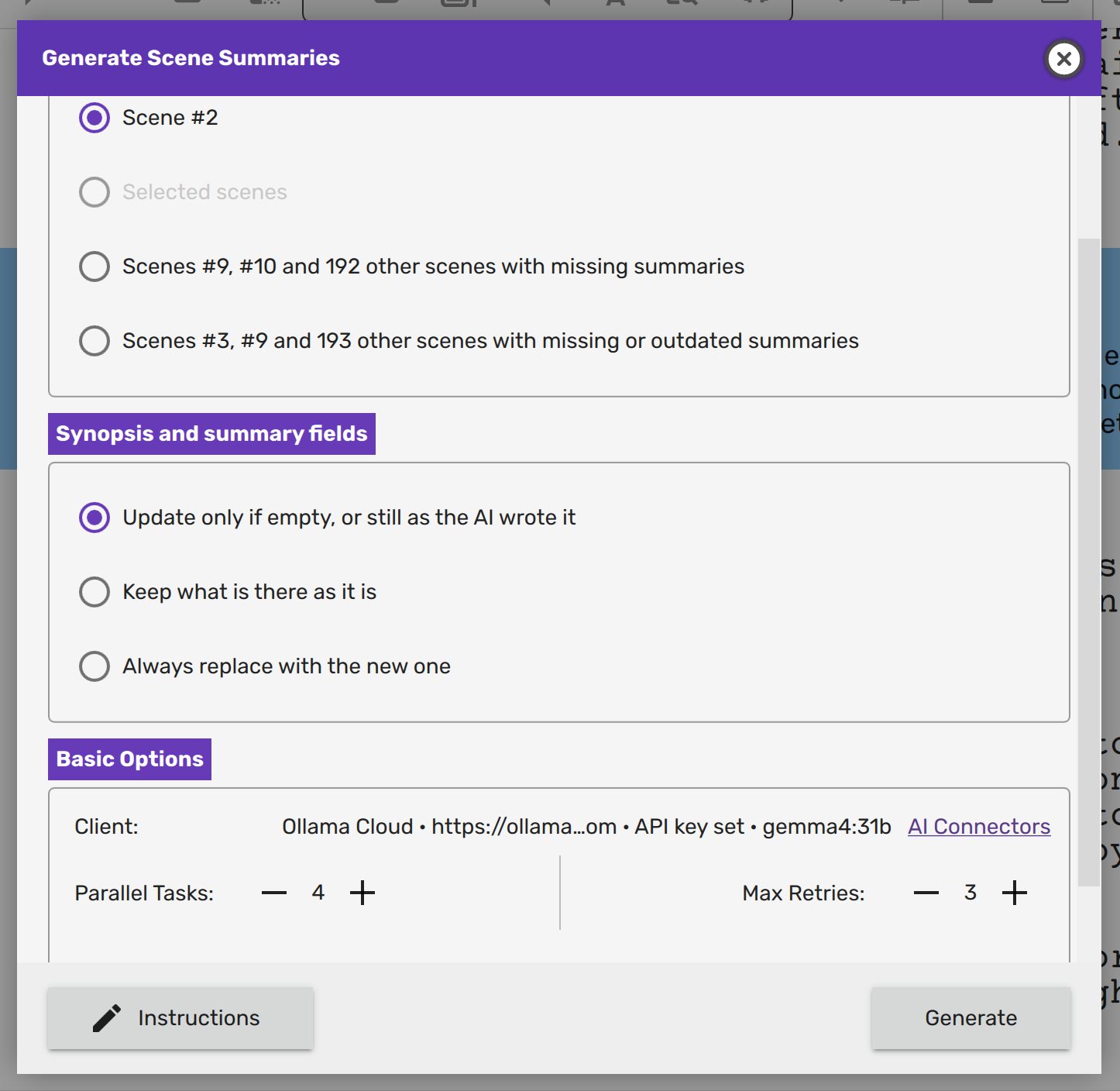
Choose which scenes to summarize.
| Choice | Meaning |
|---|---|
| All scenes | Every scene in the screenplay. Omitted and empty scenes are skipped. |
| Current scene | The scene you are working on. |
| Selected scenes | Scenes you selected in the scene list panel. |
| Scenes with missing summaries | Only scenes that don't have a complete summary yet. Handy after you write new scenes. |
Scrite pre-selects a sensible choice: selected scenes if you have any, all scenes the first time, the current scene afterwards.
Synopsis and Summary Fields
The AI Summary note is always written. What a summary does to the scene's synopsis and to the title of its index card is up to you, with Synopsis and summary fields in the dialog.
| Choice | What happens |
|---|---|
| Update only if empty, or still as the AI wrote it | The default. The synopsis is written if it is empty, or is still what the AI wrote last time. The index card title is written if the scene has no title of its own, or has the one the AI gave it. A synopsis or a title that you wrote or changed is kept. |
| Keep what is there as it is | The synopsis and the title are never written, even if they are empty. Only the AI Summary note is. |
| Always replace with the new one | The synopsis and the title are always written. |
The same choice is in the dialogs of story, act and episode summaries and character summaries, where it applies to the summaries and subtitles of acts and episodes, and to the summary of a character.
NOTE: Scrite keeps a record of what the AI wrote. A synopsis, summary or title that has no such record is taken to be yours, and the default keeps it. To let the AI update one, run once with Always replace with the new one. After that, the default can keep it up to date.
Review the common options, then click Generate. A progress window shows the tasks. Depending on your model, a feature-length screenplay can take several minutes.
Summarizing from the Notebook
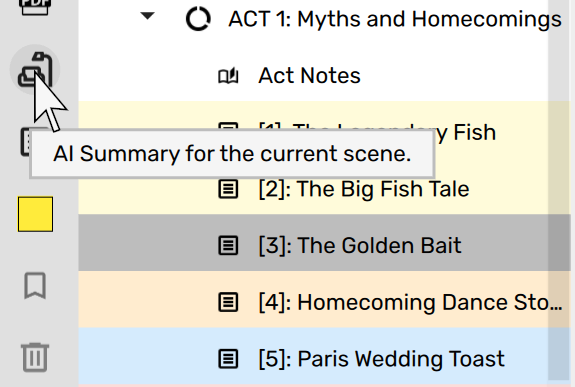
When a scene is open in the Notebook, an AI Summary for the current scene action is available there. Use it to refresh a single scene.
Keeping Scene Summaries Current
Scrite does not notice when you edit a scene after its summary was generated. The summary stays as it is until you regenerate it, and so do the summaries that depend on it, such as AI reports and story, act and episode summaries. Scenes that you add are the only ones Scrite can tell need a summary, because their summary is missing.
Why Summaries Are Not Updated Automatically
This is deliberate. At Scrite, we think of AI as an enabler that helps the writer build their story. We do not want to build AI features that second-guess you, or take away your sense of agency and control. You decide when the AI works on your screenplay.
There is a practical reason too. Generating a summary calls the AI, and that uses tokens, which can cost money on a cloud provider and time on a local one. Scrite does not assume your consent to spend them. It generates summaries only when you ask.
The search index is different. It is built on your own computer, so it uses no tokens and sends nothing anywhere. That is why Scrite is free to keep it up to date by itself.
Manual updates also give you much better control over when summaries are updated. Updating a summary on every keystroke would be wasteful, and so would doing it halfway through a scene. The best time is usually once you have finished updating a scene, and you are the one who knows when that is.
Updating Summaries
So every now and then, please regenerate the summaries of scenes you have changed. There are three quick ways.
- Assign a keyboard shortcut to Scene Summary. This is usually the best idea. Give the action a shortcut of your choice, like any other action in Scrite. After you edit a scene, press the shortcut, and Current scene is ready to generate. Press Generate.
- Select several scenes and use the right-click menu. Select a bunch of scenes in the scene list panel or the timeline view, right-click, and choose AI Scene Summary. The dialog opens with Selected scenes chosen, to regenerate summaries for just that set.
- Use the Notebook. Open the scene's page and use AI Summary for the current scene, as described above.
Once the scene summaries are up to date, run Story Summary to refresh the story, act and episode summaries that depend on them.
How Scene Summaries Are Used
Scene summaries are not only for you to read. Scrite automatically sends the relevant ones to the AI when it does more advanced work:
- AI Reports are written from summaries, and the AI reads full scene text only for the scenes it needs.
- Scene translation uses a scene's summary to understand the context of the dialogue it translates.
- Conversations with a character in AI Chat, or in a chat app, use the summaries of the scenes the character has been in.
Without summaries, Scrite may not be able to do these tasks well from the scene text alone. A long screenplay is too big to send in full, and a model gets lost in it. So generate scene summaries before you use AI reports, scene translation or conversations with a character.
Review and Correct Your Summaries
Read the summaries the AI writes, and correct them where they are wrong. They are normal form notes, so you edit them like any other note. This matters more than it seems. Everything built on scene summaries, such as the story, act and episode summaries, character profiles, reports and your chats, reads them, so a correction guides every analysis that comes after it. The more you correct, the better the AI's inferences about your screenplay get over time.
CAUTION: Whenever the AI is asked to regenerate a summary, it replaces the AI Summary note, and your edits to it. The synopsis and index card title follow the choice you make in the dialog. If you have corrected a note and want to keep it, don't regenerate that scene.
Editing and Regenerating
- If you edit the AI Summary note and want to keep your version, don't regenerate that scene.
- Choosing Current scene or Selected scenes will regenerate those scenes' summaries, replacing what the AI wrote before. Your own synopsis and index card title are kept, unless you chose to always replace them.
- To start over for the entire document, use Clear Summaries.
Tips
- Fill in Document Instructions first.
- Re-run Scenes with missing summaries after adding scenes. For scenes you rewrote, use Current scene or Selected scenes, to have summaries keep up pace with your changes. See Keeping Scene Summaries Current. Story Summary does a much better job when summaries are up to date.
- You don't need to run this first. When another workflow needs scene summaries and finds some missing, it generates them for you.
Where to Go Next
- Story Analysis: build the story, act and episode summaries on top of these.
- Character Analysis: profile your characters from the scenes.
- Search Scenes by Meaning: find a scene by describing it.
- AI Chat: ask about a scene, and have the AI read its summary.
- Maintenance: start over, when you need to.