Data Privacy
Your screenplay is probably the most valuable thing you own, so it deserves a straight answer to a simple question: when I use AI in Scrite, where does my writing go?
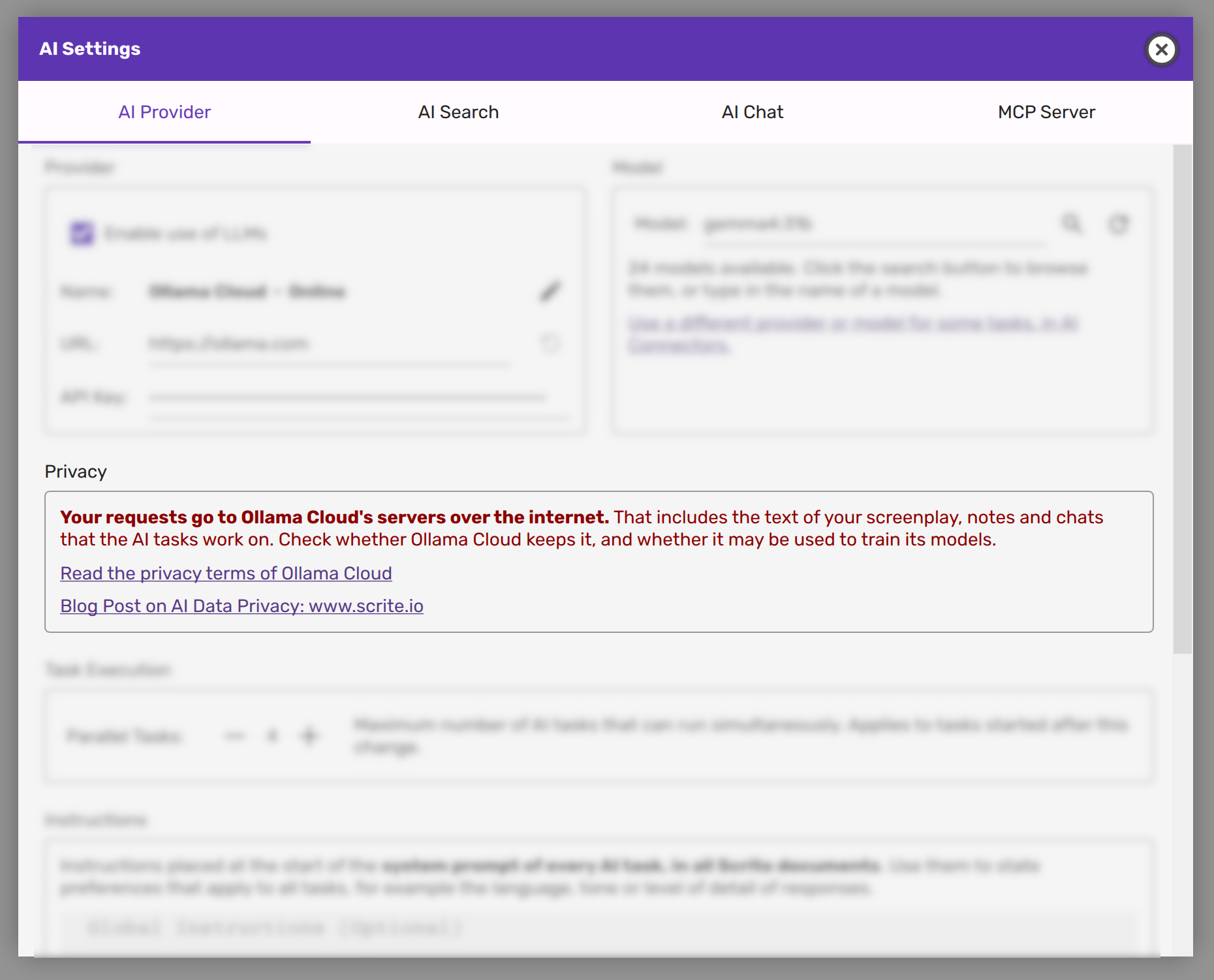
This chapter gives you that answer, and the knowledge to choose where your work goes. It is written for writers who are meeting AI for the first time. You don't need to be technical to follow it.
In one sentence: Scrite does not run an AI of its own. You pick where the AI lives, and that choice decides who sees your words. Scrite is the bridge between your screenplay and that AI. You choose where the bridge leads.
Two Places an AI Can Live
Every AI model runs on a computer somewhere. Whose computer it is makes all the difference.
Local AI: The "Fort Knox" Option
A local model runs on your own computer. When Scrite asks it something, the question goes from Scrite to the model inside the same machine, and the answer comes back the same way. Your screenplay never leaves your hardware. The data stays on your disk. It is a closed loop, and it is as close to total data sovereignty as you can get.
- Best for writers who want absolute privacy: unreleased scripts, work under an NDA, or anything you wouldn't hand to a stranger.
- The price is hardware. Local models need a capable computer, and as a rough guide, 16 GB or more of GPU memory. How fast the AI answers, and how good its answers are, depend entirely on your hardware. See How Much Memory Is Enough?.
- In Scrite, local models run through Ollama, llama.cpp, LM Studio or vLLM, free programs that you install on your computer. Ollama is the easiest to start with, and is the one that this guide sets up.
Cloud AI: The "Powerhouse" Option
A cloud model runs on a company's computers, and you reach it over the internet. Companies such as OpenAI, Anthropic and Google run very large models that no home computer can match, and many writers prefer them for their speed and their reasoning.
To write a summary, a report or a chat reply, Scrite must send the relevant parts of your script to the provider's servers. There is no other way for the model to read it.
Once your text reaches the provider, it is handled under their terms of service and privacy policy, not Scrite's. That matters, because providers differ:
- Some keep what you send, for a while, as a history.
- Some may use it to train future models.
- Some promise to do neither.
Scrite sends your text straight from your computer to the provider you chose. It does not pass through Scrite's servers.
You can always check what was shared. Scrite keeps a record of every call, until you clear it. The log is per document. A call is recorded only in the document that it was made for, and not in Scrite as a whole. Open another document, and you see that document's log, and not this one's.
- The Call Log has every request that Scrite sent to the AI, and the response that came back. For each call you can read the instructions and the screenplay text that went out, the settings of the model, and the tools that the AI used to ask for more. When the model needs more than it was given to finish a task, such as another scene, a note or a character, it asks, and Scrite furnishes it. Every such request, with what Scrite answered, is there too.
- The MCP Call Log has the same for chat apps that you connect. It shows what each app asked of Scrite, what it read, and what it asked to change.
So you can inspect and audit what left your computer, and why, whenever you like.
PER DOCUMENT: Both logs belong to the document, not to the app or to you. Each document has its own Call Log and its own MCP Call Log, and they stay with that document. What you did in one document is not in another's. Exporting or clearing a log acts on the document that is open, and on that one only. To audit everything you have shared, open each document in turn.
Because the logs are saved inside the document, and contain the text that was sent, they also travel with the file if you share it. Clear them first if you don't want that.
NOTE: Ollama Cloud models are cloud models. Ollama is an app that runs on your computer, but some of the models it lists, those marked
cloud, run on Ollama's servers. Using one sends your text away, just like any other cloud provider. Only models markedthis machinestay with you.
A Familiar Trade-off
If you have ever pasted a scene into a chat app or a website such as Claude, ChatGPT or Gemini, you have already made this trade-off. Using a cloud provider from inside Scrite is the same exchange, tidied into your writing environment so that you don't have to copy and paste.
There is a benefit that a chat app on the web can't give you. With Scrite, what the AI works out about your story lives in your document. The summaries, the analysis of your scenes, acts and characters, the reports and notes, and your chats, are saved in the document, as ordinary notes, and not in a provider's chat history. They are yours, and they go wherever the document goes.
That changes what it costs to switch. In a chat app, when you move to another provider, or start a new conversation, the new one knows nothing of your story, and you have to paste in the background again. In Scrite, you change the provider in the settings, and carry on. Scrite brings the context from the document to the new model, so there is nothing to copy, and nothing to paste. In a way, your context has no expiry. It doesn't run out when a conversation gets too long, or when a provider forgets it, and it isn't tied to the provider that helped you build it. See AI Chat for how chats are kept, and Settings for how to change a provider.
How to Tell Where Your Text Is Going
You shouldn't have to guess. Scrite tells you in two places.
The Pick Model table. Under the name of each model, a small line says this machine or cloud.
See Choosing the Right Model.
The AI Provider page. Whenever your requests leave your computer, the AI Provider page shows a Privacy note in red, as in the picture at the top of this chapter. It names the server that will receive your requests, tells you that this includes the text of your screenplay, notes and chats that the AI works on, and reminds you to check whether that server keeps the data or uses it for training. It also has a link to the provider's own privacy terms, when Scrite knows them.
When you pick a provider that runs on your computer, the note is gone.
AI Connectors. The AI Provider page chooses the default provider for everything. With AI Connectors, you can choose a provider for one kind of work, such as translation, and that kind of work sends its text there, whatever the default is. So you can keep a script on your computer, and let one usecase use the cloud, or the other way round. AI Connectors shows the same red note, for each kind of work that has a provider of its own that is not on your computer. The AI Provider page tells you how many kinds of work use their own settings, with a link, so that you remember to look. A kind of work that is not completely set up runs on the default provider, and never on a half-set-up one. The Call Log says which provider each call used, and whether it ran on your computer or in the cloud.
If you point Scrite at a server on another computer, even one on your own network, Scrite treats it as "not this computer" and shows the note, because it can't know who else can see that machine.
Read the Provider's Policy
Scrite does not manage the internal policies of any provider, and it cannot guarantee their terms. What happens to your text after it reaches them is theirs to decide. So read their privacy policy before you send anything you care about. A few starting points, as examples:
- Ollama (including Ollama Cloud models): ollama.com/privacy
- Groq: console.groq.com/docs/your-data
- OpenRouter: openrouter.ai/privacy
If you use a different provider, look for the words privacy, data retention and training in its documentation. Two questions matter most:
- Is my text stored, and for how long?
- Can it be used to train models?
A cloud provider may say yes or no to either, and a paid plan often has different terms from a free one.
TIP: If you are wary of your writing being used for training, look for providers that say they don't keep it, and that don't train on it. Several do. When in doubt, use a local model for the scripts that matter most, and a cloud model for the rest.
Independence
Scrite has no business arrangements, affiliations or official partnerships with any of the AI providers named in this guide. We receive no commission and no sponsorship from them. The names are examples, nothing more. Scrite provides the plumbing, and you choose the provider.
The AI as a Collaborator, and You as the Editor
Privacy is about who sees your words. The other side of the coin is who is responsible for the words that come back.
Scrite does not write the AI's answers. The model does. A language model is probabilistic, not deterministic. That means it doesn't look up a fixed answer. It picks its words by weighing likelihoods, so you can ask the same question twice and get two different replies. And the model is a black box owned by its provider. Nobody at Scrite can see inside it, or control the words it chooses.
So expect that now and then a reply may contain:
- a factual error about your plot,
- an unexpected tone, or
- the occasional piece of profanity.
Think of the AI as a highly imaginative, but sometimes erratic, writing assistant. It is quick, and it never gets tired, but it needs an editor. You are the final editor. Read what it gives you before you rely on it. This is also why changes the AI proposes to your screenplay always wait for your approval. See Approving Changes.
Settings That Keep the AI Steady
Two numbers decide how adventurous a model is with its words.
- Temperature is how much the model is willing to vary. Low is cautious and predictable. High is more daring, and more likely to wander.
- Top P is how wide a net the model casts when picking each word. Low means it sticks to the most likely choices.
For tasks such as summaries, analyses and reports, Scrite sets Temperature to 0.2 and Top P to 0.95, to favour stability and focus. This sharply reduces what are called hallucinations, which are things the model makes up and states as fact. It does not remove them. These are the values that tasks use. You can replace them for a kind of work, with Temperature, Top P and Top K in AI Connectors. Leave them empty, unless you know what they do.
In AI Chat, you can change them. Open the chat settings and use Temperature and Top P. Left empty, the chat uses what you set for chat replies in AI Connectors, or else the provider's own defaults. See Chat Settings. Raise Temperature for brainstorming, and leave it alone when you want accuracy.
Letting Other Apps In: The MCP Server
Scrite can also let a chat app that you already use, such as Claude Desktop or AnythingLLM, read the screenplay that is open in Scrite. It does this through something called an MCP server, which is a doorway that lets a compatible third-party app in. It is explained in Chat Apps MCP.
Three protections come with it.
- A kill switch. The server is optional and off by default. You choose when to turn it on and when to turn it off. The plug button in the toolbar shows whether it is on. See Turning the Server On.
- Your explicit approval. Scrite never lets an outside app change your script without your permission. Every change an app proposes waits for you to approve or decline it. See Approving Changes.
- Full transparency. Scrite keeps detailed logs of token usage and of every single MCP call. See the Call Log.
Remember that once you connect a third-party app, what that app does with the text it reads is governed by that app's own terms, and not by Scrite's.
Web Search Sends Queries to Brave
If you let AI Chat search the web, the words of each search go to Brave Search, which is a third party. The AI is told never to put your screenplay, or anything unpublished, in a search, but it is the AI that writes the search. Leave Ask me before each search on, so that you see each one before it is sent, and can change it. Your Brave key, and its plan, are between you and Brave.
Usage Statistics Are Numbers, Not Text
Separately from your requests to an AI provider, Scrite can send its own team a small report of numbers about how much AI you used: tokens, sizes and timings. It never contains your screenplay or anything the AI said, and you can turn it off. See Usage Statistics.
A Note on Costs and Subscriptions
Cloud providers charge for what you use, and local models are free to run, apart from the electricity and the computer. A few things are good to know.
- Many providers have a free tier, with limits. An API call cap limits how many times you may ask the AI for help in a period. A token speed threshold limits how fast the model may work for you, which can slow down longer reports. (A token is a small piece of text. See Choosing the Right Model.)
- If you outgrow the free tier, you buy a paid plan directly from your chosen provider.
- These subscriptions are entirely separate from Scrite. Scrite does not sell AI, and does not take a cut.
- The Call Log shows the tokens used by every call, which helps you keep an eye on what a provider may bill you.
Making the Right Choice for Your Workflow
There is no single right answer. Here is a way to think about it.
| If this is you | Consider |
|---|---|
| The script is unreleased, under NDA, or simply private | A local model. Nothing leaves your computer. |
| Your computer is modest, and you can't run a large model | A cloud model, after reading the provider's privacy policy. |
| You want the best quality and speed, and privacy is less of a worry | A cloud model. |
| You want a mix | Use local for sensitive scripts and cloud for the others. Switching provider takes a minute. See Settings. Or, within one script, give each kind of work its own provider, with AI Connectors. |
Before you press Run on anything, ask yourself:
- [ ] Do I know whether this model runs on my computer, or on someone else's?
- [ ] If someone else's, have I read how they treat my text?
- [ ] Am I comfortable with that for this script?
- [ ] Will I read what comes back, and edit it, before I rely on it?
Your Work, Your Choice
Scrite does not control the data policies of the cloud providers, and no tool can promise what a company does with data after it has left your computer. What we can do is give you the options, tell you plainly what each one means, and let you choose the boundary.
Your story is yours. We provide the bridge, and you choose where it leads.
Questions?
If something here is unclear, or you want to know more about how Scrite handles your data, write to support@scrite.io. Scrite's own policies are at scrite.io/privacy-policy.
Where to Go Next
- Setting Up a Local LLM: keep everything on your computer.
- Choosing the Right Model: understand the Pick Model table, including which
models are
cloudand which arethis machine. - Settings: change your provider.
- Chat Apps MCP: the MCP server, and what a chat app can read.
- Call Log: see exactly what was sent and how much it used.
- Usage Statistics: the numbers Scrite counts, and how to turn that off.